1Password is the better pick for a polished daily experience, while Proton Pass stands out for privacy and a permanent free plan. Choosing between these password managers matters if you want a service that feels easy every day and protects your online accounts.
This practical comparison is for U.S. users weighing two services with different strengths. It covers usability, free access, privacy tools, and household needs, so you can match the trade-offs to your own routine.
The right choice is the one whose trade-offs match the way you actually use and protect your accounts.
Key Takeaways
- Choose 1Password for a polished daily experience and deeper organization.
- Choose Proton Pass for its permanent free plan and privacy-focused tools.
- 1Password includes Travel Mode; Proton Pass does not.
- Proton Pass Family supports up to six users.
- Consider Bitwarden if self-hosting or low paid cost matters most.
1Password vs Proton Pass: Which One Fits Your Needs?
A reader who needs a free plan should start with Proton Pass, while someone paying for convenience should give 1Password a close look. The main difference is free access and privacy tools versus a more polished interface and travel protection.
Use the free-plan difference as your first filter. “Proton Pass vs 1Password in 2026” comes down to privacy and free access on one side, and polish and travel-specific protection on the other.
| Attribute | Proton Pass | 1Password | Best fit |
|---|---|---|---|
| Free access | $0.00 per month | 14-day trial, no free tier | Proton Pass |
| Everyday feel | Minimalist interface | Polished, more organization options | 1Password |
| Privacy features | Open-source client, native email aliases | Proprietary software, Secret Key | Depends on priority |
| Travel protection | No Travel Mode | Temporarily removes selected vaults | 1Password for travel |
Start with the free-plan difference, then choose based on the workflow features you will use.
Proton Pass works well for someone who wants to store passwords without taking on a monthly bill. Its simple layout may also suit people who prefer fewer menus.
1Password is a strong fit if you value a refined daily user experience, extra organization choices, or temporary vault removal while traveling. Its paid entry point may feel worthwhile when those tools solve a real need.
The privacy comparison also depends on what matters to you: inspectable code, email aliases, or an extra account-protection code. The table shows where each service has a clear edge, but your habits decide which edge counts.
Use the free-plan difference as the first filter, then weigh the workflow features that matter to you.
How Much Do 1Password and Proton Pass Cost?
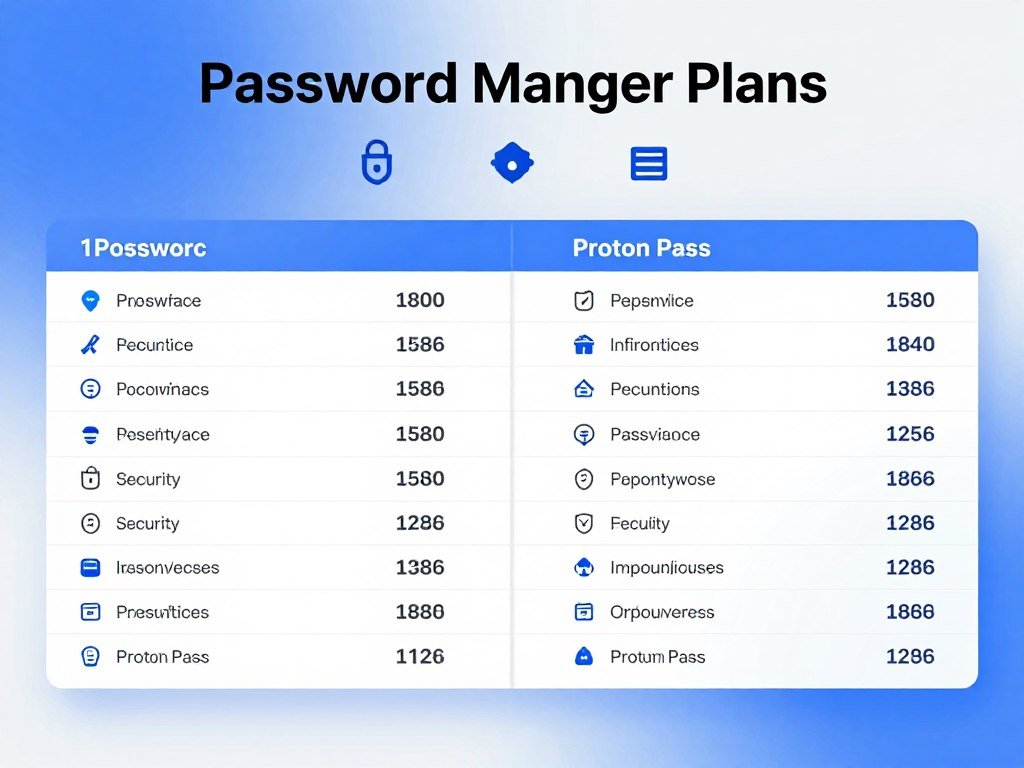
At the listed annual-billing rates, Proton Pass Plus costs $35.88 a year and 1Password Individual costs $47.88 a year. The annual totals show that 1Password costs $11.99 more per year than Pass Plus.
Compare full billing terms, not just monthly-looking amounts. The 1Password vs Proton Pass cost question is clearest when you compare what each service charges across a full year.
Individual plans and annual billing
Pass Plus is the paid individual plan for Proton Pass. Its annual-billing rate is $2.99 per month, charged as $35.88 every 12 months.
1Password Individual costs $3.99 per month with annual billing, or $47.88 per year. It is a paid service, with a 14-day trial rather than a permanent free tier.
| Plan | Annual-billing monthly equivalent | Annual total | What to notice |
|---|---|---|---|
| Pass Plus | $2.99 | $35.88 | Paid aliases and other upgrades |
| 1Password Individual | $3.99 | $47.88 | Paid service, no permanent free tier |
| Proton Unlimited | $9.99 | $119.88 | Bundles Proton services |
The table’s monthly figures describe annual billing, not a month-to-month price. Proton Pass price and plan terms can change, so review the live checkout total and renewal date before subscribing.
Family plans and Proton bundles
Proton Unlimited is a bundle, not a like-for-like password-manager plan. For $9.99 per month billed annually, it includes Proton Pass, Mail, Calendar, VPN, and Drive.
The bundle may suit you if you already plan to use several Proton services. It offers a different kind of value from comparing two password-only plans, since the extra services matter only when you need them.
Proton VPN is one part of that bundle, and its features vary across plans. You can compare options in this guide to VPN plans and features before weighing the bundle.
Check the live checkout price and renewal terms before subscribing, since those details set the full cost you will pay. Compare the amount charged for a full billing term, not just the monthly equivalent displayed beside it.

What Do the Free Plans Include?
For a solo user who wants no subscription, Proton Pass offers the clearest free-plan advantage over 1Password. Its free tier includes unlimited logins, notes, credit cards, and devices, plus 10 hide-my-email aliases.
Proton Pass Free also includes alerts for weak and reused passwords. Bitwarden Free offers unlimited passwords and unlimited devices, while 1Password has no permanent free plan and offers only a 14-day trial.
- Check whether the plan stores the number of logins and item types you need.
- Check whether it syncs across all the devices you use.
- Check whether included alerts or alias limits meet your needs.
Those checks help you decide if a free password manager can cover everyday personal use. Proton Pass Free handles more than logins, which can make it useful for notes and payment details too.
Bitwarden Free is a capable option if your main need is saving passwords across devices. It does not match Proton Pass’s listed free alias allowance, so consider whether masked email addresses matter to you.
A free plan can be enough when you manage your own accounts and do not need paid sharing tools. Be sure the service supports the item types you rely on before moving important records.
Before committing to any free plan, confirm that its item types and sync behavior fit the devices you use every day.

How Do Their Security Models Protect Your Vault?
All three services use AES-256 encryption and a zero-knowledge design, but 1Password adds a separate Secret Key to its account password. Zero-knowledge architecture means a provider cannot decrypt your vault data.
Strong account habits still matter with any password manager. Proton Pass uses AES-256-GCM, an encryption method that protects stored vault data.
Encryption and zero-knowledge protection
1Password uses AES-256 encryption and combines your account password with a 34-character Secret Key to protect vault access. Bitwarden and 1Password also use AES-256-bit encryption and zero-knowledge architecture.
A password manager stores credentials in an encrypted vault and can help you use unique passwords for different accounts. Sophos explains the role of password managers and zero-knowledge protection in reducing risks from reused credentials.
Has Proton Pass been hacked?
No reported Proton Pass incident involved a server compromise, vault data exposure, or source-code theft through 2026. Proton Pass launched in June 2023, and that reported history does not guarantee future safety.
Protect your account with these personal safeguards:
- Use a unique, long account password.
- Enable account-level two-factor authentication, or 2FA.
- Keep recovery details in a separate secure place.
Account-level 2FA adds a second sign-in check beyond your account password. It protects account access, while your vault’s encryption protects stored data.
A clean reported history cannot remove every risk from using an online service. A strong, unique account password and account-level two-factor authentication remain essential whichever service you choose.
What Do Privacy, Jurisdiction, and Open Source Mean Here?
Readers who want inspectable client code have Proton Pass and Bitwarden as open-source choices, while 1Password is proprietary. Open-source code lets outside researchers inspect how a client works, but inspection alone does not prove a product is secure.
Company location and code access are useful clues, not guarantees. Proton Pass is based in Switzerland, 1Password in Canada and the United States, and Bitwarden in the United States.
Jurisdiction can shape the laws and legal requests a company must answer. It does not tell you, by itself, how a service handles every kind of account information.
A zero-knowledge model concerns access to vault contents. Account metadata and legal obligations are separate issues, so those details should not be treated as identical across providers.
A VPN protects traffic between your device and a VPN server, but it does not make accounts anonymous. This guide to VPN privacy and account protection explains why provider practices and account security still matter.
Open code can invite review, while proprietary code limits public inspection. Neither approach replaces a strong account password or careful use of your devices.
Treat jurisdiction and code availability as useful parts of a privacy decision, not as substitutes for account security.
Which Features Set Them Apart Beyond Password Storage?
Proton Pass’s most distinctive extras are hide-my-email aliases and passkey support, while 1Password’s standout travel tool is Travel Mode. Each solves a different problem, so the best extra depends on your accounts and travel habits.
Aliases reduce exposure of your real email address; Travel Mode removes selected vaults from a device. Those protections address different risks, rather than serving as substitutes.
Proton Pass privacy tools and paid upgrades
Proton Pass supports passkeys on all devices. Pass Plus adds unlimited hide-my-email aliases, a built-in 2FA authenticator, secure vault and link sharing, Dark Web Monitoring, file attachments, Emergency Access, and a command-line interface.
Pass Plus also includes 10GB of encrypted file storage. The upgrades can help if you want to create masked email addresses, share a vault, or store files with your account details.
Passkeys can replace passwords for supported sign-ins. The built-in authenticator creates time-based one-time passwords, known as TOTP codes, for accounts that use that sign-in method.
1Password Travel Mode and Watchtower
Travel Mode temporarily removes selected vaults from your devices. You can use it when you do not want certain saved accounts to remain on a device during a trip.
1Password Watchtower checks password health, while secure sharing and TOTP support cover other common needs. Proton Pass does not offer Travel Mode, so travelers who need temporary vault removal should weigh that difference carefully.
A hide-my-email alias keeps a real address private when you sign up for a service. Travel Mode addresses a separate situation, where selected vaults should not remain on a device.
A hands-on Proton Pass feature and usability review covers its aliases, passkeys, browser extension, and mobile app. Choose extras by the situation they solve, rather than assuming a longer feature list automatically means better protection for you.
Which App Feels Easier in Everyday Use?
Proton Pass was quicker for non-expert testers to learn, while 1Password offered deeper organization options. Ease of use depends on whether you prefer a simpler interface or more ways to sort entries.
In a hands-on comparison, Proton Pass autofill accuracy measured 94 percent on desktop browsers and 91 percent on mobile devices. No matching 1Password accuracy figure was recorded.
Autofill on desktop and mobile
The comparison tested about 50 daily website logins for 90 days. Non-expert testers took an average of one and a half days to get comfortable with Proton Pass and three days with 1Password.
| Measure | Proton Pass | 1Password | Practical takeaway |
|---|---|---|---|
| Autofill accuracy | 94% desktop, 91% mobile | No matching figure | Proton Pass has measured results |
| Comfort time | 1.5 days | 3 days | Testers learned Proton Pass faster |
| Daily testing load | About 50 logins | About 50 logins | Both faced the same load |
Setup, organization, and sync
Proton Pass uses a cleaner, minimalist interface. 1Password offers more organization options, including nested tags that let you build deeper categories.
On the same network, Proton Pass synced changes in an average of 1.3 seconds. 1Password averaged under one second during the same comparison.
Proton Pass had one 15-minute maintenance interruption, while 1Password had two five-minute interruptions. These short test periods do not predict every user’s experience or future service uptime.
During 24-hour tests, mobile battery impact averaged 1.2 percent for Proton Pass and 1.4 percent for 1Password. The small gap may not matter on a phone that already needs frequent charging.
If autofill fails on a payment or login form, verify the saved field details before assuming the vault itself is broken.
Do Both Services Work on Your Devices?
Both services cover major desktop and mobile platforms, and Proton Pass also provides a web app and major-browser extensions. Check your full device mix before switching, especially if you rely on a less-used computer or tablet.
An offline vault works only on a device where it has already synced. You need an internet connection to sync changes to other devices.
Proton Pass supports Windows, macOS, Linux, iOS, and Android. It also offers a web app and extensions for major browsers.
1Password supports Windows, macOS, Linux, iOS, and Android. Both cover common computers and phones, though Proton Pass names web access and browser extensions as additional options.
Before moving your logins, run these five checks:
- Confirm every operating system you use.
- Confirm your preferred browser has an extension.
- Install the mobile app on each phone or tablet.
- Test vault access on a synced device without internet.
- Reconnect and check that new updates sync.
Offline access lets you view saved items already stored on that device. It does not send new edits to your other devices until the connection returns.
Test access on your least-used device before moving your only copy of important logins.
Which Family Plan Fits a Household Better?
A household of six should give Proton Pass Family a close look, while a five-person household may value 1Password’s guest-sharing structure. Count full members and guests separately before comparing these plans.
1Password Families supports five users and includes five guest accounts for vault sharing. Its listed annual-billing rate is $5.99 per month.
Proton Pass Family supports up to six users. That larger stated user limit may suit a household with six full members who each need an account.
A guest account is not the same as a full family member. Guests can be useful when you need to share a vault with someone who does not need the same access as a household member.
A five-person household that needs guest sharing should compare 1Password’s included guest accounts. A six-person household should check Proton Pass’s stated user limit against its own sharing needs.
Plan details can affect who can share which vaults and how billing works. Check the current sharing permissions and billing terms before choosing.
Count full members and occasional guests separately before deciding which family plan actually covers everyone.
How Do You Migrate from 1Password to Proton Pass?
Moving a 1Password vault to Proton Pass starts by exporting a 1PUX file and importing it through the Proton Pass browser extension. Keep the export temporary, because it is unencrypted and can expose your saved data.
Export, import, spot-check key entries, then securely delete the temporary file. Proton Pass supports both 1PUX and 1PIF files from 1Password.
Export the 1Password vault
Export your 1Password vault as a 1PUX file. Keep the unencrypted file in a secure location only for the time needed to transfer your data.
Do not leave the export in a downloads folder or shared computer after the transfer. Anyone who can open that file may be able to read its saved account details.
Import and verify the Proton Pass data
Open Import settings in the Proton Pass browser extension. Select “1Password (1pux, 1pif),” then choose the file and start the import.
In a 90-day hands-on comparison, Proton Pass correctly imported 96 percent of entries from password-manager exports, while 1Password imported 98 percent. Those results make a careful spot-check important, especially for custom fields or attachments.
Check these four kinds of entries after importing:
- Email and banking logins.
- Custom fields.
- Attachments.
- Saved 2FA codes.
Open important accounts and confirm that each login works. Review unusual fields by hand, since a successful import does not guarantee every detail landed in the right place.
After checking your entries, securely delete the temporary export. Keep the old vault intact until you have checked the entries you rely on most.
What Happens If You Lose Access to Your Vault?
Recovery preparation is not optional when a zero-knowledge service cannot simply read a user’s vault to restore it. Save recovery materials separately so an account problem does not leave you without a way back in.
Proton Pass relies mainly on a recovery phrase, while 1Password offers an Emergency Kit and family or team recovery options. Store those materials somewhere secure and separate from the vault.
With Proton Pass, email-based account recovery can leave saved vault items locked until you enter the recovery phrase. The phrase is part of the access path, so an email reset alone may not restore the items.
1Password’s Emergency Kit helps you keep account details in one place. Its Emergency Kit sign-in guide explains how to prepare and store that recovery document.
Choose a separate secure location for recovery materials. Then test that your intended trusted person can find them without leaving the vault password in plain sight.
Recovery methods differ, so know which item you need before an account problem happens. Confirm that your recovery method is accessible before you need it, not during an account lockout.
How Does Bitwarden Compare on Price and Control?
Bitwarden is the strongest alternative for readers who prioritize low annual cost or want to self-host. Its appeal is control and value, while Proton Pass and 1Password offer different strengths for privacy tools and daily organization.
Bitwarden supports self-hosting and offers a low-cost paid plan. Its free plan also covers unlimited passwords and devices.
Free plans and paid features
Bitwarden Premium costs $1.65 per month with annual billing, or $19.80 per year. Premium adds Emergency Access, an integrated TOTP authenticator, vault health reports, and encrypted file attachments.
Bitwarden Send handles text on the free plan and text and files on Premium. That gives you a way to send information without pasting it into an ordinary email.
Self-hosting and family use
Bitwarden’s Family plan costs $47.88 per year and supports six users with unlimited collections. Its self-hosting option gives technically skilled users more control over where the service runs.
| Service or plan | Annual price | Users or device limit | Standout point |
|---|---|---|---|
| Bitwarden Premium | $19.80 per year | Individual plan | Paid extras |
| Bitwarden Family | $47.88 per year | Six users | Unlimited collections |
| 1Password Families | $47.88 per year | Five users | Five guest accounts |
Across “1Password vs Bitwarden,” “Proton Pass vs Bitwarden,” and “Bitwarden vs 1Password vs Proton Pass,” the best fit depends on your priority. Bitwarden leads on self-hosting and low paid entry cost, Proton Pass on its free-plan extras and aliases, and 1Password on organization and travel tools.
1Password Families includes five guest accounts for vault sharing, while Bitwarden Family has six users and unlimited collections. Compare those structures based on who needs access and how you share saved items.
Self-hosting is useful only if you are prepared to maintain the server and protect its backups.
What Support Can You Expect?
Both services provide self-help material, while their direct support routes differ. Choose the help style that suits you, especially if you expect to need help with setup or account access.
1Password offers email support for paid individual and family plans; Proton provides ticket-based support. Both also publish material you can use without contacting a support team.
1Password help and documentation
1Password offers step-by-step documentation for common tasks. Paid individual and family plans include email support for questions that need account-specific help.
Documentation works well for common settings and setup steps. Email support is more useful when your issue depends on your own account or subscription.
Proton Pass support channels
Proton Pass provides a knowledge base, a ticket system, and a community forum. The knowledge base and forum offer public self-help, while a support ticket lets you describe a problem tied to your account.
Public instructions may not match every app version or browser extension. Look for steps for the exact app or extension you use before trying a fix.
Support can be harder to reach when the vault itself is locked. Save the official recovery and support instructions somewhere you can reach without opening the locked vault.
Which Password Manager Should You Choose?
For most people willing to pay for polish, 1Password is the safer recommendation; Proton Pass is the better fit for privacy-first users and free-plan seekers. Your deciding need may be a permanent free tier, a six-person household, or travel protection.
Choose based on the feature you will rely on, not on the longest feature list. Bitwarden also deserves a look when self-hosting or lower annual paid cost matters most.
- Choose 1Password for a polished daily experience, deeper organization, or Travel Mode.
- Choose Proton Pass for a permanent free tier, privacy-focused tools, or existing Proton service use.
- Consider Bitwarden when self-hosting or lower annual paid cost is your priority.
Before subscribing, try the free option or trial that fits your needs and make sure you can safely recover access to your vault.
A free plan can change the choice if you do not want a recurring bill. So can a six-person household that needs every member to have access.
Travel protection may be the deciding factor if you want selected vaults removed from a device during a trip. For a different user, simple daily sign-ins or open-source tools may matter more.
Write down the one feature you cannot do without, then test that task in the app. Before subscribing, try the free option or trial that fits your needs and make sure you can safely recover access to your vault.
Conclusion
Pick the service that best matches your daily workflow and the kind of protection you value most. 1Password is the better fit for polished daily use and Travel Mode, while Proton Pass suits users who prioritize privacy tools and a permanent free plan.
Test Proton Pass Free or 1Password’s 14-day trial on your own devices. Check that the sign-in flow feels clear and that you can reach your recovery details if your phone or computer is unavailable.
Set up your chosen vault, secure its recovery details, and replace reused passwords as you move your accounts.
FAQ
Can I use Proton Pass without Proton Mail?
Yes, Proton Pass works as a standalone password manager and does not require Proton Mail. You can create an account just for the password service and use it to save logins across supported devices. Proton Mail may be part of a larger Proton plan, but it is not needed to use Pass. That makes the service an option even if your email account is elsewhere.
Can I access saved passwords offline?
Yes, you can access saved passwords offline on a device where the vault has already synced. The app keeps the synced vault available on that device, so you can look up saved details without a connection. New changes will not reach your other devices until you reconnect to the internet. Test access on the device you plan to use offline before relying on it.
Does 1Password require its Secret Key every time I sign in?
No, 1Password does not require you to enter the 34-character Secret Key at every sign-in on a device you have already set up. The key helps protect vault access, especially when you add or authenticate a new device. Keep a secure recovery copy with your Emergency Kit so you can regain access if needed. Do not store it beside an exposed account password.
Can I share passwords with someone who uses a different password manager?
Not directly through the apps, since each service manages sharing within its own system. For a one-time transfer, use a secure method and send only the needed details. Avoid leaving credentials in an unencrypted file, email draft, or shared note. Once the other person saves the login, remove temporary copies from devices and message history where possible.
Is Bitwarden free enough for everyday use?
Yes, Bitwarden Free supports unlimited passwords and devices, which can cover everyday personal use. Its free Bitwarden Send feature handles text, while Premium adds an integrated TOTP authenticator and encrypted file attachments. Check whether you need those paid features before deciding that the free plan is enough. The free option can still be a practical choice for basic login storage.
What should I check after importing a vault?
Check important logins, custom fields, attachments, and saved 2FA codes after importing a vault. Open key accounts to confirm the username and password still work, then review any unusual fields or attached files. Securely delete the temporary unencrypted export once your checks are done. Keep your original vault until you know the entries you rely on most transferred correctly.