A podcast interview, a social clip and a scripted avatar presentation need different editing workflows. The right choice depends on your footage, the finished video, and how much control you want.
AI-assisted editing means software uses automated features to help with tasks such as transcription, captions, clip selection or visual changes while you review and control the result. AI can save time, but a person still needs to check each edit.
Editing a full interview, finding short clips, building a scripted presentation and changing a shot are separate jobs. One editor may suit one task and slow down another.
This roundup offers workflow-based picks and practical checks for budget, output and creative control. Start your shortlist with the footage you have and the kind of finished video you need.
Key Takeaways
- Match the tool to your starting footage and final format.
- Use transcript-led editing for speech-heavy recordings.
- Separate clip discovery from final editing and review.
- Choose generation tools when you need new scenes.
- Check plan limits, exports and edit controls before paying.
- Test a real project, not just a polished demo.
What Should You Compare Before Choosing an AI Video Editor?
The most useful first comparison is whether the tool can work with your source footage and still let you correct its decisions. Start with your own workflow, not the feature list.
A polished demo cannot show how an editor handles your recording, corrections or export settings. A 2026 comparison assessed footage support, transcript and timeline editing, generative changes, audio, captions, collaboration, export control and user control over AI edits. It did not use one uniform test project in every tool.
Use the same source footage and target format when judging two editors. A feature list cannot replace a test with your own material.
Start with the footage and finished format
List the files you plan to edit, such as camera footage, screen recordings, audio tracks or long interviews. Then name the finished format, including aspect ratio, length and destination.
Check whether the editor accepts those files without extra conversion. For social media, look for vertical framing and captions. For a long interview, transcript search and speaker labels may matter more.
Check what you can change after the AI draft
Inspect how the editor lets you fix a cut, caption or crop. Some tools give you a timeline; others focus on prompt changes or transcript edits.
Check audio controls, caption correction, aspect ratio, export resolution and file type. If several people review the video, confirm that comments and shared projects suit your team.
Match plan limits to your production volume
Plans can limit video length, processing, storage, exports or collaboration seats. System requirements matter too, especially when a desktop editor handles large footage files.
Use this four-item checklist before you compare two products:
- Source footage and target format.
- Editability of the first draft.
- Review and collaboration needs.
- Plan allowances and export conditions.
A polished demo may use ideal footage and a simple task. Use the same representative recording and target format when comparing two finalists.
Which AI Video Editing Workflow Fits Your Project?
A transcript editor, a clip finder and a prompt-based generator solve different parts of the production job. Start with the source you have and the change you need.
Editing existing footage and generating new scenes are different workflows. Some tools focus on dialogue, while others make visual changes or assemble a draft from prompts.
| Workflow | Example tool | Starting material | AI’s main job | Where the creator keeps control |
|---|---|---|---|---|
| Transcript editing | Descript | Recorded speech | Edit video through transcript changes | Transcript and timeline |
| Long-to-short clip selection | OpusClip | Long-form video | Find candidate moments | Clip choice and final edits |
| Prompt-based assembly | InVideo AI | Prompt or script | Build a video draft | Script, scenes and final edit |
| Visual changes within footage | Runway Edit Studio | Existing video | Change parts of a shot | Prompt and visual review |
| Conventional timeline editing | CapCut Desktop | Video and audio files | Assist with timeline tasks | Timeline and export |
Transcript-led editing can help when the key content is spoken. A clip finder can flag moments, but it does not decide whether viewers will understand them.
Prompt-based assembly creates a video draft from instructions and media. Visual editing changes existing footage, while AI video generation makes new scenes from prompts or other inputs.
Choose the workflow that matches your starting material before comparing feature lists.
Best AI Video Editing Tools for Content Creators
For most creators editing spoken recordings, start by testing Descript; choose CapCut Desktop for social clips and Adobe Premiere for a professional timeline. The best fit depends on the footage.
Descript is the clearest first choice for interviews and podcasts. CyberLink PowerDirector 365 was PCMag’s best overall video-editing software in its 2026 tested picks, based on features, usability and performance.
PCMag named Adobe Premiere its professional pick in 2026, with transcription, text-based editing, collaboration and rendering speed among its strengths. DaVinci Resolve 20 offers a strong free professional option, though it takes time to learn and needs a capable computer.
| Pick | Best-fit job | Control to inspect | Practical caveat |
|---|---|---|---|
| Descript | Podcasts and interviews | Transcript and timeline edits | Review cuts against the recording |
| CapCut Desktop | Short-form social video | Captions and reframing | Some AI features may need payment |
| OpusClip | Finding short clips | Candidate selection | Review context and timing |
| Adobe Premiere | Professional timeline work | Timeline and text-based edits | More setup than a simple clip tool |
| CyberLink PowerDirector 365 | Broad conventional editing | Timeline and effects | Compare its workflow with your needs |
These are editorial picks for different jobs, not results from one uniform head-to-head benchmark. PCMag’s October 12, 2026 update kept its video-editing recommendations unchanged after checking currency and availability.
PowerDirector suits creators who want a broad editor with familiar timeline work. Resolve suits those who value detailed finishing and can invest time in learning its tools.
Test the tool on a real recording before committing to a longer production workflow.
Which Editors Work Best for Transcript-Led Video?
If most of your edit is spoken dialogue, transcript-led editing can make rough cuts easier to inspect and revise. Descript is a direct starting point for interviews, tutorials and podcasts.
Check each automated cut against the speaker’s full meaning. A transcript can make a rough edit easy to scan, but a missing word can change the point.
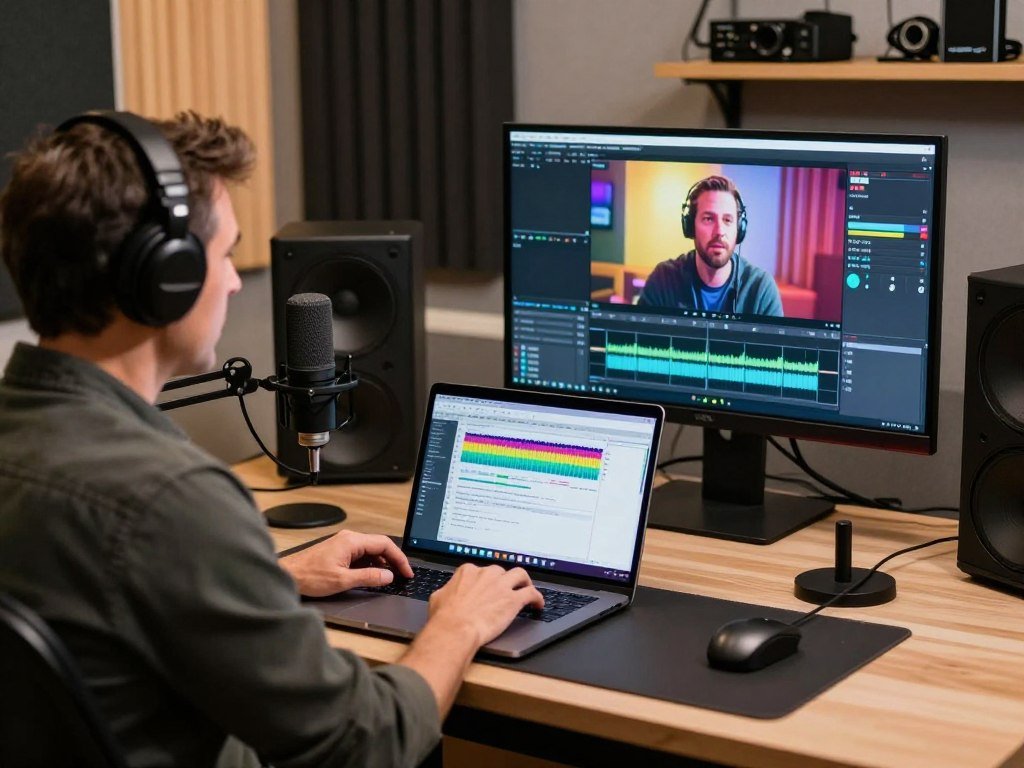
Descript for spoken recordings
Descript connects spoken-word text with the recording. When you change the transcript, the matching video or audio changes too.
Its Underlord features can assist with editing tasks, while the transcript and timeline give you ways to review the result. Check names, technical terms, speaker turns and sentence meaning after every cut.
Descript separates media-hour, AI-credit and export allowances. Those limits measure different parts of use, so a high allowance in one area does not cover another.
Premiere’s AI Assistant for a professional timeline
Adobe Premiere keeps the timeline at the center of the workflow. Its AI Assistant was in public beta in 2026, and Adobe recommended testing it on duplicate or new projects rather than client work.
The assistant may help with a professional project, but the established timeline gives you direct control over track edits and audio. Check the assistant’s result before relying on it for a finished video.
Keep the original recording or a duplicate project intact while evaluating automated cuts.
Which Tools Help Turn Long Footage Into Social Clips?
For social clips, a clip finder can propose moments, but a separate review still decides whether they make sense on their own. Selection is not finishing.
Review context, framing and captions before posting each excerpt. A promising moment may begin halfway through a thought or lose its point when removed from the full video.
| Tool | Starting material | Main task | What to review |
|---|---|---|---|
| OpusClip | Long-form video | Find candidate short clips | Context and clip start |
| CapCut Desktop | Selected clips | Manual social finishing | Captions and framing |
| VEED | Speech video, 1 minute to 3 hours | Browser-based clip workflow | Input fit and final output |
OpusClip for candidate moments
OpusClip is designed to identify candidate short clips from long-form video. Its picks can help you scan a recording, but the creator still chooses which moment works.
Read the beginning and ending in context. A clip needs enough setup to make the speaker’s point clear, even when the full interview is unavailable.
CapCut Desktop for manual finishing
CapCut Desktop lists Auto Captions, Auto Reframe, filler-word removal and Smart Search. These features can speed up short-form editing, with a timeline for hands-on changes.
Check whether reframing follows the subject you want viewers to watch. Captions may need spelling and timing fixes, especially around overlapping speech.
VEED for browser-based clip workflows
VEED AI Clips specifies input videos containing 1 minute to 3 hours of speech. That range describes its stated speech-video input, not a promise that every source will work equally well.
Browser-based editing can suit creators who do not want a desktop timeline. Watch each clip from its first frame to its last before publishing.
When Do AI Video Generation and Visual Changes Help?
Use a generative tool when the project needs a new shot or a visual change that ordinary timeline editing cannot make efficiently. The starting material matters.
Runway changes existing footage, while generation-focused tools create new scenes. InVideo AI and Kling AI suit creators who need prompt-led scenes or video drafts.
Change a shot that already exists
Runway Edit Studio focuses on visual changes within footage. It is available on paid plans in 2026, with a published sequence limit of 30 seconds at 1080p.
This workflow can suit a shot that needs a visual change without replacing the whole edit. Review edges, movement and details that might shift from one frame to the next.
Creators comparing a free AI video generator can look at the difference between free credits, editing access and export rules.
Create scenes from a prompt or script
InVideo AI assembles videos from prompts, while Kling AI focuses on generated scenes. For a creator who needs new footage, the best AI video generator is a generation-focused tool.
If you need to revise an existing shot, test a visual-editing workflow instead. A prompt-based generator may create a replacement, but it does not edit the original scene in the same way.
- Check the allowed sequence length.
- Check the output resolution.
- Choose the model that fits the scene.
- Check the repeated-generation allowance.
Generated scenes still need a story and continuity review. A new shot can look polished yet clash with the action or style around it.
More options appear in this comparison of AI video generators for creators, including tools for prompt-led scenes and visual revisions.
Check that a generated shot matches the surrounding footage before building the rest of the edit around it.
Which Free AI Video Tools Are Useful for Creators?
CapCut is a practical free starting point for editing short social videos, but free AI generation usually comes with usage limits. Editing and generation are separate.
The best free AI app depends on whether you need editing, generation or avatars. Free exports may include a watermark or block a paid feature.
Free editing versus free generation
CapCut offers free editing, though some AI features may need credits or payment. Google Flow documents 50 daily credits for unsubscribed users in 2026; unused daily credits expire, and generation costs vary by model.
InVideo’s free credits reset weekly, and watermark-free exports require a paid plan. HeyGen’s free plan allows three videos per month, up to one minute each, with a watermark.
A ChatGPT and Canva connection can help turn a prompt into an editable design, though the connected service has its own plan limits.
Canva’s monthly AI allowance
Canva Free allows up to 20 Standard or Premium AI uses per month and excludes Ultra AI. Canva Pro allows up to 200 Premium or 20 Ultra AI uses per month.
Canva Business and Enterprise allow up to 400 Premium or 40 Ultra AI uses per member per month. The allowances reset at 12:00 a.m. UTC on the first day of each month.
Complex prompts can use more than one allowance for a simple task. Canva Free includes 5GB of storage, while Pro includes 100GB and Business includes 500GB.
| Plan | Canva AI use allowance | Storage | Listed price |
|---|---|---|---|
| Free | Up to 20 Standard or Premium uses per month | 5GB | $0 |
| Pro | Up to 200 Premium or 20 Ultra uses per month | 100GB | $144 per year, one person |
| Business | Up to 400 Premium or 40 Ultra uses per member per month | 500GB | $250 per person per year or $20 monthly |
Canva Business and Enterprise share the listed AI allowance, while the listed price here applies to Business. A free AI video generator may use daily credits, weekly credits or another model-specific limit.
For more choices, compare free AI video generation and editing tools by allowance, export quality and terms.
Check the exact export and AI allowance for the task you intend to finish, not just the free-plan label.
Which Tools Make Scripted Avatar Videos?
Avatar tools are a better fit for scripted presentations than for editing an interview someone has already recorded. They build from a script, not camera footage.
Use avatar video when a clear script matters more than a natural on-camera performance. A training lesson or explainer can fit this format better than a personal interview.
Synthesia for scene-based presentations
Synthesia organizes scripted videos into scenes and supports uploaded or stock media. That layout can help you pair spoken points with a slide, image or clip.
Review uploaded media and scene order so each visual supports the line being spoken. Check the voice and pronunciation of names before sharing the video.
HeyGen for short free-plan tests
HeyGen can create avatar-led video from a script. Its free plan allows three videos per month, each up to one minute long, with a watermark.
That can help you test a short sample, but it is not the same as editing a filmed presenter. Compare the avatar’s delivery with the tone your audience expects.
Creators weighing avatar formats can compare AI video tools for scripted presentations alongside scene-generation options.
Review the complete scene sequence and spoken delivery before using an avatar video with an audience.
Which Desktop Editors Offer More Manual Control?
A desktop timeline editor is the better fit when you need to revise cuts, layers and finishing details yourself. Manual control takes practice.
Choose an editor that runs well on your hardware and includes the AI feature you need. A long list of effects does not help if your computer struggles with the project.
DaVinci Resolve for finishing and color
DaVinci Resolve gives you a timeline-based editing environment for detailed cuts, color and audio work. Its free and Studio editions do not necessarily include the same AI tools.
Resolve can suit a creator who wants hands-on finishing and is ready to learn a deeper editor. Substantial system needs can make it a poor fit for an older computer.
Premiere and Filmora for timeline editing
Adobe Premiere and Filmora offer distinct timeline environments. Premiere can suit professional projects with layered edits, while Filmora offers another route for creators who want desktop editing.
A capable video editor may still be the wrong choice if you only want automatic rough cuts. Timeline tools give you control, but they ask you to make more decisions.
- Confirm the required AI feature is in the edition you plan to use.
- Test the project on the hardware you will use.
- Verify that the workflow supports your required export.
Compare how each editor handles audio, effects and final output on a small project first. A smooth preview matters when you need to make many close edits.
Confirm the required feature in the exact edition before building a project around it.
How Do AI Video Credits and Paid Plans Compare?
Compare the paid plan’s actual monthly allowance and billing condition, not just the displayed introductory price. Credit totals are not equal measures.
InVideo credits cover AI processing and generation, while manual timeline editing and downloads do not use them. The value of a credit depends on the model and task.
| Product and plan | Listed price and billing condition | Monthly credits | Important term |
|---|---|---|---|
| InVideo Starter | $10 per seat monthly, annual billing | 400 per seat | Credits cover AI processing and generation |
| InVideo Plus | $30 per seat monthly, annual billing | 2,000 per seat | Credits reset monthly |
| InVideo Max | $75 per seat monthly, annual billing | 5,000 per seat | Unused monthly credits do not roll over |
| Kling Standard | $6.99 first month; $10 listed regular price | 660 | $8.80 next monthly renewal |
| Kling Pro | $25.99 first month; $37 listed regular price | 3,000 | $32.56 next monthly renewal |
InVideo credits cover AI agent processing and image, video, voice and music generation. Paid-plan credits reset monthly and unused credits do not roll over.
Extra credits bought separately last up to 12 months from purchase or until the paid subscription ends, whichever comes first. InVideo video models charge by the second, with rates shaped by model, resolution, video input and audio generation.
For example, Seedance 2.5 at 1080p costs about 96 credits for five seconds. A Starter plan lists 400 monthly credits per seat, so a few short generations can use a meaningful share.
Kling’s Standard, Pro, Premier and Ultra plans list 660, 3,000, 8,000 and 26,000 monthly credits. In 2026, Premier lists a $64.99 first-subscription price and $80.96 next renewal; Ultra lists $127.99 first and $159.99 next.
Kling Basic is free but has no monthly credits and bars commercial use of generated content. Paid Kling plans list commercial-use access. VIDEO 3.0 supports generations from three to 15 seconds, and native 4K costs 30 credits per second.
For a wider view of plan terms, read this AI video pricing comparison. Estimate one month of your real workload before choosing a credit tier.
Which Tool Fits Your Creator Workflow?
A podcast creator should begin with a transcript-led editor or a recording platform that also supports conversation editing. Keep the tool count small.
Choose tools for separate steps, not overlapping features. Paying for two editors with the same caption and clip functions can add cost without changing your finished video.
For podcasts and interviews
Descript can suit a creator who wants to edit through a transcript. Riverside can fit a spoken-recording workflow when recording and conversation editing matter together.
Choose based on whether your main task is shaping a recorded conversation or editing its video afterward. A long transcript can make it easier to find a section without scanning every minute.
For short-form social publishing
A social creator might pair OpusClip with CapCut Desktop. The first can find candidate moments, while the second supports manual finishing for the target format.
That pairing makes sense when clip discovery is a real bottleneck. If your current editor already finds clips and handles captions well, another subscription may repeat its work.
For polished long-form projects
Adobe Premiere can suit detailed timeline work, while DaVinci Resolve can suit creators who want hands-on finishing and color tools. Both ask for more editing time than an automatic clip workflow.
Decide which steps you will use every week and which are occasional. Choose the smallest combination of tools that completes the steps your current workflow actually needs.
How Can You Test an AI Editor Before Paying?
A single representative project can reveal more about fit than a long list of AI features. Use a recording you know well.
Compare the same source and target format across finalists. This is a practical trial, not a universal benchmark, since each project and tool behaves differently.
Run one representative project
Use a project that includes the speech, camera movement and edit choices you usually face. Premiere Pro, DaVinci Resolve and CapCut Desktop show how different editing environments can feel.
- Import typical footage.
- Request a representative edit.
- Correct one cut and one caption.
- Inspect the complete export.
- Record elapsed time and usage consumed.
Do not pick a perfect demo clip that hides common problems. A typical recording gives you a better read on how much cleanup the editor needs.
Inspect the edit and the export
Listen for audio gaps or sudden changes in room sound. Check framing, transcript accuracy and whether the project stays editable after the AI draft.
Watch the final export at its intended size, not only in a small preview window. Captions that look clear on a laptop may cover a face in a vertical crop.
Keep notes on the exact version, account plan and test date so you can repeat the comparison.
What Can AI Editing Get Wrong?
A clean cut can still be the wrong cut if it removes a pause, a qualification or the point of a speaker’s answer. Good pacing needs context.
An engagement score is an estimate, not evidence that a clip will succeed with your audience. OpusClip’s virality score cannot predict how a particular account’s viewers will respond.
Cuts can lose meaning or timing
An automated cut may remove an intentional pause or weaken a joke by trimming its setup. It can also leave a sentence that sounds certain after removing the speaker’s qualification.
Watch the full exchange around each cut, especially when people interrupt or speak over one another. A short excerpt needs enough context to keep the speaker’s meaning intact.
Automated scores and captions need review
Check names, technical terms and numbers in captions. Listen for overlapping speech, sharp audio transitions and text that changes the meaning of a sentence.
A visual change can cause trouble too. A generated object, lighting shift or movement may not match the shots beside it.
Make the final decision on the complete video, not on an AI score or first draft. A polished clip can still carry the wrong meaning.
A clean caption cannot fix a line that has been cut out of context. Make the final decision on the complete video, not on the AI’s score or first draft.
Conclusion
The best fit is the editor that reliably completes your actual production job while leaving you enough control to approve the result. Your source footage and preferred level of control should guide the choice.
Pick two workflow-matched tools and test both with the same representative recording. Compare the edits, the time needed for corrections and the final output before choosing a plan.
Take one real recording and test it in two shortlisted tools before choosing a plan.
FAQ
Can AI edit an existing video without replacing the original?
Yes, AI can edit an existing video without replacing the original if you keep a copy or duplicate project. Many editors create a draft or let you change the timeline, but the result depends on the tool. Keep the untouched recording available, then inspect every cut, caption and visual change before exporting the finished video.
What is the difference between an AI video editor and an AI video generator?
An AI video editor changes or organizes existing footage, while an AI video generator creates new scenes. Some tools do both, but their main workflows differ. An editor may add captions, find clips or alter a shot you recorded. A generator can make a scene from a prompt, though you still need to fit it into the story.
Do free AI video tools let you export without a watermark?
Some free AI video tools allow exports without a watermark, but free access does not guarantee that result. A plan may add a watermark, limit resolution or reserve a feature for paid users. Check the export terms for the specific tool and account before making a video you need to publish or share with a client.
How often do AI video credits reset?
AI video credits reset on the schedule set by each product. Some allowances renew monthly, while Google Flow documents daily credits for unsubscribed users. InVideo’s free credits reset weekly. Purchased add-ons can follow different rules from plan credits, so check whether they expire, roll over or end with a subscription before estimating a month’s work.
Are AI captions accurate enough to publish without checking?
No, AI captions should be checked before publishing. Speech recognition can miss names, technical terms and numbers, especially when speakers talk over each other. A caption can also change a sentence’s meaning when it drops a short word. Read the text while listening to the recording, then check its timing against the speaker.
Can one AI tool handle podcasts, Shorts and scripted avatar videos equally well?
No single tool is equally suited to podcasts, Shorts and scripted avatar videos. Transcript editing helps shape spoken recordings, clip discovery finds moments in long footage, and avatar tools build presentations from scripts. One editor may cover more than one task, but you should test each workflow with its own source material before relying on it.



