
A transcript can look convincing at a glance and still get a speaker’s name or product term wrong. That is why the Best AI Subtitle Generators for Videos should be judged on real footage, not a polished demo or one accuracy score. If you create content alone or with a team, you need text you can trust, an export that works, or both.
This roundup compares seven tools by workflow and export needs. Some help you edit video and text in one place, while others focus on subtitle delivery or short clips. Your best choice depends on the video editing work you already do and the cleanup each tool leaves behind.
The right choice reduces corrections in the workflow you actually use. Test the tool with footage that includes the names, terms, and speech patterns you handle often.
Key Takeaways
- Kapwing is a flexible starting point for browser editing and subtitles.
- Descript suits creators who want to edit video through a transcript.
- Happy Scribe focuses on timed subtitle delivery and human review.
- Free plans differ in minutes, file downloads, and video watermarks.
- Review text and timing before publishing, even when the transcript looks clean.
- Choose burned-in captions or a separate file based on where your video will play.
What Does an AI Subtitle Generator Do?
These tools turn speech in a video into timed text that you can edit and export. A typical workflow extracts audio, transcribes speech, splits the words into timed segments, then exports a file or burns text into the video.
Subtitles usually show spoken dialogue, while captions can also name speakers and describe meaningful sounds. Product menus often use the terms interchangeably, so check what the output includes. For viewers who need access to audio information, captions may include cues such as “[door slams]” or “Maya: Welcome.”

A subtitle file stays separate from the video. SRT and VTT are common formats for timed text, with VTT built for web video tracks. The WebVTT standard describes timed text cues used with HTML video.
Check whether a platform needs a separate subtitle file or text embedded in the video.
Burned-in captions become part of the video pixels, so viewers cannot turn them off as a separate track. Separate files can be edited or switched off, but they rely on player support. Some editors offer both choices, while others only create one kind of output.
How Accurate Are AI-Generated Subtitles?
A five-language code-switching benchmark put Universal-3.5 Pro at 7.69 normalized WER, compared with 8.77 for Scribe v2, 12.22 for Nova-3 Multilingual, and 44.58 for GPT-4o Transcribe. Word error rate is the share of recognized words that differ from the reference transcript.
Those four results are comparable because they use the same benchmark, but they do not predict every recording. Word error rate counts each word equally, so a low score can still hide a wrong name, number, or technical term.

Accuracy is usually higher with clean audio and one speaker. It often drops with background noise, accents, overlapping speakers, or specialized vocabulary. A quiet interview with one clear voice is a different test from a busy panel or a product demo full of brand names.
Published accuracy figures from different tests cannot be ranked directly. Test sets may use different speakers and languages. They may also treat punctuation, repeated words, and speech fillers in different ways.
That matters when a tool claims a strong headline percentage. A result can depend on how the test handles “um,” contractions, or small spelling changes. A transcript may also score well overall while missing a detail your audience needs.
For a fair comparison, use the same sample clip with each subtitle generator. Include the kind of speech you publish, such as a quick tutorial, an interview, or a recording with two languages. Then check the transcript against what the speaker actually said.
Accuracy claims can help you narrow the field, but your own audio is the useful test. Treat a benchmark as a clue about that test set, not a promise about your footage.
Best AI Subtitle Generators for Videos: 7 Picks by Use Case
For an all-purpose browser workflow that combines editing and subtitles, start with Kapwing; choose another pick when your workflow has a more specific need. Workflow fit matters more than a long feature list when you are choosing between subtitle generators.
Kapwing is a flexible starting pick for creators who want a browser editor and subtitle workflow together. The seven options below suit different editing tasks, from transcript-based edits to very short social clips.
VEED for Editing and Captions in One Browser Workflow
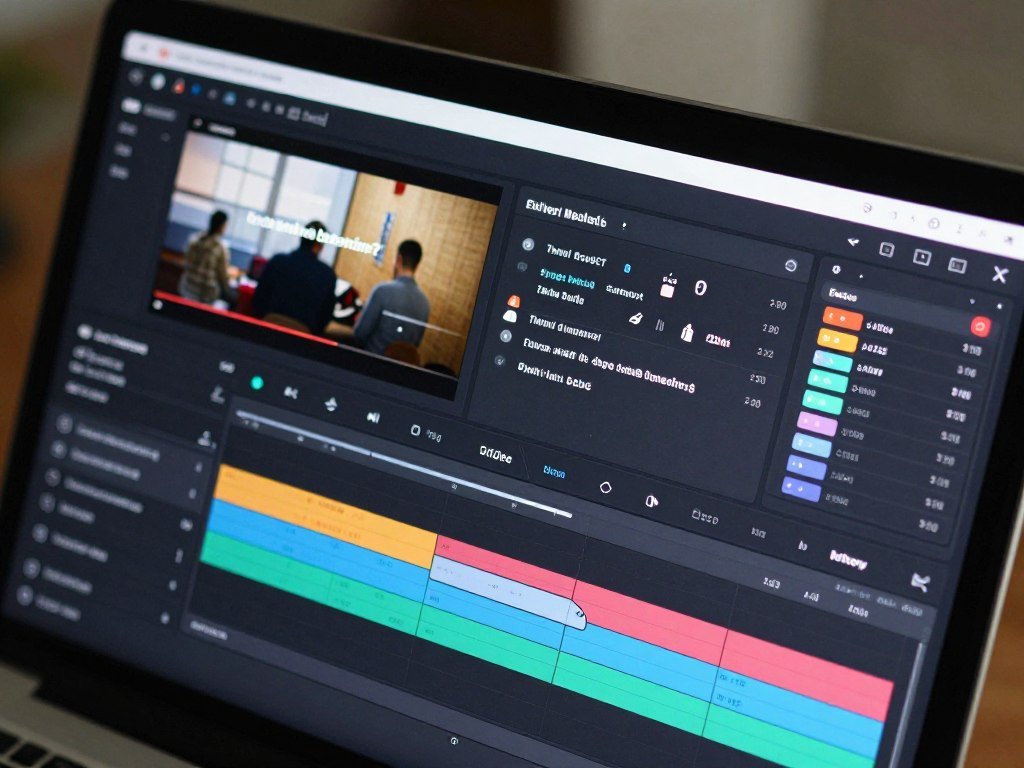
VEED suits teams that want to create subtitles and edit video in one browser-based workspace. Its automatic subtitles sit alongside tools for video editing, so you can work on the text and the clip without switching apps. This setup can help when a team needs to review a draft and make basic changes in one place.
VEED is a practical pick if your projects mix subtitles with simple edits, rather than demanding a dedicated subtitle production system. Its browser workflow also makes it easy to start without installing desktop software. The trade-off is that detailed transcript work may not feel as direct as it does in a transcript-first editor.
Kapwing for Styled, Collaborative Social Videos
Kapwing gives you an editable transcript, subtitle styling, and team collaboration in a browser editor. That mix makes it useful for social video teams that need to adjust text, set a visual style, and pass work between people. A creator can build a repeatable look while teammates review the same project.
Kapwing works well as an all-purpose starting point because it pairs subtitle tasks with common video edits. You can compare it with other AI video tools for creators when you are deciding whether you need to generate new scenes or edit footage you already have. A complex production may still need more control over timing than a quick social edit.
Descript for Editing by Transcript
Descript connects transcript editing to video editing. It suits creators who would rather cut a spoken video by changing text than by moving clips on a timeline. Removing a line from the transcript can help you make the related edit without hunting through the footage by eye.
This transcript-led approach can be useful for interviews, explainers, and other speech-heavy content. It also gives you a direct way to work through the words before exporting subtitles. If your work depends on detailed visual edits or a traditional timeline, the transcript may not be your preferred control.
Happy Scribe for Subtitle Delivery and Human Review
Happy Scribe focuses on transcription and subtitling, with timing controls and a human-review option. It suits creators who care about a clean subtitle file and want a way to add human review to the workflow. The tool puts subtitle delivery ahead of broad video editing features.
That focus can help when you deliver files to clients or publish the same video on several platforms. You can spend more time shaping subtitle timing and less time navigating unrelated editing tools. The trade-off is that you may need another app for wider video changes.
Zubtitle for a Simple Resize-and-Subtitle Routine
Zubtitle combines subtitles with resizing and social-video additions such as headlines or progress bars. It suits creators who repeat the same steps for vertical or square clips. A resize-and-subtitle routine can save handwork when each project needs a familiar layout.
The tool is best for a simple, repeatable social pipeline rather than a deep edit. You can handle common presentation changes alongside the text. If every video needs a different look or careful transcript editing, that fixed routine may feel limiting.
SubtitleBee for Straightforward Automatic Subtitling
SubtitleBee generates subtitles for creators who want a direct automatic captioning workflow. It may suit a small project that needs text added without a broader editing setup. The main task stays focused on producing subtitles rather than editing a full video from start to finish.
Its free tier has an important limit for people who need a separate subtitle file: file downloads are reserved for paid tiers. That makes it less useful if your publishing process relies on an SRT or VTT download. Check the output you need before building a routine around it.
ItnaVideo for Very Short Captioned Clips
ItnaVideo Auto Caption Video is designed for videos up to 60 seconds. It suits creators who need a quick, captioned short clip rather than a full subtitle editing suite. The tool exports a video with burned-in captions, which puts the text directly on screen.
That focus works for short-form posts where you want visible text in the clip. It is less suited to longer videos or projects that need a separate subtitle file. Match the tool to the editing task you want it to make easier, not to the longest feature list.
Which Free Subtitle Generators Let You Download Clean Files?
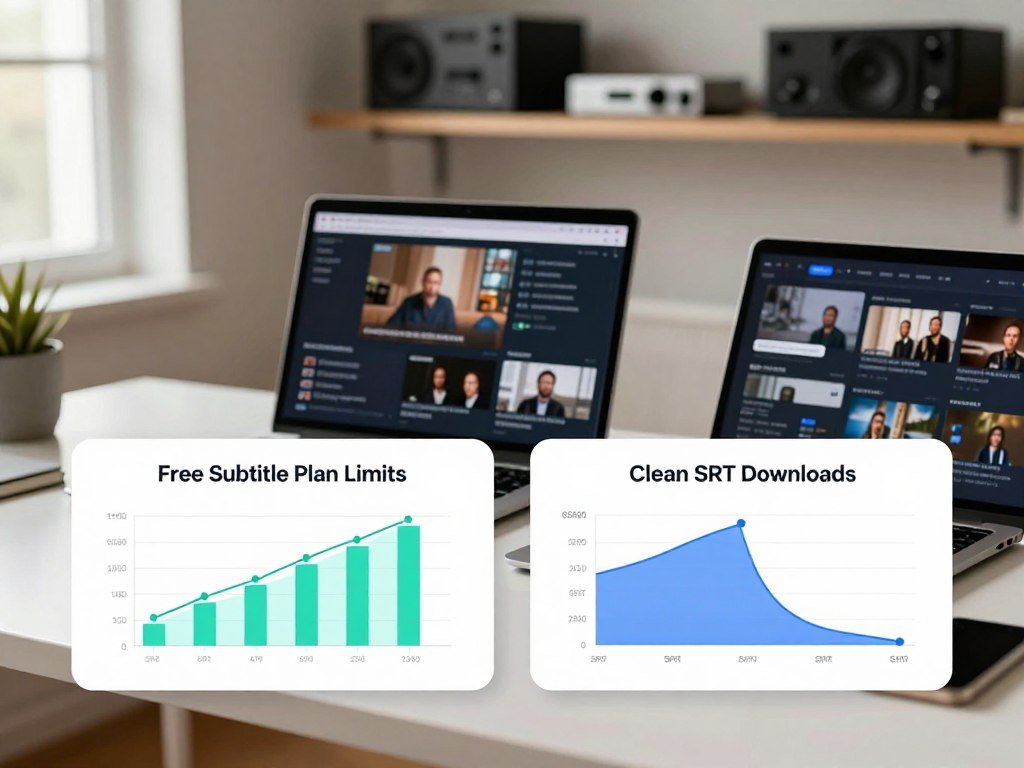
Descript offers the largest recurring monthly allowance among these options at 60 transcription minutes, while Happy Scribe’s 10 minutes are a one-time trial. Clean subtitle files can be downloaded without a video watermark on several free plans.
Kapwing, VEED, Descript, Zubtitle, and Happy Scribe allow subtitle-file downloads within their free limits. Their video exports may still carry watermarks or other restrictions, so separate the file you need from the finished video.
| Tool | Free allowance | Per-video or trial limit | Clean subtitle-file download |
|---|---|---|---|
| Kapwing | 30 auto-subtitle minutes monthly | 10 minutes per video | Yes, SRT, VTT, TXT |
| VEED | 30 subtitle minutes monthly | 10 minutes per video | Yes, SRT, VTT, TXT |
| Descript | 60 transcription minutes monthly | Monthly allowance | Yes, SRT, VTT |
| Zubtitle | 2 videos monthly | 20 minutes per video | Yes, SRT |
| Happy Scribe | 10 minutes once | One-time trial | Yes, SRT |
Kapwing’s free video exports are capped at one minute and carry a watermark. VEED and Descript also watermark video exports, while their separate subtitle downloads remain clean. Zubtitle watermarks video exports as well.
Happy Scribe offers a one-time 10-minute trial rather than a monthly reset. In 2026, the free plans for Kapwing and VEED each include 30 minutes per month, with a 10-minute per-video cap. Descript includes 60 monthly transcription minutes.
In 2026, Kapwing’s clean SRT, VTT, and TXT downloads are available within its free limits, despite its watermarked video exports. A watermark on a video export does not automatically appear on a separate subtitle file.
SubtitleBee allows 10 minutes of auto-subtitling per month, but its free tier does not include subtitle-file downloads. Its video exports carry a watermark. Before starting a project, confirm whether the free allowance resets monthly or ends after a trial.
How Do Language Features and Editing Workflows Vary?
Compare transcription coverage and translation coverage separately, because the two counts measure different jobs. Published language counts can help you check fit, but they do not show whether each language works equally well in your video.
A translation count does not measure the quality of translated subtitles. Ask a native speaker to review any translation meant for an audience, especially when tone, names, or local terms matter.
| Tool | Published speech or subtitle language count | Published translation count | Workflow fit |
|---|---|---|---|
| VEED | 125+ subtitle languages | Not stated | Browser video editing |
| Happy Scribe | 150+ AI subtitle languages | 80+ languages | Subtitle delivery and review |
| Kapwing | 155 language variants | 100+ languages | Styled team editing |
| Descript | 26 transcription languages | 67 languages | Transcript-based editing |
The counts describe different language tasks, so they are not direct equivalents. VEED lists subtitle languages, while Descript lists transcription languages. Kapwing counts language variants, and Happy Scribe separates AI subtitle coverage from translation coverage.
That difference matters if your team needs both speech recognition and translation. A tool may support a language for subtitles but have a different list for translation. Check the exact language pair your audience uses, not just the largest number in a product list.
Workflow also changes how useful language support feels. A team that edits a transcript line by line may prefer a different tool from one that styles captions in a browser. The best fit depends on both the language task and the way your team handles video.
Test a representative clip in every language combination your audience will hear. Include code-switching or local names if those appear in your usual content.
How Do You Add Subtitles and Review Them Before Publishing?
Start with the clearest available audio, then treat the first automatic transcript as a draft. Human review catches errors that speech recognition can miss, especially with names, technical terms, and accents.
Correct the transcript and timing before you export the final video or subtitle file. A text fix may still need a timing adjustment if the spoken line is short or the speaker pauses.
Generate and Edit the First Transcript
Use this four-step process to generate subtitles and check playback:
- Upload the video with the clearest audio version you have.
- Generate the transcript and let the tool divide it into timed segments.
- Correct the text and timing while comparing it with the original speech.
- Export the subtitle file or video, then check the playback.
Keep the source audio nearby while you edit, rather than relying on memory. For a guide to checking AI-written text against its meaning, see this simple revision approach. A transcript can read smoothly while still changing what someone said.
Check Names, Technical Terms and Timing
Give extra attention to names, technical terms, and accent-related errors before publishing. An automatic tool may replace an unfamiliar product name with a common word. It can also miss a short phrase when speech is fast or a speaker trails off.
Check whether the tool handles every language spoken in the clip. Clipchamp’s speech recognition detects one language at a time, so a mixed-language clip may not transcribe correctly in one pass. For a team with frequent edits, compare the free options in this free AI video tool guide.
Some errors change the meaning, while others make a line hard to read at normal speed. Fix the words first, then make sure the text appears with the matching speech. Do not assume an export preserved every change from the editing screen.
Watch the exported video once with sound off to catch missed lines and awkward timing. In 2026, automatic captions still need a person to review names, technical terms, and accent-related mistakes.
Should You Use Burned-In Captions or SRT and VTT Files?
Use a subtitle file when viewers or platforms need control over a separate text track, and burn captions in when guaranteed on-screen text matters most. The output choice depends on how the video will play and whether viewers should be able to switch text off.
Burned-in captions stay visible across players, while subtitle files need platform or player support. SRT and VTT keep text separate from the video, which makes the text easier to replace or edit later.
| Output | Where the text lives | Best fit | Main trade-off |
|---|---|---|---|
| Burned-in captions | In the video pixels | Short-form feeds | Viewers cannot switch text off |
| SRT | Separate timed text file | Platforms and players with SRT support | Needs a matching video and player |
| VTT | Separate web video text track | Web video tracks | Needs player or platform support |
SRT and VTT are both separate timed text formats. VTT is used for web video tracks, while SRT works with many video platforms and players. A separate file can be changed without altering the video itself.
Burned-in captions suit short-form platforms where native subtitle-file uploads are limited. ItnaVideo Auto Caption Video focuses on clips up to 60 seconds and exports MP4 files with burned-in captions. That makes it a narrow option for short posts, not a general subtitle-file tool.
Choose based on the destination, not only the editor’s export menu. Check the destination platform’s upload options before exporting the final version.
How Can Captions Improve Accessibility and Readability?
Captions help viewers follow a video when sound is unavailable, inconvenient, or not enough to identify who is speaking. Readable captions can support sound-off viewing in shared spaces, on public transit, or in a quiet room.
About 15% of viewers use captions because of hearing differences. Roughly 70% of U.S. viewers watch video with captions on, and more than 80% of social video is played muted.
Those viewing habits make caption design useful beyond one audience. Text needs enough contrast and screen time to read, with line breaks that do not crowd the picture. The W3C explains caption needs for accessible audio and video, including meaningful non-speech sounds.
Make the Text Easy to Read on Screen
Keep each line short enough to scan without losing the action. Place text away from faces, subtitles, and platform buttons. Check that the chosen style stays clear over both light and dark scenes.
A four-point check can catch common design problems before you post:
- Use a text size that stays legible on a phone.
- Place captions inside the screen’s safe area.
- Identify the speaker when viewers may not know who is talking.
- Add meaningful sound cues, such as a door slam or alarm.
Include Speech Context That Dialogue Alone Misses
Captions can include speaker labels and important sounds, not just dialogue. A line such as “[alarm rings]” gives viewers information they would otherwise hear. A label such as “Host:” can help when several people speak or the camera does not show them.
Good styling should support the message rather than compete with it. Use a clear font, steady placement, and line breaks that match natural phrases. If essential details appear only in speech, include them in readable text elsewhere too.
Check the smallest phone screen your audience is likely to use before settling on a style.
Should You Use a Ready-Made Tool or Build a Subtitle Workflow?
Use a ready-made editor when your team needs to finish videos, and consider building when subtitling is part of the product experience. Occasional editing usually fits existing software better than a custom system.
A custom workflow makes sense when you need a specific destination or consistent caption timing rules. It can also help when subtitles are a recurring feature inside your own product, rather than a one-off editing task.
Use a Tool for Occasional Team Editing
A ready-made browser-based video editor can cover occasional projects without adding software work for your team. It gives editors a place to review video, fix text, and export a result. If you are still weighing general video generation software against editing tools, focus on whether you need new scenes or changes to existing footage.
For a small team, the value is often fewer handoffs. Editors can work inside the same project rather than passing files between separate systems. A tool is a good fit when its current options match the way your team already delivers video.
Build a Workflow When Subtitles Are Part of Your Product
A product integration may be worth the work when subtitles need custom timing, high-volume processing, or a destination existing editors do not support. Four signs point toward a build:
- Subtitles are part of the product you ship.
- Video files arrive at high volume.
- Your content needs custom caption timing.
- Output must reach a destination current editors do not support.
Rewind.ai offers a limited-use example: it transcribes speech with timestamps and burns subtitles into video. Its free-use token pool resets every 24 hours. You can try its subtitle generator without signing up, while its video tools need a free account.
Those details describe one tool, not a general price benchmark for building a workflow. A custom system also needs testing, upkeep, and a way to correct mistakes. Compare the time saved against the work of maintaining an editor and correction process.
Build only when your product or volume needs a workflow that ready-made editors cannot support.
Conclusion
The best fit is the tool that handles your footage, output format, and editing routine with the least cleanup. Workflow fit and a clean export matter as much as an accuracy claim.
Try your strongest candidate with a difficult, representative clip before you commit. Include the voices, terms, and video style you publish most often. Run one challenging clip through your leading option, correct the transcript, and confirm the export works where you plan to publish.
FAQ
Which AI can generate subtitles from video?
Kapwing, VEED, Descript, and Happy Scribe can create timed subtitles from uploaded video. Each turns speech into text you can review and export, though their editing tools differ. Kapwing and VEED pair subtitles with browser editing, while Descript connects transcript changes to video edits. Happy Scribe focuses more on subtitle delivery and review. Choose based on the edits and export files your projects need.
What are the best AI subtitle generators?
Kapwing is a strong fit for flexible browser editing, while Descript suits transcript-based video editing. Happy Scribe fits subtitle delivery and human review. VEED combines browser editing with captions, and Zubtitle suits a repeatable social-video routine. SubtitleBee offers a straightforward automatic workflow, while ItnaVideo focuses on very short clips. The best pick depends on whether you need broad editing, careful file delivery, or a narrow short-form task.
Can ChatGPT add subtitles to video?
ChatGPT can help revise subtitle text or format a transcript when you supply timestamps, but it is not a full video subtitle tool. You still need software to transcribe speech, sync text to audio, and export a file or burn captions into the video. ChatGPT can help make wording clearer, though you should compare edits with the original speech to avoid changing the meaning.
Can a free AI subtitle generator export SRT without a watermark?
Yes, Kapwing, VEED, Descript, and Zubtitle allow clean subtitle-file downloads within their free limits. Their video exports may still carry a watermark, but that does not automatically affect a separate SRT or VTT file. Free access differs by tool, so check whether your project fits its minute allowance and per-video cap. Happy Scribe also offers a clean SRT download during its one-time trial.
What is the difference between SRT and VTT subtitles?
SRT and VTT are separate timed text formats that pair lines of text with time codes. VTT is used for web video tracks, while SRT is widely supported by video platforms and players. Both keep text separate from the video, so you can edit or replace the file without changing the video pixels. The right format depends on the player or platform you use.



