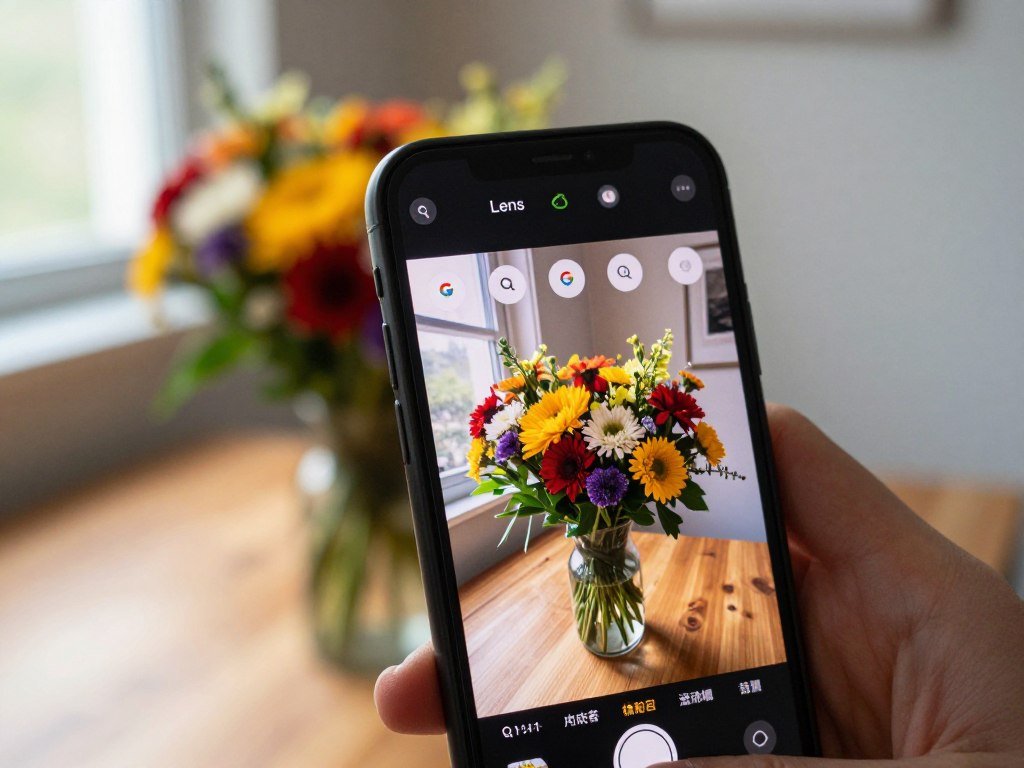
A picture can be a useful starting point when you cannot name what you are looking at. Google Lens lets you search with an image instead of guessing the right keywords. Visual search means searching with a camera view or image instead of describing it in text. That can help when you spot a flower, a product, or a sign but do not know its name.
The basic route is simple: open Lens, choose or take a picture, then review the results. You can add words to make a broad match more specific. This guide also covers Lens on iPhone and desktop, along with ways to search pictures already on your phone or a webpage. The technology can turn a quick camera view into useful web information, without requiring a perfect description first. You can start with a live view or a photo already saved on your device.
Key Takeaways
- Lens searches from a camera view, photo, or screenshot.
- You can add keywords to narrow a visual search.
- The Google app and Chrome offer Lens on Android and iPhone.
- Desktop Chrome can search selected webpage content.
- Check important identifications instead of trusting a visual match alone.
Google Lens: How to Search Using a Picture on Your Phone
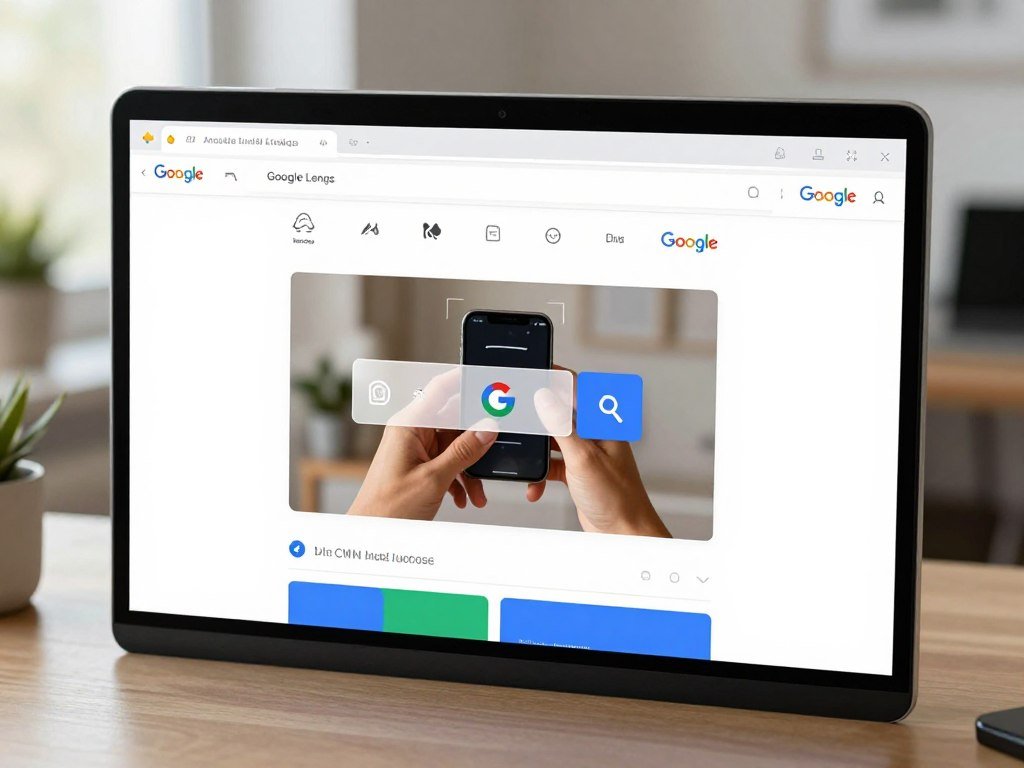
The quickest phone route is to open Chrome, tap Lens in a new tab, and choose what you want to search. In Chrome on Android, the Google Lens icon sits in the new-tab search bar. Three steps take you from a picture to search results, and you can ask a clearer question with keywords.
Google Lens image search can start with a live camera view or an existing image. You do not need to take a new photo each time. The image can be a screenshot or another picture saved on your phone.
- Open Chrome on Android, start a new tab, and tap the Lens icon in the search bar.
- Take a picture with the camera view, or select an existing screenshot or image.
- Review the results, then add keywords if you need to refine the question.
Google Lens can search a live camera view, a saved image, or a screenshot. You are not limited to a picture taken just now.
After you choose an image, Lens may show related web pages, similar images, or details about something in view. Tap a result to open it, or try another result if the first one misses the point. A close match can still describe the wrong object, especially when the picture shows several things.
The search bar is a useful place to start when you want a quick Google Lens search on Android. If Chrome is not your usual browser, the Google app also offers Lens. Its search screen can lead to the same kind of image-based search without making you describe the object first.
Add a few specific words when the first results do not answer your question.
How Do You Search a Saved Photo or Screenshot?
A saved screenshot works just as well as a new photo when the item you want to identify is already on your screen. Start with the saved image in the Google app or Chrome, then focus the search on the detail you need. This is handy for a photo, a message screenshot, or an image you saved earlier.
A smaller selection can make Lens results more specific. The full image may include extra items that distract from the object you want to find.
Choose a photo or screenshot from your device
Open the Google app or Chrome and tap the Lens icon. Choose the image option to see photos and screenshots stored on your device. Select the picture that contains the item, text, or scene you want to explore.
You can use Google Photos to find an older photo first, then open it in Lens from the available sharing or search options. The exact controls can differ by app version. A screenshot is often the quickest choice when the picture came from a webpage or chat.
Select a smaller area and refine the search
After the image opens, tap the part you want to search. Lens displays a selection box over the image. Drag its corners around one object or detail, then scroll through the results for a closer match.
A crowded image may return mixed results because several objects compete for attention. Select only the relevant area to remove much of that visual clutter. For example, choose one shoe in a group of shoes rather than the whole shelf.
You can add keywords after selecting an area. A word such as “blue,” “ceramic,” or “maple” can help Lens distinguish between similar-looking items. This turns a general image search into a more focused question without requiring a long description.
If a picture contains several distinct objects, search each object in a separate selection.
Where Can You Use Google Lens on Android, iPhone, and Desktop?
The best place to look first is the Google app, though the available Lens entry point depends on your device. Android and iPhone users can use the Google app or Chrome, while some Android phones also include Lens in Camera. Check the apps already installed before looking for another way in.
Lens is available through Google apps, but it is not built into every phone’s Camera app. Check your own device rather than assuming that its camera includes the feature.
| Device | Lens entry point | What you can start with |
|---|---|---|
| Android | Google app or Chrome, plus Camera on select devices | Camera view or saved image |
| iPhone | Google app or Chrome | Camera view or saved image |
| Desktop | Chrome | Select webpage content |
Find Lens on Android or iPhone
On Android, check the Google app, the Chrome search bar, and your Camera app for the Lens icon. Some Android Camera apps include Lens, but the feature is not present on every model. If you cannot find it, Google’s app is available through Google Play.
On iPhone, you can get the Google app or Chrome through the Apple App Store. Both provide a way to start Lens with a camera view or saved image. The app you choose does not change the core idea: Lens uses the picture as the search input.
For iPhone users, Google Lens search can begin in the Google app or Chrome. Open either app and look for the Lens icon near its search controls. A missing icon in one place does not prove the feature is unavailable through the other app.
Use Lens in desktop Chrome
Desktop Chrome lets you select webpage content and search it without leaving the tab. That is useful when an image or a section of a page catches your eye. The selected content becomes the starting point for a visual search.
Google describes Lens in desktop Chrome as a way to search selected page content without switching tabs. The browser can keep the page open as you inspect related results. You do not need to save the image to your computer first.
On a desktop, use Chrome when you want to select webpage content and keep the current tab open.
How Do You Search an Image on a Website in Chrome?
If the picture is already on a website, you can search it from Chrome instead of saving it first. On Android, touch and hold the image to open its menu. The browser method is different from starting Lens in a new tab because you choose content already on the page.
Chrome’s Android website-image method requires Google to be the default search engine. If another search engine is set as the default, the Lens menu option may not appear.
Search a webpage image on Android
Open the webpage in Chrome and touch and hold the image you want to inspect. In the menu, tap “Search image with Google Lens.” Lens then searches that image and shows related visual or web results.
This method is useful for a product photo, a plant in a story, or an object in a travel picture. It searches the selected image, not every item on the webpage. If you want another part of the page, use a separate selection or search.
Google’s Chrome browser features include Lens options for searching images from a page. The exact menu depends on the device and the content you select. On Android, the long-press action brings up the image search option when Google is the default.
Select webpage content in desktop Chrome
In desktop Chrome, open Lens from the browser and select an image or another region of the webpage. You can inspect visible content without saving a local copy or leaving the tab. This makes it easier to search a detail that is part of a larger page.
The desktop selection can cover more than one image when you choose a page region. On Android, the long-press menu targets one webpage image at a time. Pick the method that matches the content you want to inspect.
On Android, use the long-press method only when Google is set as Chrome’s default search engine.
What Can Google Lens Identify or Find?
Lens can help identify a plant, animal, artwork or landmark when a text description is hard to come by. A visible clue can lead to names, related images, and web information about what appears in the picture. Results can help you investigate an item, but they are not proof of its identity.
Check a consequential identification with another trusted source. A visual match can be broad or incorrect, especially when several items look alike.
Identify objects, plants, animals, and places
Point the camera at a plant to look for possible names and care information. Lens can also identify animals, objects, artwork, murals, and landmarks. A picture of a mural, for example, may lead to information about the work or the place where it appears.
Lens results can include websites and similar images that help you learn more. A landmark match might point to pages about its history or location. For a plant or animal, compare visible features with a reliable identification before acting on the result.
Lens can also help when you know what an object looks like but not what people call it. A photo of an unfamiliar kitchen tool may surface its name and related web pages. Treat those matches as leads, not a final answer.
Find products and shopping information
A picture of a product can return information about who makes it, its price, and where to buy it. Lens shopping results are available in the United States. Results may also help you compare a visible product with similar listings.
Google’s Lens shopping features can connect a product image with details such as prices and retailer information. A match can point you toward a listing, but the listing may describe a different size, color, or model. Read the product details before making a choice.
A clear product picture can help when you do not know the brand or model name. Lens may return more than one close match, so look for details that match the item in your picture. The result can guide your search without deciding which listing is right for you.
Copy or translate text
Lens can copy text from a camera view, which helps when you need to capture printed words without typing them. It can also translate text in more than 100 languages. Point the camera at the words, then use the text or translation option that appears.
This can help with a sign, menu, label, or short note. Text that is small or partly hidden may not read clearly. Check copied names, numbers, and directions against the original before using them.
Check product details against the actual listing before relying on a visual match.
Google Lens vs. Google Image Search: What Is the Difference?
Choose Lens when you already have a picture, and Google Images when you want to browse pictures from a text description. The starting point is the main difference: Lens takes a camera view or image, while Google Images takes typed words.
Lens fits an object you can show but cannot easily name; Google Images fits pictures you can describe. Both can help you explore visual results, but they answer different kinds of searches.
| Method | Starting input | Best use | Typical result |
|---|---|---|---|
| Google Lens | Camera view, photo, or screenshot | Identify or investigate something visible | Object information, similar images, or related websites |
| Google Images | Typed words | Browse pictures matching a description | Image results |
| Chrome Lens | Image or selected webpage content | Investigate something already on a page | Related visual and web results |
Use Lens when you have a picture or camera view
Lens accepts a live camera view, a saved image, or a screenshot. It can return information about an object, similar images, and websites featuring the image or a similar one. This makes it a strong choice when you have a visual clue but lack the right search words.
For example, you can show Lens a chair you saw in a store and look for similar designs. A result may help you find its name or related pages. Lens is still matching visual details, so its results do not confirm where a picture first appeared.
Use Google Images when you want to browse pictures
Google Images starts with words you type into Google Search. Use it when you want pictures of a known subject, such as “red barn owl” or “small blue kitchen.” You can adjust the words if the results do not fit what you pictured.
Google Images is a better fit when you can describe the pictures you want. Lens is more useful when a picture is already in front of you or the object has no easy name. Chrome Lens is a handy option when the image remains on a webpage.
A visual match can reveal related pages, but it does not by itself establish where an image first appeared.
How Can You Get More Useful Google Lens Results?
A tighter selection usually helps when Lens is matching the wrong part of a busy picture. Give the search a clear target by focusing on one object, not the entire scene. A few good adjustments can help the results match what you actually want to know.
Choose a smaller area and add useful context when a visual match is too broad. Repeating a general word adds little; a detail such as color or material can help more.
- Center the object or text so the main detail stands out.
- Reduce competing objects in the selection area.
- Use clear, well-lit camera framing to show useful details.
- Add a keyword such as color, material, or location when the match is broad.
A tight selection helps Lens focus on the object instead of nearby items. If you are searching a label, include the whole word or line rather than only a few letters. For an object, keep enough of its shape in view to separate it from similar items.
Camera framing matters because blur and glare can hide the details Lens needs. Move closer only if the object remains in focus. A clean view of a shoe’s shape or a plant’s leaves may help more than a wider scene.
Keywords work best when they add a detail that the picture cannot show clearly. Try “wooden stool” instead of repeating “stool,” or add a color when several items look alike. A location can also help when the result depends on where something was seen.
If the image is blurry, retake it before trying several increasingly broad keywords.
What Google Lens Privacy Settings Affect Your Searches?
A Lens search can involve temporary image processing without automatically meaning the image appears in your account history. Temporary processing and saved activity are different, and the account setting affects what Google keeps in Search Services History.
Review your own Google account settings because Lens history depends on those settings. A Chrome webpage query also has its own temporary processing, separate from whether account activity is saved.
What happens during a Chrome webpage search
For a Chrome on Android webpage-content query, Google temporarily processes a screenshot and page data to help select objects. Google says it does not save that data beyond temporary storage for the query. It also says the page or image is not used for training as a result.
That processing is not the same as account history. Whether a Lens image appears in Search Services History depends on sign-in and the relevant history setting. A temporary query and a saved activity entry are separate matters.
Manage Lens activity and saved media
When you are signed in and the relevant setting is on, Search Services History can include images uploaded in Lens. Media from Search services interactions is saved when Search Services History is on and Save media is checked. My Google Activity lets you review or delete saved activity.
| Activity | Condition | What you can do |
|---|---|---|
| Lens image in Search Services History | Signed in and relevant history setting on | Review or delete activity in My Google Activity |
| Saved interaction media | Search Services History on and Save media checked | Manage or delete history in My Google Activity |
| Chrome webpage-content query | Screenshot and page data processed temporarily for that query | Google says the page or image is not used for training as a result |
History controls apply to the account settings you use, not simply to the phone or browser. If you switch accounts, check the settings for the account that handled the search. You can also review activity entries and remove those you no longer want saved.
Check My Google Activity when you want to review or remove saved Search activity.
How Does Circle to Search Work on Android?
Circle to Search lets you act on an item already displayed on a compatible phone screen. It searches what is on screen, while Google Lens can start from a camera view or saved image. On compatible Samsung Galaxy phones, you can launch the feature from the navigation bar.
Samsung’s instructions cover compatible devices running One UI 6.1.1 to 8.5. Availability depends on the device and software, so the shortcut may not appear on every Android phone.
Launch Circle to Search on a compatible Samsung Galaxy
Use these steps when Circle to Search is set up on a compatible Galaxy device:
- Touch and hold the Home icon on the navigation bar.
- Circle or tap the item you want to search.
- Review the search results that appear.
You can use this on-screen search for an item in a photo, video, or app. There is no need to save the picture before selecting what appears on the display. The search begins with the item you mark.
Circle to Search acts on content already displayed on a compatible phone. Google Lens can instead start with a camera view or saved image.
Google announced multiple-object Circle to Search on February 25, 2026, for the Samsung Galaxy S26 series and Pixel 10 devices. The company said more Android devices would follow. That announcement does not mean the feature is already available on every Android phone.
Check compatibility and turn it off
Samsung’s listed compatibility range covers supported devices running One UI 6.1.1 to 8.5. To turn off Circle to Search on a compatible Samsung Galaxy, go to Settings > Display > Navigation bar. The setting controls the feature’s navigation shortcut.
If the Home icon does not start the search, check whether your phone supports Circle to Search and whether its navigation settings use the expected layout. A missing shortcut can reflect compatibility or settings, not a problem with Lens.
Check your device’s compatibility and navigation settings before troubleshooting a missing Circle to Search shortcut.
Conclusion
Google Lens is a straightforward option when you can show an item more easily than you can describe it. A camera view, saved photo, or screenshot can give you a useful starting point. A focused selection and a few descriptive words can help narrow the results.
Use the result as a lead when you need to identify something, then check important details against a reliable source. That extra care matters for plants, animals, products, and other matches that could affect a decision.
Open the Google app or Chrome and try one clear photo of the object you want to learn about.
FAQ
How do I use Circle to Search on my Android device?
On a compatible Samsung Galaxy, touch and hold the Home icon, then circle or tap the item. Circle to Search looks at content already displayed on your screen. Availability depends on the device and software version. If the shortcut does not work, check your phone’s compatibility and navigation settings before changing other search settings.
What is the main difference between Google image Search and Google Lens?
Google Lens starts with a camera view or image, while Google Images is useful for browsing pictures from typed words. Lens helps when you can show an object but do not know its name. Google Images works well when you can describe the pictures you want, such as a color, place, or type of object.
How to get Google Lens on Android?
Check the Google app, Chrome search bar, and Camera app on select Android phones for the Lens icon. If you cannot find Lens in those places, the Google app is available through Google Play. Some Android Camera apps include Lens, but that feature is not built into every phone, so the Google app is a useful alternative.
How can I see what I searched on Google Lens?
Review My Google Activity to see saved Search activity linked to your account. Lens image history depends on whether you were signed in and had the relevant Search Services History setting on. Saved media also depends on the Save media setting. You can manage or delete saved activity from My Google Activity.
Is Google Lens free to use?
Yes, the core Lens visual-search feature is available through the Google app and integrated apps without a Lens purchase. You can use it to search from a camera view or an image. Some related shopping links or websites may lead to paid products, but using Lens itself does not require buying Lens.
What are the disadvantages of Google Lens?
Google Lens can return a broad or wrong visual match, and its results depend on what the picture shows. Blur, glare, or several competing objects can make a search less useful. Treat an identification as a lead rather than proof. Check an important plant, animal, product, or landmark match with another reliable source.
Do I need to download an app to use Google Lens?
Not always; Lens may already be available in the Google app, Chrome, or a Camera app on select Android phones. If you do not see it on Android, you can get the Google app through Google Play. iPhone users can install the Google app or Chrome through the Apple App Store to access Lens.