A screenshot, shared photo, or viral picture can leave you with no clue where it came from. Reverse image search means using an existing image, rather than words alone, to find matching or visually similar content online. A match can point you to a webpage, but it cannot prove who created the image or when it first appeared.
You can trace a picture by finding possible matches, then checking the pages behind them. The five-step process helps you prepare a useful copy, search more than one tool, assess likely sources, and check reuse terms. That way, you can follow a useful lead without treating a search result as the final answer. Every match needs context before you call it an original source.
Key Takeaways
- Search with an image, not only words.
- Try more than one reverse image search tool.
- Open matching pages and check their context.
- Look for creator, date, and license details.
- Save a verified source link with your project notes.
Treat every result as a lead to verify, not proof of authorship.
How to Find the Original Source of an Image in Five Steps
Start with the clearest copy you have, whether it is a saved photo, a screenshot, or an image someone sent you. Clear details give an image search tool more to compare, especially when the picture has been cropped or shared many times.
A reverse-image tool searches an image itself; typing words alone is a regular image search. Depending on the tool, you can upload an image, paste an image URL, or drag and drop a file.
Step 1: Keep the clearest available copy
Save the largest, sharpest version you can access. A tiny preview may hide signs such as a logo, a face, or text near the edge.
Do not edit your only copy. Keep it intact, then make a separate crop if a distinct part could help the search.
Try these versions when the first search does not find useful matches:
- The full image, with the main subject and background intact.
- A crop around a distinctive detail, such as a sign or unusual object.
- A screenshot that keeps useful surrounding context, such as a caption.
Step 2: Search the image with Google Lens
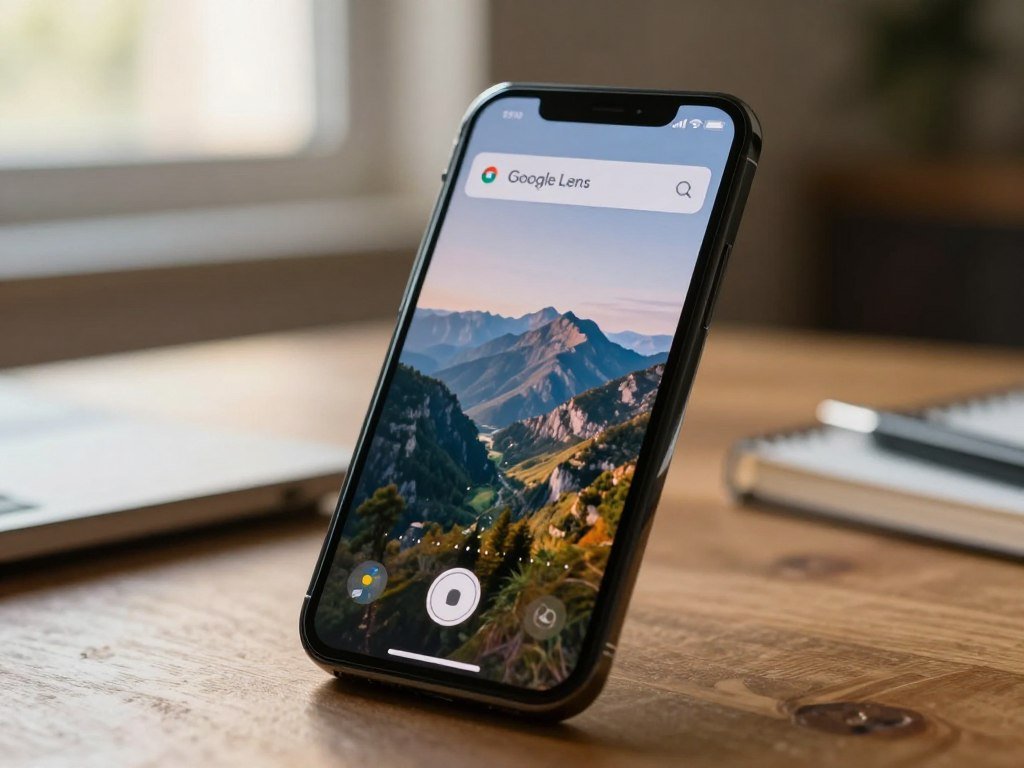
Google Lens can search with a camera image, an existing image, or a screenshot. On a computer, open Lens through Google’s visual search options, then add your file or image.
On Android, open a photo in Google Photos and tap More, then Google Lens. Lens can identify visible details or find similar products. In Google Photos, it can also provide information about landmarks, paintings, plants, and animals.
Basic visual searching with Google Lens is free. Google Lens search options include the Google app, desktop, and Camera app on select Android devices; features and access can vary by service.
Google’s training on verifying photos with reverse image search also describes searching by uploading an image or using its URL. A camera image works well when the object is in front of you, while a screenshot can preserve a useful caption or page detail.
Google Photos is Google’s app for viewing and managing photos. ChatGPT can also analyze an uploaded image, but its description is not proof of the image’s original source.
ChatGPT accepts image files, clipboard pastes, drag-and-drops, and mobile camera captures. It supports PNG, JPEG, GIF, and WebP images, up to 20 MB per image and five images per message.
Lens-search images can be saved in Web & App Activity unless you turn off “Include Visual Search History.” If the image contains personal details, review the visual-search history setting before submitting it.
Test a full image and a focused crop separately; one may reveal a match the other misses.
Step 3: Try More Than One Reverse Image Search Tool
If Google Lens does not surface a useful match, repeat the search with a different engine rather than assuming the image is absent from the web. A second view can reveal results one service did not show.
Use at least one independent search engine to check a promising match. Each reverse image search tool has its own index and features, so a result may appear in one service but not another.
Google Lens works in the Google app and on desktop, plus the Camera app on select Android devices. Bing Visual Search lets you choose Browse and submit your own image. Bing may use submitted photos to improve its image-processing services, so check its privacy terms first.
TinEye searches an index of over 86.5 billion images. It can sort matches by first occurrence, largest version, or most-edited version. Its compare feature places a submitted image beside a match and shows their differences.
| Tool | How to submit | Useful for | Access or privacy note |
|---|---|---|---|
| Google Lens | Camera image or existing image | Identify visible subjects and find visual matches | Google app, desktop, or Camera on select Android devices |
| TinEye | Submit the image | Compare copies; sort by first occurrence, size, or edits | Does not save or index submitted images |
| Bing Visual Search | Choose Browse | Find image matches | Submitted photos may improve image-processing services |
| Apple Visual Look Up | Open image, tap starred Info, then Look Up | Identify listed objects | Some regions and languages are not supported |
Apple Visual Look Up can identify architectural landmarks, popular statues, famous art, plants, pets, and books. Open an image, tap the starred Info button, then Look Up. The feature is unavailable in some regions and languages.
A library guide from the University of Richmond on finding images lists image search options, including TinEye. You can also try Yandex as another search engine, then compare its results with the pages you already found.
Start with the service that accepts your image most easily, then use one independent engine to check its results.
Step 4: Check Which Match Is Actually the Original
A result that looks identical is only a candidate until the page and its context support the claim. Open the page, not just the search-results thumbnail, to see who posted the image and why.
The earliest indexed match is not proof of the first publication or the original creator. A search may find a resized copy, a crop, a visually similar image, or a webpage that includes the picture.
Compare publication dates and page context
Click through to the page that hosts the match. A thumbnail can look like a source while leading to a repost, a product listing, or an unrelated page.
Check the publication date, nearby text, and any named creator. Look for links to earlier coverage or the creator’s own site, since those details can explain where the image came from.
A library guide from Monmouth University recommends checking a web resource’s authority, purpose, currency, objectivity, and domain. Its guide to evaluating web resources also advises tracing claims to an original source.
An AI image finder can describe visible content, such as a landmark or a type of animal, but it cannot establish provenance by itself. To learn more about signs and file history, see this guide to detecting AI-generated images.
Text-based image search can help you locate a subject when you do not have a usable file. It is not a reverse-image match, since it searches words rather than the picture itself.
Inspect the file and its metadata
Metadata is information stored inside some image files. EXIF metadata may include a camera model and capture date, and sometimes GPS coordinates.
Those details can offer clues, but they may be missing or stripped from a file. Social platforms often remove image metadata when users upload pictures.
ChatGPT can accept up to five images in one message, with a 20 MB maximum for each image. That can help you ask about visible details, but an AI answer does not confirm where the image first appeared.
If the page gives no creator, date, or surrounding context, keep checking rather than labeling it the original.
Step 5: Verify Permission Before Reusing the Image
Before publishing or reposting a match, confirm that the rights holder allows the specific use you have in mind. Finding a copy online does not give you ownership or permission.
Check the license terms before you use an image in a post, report, or project. A Creative Commons search can help you find images with licenses for particular uses, but each license sets its own conditions.
Read the source page’s license and check whether it covers your planned use. If the terms are unclear, contact the original creator or rights holder before you publish.
Use this short check before sharing or publishing:
- Confirm the license covers the use you have in mind.
- Check whether the license requires attribution and what details to include.
- Make sure the source page and its link are legitimate.
Give credit to the creator when the license requires it or allows use with attribution. Include the name and other details the license asks for, such as a link to the source page.
If someone sent a shortened link, expand it with LongURL.org or URlex.org before opening it. A clear destination helps you check whether the page belongs to the creator or a trusted site.
An image made with an AI tool may still involve reference images or tool terms. Review the rules for the image tool and get permission before uploading someone else’s reference image. This guide to creating AI images also explains why a person should review generated results.
A search result never grants reuse rights; the license or rights holder sets the terms.
Keep the source page and its license details with your project records.
Conclusion
A dependable attribution starts with a page you have checked, not just a visual match. A matching page with credible context is a stronger lead than a thumbnail that merely looks old.
Before using the image, save the verified source link and record the creator and license information. Those notes help you explain where the picture came from and what use the terms allow.
Save the verified link before you close the tab.
FAQ
What is the Google Photos app?
Google Photos is Google’s app for viewing and managing photos. On Android, open a photo in the app, tap More, then choose Google Lens to get details, take an action, or find similar products. Lens can also provide information about landmarks, paintings, plants, and animals. The app keeps photos in one place, while Lens helps you search what appears in them.
Can ChatGPT identify a picture?
Yes, ChatGPT can describe or identify details that appear in a picture, such as objects, text, or a scene. You can upload as many as five images in one message, with a 20 MB limit per image. Its description can help you understand what you see, but it cannot prove who created the picture or where it first appeared.
Is there a free reverse search?
Yes, Google Lens and Bing Visual Search offer basic visual search options. You can submit an image and look for matching or similar results without starting with search words. Available features can differ, and the services have different privacy practices. Bing may use submitted photos to improve image-processing services, so consider that before you send a personal image.
Can I take a photo of something and have Google find it?
Yes, Google Lens can search from a camera image. Take a picture of the object, then use Lens to look for visual matches or identify visible details. Lens is available in the Camera app on select Android devices. You can also search a saved photo or screenshot, so the camera is not your only option.
How do I find the source of an image?
Search the image with Google Lens, try another engine, then open and check the matching webpage. Compare the page’s date, text, and creator details to see whether it supports the image’s story. A result may be a repost or a similar picture rather than the original source. Check the license before using the image in your own work.
Can you screenshot an image and reverse search it?
Yes, Google Lens can search with a screenshot, a camera image, or an existing image. A screenshot can retain a caption or other useful page details, while a crop can focus on a distinctive feature. Try the full screenshot first, then compare results from a tighter crop. Keep the clearest version you have so small details stay visible.
How do I turn on Visual Lookup?
There is no separate setup step in this flow: open an image, tap the starred Info button, then tap Look Up. Visual Look Up can identify supported subjects such as landmarks, art, plants, pets, and books. The feature is unavailable in some regions and languages, so the Look Up option may not appear for every user or image.