You can turn a short description into an AI image, picture, illustration, or design concept without knowing how to draw. Your first result can support a personal project, a work task, or an idea you want to explore. The process is simple, but a useful result still needs a clear description and a careful review.
You will start by choosing a tool, then describe the subject and generate a draft. After that, you can guide the result, make focused changes, and save a checked version. Your vision matters more than drawing skill, and learning the controls takes practice. A few thoughtful choices can help creators shape the look and purpose of their images. Treat the first output as a draft to guide, not a finished answer you must accept.
Key Takeaways
- You can start with a written idea, even without drawing skills.
- A clear prompt gives the image generator useful direction.
- Review details before using or sharing a result.
- Choose a tool that fits your project and its free-use limits.
- Make focused changes instead of restarting every time.
How to Create AI Images: Pick the Right Generator
For a first try, choose a browser or app you already use, then check whether its limits and controls fit your project. ChatGPT and Gemini suit conversational creation, Ideogram 3.0 helps with text-heavy concepts, and Leonardo AI offers canvas tools. Start with access that feels familiar.
Pixlr gives you a choice of models, while Meta AI offers image creation within some social apps. Free access can mean daily or weekly limits, public creations, or watermarks. An online AI image generator is a convenient first option when you do not need local hardware.
Free access is useful only when its limits, visibility, and watermark rules fit the job.
As of April 2026, Ideogram 3.0’s free tier offered about 10 slow generation credits per week, resetting Saturdays at 00:00 UTC. It allowed images up to 2048×2048 pixels without watermarks. Leonardo AI offered 150 tokens per day, public creations, and a canvas editor with inpainting and outpainting.
Meta AI’s free cap was unpublished as of June 2026. User reports put it near 25 images per day, but region, account, and system load affected access. ChatGPT’s free plan had stricter image limits than paid plans in 2025.
| Tool | Useful starting point | Free-tier detail | Check before using |
|---|---|---|---|
| ChatGPT | Conversational image creation | Stricter free limits | Current rate and device access |
| Ideogram 3.0 | Text-heavy concepts | About 10 weekly credits | Slow-credit reset time |
| Leonardo AI | Canvas editing | 150 daily tokens | Public creation settings |
| Pixlr | Choice of image models | Plan details can change | Model and feature limits |
| Meta AI | Social app access | Cap unpublished | Region and account access |
Pixlr offered Flux Schnell, Flux Dev, Flux Dev Ultra, Stable Diffusion XL, and Nano Banana 2. See a comparison of free AI image generators for more tool details. The services’ interfaces and allowances can change. Before uploading personal material, check the tool’s privacy and visibility settings.
Write a Prompt That Gives the Model Direction
A prompt works best when it tells the model what belongs in the scene and how the scene should feel. Image models learn associations from image-text pairs, so specific text can guide subject, style, lighting, and mood. Clear details help the model form a stronger idea.
Build the prompt around five visual choices. You can write them as one sentence or several short phrases. Leave out details that do not change the image you want.
- Subject and action: name who or what appears, and what it is doing.
- Setting and background: describe the place and the details behind the subject.
- Composition and viewpoint: say what sits in the frame and where you see it from.
- Style and medium: choose a look, such as a digital painting or a studio photo.
- Lighting and mood: describe the light source and the feeling it should create.
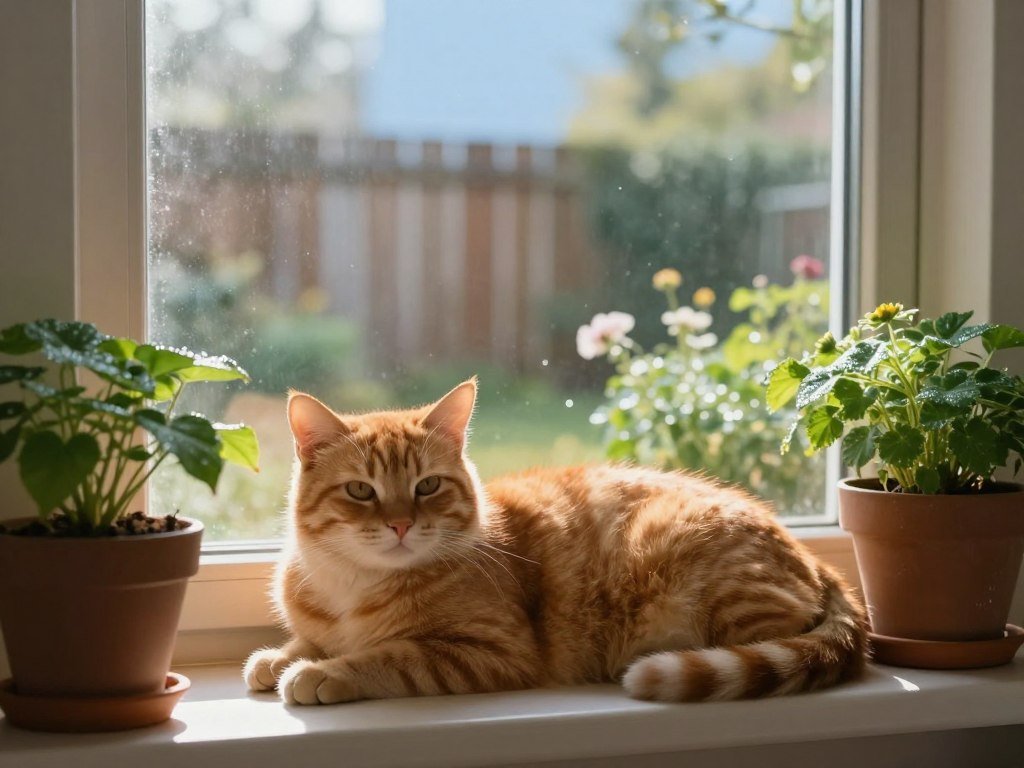
“A cat” gives the generator little to work with. “A ginger cat sleeping on a wooden windowsill in morning light, digital painting” gives it a subject, action, setting, lighting, and medium.
Those added words point in the same direction. Extra detail helps only when it clarifies your intended result. A request for a soft watercolor with sharp, glossy 3D surfaces can pull the image in two directions.
Some tools place style, lighting, composition, and aspect-ratio controls in menus. Use those settings when available, rather than repeating every choice in the text prompt. Pixlr, for example, offered 16 artistic styles, 10 lighting presets, seven composition options, and five aspect ratios.
For a product image, you might specify a plain background and a front view. For a portrait, you might describe a close crop and soft window light. These choices give the generator a clearer visual plan without asking for unrelated details.
Keep the main subject easy to spot. If several objects matter, name their positions so the scene has a readable layout. Remove any adjective that pulls the image away from the main idea.
Generate an Image From Text in a Few Steps
Start with one clear prompt and generate a small set of options if the tool allows it. Compare the drafts before changing your idea. Generation turns written instructions into visual results, but different models build images in different ways.
- Open the generator in a browser or app.
- Enter your prompt in the text field.
- Choose any available style or aspect-ratio controls.
- Generate the images, then compare the options.
Diffusion is an image-generation method that starts with visual noise and refines it through a series of steps. Many image generators use diffusion to shape a scene from a rough pattern into a clearer image. Autoregression models work differently: they predict image chunks in sequence, using what they have already created.
ChatGPT can generate images, and its free plan offers a limited allowance. As of April 2026, image creation was available on the web and iOS and Android apps, but not on desktop. The free plan allowed two to three generations in a rolling 24-hour window.
Each ChatGPT free-plan slot refreshed 24 hours after use. Generated images appeared in the user’s “My images” library. You can read a summary of ChatGPT’s free image allowance before planning several versions.
When an AI image generator from text creates several options, look for the one that follows the scene and mood you described. Pixlr allowed users to generate one to eight images at once. A smaller set can make comparison easier when you are still learning what each control does.
Do not judge only by the first glance. Check whether the main subject is clear, the composition suits your purpose, and any important details look right. Keep a promising result before trying a major prompt change.
Guide the Result With a Reference Image
A reference image is useful when words alone do not communicate the look you want. It can guide a new image’s subject, color, style, or composition while your prompt describes the new scene. Use it as direction, not as a substitute for explaining your idea.
Google Gemini lets you create images and request edits in conversation, including by uploading a reference image. Its limits depend on your account and usage. Krea accepts a prompt, a reference image, or both to guide subject, style, composition, colors, and visual details.
Use an Image to Set Style or Subject
A reference can show the color palette you want, the angle of a portrait, or the shape of an object. Your prompt can then request a different scene with those qualities. Pixlr also lets you upload a reference photo to guide image generation.
Krea 3 supports up to eight image references, specific-region editing, and native 2K image output. A reference-led visual workflow can help you keep a subject or style consistent across related creative work.
Keep References Focused on One Visual Goal
One clear reference often gives the model a cleaner signal. Several images can compete when they request different styles or subjects. One may show a bright cartoon palette, while another asks for a moody, realistic portrait.
Use a reference for visual direction, not to copy a protected image or expose someone’s private material. A person’s photo may reveal more than the visual style you want, especially when it includes personal or private details.
Choose images you have permission to upload. In your prompt, name the qualities you want the model to borrow, such as color, lighting, or framing. Use only images you have permission to upload, and state which visual qualities the model should borrow.
Edit an Image Without Starting Over
If the overall composition works, edit the part that is wrong instead of rebuilding the entire scene. Small changes can preserve the useful parts of an image while correcting a distracting detail. Ask for one clear change at a time.
Inpainting means changing a selected area of an image. Outpainting means extending the image beyond its original edges. These features can help when a result needs a local repair or a wider canvas.
Change One Area at a Time
Select a small area and describe the change you want. You might replace a cup on a table or soften a busy background. A narrow selection helps focus the edit on the detail that needs attention.
Pixlr Express includes AI Generative Fill for replacing or extending parts of an image. After an edit, check the nearby objects and edges, too. A localized change can alter details outside the selected area.
Extend, Resize, and Refine the Canvas
Outpainting can add space around a subject when you need a wider or taller frame. It can help turn a close crop into a banner or fit a portrait into a vertical layout. Ask the tool to continue the scene naturally beyond the original edges.
Pixlr Express’s Generative Expand changes an image’s aspect ratio. Krea supports image variations, multiple aspect ratios, localized edits to add, remove, replace, or restyle areas, and image upscaling.
Upscaling can help when an image needs more detail at a larger size. It cannot guarantee that every small feature will become accurate. A research benchmark tested image-editing models on 100 tasks and found per-attempt pass rates from 34% to 83% across evaluated models.
The HYPE-EDIT-1 editing benchmark also found that retries and human review affected the cost of successful edits. Compare the edited result with the original before discarding either version.
Fix Common Problems in AI-Generated Images
A flawed detail does not always mean the whole image needs to be regenerated. Start with the problem that matters most, then decide whether to revise, edit, or make a fresh variation. Precise lettering, object counts, and spatial relationships can be unreliable.
| Problem | Likely prompt issue | Practical fix |
|---|---|---|
| Inaccurate text | Long or exact wording | Keep text short and check each letter |
| Missing or extra objects | Unclear count or placement | Name the count and position |
| Unwanted background details | Setting is too broad | Simplify the background request |
| Inconsistent lighting | Conflicting light sources | Specify one main light source |
Image-generation models can misrender precise lettering and object counts. Keep text short, then verify it manually before using the image. If a label must be exact, adding the words later in a design app may give you more control.
Missing or extra objects often come from crowded prompts or unclear spatial instructions. A list of many objects can confuse the model, especially when the prompt also asks for incompatible styles. Keep the central objects distinct and make their positions clear.
For an unwanted detail inside the image, inpainting replaces or restyles a selected area. Outpainting extends the image beyond its original edges. These terms describe different jobs: one repairs part of the scene, while the other grows the canvas.
If the background feels too busy, select the distracting area and request a simpler setting. If the main subject has the wrong shape or pose, a fresh variation may work better than a local repair. Make the smallest change that addresses the main flaw.
Check the whole image after a repair, since a changed edge can affect nearby details. If two edits fail to fix a central feature, simplify the prompt and generate a fresh variation.
Plan Images for Social Media, Products, and Personal Projects
Decide where the image will appear before choosing its framing and level of finish. The destination shapes the crop, especially when social media apps show images in different layouts. Common aspect ratios include 1:1 square, 9:16 portrait, and 16:9 landscape.
A square post can suit a centered subject, while a vertical story needs room for a tall frame. A landscape image leaves more space across the scene. The MDN guide to aspect ratios explains how width and height ratios shape a web element.
| Project | Useful composition | Check before sharing |
|---|---|---|
| Square social post | 1:1, centered subject | Text and details stay in frame |
| Story or reel cover | 9:16, vertical focus | App crop leaves key details visible |
| Product concept image | 1:1 or 16:9, clear item view | Concept matches the real item |
| Personal illustration | 16:9 or chosen canvas | Crop fits the final display |
Pixlr offered five aspect-ratio options. The platform where you plan to post should decide the final crop, since its current requirements may shape the usable frame. Check how the image appears on a phone when that is where your audience will see it.
Creators can use AI visuals for social media posts, mood boards, product ideas, or personal art. A product concept image can help you explore colors and layouts. It is concept art unless you check it against the real item.
A mockup presents an idea or sample layout. It is not the same as a truthful image of an item for sale. If a generated picture changes the product’s color, size, parts, or features, viewers may get the wrong idea.
For a personal illustration, the best image may be the one that matches the story or feeling you want to share. The crop should still suit the place it will appear. Check the crop at the size and shape where people will actually see it.
Check Rights, Labels, and Image Authenticity
Before sharing an image for work, check both the tool’s license and the image’s claims. Usage terms matter because different services set different rules. Review four points before publishing or relying on an image.
- Check the tool’s terms for your planned use.
- Confirm you have permission to upload each reference image.
- Keep or disclose a visible AI mark when required.
- Review the final image for details that could mislead viewers.
The U.S. Copyright Office’s January 2025 report says material generated wholly by AI is not copyrightable under existing U.S. law. The Office reviews AI-assisted work case by case, based on whether it includes sufficient human authorship.
The Office distinguishes AI as an assistive tool from material generated wholly by AI. The result depends on the human contribution, not simply on whether someone used a generator. Keep a record of the choices and changes you made during creation.
Adobe Firefly’s free plan offered a limited number of daily generations as of 2026. Adobe said its own models were trained on licensed and public-domain content, and its commercial-use terms applied to outputs from those models. Microsoft Designer’s consumer license was for personal, non-commercial use.
Meta AI placed a visible “Imagined with Meta AI” mark and invisible provenance metadata on free image outputs as of June 2026. A mark can help viewers understand how a visual was made. Keep it when the tool or your use requires it.
AI image detectors can make mistakes. In a late-April to early-May 2026 test, five detectors labeled real photographs as AI-generated 13.33% of the time across 45 images. The test included only those 45 photographs, so its result does not predict every detector or image.
Detection can weaken when an image is screenshotted, heavily compressed, or edited after creation. A detector test with a 13.33% false-positive rate shows why a score alone can mislead. Do not treat a detector score as proof that an image is real or AI-generated.
Train a Personal Model or Generate Images Locally
Local generation gives you more control, but it asks more of your computer than a browser-based tool. Hardware is the tradeoff: running a model on your own machine avoids a hosted service’s daily generation cap. Your computer needs enough graphics memory to load the model.
Use a Local Model for More Control
As of 2026, Stable Diffusion 3.5 could run locally without a daily generation limit. It needed a graphics card with at least 8 GB of VRAM, and 12 GB or more was recommended. VRAM is memory used by a graphics card.
FLUX.2 [klein] 4B was available as an open-weight model under the Apache 2.0 license as of 2026. Its reference setup listed about 13 GB of VRAM. Local use also means installing and setting up the software yourself.
You can compare image generators and local-use options before choosing a model. A hosted tool may be easier to start with, while a local setup gives you more control over where generation happens.
Train a Small Personal Model With a Dataset
A personal model needs a base model, a training method, and a set of images. The base model gives it broad image-making skills. The training method teaches it a recurring subject or visual identity.
LoRA is a method that trains a small part of a model and connects it to a trigger word. You can include that word in a prompt to call up the learned subject or look. This setup takes more care than using a hosted image generator.
Choose training images with varied lighting, expressions, angles, and settings. A set that shows only one pose or one room can teach a narrow pattern. Use images you have permission to include in the dataset.
A free image generator lets you try a hosted model without paying for every use, subject to its terms and limits. Creating a custom model is a separate task. A free hosted tier does not make model training or suitable computer hardware cost-free.
Choose a hosted generator unless you specifically need a personal model or offline workflow.
Keep a Person in Control of the Final Image
A generated image can speed up exploration, but the person using it still makes the important decisions. Human judgment stays central when an image needs to fit a real task, audience, or claim. The 30% rule is a guideline, not a legal standard or fixed cap on AI use.
Use AI for Repetitive or Preparatory Work
The 30% rule describes one possible split: AI handles repetitive or preparatory work, while people keep oversight, judgment, and accountability. The 70/30 division is an idea, not a required formula for every project.
You might use an image generator to explore several layouts before choosing one to refine. It can help with early concepts, simple variations, or a first visual draft. The person doing the work still decides which result fits the goal.
Review the Result Before It Goes Live
Before using the best image, check four things:
- Accuracy: do the people, objects, and details match the intended message?
- Composition: can viewers find the main subject at a glance?
- Text: are names, labels, and words correct and easy to read?
- Audience: does the image suit the people who will see it?
These checks help catch problems that a polished look can hide. A realistic background may contain a wrong sign, or a product concept may show a feature the real item lacks. Review meaning as well as appearance.
People who make, approve, or share an image remain responsible for its final use. The 30% rule does not transfer that responsibility to a tool. A person who understands the audience can decide whether an image is accurate and suitable.
Keep final approval with the person who understands the audience and the purpose.
Conclusion
Your first AI image does not need a complicated workflow to be worth making. A clear idea, a suitable tool, and a human review are enough to begin. You can learn from the first draft without expecting it to be perfect.
Try one simple prompt, keep the strongest result, and make one targeted edit. That small practice can teach you what details matter for your project. Write one clear prompt today, generate a draft, and decide what you would change before sharing it.
FAQ
How do I generate my own AI image?
Choose an image generator, describe the subject and setting in a prompt, create a draft, then refine and save it. Start with one clear idea rather than a long list of unrelated details. Compare the result with what you meant to make. If one part looks wrong, try a focused change before replacing the whole image.
Which AI photo generator is free?
Free options include ChatGPT, Ideogram 3.0, Leonardo AI, Gemini, Meta AI, and Adobe Firefly. Each has different limits, features, and use terms. Some free plans limit generations, while others may make creations public or add a mark. Choose based on the task you need to do, then check the plan’s current details.
Can ChatGPT generate an image?
Yes, ChatGPT can generate images, with a limited free allowance and access on the web and mobile apps as of April 2026. The free plan allowed two to three generations in a rolling 24-hour window, with each slot refreshing 24 hours after use. Generated images were saved in the “My images” library.
Can I create my own AI for free?
You can try free hosted image generators, but training a personal model or running one locally may require hardware or paid computing. A hosted free tier lets you use a model someone else has set up. A custom model needs a base model, training images, and a method such as LoRA, along with time to prepare and test it.
What are the best free AI apps?
The best free AI app depends on the task. ChatGPT and Gemini support conversational image creation, Ideogram suits text-heavy designs, and Leonardo AI offers canvas editing. Pixlr gives you model choices. Local models offer more control but need suitable hardware. Check current free-use limits and privacy settings before choosing an app for a project.
What is the 30% rule in AI?
The 30% rule is a nonbinding guideline, not a legal standard or fixed cap on AI use. It describes one possible split, where AI helps with preparation or repetitive work and people retain judgment, oversight, and accountability. The 70/30 idea is not a required formula. The person using the result remains responsible for its final purpose and audience.