
You can often identify a webpage from a screenshot by searching its words and image, then checking a candidate page. A screenshot may hold two kinds of clues: visible text and details such as a logo, photo, or layout. Reverse image search means searching with an image to find matching or visually similar images and webpages. Both kinds of clues can narrow the search, even when the screenshot hides its original URL.
This five-step approach helps you find a likely page, compare it with the screenshot, and judge whether it fits. The process can save time when you need to check a post, track down an article, or answer questions about where an image first appeared. A matching image is a lead, not proof.
Key Takeaways
- Search exact words from the screenshot.
- Use an image-matching service to find similar images and pages.
- Try another tool if the first search comes up short.
- Compare the strongest candidate with the actual page.
- Treat search results as clues, not proof of origin.
Start with the clearest clue you can see, whether it is a short phrase or a distinctive object. Treat the first plausible match as a lead to verify, not proof of the screenshot’s origin.
How to Find a Website From a Screenshot
The quickest route is a five-step process that moves from visible clues to a checked webpage. Text and images can each lead you to pages that one clue alone might miss. Image search can find a website by showing webpages where an image appears, but a similar image does not prove you found the original.
Google Lens can search with a screenshot, an image, or a camera capture. Its results can include matching images, visually similar images, and webpages where an image appears. You can also use Google Lens with a screenshot to search online.
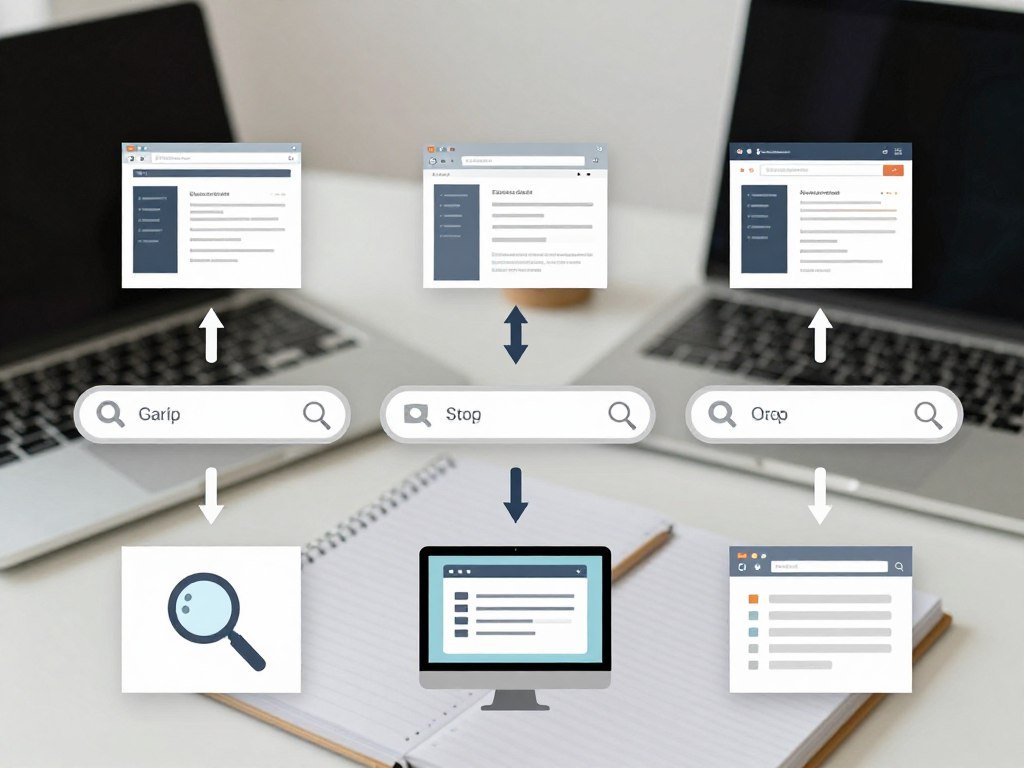
- Inspect the screenshot for distinctive text, such as a headline, product name, or unusual phrase.
- Identify recognizable visual details, including logos, products, faces, or a striking background.
- Submit the screenshot to Google Lens and look through image matches and related webpages.
- Try a second reverse image search tool if Lens does not return useful results.
- Open a candidate page and check its content against the screenshot before relying on it.
The same search can help you find a website from a screenshot online, even when you do not know the page name. If a visual match turns up, inspect the page itself rather than assuming the image proves where the screenshot began.
A similar image can lead to a useful page, but only the page itself can show whether its content fits your screenshot.
A tool’s results depend on its image index and on whether the screenshot includes searchable text or distinctive visuals. If image searches reveal an earlier appearance or a different caption, compare that context with the screenshot. A guide to checking an image’s history and context can help you read those clues carefully.
Keep a short note of the exact words or visual detail that led you to the strongest match.
How Google Lens Works on Desktop and Phones
On desktop Chrome, right-clicking a webpage image opens a Lens search directly in a sidebar. You can also upload an image file through Google Images to search by image in Chrome. The right route depends on whether your image is saved or already on a webpage.
Google Lens accepts a screenshot uploaded as an image file. Results may include pages where the image appears, along with matching and similar images. The Google Lens search options include image uploads and webpage-image searches.
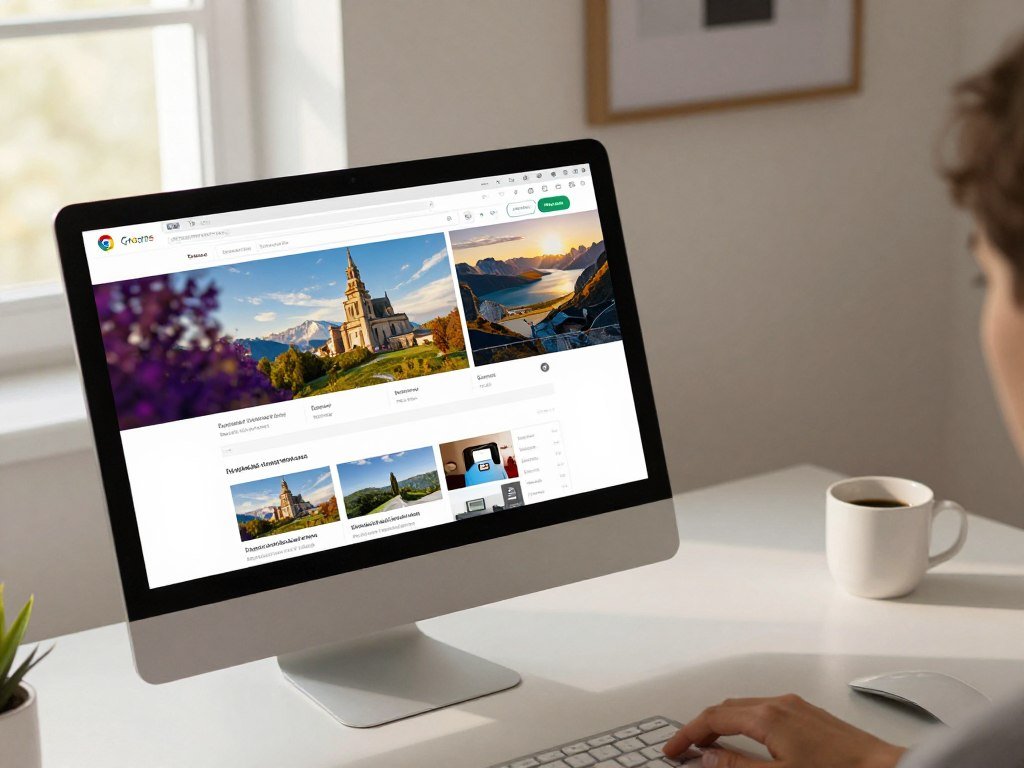
Search an image from Chrome on desktop
To upload an image to Google Image Search, open Google Images and choose the image-search option. Select the screenshot file on your computer, then review the results for images and pages that may match it.
When an image is already on a webpage, right-click it and choose “Search image with Google” or “Search image with Google Lens.” Chrome opens the Lens results in a sidebar, so you can keep the original page in view while searching.
Google’s Chrome Lens help page explains how to search webpage content and images from Chrome.
Use Lens from Android and iPhone
In Android Chrome, select a saved screenshot or image from your device to search it. You can also touch and hold an image on a webpage, then tap “Search image with Google Lens.”
On iPhone, Google Lens in the Google app or Chrome can search an uploaded or captured image. In Chrome mobile, long-press a webpage image to search it.
| Platform | Search from an existing image | Search a webpage image |
|---|---|---|
| Desktop Chrome | Upload a screenshot file in Google Images | Right-click, then choose Google image search |
| Android Chrome | Select a saved screenshot or image | Touch and hold, then tap Lens search |
| iPhone Google app or Chrome | Upload or capture an image in Lens | Long-press an image in Chrome mobile |
For an Android Chrome Lens query, Google temporarily processes a webpage screenshot and page data. Google says it keeps that data only temporarily for the query and does not use the page or image for training as a result.
Before uploading a sensitive screenshot, remove personal details that are not needed for the visual match.
How Can Text and Interface Clues Narrow the Search?
A distinctive sentence or product name can identify a page even when the screenshot’s image has no useful match. Visible wording gives you a second route into the search. Optical character recognition, or OCR, makes text in an image searchable.
Google Lens can extract visible text from an image. Copy a distinctive phrase from the screenshot and search it in Google inside quotation marks. Exact wording can narrow results more than a broad search for a topic or product category.

Search distinctive words from the screenshot
Look for a headline, caption, product label, or short line that sounds unusual. Search the shortest unusual wording first, then add a name or product detail if the results remain broad.
For example, a product name beside an uncommon feature may lead to a store page or review. A common phrase such as “great deal today” is less likely to point to one page.
Identify platform and page details
Check the visible app name, logo, buttons, tabs, usernames, captions, and layout. A familiar interface can point toward a social post, store listing, or article, while a username or caption may lead to a specific account or page.
Screenshots often remove useful metadata, so visible evidence is more dependable than trying to recover a hidden URL. Use this checklist to collect clues before searching:
- Exact wording from a headline or caption
- Product or article name
- Logo or app name
- Interface controls, such as buttons or tabs
- Username or caption beside the image
If automated searches stall, you can ask for help in Reddit communities such as r/HelpMeFind or r/TipOfMyTongue. Their replies may suggest places to look, but they do not verify a source.
Search the shortest unusual wording first, since common phrases produce less specific results.
When Should You Use TinEye Instead of Google Lens?
Choose TinEye when you need copies of the same image, and choose Google Lens when you want broader visual discovery. The main difference is what each image-matching service is designed to find. TinEye is a strong first choice for copies or modified versions; Lens is a better first choice for broader visual matches.
TinEye searches an index of over 86.5 billion images and says it does not save or index search images. It can find cropped, edited, or resized matches, then sort results to inspect the first occurrence, the largest version, or the most edited version.
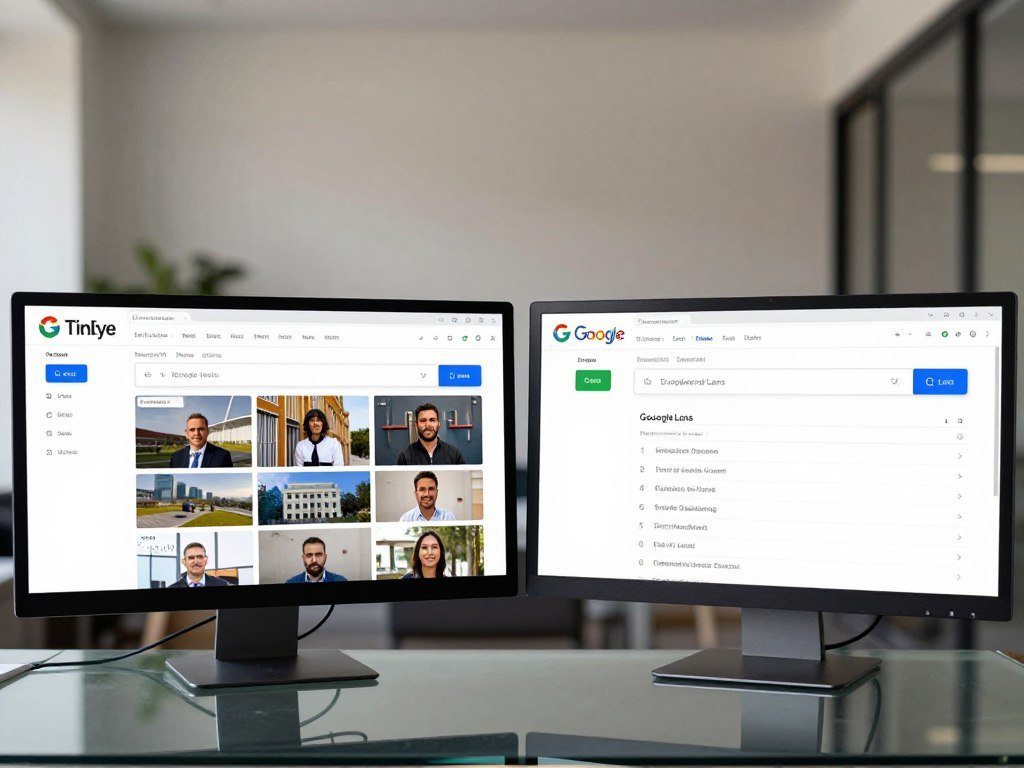
Find copies and edited versions with TinEye
Use TinEye when you want to find copies of an image or see how a version changed. Its sorting choices can help you compare copies and spot an earlier occurrence or a larger file.
For a free reverse image search, Google Lens and TinEye both offer image-search options. Their results can differ because they use different indexes.
Use Lens for broader visual discovery
Google Lens can return matching or visually similar images and webpages where an image appears. That makes it a useful first try when the screenshot shows a product, place, or object, rather than a known image copy.
| Tool | Best use | What the results help locate |
|---|---|---|
| Google Lens | Broader visual discovery | Matching or similar images and webpages |
| TinEye | Finding copies | Matching versions, including edited or resized images |
| Bing Visual Search or Yandex Images | An additional image-search route | Possible visual matches to inspect |
Bing Visual Search or Yandex Images can add another way to search when your first results are weak. Treat their matches as possible clues, then inspect the pages behind them.
If the first tool returns nothing useful, submit the same image to the other because their indexes differ.
How Can You Improve a Screenshot Before Searching?
A screenshot crowded with unrelated objects can send image matching toward the wrong subject. Crop around one distinctive object to help Lens focus on the clue you want. Keep enough surrounding detail to show what the object is and how it fits the page.
A tight crop can reduce competing visual material, such as browser buttons, extra products, or a large empty background. A crop that removes a logo or key design feature can make the match harder instead.
Crop around one distinctive object
Use this short preparation list before you search an image:
- Crop to the most distinctive object.
- Remove unrelated parts of the screen.
- Keep a recognizable logo or product detail in frame.
- Save the cropped image as a regular image file.
For example, a product image surrounded by several ads may return matches for the ads. Focusing on the product can give the image search a clearer subject without losing useful context.
Capture the full page when useful
A full-page capture can help when the useful clue sits below the part of a page you can see. Safari on iPhone can capture a full-page screenshot of a webpage, including content beyond the screen, and lets you crop it before saving.
Chrome’s built-in Lens search is available from an image’s context menu, so you do not need a separate image-search extension for that route. You can use the saved screenshot with other image-matching services too.
If the useful clue sits below the visible screen in Safari on iPhone, capture the full page before cropping.
What Other Tools Can Help, and How Do You Verify a Match?
ChatGPT can help describe a screenshot, but it cannot search the web for every page where that screenshot appears. It can name visible objects or turn visual clues into search terms. That is different from reverse image matching across webpages.
ChatGPT accepts PNG, JPEG, GIF, and WebP uploads up to 20 MB per image. On desktop, you can also paste a copied screenshot into the message field. A description can help when a logo or object is hard to name, but it cannot prove where an image appeared.
Use ChatGPT for description, not source matching
Ask ChatGPT to describe a screenshot or identify visible details. For example, it may help you name a type of product, read a label, or turn a visual feature into a focused search term.
Visual analysis does not show which webpages contain the uploaded screenshot. To find pages, use an image-matching service and inspect the results directly.
Check the candidate page before relying on it
A search result is a candidate source, or a possible original webpage, rather than confirmed proof. Check these details before you rely on a match:
- Compare the page content with the screenshot.
- Inspect the author or publisher page.
- Check the dates shown on the page.
- Look for earlier reposts or copies.
The surrounding text can change what an image means. A picture shown on a product page may also appear in an old post with a different caption, so compare the page and its context.
Do not rely on image matching alone for decisions about health, law, money, dangerous objects, high-value appraisals, or someone’s identity.
For those high-stakes questions, seek a specialist’s review instead of relying on a search result. You can also read about how search systems find relevant pages to understand why a useful page may not appear in a result.
Confirm a candidate against its page context, author, and date before treating it as the original.
Conclusion
A screenshot is easiest to trace when you treat its words, visuals, and page details as separate clues. A distinctive phrase paired with reverse image search gives you a reliable starting point, but a match still needs a close check.
Choose the most distinctive phrase or object in the screenshot and run that clue through Google Lens or an exact-phrase search. Start with the clearest clue you can see, then verify the page before sharing it as the source.
FAQ
Can a website see when you take a screenshot?
Ordinary webpages generally do not receive a screenshot notification from a standard browser. A webpage may still record other activity, such as a visit or a button click, but that is not the same as detecting a screen capture. Some apps and protected environments can detect or restrict screenshots. If the page contains sensitive content, follow its rules before saving or sharing a capture.
How to do a Google image search?
Open Google Images or Google Lens, upload your screenshot or image, and inspect matching images and webpages where the image appears. You can use a saved image file, rather than needing the original webpage open. Results may include similar pictures that show the same kind of object but come from another page. Check the page itself before treating a match as the source.
Can ChatGPT identify a picture?
Yes, ChatGPT can describe and analyze an uploaded picture. It may name visible objects, read some text, or help you form better search terms. That ability is different from searching the web for pages that contain the picture. Use an image-matching service to locate possible webpages, then check their content and dates to judge whether they fit.
Is there a free reverse search?
Google Lens and TinEye offer image-search routes, and their results depend on whether their indexes contain a match. A screenshot with a clear logo or product may return useful results, while a private or uncommon image may not. You can try both tools when one comes up short. A missing result does not show that an image has never appeared online.
Which is the best free reverse image search?
Start with Google Lens for broader visual discovery and TinEye for copies or modified versions of the same image. Lens can find similar visuals and webpages, while TinEye focuses on matching image copies. Try both if your first search gives weak results, since their indexes differ. Compare each result with the page and its surrounding details before you rely on it.
Can you screenshot an image and reverse search it?
Yes, you can save or upload a screenshot as an image and search it with Google Lens or another image-matching service. Crop around one distinctive object if unrelated details compete with it. Keep a logo or product feature visible when it helps identify the image. Results can point to similar images rather than the exact page shown in your screenshot.
Can you trace a screenshot?
Often, you can find likely copies or clues to a screenshot’s source, but a match does not prove the original source. Some screenshots cannot be traced conclusively, especially when their images and text are common or unclear. Search visible wording as well as image details. Then compare the strongest candidate with its author, date, and page context.
How do I reverse image search on a phone?
On iPhone, use the Google app or Chrome to upload or capture an image in Lens. In Android Chrome, select a saved screenshot or image from your device. You can also long-press a webpage image and choose Lens search. The results may show matching or similar images and webpages, so check the page before calling it the original.



