
An unexpected message or download can turn an ordinary moment online into a malware risk for your personal information. Malware can affect phones, tablets, and connected devices, not just desktop computers. Everyday activities, such as checking emails or saving a file, can expose private details or files when something goes wrong.
You do not need technical skills to learn what these threats can do. A few clear ideas can help you notice when a device or account needs attention. By the end, you’ll be able to distinguish an annoying disruption from an attempt to steal access to an account.
Key Takeaways
- Malware can target phones, tablets, computers, and other connected devices.
- Different forms can steal information, block files, or disrupt a system.
- One odd device symptom does not prove malware is present.
- Careful habits and updated security tools can lower risk.
- If you suspect an infection, use a trusted scan and protect exposed accounts.
A Simple Answer: What Is Malware and How Does It Work?
Malware is software designed to compromise a device, its data, or the systems it connects to. The word combines malicious and software, describing code made to harm or misuse a computer. Malware is the program; a malware attack is its unauthorized use.
The National Institute of Standards and Technology defines malware as a program covertly placed on a computer or electronic device to compromise data, applications, or operating systems. The NIST malware definition also frames the risk around data confidentiality, integrity, and availability. In plain terms, an attacker may try to read information, change it, or stop you from using it.
The payload is the harmful code or program that performs an attacker’s intended action after it reaches a device. That action could involve stealing passwords, disrupting a service, damaging files, or gaining access. CISA also describes malware as software used to gain unauthorized access to IT systems.
Creating or using malware without authorization can be a crime, but the legal status depends on conduct, intent, and applicable law.
A malware attack can use code to take data, interrupt normal work, damage a network, or reach an account. The word “attack” describes what someone does with the program, not just the program itself. Security teams may also study harmful code to spot threats or defend systems.
The risk comes from what the code is designed and allowed to do, not from the label alone.
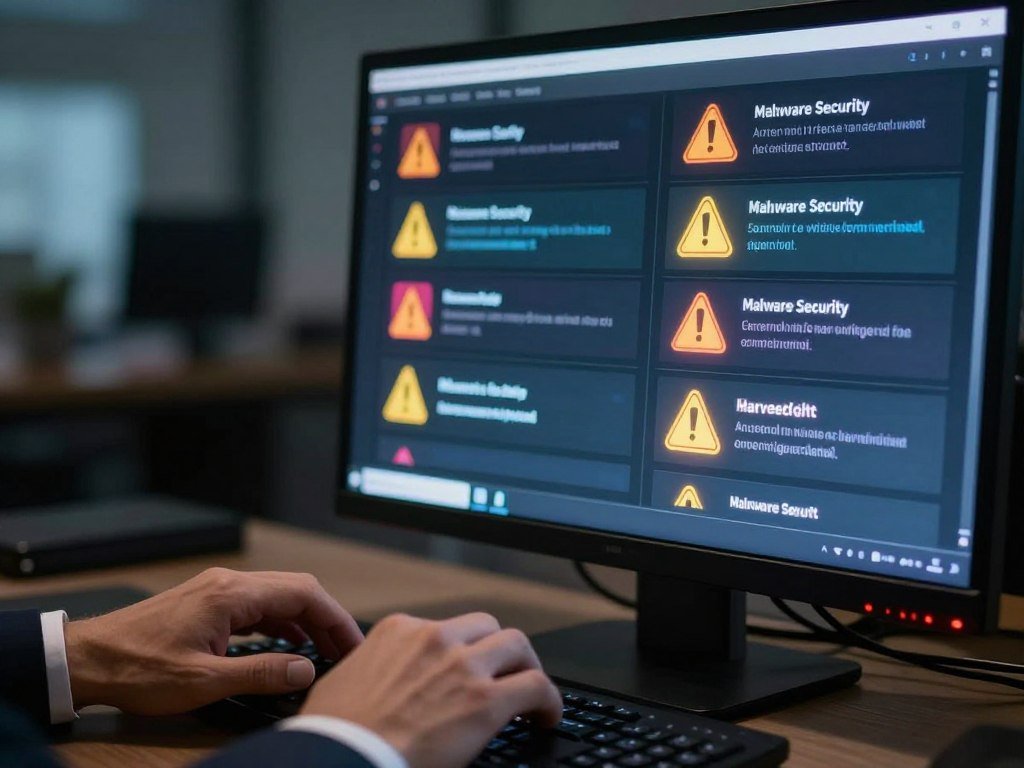
Which Types of Malware Should Beginners Know?
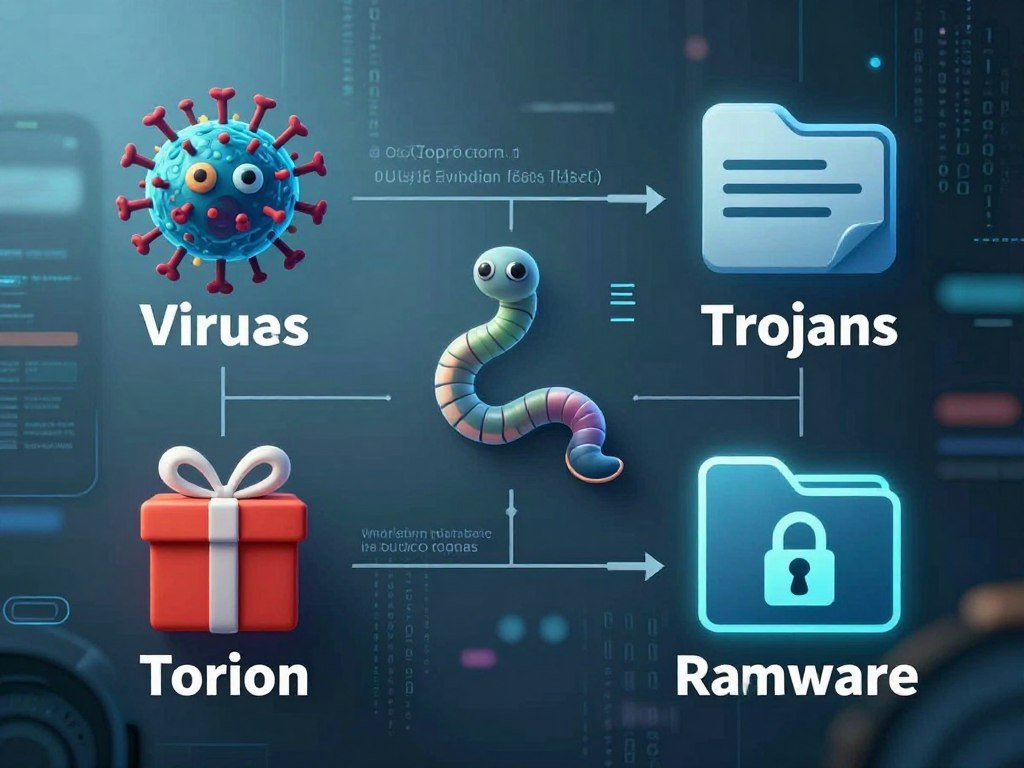
A virus needs a host file, while a worm can spread across vulnerable systems without one. A Trojan disguises itself as useful or legitimate software. Those differences matter because each type uses a different way to enter, spread, or hide.
Four familiar categories are only part of the full range of threats. NIST includes viruses, worms, Trojan horses, rootkits, spyware, malicious mobile code, and some forms of adware among common types. Its malware type examples give a broader view than a short list.
Viruses, Worms, and Trojans
Viruses attach to host files or programs and may run when you open the infected item. Worms can copy themselves across vulnerable systems without waiting for a person to share a file. Trojans pose as legitimate software, then carry out hidden actions after installation.
These types can overlap with other threats. For example, a Trojan may install another program, while a worm may carry a second harmful function. A name often describes how code behaves, not every action it can take.
Spyware, Adware, and Ransomware
Spyware secretly collects information about your activity. A keylogger is software that secretly records keystrokes, which can expose account details or messages. Adware displays unwanted ads; it does not automatically steal information or control your computer.
Ransomware denies access to data or systems, often through encryption or extortion. Attackers may demand payment or another gain to release what they have blocked. CISA defines ransomware as malware that holds data or systems captive until attackers receive a ransom or other payment.
Rootkits, Botnets, and Other Hidden Threats
Rootkits aim to hide their presence and maintain access to a system. A botnet is a remotely controlled group of infected devices, which attackers may direct as a group. Loaders and droppers often bring in a second-stage malware payload.
Other forms include scareware, which uses alarming claims to push action, and cryptojacking, which hijacks computing power. Fileless malware works through system tools or memory instead of relying only on a new file. A logic bomb waits for a set condition before it acts.
| Type | How it works | Defining difference |
|---|---|---|
| Virus | Attaches to a host file or program | Needs a host to spread |
| Worm | Copies itself across vulnerable systems | Can spread on its own |
| Trojan | Disguises itself as legitimate software | Relies on a false appearance |
| Ransomware | Blocks data or systems for payment or gain | Denies access to pressure a victim |
A type name describes a method, so judge the risk by the behavior that method enables.
How Do Cybercriminals Spread Malware?
A fake invoice attachment and a compromised website can deliver malware in very different ways, including one that needs no click. Criminals use messages, downloads, and weaknesses in software to reach a device. Some routes rely on a mistake, while others take advantage of a flaw.
A drive-by download can begin when you visit a compromised website, even without clicking a download prompt. The browser may encounter harmful code that exploits a weakness in the browser or its related software.
Links, Attachments, and Disguised Downloads
Phishing emails and texts often imitate a person or service you know. Their links may lead to fake sign-in pages or harmful downloads. Attachments can look like invoices, shipping notices, or documents, making a rushed click seem routine.
Deceptive ads and pop-ups may claim your device needs an urgent fix. Fake updates and unofficial software downloads can install malware while appearing useful. A link can also send you to a website that asks for account details.
Compromised Sites and Software Weaknesses
Attackers can alter a real website or use an exploit kit to search for software vulnerabilities. A drive-by download may happen during a visit, without a download button or clear warning. Outdated browsers or add-ons can leave known weaknesses open.
File-sharing networks and removable media create other risks. A shared program may include harmful code, and an infected USB drive can carry it between computers. Six common routes show how these paths differ:
- Phishing email: a fake sender urges you to open an attachment or sign in.
- Text message: a short link leads to a harmful or deceptive page.
- Fake ad or pop-up: an alert pressures you to download a supposed fix.
- Compromised website: hidden code may try a drive-by download.
- Exploit kit: code searches for flaws in a browser or other software.
- Shared media: P2P files or infected USB drives can carry harmful programs.
An unexpected download deserves attention even if you did not knowingly open a file.
What Can Malware Do to You?
Malware can range from intrusive advertising to stolen financial information or files held for ransom. It may take passwords, banking details, or credit card numbers, or monitor activity to gather sensitive information. The effect depends on the code and the access it gains.
Malware can also damage or delete files, encrypt data, hijack computing resources, or enable remote access. A business infection may disrupt work across shared systems, while an individual may lose access to personal files or accounts.
The FBI’s 2025 Internet Crime Complaint Center report recorded complaints and reported losses in separate categories. The figures describe what people reported, not every infection or every person affected.
| Complaint category | Complaint count | Reported losses | Reporting year |
|---|---|---|---|
| Ransomware | 3,611 | $32,320,105 | 2025 |
| Malware | 893 | $19,370,572 | 2025 |
| All reported complaints | 1,008,597 | $20.877 billion | 2025 |
The 2025 IC3 complaint figures reflect reports made to the FBI’s IC3. People do not report every incident, and one complaint does not always equal one infection. The total includes many kinds of internet crime beyond malware.
Ransomware and malware are separate IC3 complaint categories, not counts of every infection.
How Can You Tell if a Device Has Malware?
A suddenly slow device is a warning sign, but it does not prove malware is present. Crashes, freezes, persistent pop-ups, and browser redirects can also point to other problems. Look for a pattern, rather than treating one odd moment as proof.
Several signs together make a trusted security scan a sensible next check. Watch for unfamiliar programs or browser extensions, settings changing without permission, unexpected account activity, or unusual network use.
On Windows, malware can interfere with normal tasks, including opening Control Panel. Windows Task Manager and macOS Activity Monitor show running processes, but an unfamiliar name alone does not confirm infection. Some legitimate system tools have names you may not recognize.
Check whether the same change appears again after you restart the device. A browser that keeps opening an unfamiliar page deserves more attention than one slow startup. Unexpected messages sent from your account also merit a closer look.
For a phone, pay attention to new apps you do not remember installing or settings that have changed. A problem with one app may be limited to that app, while account activity can point to a wider concern. Keep a note of when the change began.
A scan from a trusted security tool can help assess several warning signs at once. Avoid acting on a pop-up that demands an immediate download, since the alert itself may be deceptive. A single symptom can come from a faulty update, low storage, or a failing device component.
An unfamiliar program paired with unusual account activity is a stronger reason to run a trusted scan than either sign alone.
What Does a Real Malware Attack Look Like?
WannaCry showed how a ransomware infection could spread beyond the first computer without waiting for another user to click. It began spreading internationally on May 12, 2017, and affected more than 200,000 computers in over 150 countries. One weakness helped it travel across connected systems.
WannaCry combined file or system denial with worm-like spread across computer networks. It used EternalBlue, a vulnerability affecting older, unpatched versions of Microsoft Windows. Once it reached a vulnerable computer, the worm feature could seek other computers on the network.
The attack held files or systems inaccessible, while its self-spreading behavior carried the infection farther. That combination made a single vulnerable computer a possible starting point for broader disruption. People did not need to open a new file on each computer for the worm to keep spreading.
Microsoft issued a patch for EternalBlue on March 14, 2017, before the outbreak began. A patch is a software update that fixes a known weakness. Older computers that did not receive the update remained exposed to the flaw.
For users and organizations, the incident showed why one unpatched computer can affect other devices on a network. It also showed how a malicious program can combine more than one behavior. The damage did not depend on a person repeatedly clicking the same attachment.
Microsoft had issued the EternalBlue patch before WannaCry began spreading, yet unpatched systems remained vulnerable.
How Can You Avoid Malware?
Keeping software updated closes known weaknesses that attackers may otherwise exploit. Use current versions of your operating system, browser, and apps. Updates do real security work, even when they seem like routine maintenance.
Use several safeguards together, because no single setting can block every threat. Safe browsing habits lower the chance of a bad download, while security tools can help spot or block harmful code.
Safer Links, Downloads, and Browsing
Take a moment to check who sent an email or text before opening its link or attachment. Read the website address closely, especially before entering a password or payment details. Avoid cracked software and unofficial downloads, which may carry code you did not expect.
Install mobile apps from official stores, such as the Apple App Store or Google Play. A store check does not make every app risk-free, but it gives you a safer route than a random download page. Close a pop-up that pressures you to install a tool right away.
Updates and Device-Level Defenses
Keep a firewall turned on to help control network traffic to and from your device. Reputable antivirus or anti-malware software can scan for threats and block some harmful activity. Check that protection stays enabled after software updates.
Businesses can use network segmentation, which separates parts of a network to limit how far an infection can spread. NIST’s network security guide describes approaches to separating network areas. Segmentation can contain damage, but it does not make an unsafe download trustworthy.
Keep five practical habits in mind when you use a device:
- Pause before sharing a password or payment detail online.
- Use a different strong password for each important account.
- Turn on multi-factor sign-in when an account offers it.
- Back up important files to a separate, trusted location.
- Review app permissions before allowing access to contacts or files.
You can compare features and limits in these free antivirus options when choosing a tool for your devices. A firewall cannot make an unsafe download trustworthy, so cautious downloads still matter.
How Do You Remove Malware Safely?
If a device appears actively infected, disconnecting it from the internet can limit further communication with an attacker. Keep calm and follow a trusted security tool’s steps. A measured response can reduce the chance of losing more data or account access.
Do not assume that deleting one suspicious file removes every part of an infection. Other components may remain, or the malware may have set itself to return. A scan can help identify threats that are not obvious from one file.
Contain the Device and Scan It
Use these steps in order when you suspect an infection:
- Disconnect the suspected device from the internet.
- Run a scan with a trusted, updated security tool.
- Quarantine or remove detected threats by following the tool’s instructions.
- Change exposed passwords from a device you believe is clean.
- Restore affected files from a clean backup if needed.
Microsoft Defender Offline is a Windows scanning option that checks for threats outside the usual Windows environment. For Android, Google’s malware help page explains steps such as checking unsafe apps and account security. If a threat remains after a scan, do not keep opening suspicious files to test the device.
When to Get Trusted Help
Get qualified help if the device remains compromised or holds important business data. A technician can assess whether the system needs repair, a clean reinstall, or file recovery. Ask what the work includes before handing over a device with private files.
CISA Malware Analysis examines malicious code and provides recommendations for removal and recovery. The service is intended for analysis and guidance, rather than a scan you run on a personal device. Deleting a visible file may leave other parts of an infection in place.
Keep the device disconnected if it continues to show signs of an active compromise. Avoid signing in to important accounts from a device you do not trust. Change any exposed account passwords from a device you believe is clean.
How Should You Choose Malware Protection?
A useful protection tool needs to fit your device and be simple enough to keep enabled and updated. Antivirus and anti-malware tools can scan for, block, and help remove threats. No product covers every risk, so a score is one part of a choice.
Compare protection, performance, and usability, not just a product’s name or price. AV-TEST’s July and August 2026 Windows 11 home-user evaluation tested 15 products using default settings and current publicly available versions. Each product could earn up to 6 points in each category, for an 18-point total.
The August 2026 results below show the scores for five products. A perfect result in this test does not mean a product blocks every attack on every computer. Versions, settings, and the test date all affect what a score can tell you.
| Product and version | Protection score | Performance score | Usability score |
|---|---|---|---|
| Avast Free Antivirus 26.6 | 6 | 6 | 6 |
| Microsoft Defender Antivirus (Consumer) 4.18 | 6 | 5.5 | 6 |
| Malwarebytes Premium 5.5 and 5.6 | 6 | 6 | 6 |
| Bitdefender Total Security 27.0 | 6 | 6 | 6 |
| Norton 360 26.6 and 26.7 | 6 | 6 | 6 |
The August 2026 AV-TEST scores rate protection, system performance, and usability separately. Performance matters because a tool that slows routine tasks may tempt you to switch it off. Usability reflects how smoothly people can use the product in the test.
Think about whether you need protection for one computer or several devices, and whether you want paid features. This Windows antivirus comparison looks at test scores, device coverage, and feature needs. A built-in option may suit basic use, while another tool may offer features you want.
Treat product scores as a snapshot of tested Windows 11 versions and settings, not a guarantee for every device.
Check that a tool supports your operating system and stays current. A high lab score cannot make unsafe account choices harmless or replace a clean backup. Treat product scores as a snapshot of tested Windows 11 versions and settings, not a guarantee for every device.
Conclusion
Malware is easier to respond to when you can describe what changed and when it started. Different types can expose accounts, block files, or disrupt devices, so understanding the behavior helps you choose a sound response.
Layered safeguards can help protect your devices and personal information. They work best when you keep software current and take unusual account activity seriously.
Make a short note of symptoms and when they began before contacting a trusted support professional. Keep that symptom note ready if you need help from a trusted support professional.
FAQ
What does malware do to my computer?
Malware can steal or damage files, monitor activity, encrypt data, show unwanted ads, slow a device, or enable remote access. Its effects depend on the type and what access it gains. For example, ransomware can block files, while spyware may collect information quietly. A trusted scan can help check when several signs appear together.
Is malware a short form for malicious software?
Yes, malware combines the words “malicious” and “software.” The term covers harmful programs that can misuse or damage a device, its data, or connected systems. It does not name one specific kind of threat. A virus, spyware, and ransomware can all count as malware, even though their actions differ.
How to actually get rid of malware?
Disconnect a suspected infected device, then scan it with a trusted, updated security tool. Follow the tool’s directions to quarantine or remove detected threats. Change exposed passwords from a device you believe is clean. If the infection persists, or the device holds important business data, get help from a qualified professional.
How do I check if I have malware?
Look for several signs together, such as unfamiliar programs, persistent redirects, crashes, or unusual account activity. One slow startup or unfamiliar process does not prove an infection. Run a trusted security scan when multiple concerns appear. If accounts show unexpected activity, change exposed passwords from a device you believe is clean.
Does deleting malware get rid of it?
Deleting one suspicious file may not remove other parts of an infection or settings that help it return. A trusted security scan can look for related files and activity. Follow the tool’s quarantine or removal steps instead of deleting random system files. If the device still acts strangely, seek qualified help.
What’s the hardest virus to get rid of?
There is no single virus that is hardest to remove in every case. Rootkits can be difficult because they try to hide and maintain access to a system. The right response depends on the device and how the threat behaves. A trusted scan or qualified technician can help when a threat persists.
What is the best tool for removing malware?
Use a reputable, updated anti-malware tool that supports your device and operating system. No single product removes every threat in every situation. Follow the tool’s scan and quarantine steps, and avoid downloading a tool from an alert pop-up. For a persistent infection or important business system, seek qualified help.
How much does it cost to remove malware?
The cost depends on the technician, device, infection complexity, and whether data recovery is needed. Work may be simpler when a trusted scan removes the threat, but a system rebuild or file recovery can add work. Ask for a written estimate before authorizing service, and confirm whether it includes data backup or recovery.



