A link that looks familiar can still lead to a fake sign-in page or a harmful download. A scam may ask for personal information or try to place malware on your device. The address that identifies a webpage or another resource online is called a URL.
When you need to open an unfamiliar link, pause first. A few quick checks can help you avoid phishing and other common tricks. Manual checks and safety tools reduce risk, but no check can guarantee that a link is safe.
You can take time to check before you visit a page, sign in, or download a file. If a message feels unexpected, keep it unopened while you inspect the destination.
Key Takeaways
- Pause before opening an unfamiliar link.
- Check the full destination, not just its visible text.
- Treat urgent requests for passwords or payment with care.
- Use a link checker as one clue, not a guarantee.
- Use browser warnings and keep their protection turned on.
- Act quickly if you shared a password or financial details.
How to Check Whether a Link Is Safe Before Clicking
Preview the destination first, because the text on a button or message may not match the address it opens. Check before you click, and keep the link unopened while you inspect it. Read the full domain to see which site would receive your visit.
On a computer, move your pointer over the link to preview its destination. On a phone or tablet, press and hold the link to preview or copy it without opening it. A copied URL can be pasted into a note for closer reading.

Preview the destination on a computer or phone
Look at the domain, the main name that identifies a site, rather than a familiar word later in the address. For example, a real brand name in a long path does not prove that the domain belongs to that brand. A shortened URL may hide the full destination.
A link checker can help assess a URL, but manual inspection should come first. If the preview is cut off, copy the address instead of tapping it. Do not open it just to see where it goes.
Compare the visible text with the actual URL
Compare the words you can see with the destination preview. CISA warns that a mismatch between a link’s displayed text and its destination can signal a spoofed link. A button that says “view your account” should lead to the official service, not an unrelated site.
Use these four checks in order:
- Preview the destination without opening the link.
- Read the full domain in the URL.
- Compare that destination with the displayed text.
- Leave the link unopened if the destination stays unclear.
If the address cannot be verified from its preview, do not open it to find out.
A familiar logo or brand name can appear beside a link without proving who sent it. Check the sender and the destination as separate details. If the preview does not reveal a destination you can verify, leave the link unopened.
What Warning Signs Suggest a Phishing Link?
A shortened URL can hide the destination, so an unfamiliar address deserves a pause even when the message sounds routine. Look for clues in the address, message, or QR code. Urgency paired with a request for sensitive details is a strong warning sign.
Scammers may change one letter, add a word, or use a lookalike domain to imitate a real website. A shortened URL conceals the site name until you open it. QR codes can hide phishing links too; this trick is called quishing.
Inspect the domain and shortened addresses
Compare the address with one you already know, especially before entering a login or payment detail. An unexpected QR code on a sign or in an email deserves the same care as a text link. Neither a neat design nor a familiar logo proves the destination is genuine.
CISA lists common red flags, including urgent wording, requests for personal or financial information, shortened URLs, and incorrect email addresses or links. Its phishing recognition advice also warns that polished grammar does not rule out a phishing attempt.
Read the message, not just the link
A message may claim your account will close, demand a payment, or use fear to push you into acting fast. It may ask for a password, card number, or other personal information. Good spelling is not proof of a real sender, since AI can produce polished messages.
Watch for these four warning signs:
- Urgent language that pressures you to act now.
- A request for passwords, financial details, or other sensitive information.
- A mismatched or altered web address.
- A shortened URL or an unexpected QR code.
Apple advises against interacting with pop-ups or pages that take over your screen unless you know they are real ads. Get software outside the App Store from its developer or another reliable source, not from an ad or link. You can also learn what a VPN can and cannot protect against; it does not stop a fake sign-in page from stealing a password. Report suspicious messages and delete them without opening links or attachments. Do not click an unsubscribe link in a message that already looks suspicious.
Which Link Checker Can You Trust?
Google Safe Browsing is a useful first link checker for a webpage, website, or domain. Use the result as a signal, not a promise of safety. A clean scan cannot prove that a URL is safe.
Google’s Safe Browsing Site Status Tool checks a page or site without requiring you to visit it. A Google URL checker can show the current safety status, but threats can change and a clean result is not certainty. It is a practical way to check whether a URL is safe before you visit.
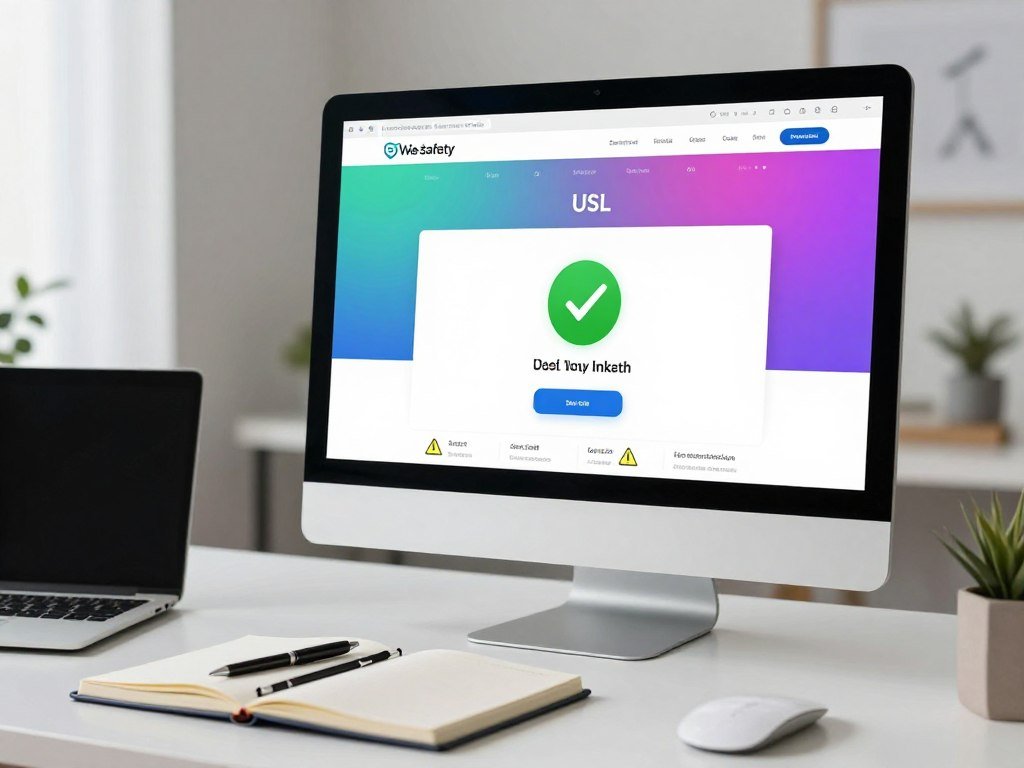
Check a URL with Google Safe Browsing
Use a website safety checker when you want another clue about a suspicious page. The Google tool checks the current status of a webpage, website, or domain. It does not check every risk, such as a seller’s honesty or a page that has changed since the scan.
For more kinds of checks, VirusTotal compares submitted items with more than 70 antivirus engines and URL or domain blocklists. Its web interface accepts file uploads up to 650 MB. That broad scan can help find known threats, but it does not make a result final.
Understand VirusTotal’s results and privacy limits
VirusTotal checks submitted files, URLs, domains, IP addresses, and file hashes. A hash is a digital value used to identify a file. The service reports what its checks find; it does not remove malware or protect your device.
Use this comparison to choose the right checker:
| Tool | What it checks | Important limit |
|---|---|---|
| Google Safe Browsing Site Status Tool | Webpage, website, or domain; current status | A status check is not a guarantee |
| VirusTotal | Files, URLs, domains, IP addresses, file hashes; more than 70 engines; files up to 650 MB | Security vendors and researchers can see submissions |
| Zero-detection VirusTotal result | Submitted item; no detections found | No detections do not prove safety |
A zero-detection result means the engines found no known issue in that check. It does not mean the item is harmless. Never upload a private file to VirusTotal if you are not willing for security vendors and researchers to see it.
How Can You Check Whether a Store Website Is Legit?
Before entering payment details, confirm that the address belongs to the seller you intended to visit. Check the seller independently, not through a link in an unexpected message. HTTPS protects the connection, but it does not prove the seller is legitimate.
Look for the seller’s contact information and privacy policy on the website itself. Then compare the domain with the store’s known official address. A free website trust check can screen for known threats, but it cannot confirm that a business will ship your order or protect every detail.

If a message claims to come from a store, bank, or delivery service, find its official contact details yourself. CISA advises reaching the company through a known channel, not through the message’s link or phone number. That small extra step helps keep your personal information away from scammers.
If the offer or site still feels wrong, do not submit payment or personal information.
What Protection Do Chrome and Safari Provide?
Chrome and Safari can warn you about suspected dangerous sites, but enhanced settings add more checks. Browser warnings help before a page loads or a harmful download starts. Google Safe Browsing is Google’s system for warning about dangerous sites and downloads.
Chrome and other browsers use Google Safe Browsing to flag dangerous links, downloads, and links in Gmail. Enhanced Safe Browsing can check URLs, downloads, browser extensions, system information, and a small sample of pages. It can give real-time warnings and help protect against attacks not yet known.
Chrome uses Safe Browsing warnings
Standard Safe Browsing checks for known dangerous websites and downloads. Enhanced Safe Browsing adds checks for more types of activity. For a Google Account setting to turn on in Chrome, you must be signed in, Chrome Sync must be on, and you must not have a custom passphrase.
Turning off Enhanced Safe Browsing for a Google Account can take up to 24 hours. Standard Safe Browsing protection stays on during that time and continues afterward. In 2026, Chrome added suspicious-site warnings for Enhanced Protection users.
Safari warns about suspected fraudulent websites
Chrome’s dangerous-site warning is a full-page red alert when Chrome judges a site malicious with high confidence and high risk of harm. Safari’s Fraudulent Website Warning is under Security in Safari Settings or Preferences on a Mac. These warnings can stop some harmful visits, but they do not judge whether a store is honest.
Here is what the browser features check:
| Protection | What it checks or warns about | Specific condition or limit |
|---|---|---|
| Standard Google Safe Browsing | Dangerous websites, downloads, and Gmail links | Used by Chrome and other browsers |
| Google Enhanced Safe Browsing | URLs, downloads, extensions, system information, and a small sample of pages | Google Account and Chrome activation conditions apply |
| Safari Fraudulent Website Warning | Suspected phishing or malware websites | Mac setting is under Security |
A VPN can protect routed traffic, but it does not stop every privacy risk or phishing attempt. Read about what VPN alternatives can and cannot do before treating one as a full safety layer. Treat a browser’s red warning as a reason to leave the page, not to look for a way around it.
How to Check a Link on iPhone or iPad
On an iPhone or iPad, turn on Safari’s Fraudulent Website Warning before relying on it to flag suspected fraud. This setting adds a warning about suspected phishing or malware websites. It cannot confirm that every page without a warning is safe.
Open Settings, tap Apps, choose Safari, and turn on Fraudulent Website Warning. When the feature is on, Safari checks for suspected phishing or malware sites. For an unexpected message, contact the company through a known official channel instead of using its link.
Apple says Safari may send information calculated from a website address to Google Safe Browsing and Apple for checks. Apple says the actual address is not shared with the safe-browsing provider. Google may log your IP address during the check.
If your region is set to China mainland or Hong Kong, Safari may also use Tencent Safe Browsing. That means the provider involved can depend on your region setting. Keep in mind that a warning setting is an extra layer, not proof that every unflagged page is safe.
What to Do After You Click a Suspicious Link
If you entered a password, change it immediately on the real service, not through the link you followed. Move quickly if you shared login or payment details. Use the official service or a trusted phone number to respond.
Do not use the suspicious page to change the account it may have exposed.
Choose the response that matches what happened:
- Change exposed and reused passwords, turn on two-step verification, and sign out of other sessions.
- Call your bank or card issuer about exposed card or bank details.
- Update security software, scan the device, and delete anything flagged after a file opened.
For a reused password, change it on every service where you used it. Sign out of other sessions after updating the password and turning on two-step verification. Use a phone number from your card or statement when contacting your bank.
Conclusion
A few seconds spent verifying an unexpected destination can help protect your accounts and device. Pause when something feels off, whether the message asks for money or the address does not fit. A clean scan is a useful clue, not a guarantee that a page is safe.
Save the Google Safe Browsing Site Status Tool so you can check a suspicious webpage without visiting it. Use it as one part of your decision, not as permission to ignore doubts. A clear destination and a message that makes sense are both needed before you act.
Keep the official site address for your bank or other essential accounts bookmarked, and use it instead of links in unexpected messages.
FAQ
Is link a trustworthy site?
A link alone cannot prove that a site is trustworthy. Check the domain and the reason you received the link, since a real-looking message can point to a fake page. A reputable link checker can add one useful signal, but a clean result is not a guarantee. Avoid entering payment or login details when the sender or destination does not make sense.
What if I accidentally clicked a suspicious link?
If you entered login details, change the password on the real service right away. Change it anywhere else you reused it, turn on two-step verification, and sign out of other sessions. If you shared card or bank details, contact the issuer using a number from your card or statement. If a file opened, update security software and scan your device.
How can I detect malicious URLs?
Inspect the destination for text that does not match the address, lookalike domains, and shortened URLs. A strange word or extra character in a domain can point to a copycat site. You can use a link checker to screen for known threats, but a clean result does not prove that the page is safe. Do not open an address you cannot verify.
Can I get malware from opening a link?
Yes, a link can lead to a page or file that exposes your device to malware. The risk depends on what happens after you open it, such as downloading a file or granting permissions. A click alone does not mean malware is installed. If a file opened, update your security software, scan the device, and remove anything the scan flags.
Can someone hack your phone if you click a link?
A click alone does not guarantee that someone can access your phone. A malicious page may try to steal your login details, start a download, or ask for permissions. Close the page if it seems suspicious, and do not approve requests you did not expect. If a file opened, scan the phone with updated security software.



