
Your browser can keep working after a VPN disconnects, even though the VPN protection has stopped. Your device may then use its ordinary internet connection, leaving your privacy at risk. A kill switch can block that traffic until the VPN connection returns.
This safeguard is useful when a brief interruption could expose activity you want to keep private. It can also cut off internet access, so you may notice it when a call or download stops. You can check whether your VPN app offers the feature and turn it on before you need it.
Key Takeaways
- A kill switch blocks internet traffic if the VPN connection drops.
- Your device may otherwise switch to its ordinary connection.
- Check your VPN app to see whether the feature is available.
- Test the setting to confirm it blocks traffic during a failure.
- A kill switch puts privacy ahead of staying online during an unexpected disconnect.
What Is a VPN Kill Switch?
A VPN kill switch blocks your device’s internet traffic when the VPN connection drops unexpectedly. The VPN tunnel is the encrypted connection between your device and a VPN server that carries your internet traffic.
A VPN routes traffic through a server and encrypts it between your device and that server. The kill switch can prevent unencrypted traffic from leaving during an unexpected gap. The feature does not repair a failed VPN connection or fix your internet service.
A VPN kill switch blocks device traffic when the VPN connection is interrupted, preventing unencrypted traffic from leaving. The feature only protects you if it is enabled and working.

Do not assume the kill switch is active just because your VPN is connected. The setting must be enabled and able to block traffic.
When the feature blocks traffic, your browser and apps may appear offline. That interruption is a sign that the safeguard may be working, not proof that the VPN has reconnected.
Many VPN services include this security feature, though controls can vary by app and device. Compare a provider’s privacy policy and security tools when choosing a service, as a VPN does not make you anonymous or prevent every online threat. You can also review free VPN options for privacy and speed before choosing an app.
The feature blocks traffic during the gap, then allows it again when the VPN connection is restored.
What Can Leak When a VPN Drops?
A failed kill switch can reveal connection metadata without exposing the full contents of every online activity. Metadata describes details about connections, rather than the words or files you send.
DNS requests, destination servers, and usage patterns can each reveal different details. A DNS request asks how to find a site or service by name. A destination server is the computer your device contacts to use that service.

An internet service provider, or ISP, may see DNS requests or the servers your device contacts. Those signals may identify services you use or help another party build a behavioral profile.
| Exposed signal | What it can reveal | What it does not automatically reveal |
|---|---|---|
| DNS requests | Sites or services your device looks up | Full message contents |
| Destination servers | Services your device connects to | Every page or action within a service |
| Usage patterns | When and how often you connect | The exact content of each session |
A real address may also become visible if traffic leaves outside the VPN, depending on the failure and the device’s network behavior. That does not mean every observer can read everything you do online.
Encrypted apps and websites may still protect the contents of messages or pages. Exposure of connection details alone does not automatically reveal those contents, though it can still affect privacy.
Treat visible connection patterns as a privacy leak even when message contents remain encrypted.
How Does a VPN Kill Switch Work?
The switch watches for a break in the VPN tunnel, then blocks traffic before it can use the ordinary connection. The kill switch works by checking the VPN connection and reacting when it becomes inactive.
Firewall or network rules can stop ordinary traffic from leaving outside the VPN tunnel. Those rules act on the device, rather than fixing the network problem that caused the interruption.

Monitoring the VPN connection
The VPN app checks whether it has an active connection to the VPN server. If the connection drops, the app can switch automatically and block traffic before it uses the ordinary route.
A brief pause may happen during a network change or a short service interruption. The app’s response depends on whether the kill switch is enabled and working on that device.
Blocking traffic and restoring access
Once the app detects a break, its firewall or network rules can block traffic. This may affect all device traffic or only selected apps, depending on the control you chose.
Internet access can resume when the VPN reconnects and the app allows traffic again. Some apps reconnect on their own, while others may need you to reconnect through their controls.
A kill switch does not fix a broken router, weak Wi-Fi, or a VPN service problem. It only controls traffic while the app or device handles the interruption.
The switch automatically blocks traffic in response to a drop, but it cannot restore a failed network. Reconnection restores traffic flow, but the VPN app or network still has to resolve whatever caused the interruption.
Which Type of Kill Switch Should You Choose?
Choose system-level protection when you want all device traffic blocked, or app-level protection when you need to limit the interruption to selected apps. The best fit depends on how much traffic you want covered.
An app-level exception can leave other traffic exposed. Check the effect on all your apps before relying on selected-app protection.
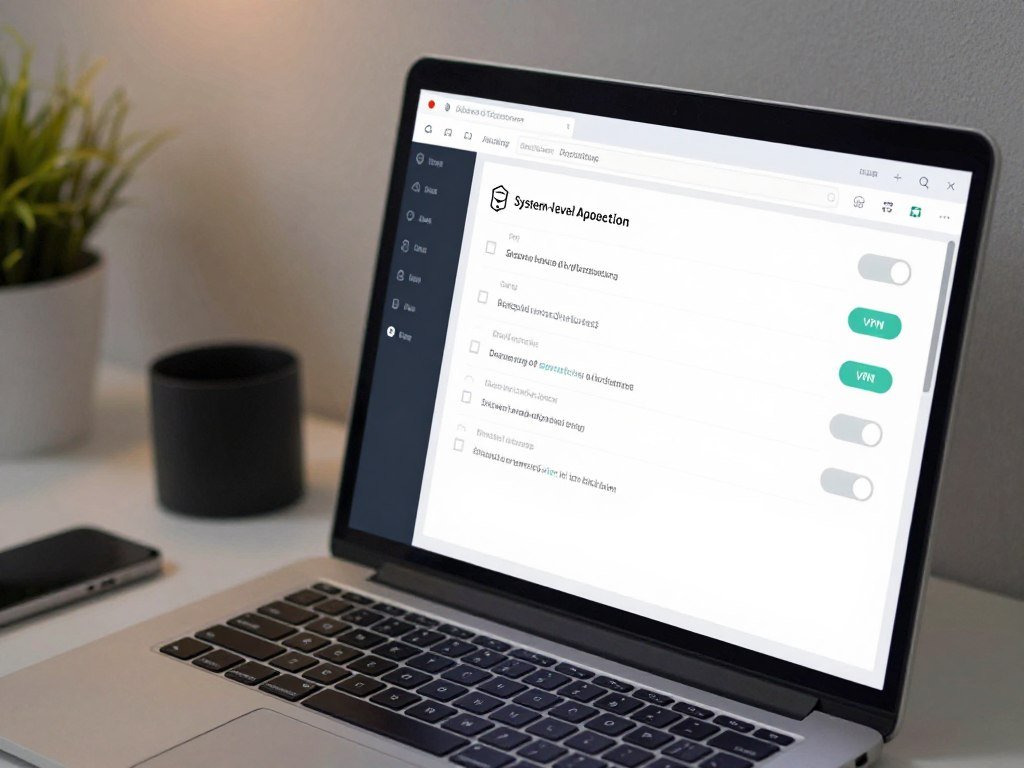
System-level or application-level protection
A system-level kill switch blocks all internet traffic on your device when it applies. That broad coverage can interrupt every app, including apps that do not need the VPN.
An application-level kill switch blocks or closes chosen apps. Other apps may stay online through the ordinary connection, so the selected apps receive different protection from the rest of the device.
System-level protection suits you when you want fewer exceptions. App-level protection may suit a specific task, but every app left outside the VPN can use the default network.
Standard or strict mode
Standard mode blocks traffic after an unexpected VPN drop. It allows you to use the internet normally after a manual disconnect, which can be more flexible.
Strict mode blocks internet access whenever the VPN is off, including after you disconnect it yourself. You must reconnect the VPN before your device can go online.
| Configuration | Traffic blocked | When it blocks | Main trade-off |
|---|---|---|---|
| System-level standard | All device traffic | After an unexpected VPN drop | Manual disconnect allows ordinary access |
| System-level strict | All device traffic | Whenever the VPN is off | Less access without the VPN |
| Application-level | Selected apps | When selected apps lose VPN protection | Other apps may remain online |
Strict mode suits you if you do not want to go online without the VPN, while standard mode lets you disconnect with fewer limits. Strict mode is the clearest choice for never going online without the VPN, while standard mode preserves more flexibility.
When Is a VPN Kill Switch Most Useful?
A kill switch matters most when a brief loss of VPN protection would expose activity you need to keep private. It can help when the internet connection changes or weakens without an obvious warning.
Short interruptions matter when sensitive activity continues in the background. Public Wi-Fi and frequent network changes can make a dropped VPN connection easy to miss.
- Public Wi-Fi: A crowded hotspot may have weak or uneven service, so the VPN can drop while you keep browsing.
- Moving between Wi-Fi and mobile data: Your phone may change networks as you leave home or work, creating a brief break.
- Handling sensitive work remotely: A lost connection during file access or a work call can expose activity if protection stops.
- Maintaining privacy during file sharing: A transfer can continue in the background after the VPN connection drops.
VPN connections can be interrupted by weak Wi-Fi, server congestion, or temporary service outages. Firewall or antivirus interference and ISP throttling can also affect a connection.
A kill switch cannot repair a local internet outage. Your device still needs a working network before the VPN can reconnect and restore access.
Network changes are a reason to enable the safeguard before you travel or connect to a shared hotspot.
What Are the Downsides of Using a Kill Switch?
The main trade-off is temporary loss of internet access while the VPN reconnects. The kill switch activates to block traffic, which can stop online tasks until protection returns.
Downloads, calls, and games may pause or disconnect during that wait. Prepare for interruptions that could affect your work or a live session.
| Activity | Possible interruption | Practical preparation |
|---|---|---|
| Large downloads | Transfer may pause or fail | Save progress or use resume controls |
| Live calls | Call may freeze or disconnect | Keep a phone option ready |
| Online games | Session may end or lose progress | Save before changing networks |
Autosave can reduce the risk of losing work in progress when a connection breaks. Turn it on in apps that support it, especially when you are editing a file or writing a long message.
WireGuard may help a VPN connection recover more quickly. It cannot prevent every interruption, so a call or game may still stop while the VPN reconnects.
Some apps let you whitelist an app, meaning it can keep using the ordinary network. That exception can send traffic outside the VPN, so reserve it for non-sensitive use.
Keep sensitive apps out of any whitelist because their traffic may leave over the ordinary connection.
How Do You Enable a Kill Switch on Your Device?
Start in the VPN app, since that is where most providers place the kill-switch control. The setting may be off by default, so check it before relying on the security feature.
Names and menu paths vary by provider and device. Some apps call the control “Kill Switch,” while others use a name such as “Network Lock.”
VPN settings on computers
Open your VPN app on a computer and look under settings or connection controls. Find the kill-switch setting, then turn it on.
Available controls can differ between Windows and Mac apps, even from the same provider. CNET’s 2026 VPN review describes NordVPN’s Windows kill-switch behavior as cumbersome, so the control may take more than one step.
VPN settings on phones and tablets
Open the VPN app on your phone or tablet, then check its settings or connection controls. Enable the kill switch if the app offers one.
Mobile apps may offer different options from desktop apps. Check the specific app on the device you plan to protect, rather than assuming each version has the same controls.
- Open the VPN app.
- Open its settings or connection controls.
- Find and enable the kill switch.
- Confirm that the setting remains on.
If you are comparing services, check whether the app has a kill switch on your device, not just on another platform. This matters when choosing among free VPN alternatives with different app features.
Check the setting again after an app update or reinstall, since a changed preference can leave protection off.
How Can You Test a VPN Kill Switch?
A kill switch should be judged by whether unprotected traffic leaves during a failure, not by the setting’s appearance. A strong test observes network traffic while the VPN connection is interrupted.
Seeing the toggle switched on does not prove that the kill switch blocks traffic. A failure test can show whether unencrypted traffic reaches outside services.
The three interruption scenarios
Test more than one kind of failure, because the app may react differently to each. RTINGS tests a VPN software crash, internet connection loss, and system reboot.
| Failure scenario | What is interrupted | Test outcome |
|---|---|---|
| VPN software crash | The VPN app stops running | Check for unrelated unencrypted traffic |
| Internet connection loss | The device loses its network | Check traffic during the outage and recovery |
| System reboot | The device restarts | Check traffic before the VPN reconnects |
RTINGS runs its robustness test on a Windows 11 PC and captures network traffic externally with Wireshark on a Linux Mint PC. This checks what actually leaves the device, rather than relying on the app’s status alone.
What counts as a leak
A leak is unencrypted traffic to an external service unrelated to reconnecting the VPN. DNS queries, API calls, and traffic to the VPN provider’s servers may be needed to re-establish the connection.
Those reconnection requests do not count as a leak under this test rule. The key question is whether unrelated external services receive unencrypted traffic during the failure.
RTINGS counts a test as a leak when it detects unencrypted traffic to external services that are not part of VPN reconnection. If any one of its three failure tests detects a leak, the overall result is leak-detected.
Treat any unencrypted traffic to an unrelated external service during a failure test as a leak.
What Should You Do When the Kill Switch Activates?
If your browser and apps suddenly stop connecting, the kill switch may be blocking traffic because the VPN has dropped. The switch activates to preserve protection, so do not rush to disable it.
Check the VPN and your ordinary network before changing the safeguard. A simple reconnection may restore internet access without leaving traffic unprotected.
- Confirm that the VPN app shows an active connection.
- Reconnect through the VPN app if it is disconnected.
- Try a different VPN server if the problem persists.
- Check whether your ordinary internet connection works.
If the VPN app cannot connect, try another server and see whether the regular network still has access. That can help separate a VPN server issue from a broader network problem.
A manual firewall rule can allow traffic only through one VPN server IP address. This can limit traffic to that server, but you must keep using the same server address.
Do not turn off the kill switch before you know why it activated. Removing the block can send traffic over the ordinary connection.
Leave the safeguard enabled while you check whether the VPN connection or the underlying network needs attention.
Conclusion
A kill switch is a useful backstop when an active VPN connection unexpectedly fails. It can block traffic during a drop, but it cannot guard against every online threat or make you anonymous.
Check the controls in your own VPN app, since features can differ across providers and devices. If a kill switch is available, turn it on and confirm the setting stays enabled.
Open your VPN app’s settings and confirm that the kill switch is enabled before your next private session.
FAQ
Can my ISP tell that I’m using a VPN if the kill switch is on?
Yes, your ISP can generally see that your device connects to a VPN server. The kill switch blocks traffic during a VPN drop, but it does not hide VPN use from your ISP. When the VPN is connected, the ISP can usually see the VPN connection, while the VPN carries your traffic through its server.
Does a VPN kill switch stop DNS leaks?
A kill switch can block DNS requests from leaving during a VPN failure. Some DNS queries or API calls may still be allowed when they help the VPN reconnect. That means the feature can limit DNS leaks during an interruption, but reconnection traffic may still appear as the app restores its tunnel.
Can a VPN kill switch work without VPN software?
Most app-based kill switches depend on the VPN client running on your device. An operating-system VPN setting or a manual firewall rule is a separate configuration, not the same app feature. A firewall rule can limit traffic to a VPN server, though it requires careful setup and can restrict which server you use.
Will a VPN kill switch block access to my printer or other local devices?
It may. System-level rules can affect access to printers and other devices on your local network, depending on the app’s settings. Check whether the VPN app has a local-network option, then test your printer or device while the VPN is connected. Do not assume local access will work the same way on every device.
Can I use a VPN kill switch with split tunneling?
Yes, if your VPN app supports both features, but excluded traffic may remain outside the VPN’s protection. Split tunneling lets you choose which apps use the VPN and which use the regular connection. Exclude only low-sensitivity apps, and check how the kill switch treats them if the VPN connection drops.



