A busy scan can briefly slow a Windows PC, but disabling antivirus protection is not the safest first fix. A scheduled scan is a Microsoft Defender Antivirus scan that starts automatically at a configured time, unlike a scan you start manually. A scan-related spike may ease when the scan ends. A slowdown that continues or returns often needs closer checking. Start with safe checks and settings that preserve security, rather than removing protection to seek better system performance. The steps here help you narrow down the cause, then adjust scan behavior when it makes sense. You can keep your files protected while working through the checks. Keep Microsoft Defender Antivirus enabled while you identify what is driving the slowdown.
Key Takeaways
- Check which process uses CPU before changing settings.
- Let an active scan finish before judging continued slowdown.
- Move the scheduled scan to a quieter time of day.
- Use narrow exclusions only when you understand the protection tradeoff.
- Do not delete or forcibly stop Microsoft Defender Antivirus files.
- Investigate ongoing CPU or memory use with built-in Windows checks.
How to Fix Antimalware Service Executable High CPU Usage Safely
Antimalware Service Executable is the Microsoft Defender Antivirus process that scans files and helps provide real-time protection. Scan activity can raise CPU use during full scans, scheduled scans, on-demand scans, and frequent file checks. Do not delete MsMpEng.exe or forcibly turn off protection to solve a slowdown.
Why the process becomes busy
MsMpEng.exe is the executable filename associated with the antimalware service. A full scan checks files across the system, so it can use substantial CPU while it works. Real-time checks can also keep the service executable active when apps open, save, or download files.
To fix Antimalware Service Executable high CPU usage in Windows, start with current built-in checks and manage scan timing. The safe way to fix Antimalware Service Executable high CPU usage in 2022 was also to check scan activity, not rely on old registry edits. Frequent file changes can make the antimalware service busy again.
When high CPU use needs attention
A brief increase during a scan can be expected. Persistent high cpu usage after scanning ends, or repeated slowdown during ordinary work, deserves more investigation. A failed update, conflicting security software, or malware can also keep the process active.
Do not delete MsMpEng.exe or force Microsoft Defender Antivirus off to chase a CPU spike.
Check for signs that a scan is still running before treating the service executable as stuck. If the activity keeps returning, review protection updates and look for another security tool before changing advanced settings. A spike during an active scan is different from CPU use that remains high after the scan has finished.
What to Check Before Changing Defender Settings
Press Ctrl+Shift+Esc and confirm in Task Manager that Antimalware Service Executable is the process responsible for the slowdown. Confirm the cause first, since high CPU usage, high memory, or a power-use label can point to different activity. A power-use label alone does not identify what caused the strain.

Use these checks before changing Defender settings:
- Confirm the process name and its CPU, memory, and power readings in Task Manager.
- Let an active scan finish, then restart Windows if the slowdown persists.
- Check Windows Security for protection updates and Windows Update for system updates.
- Run a full scan if malware is a concern, and note whether activity continues afterward.
- Use a clean boot to test for conflicts with non-Microsoft services or startup apps.
High memory usage from Antimalware Service Executable calls for the same first checks, not deleting the executable. A clean boot uses msconfig to temporarily limit non-Microsoft services and startup apps. This helps test whether another program affects performance.
If you need to compare security tools, review antivirus software choices for Windows before adding another real-time scanner. Check updates from Windows Security and Windows Update before deciding the service executable itself is the cause.
If the issue disappears in a clean boot, re-enable non-Microsoft services and startup apps in small groups to identify the conflict.
How to Reschedule Windows Defender Scheduled Scans
Moving the scheduled scan to an idle period can reduce the chance that it competes with work or gaming. Change the time of the Windows Defender scheduled scan, rather than removing routine scanning. Editing a trigger shifts scan timing but does not stop real-time protection.
Find the scheduled scan task
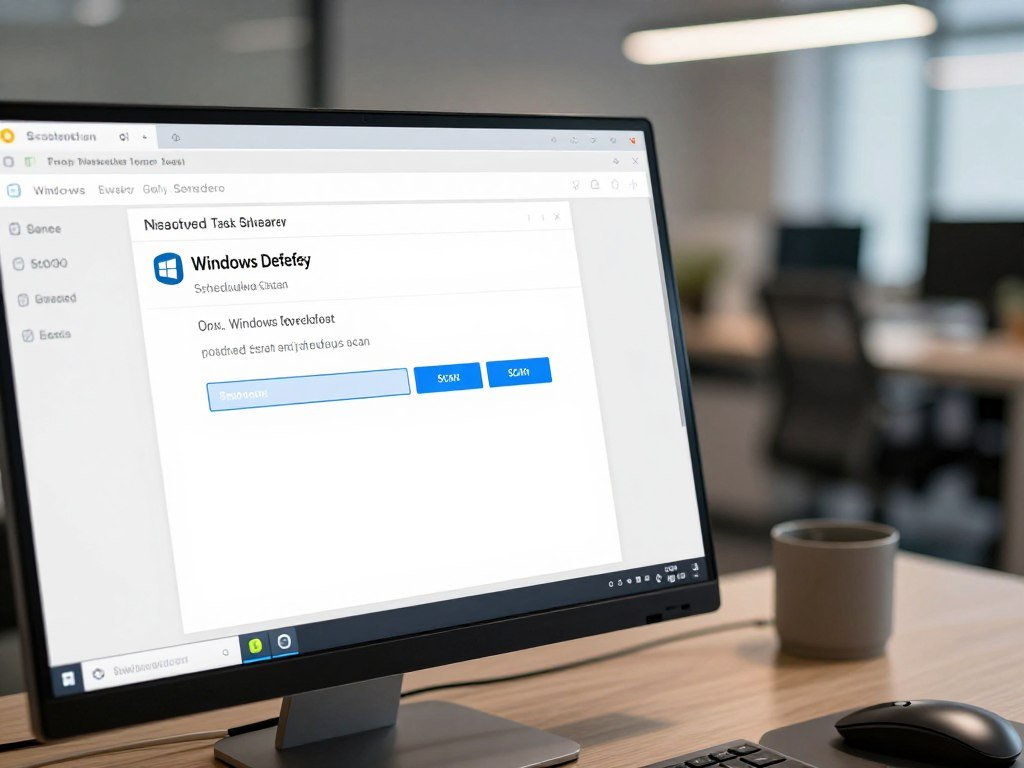
Open Task Scheduler from the Start menu, then use the task scheduler library to locate the Defender task. Windows labels and available controls may vary by edition, and a work-managed device may limit changes through policy.
- Open Task Scheduler from the Windows Start menu.
- Expand Task Scheduler Library, then Microsoft, Windows, and Windows Defender.
- Find Windows Defender Scheduled Scan in the Scheduler Library.
- Right-click the task and open its Properties window.
- Select the Triggers tab and choose the trigger to edit.
- Set a start time when the PC is usually idle, save, and monitor performance.
Windows Defender Scheduled Scan is the task to inspect, not every task in the folder. The Triggers tab lets you edit the scheduled start time. If the device is managed by an employer or school, the administrator may control those options.
Choose a less disruptive time
Choose a time when the PC is usually on but not needed for demanding work. For example, a home computer might run scans during a quiet evening or a regular break. Choose a time that fits your normal routine, since a powered-off PC cannot run a task then.
The task scheduler can offer different trigger choices, such as a daily time or a repeat schedule. Keep the change focused on the start time; do not disable every Defender task or clear all scan conditions as a general performance fix. If the trigger cannot be edited, leave its settings intact and use Windows Security for the controls available on your device.
After saving, watch for a change in performance when the next scan runs. If the selected time becomes inconvenient, edit the trigger again instead of removing it. Keep a recurring scan scheduled rather than leaving the device without routine scans.
How to Limit Defender Scan CPU Usage
Defender offers scan-throttling controls, but they do not cap the CPU used by real-time protection. These controls affect scans, and their defaults shape when the limits apply. A CPU load factor of 0 means no throttling, not no scanning.
Understand scan throttling and idle behavior
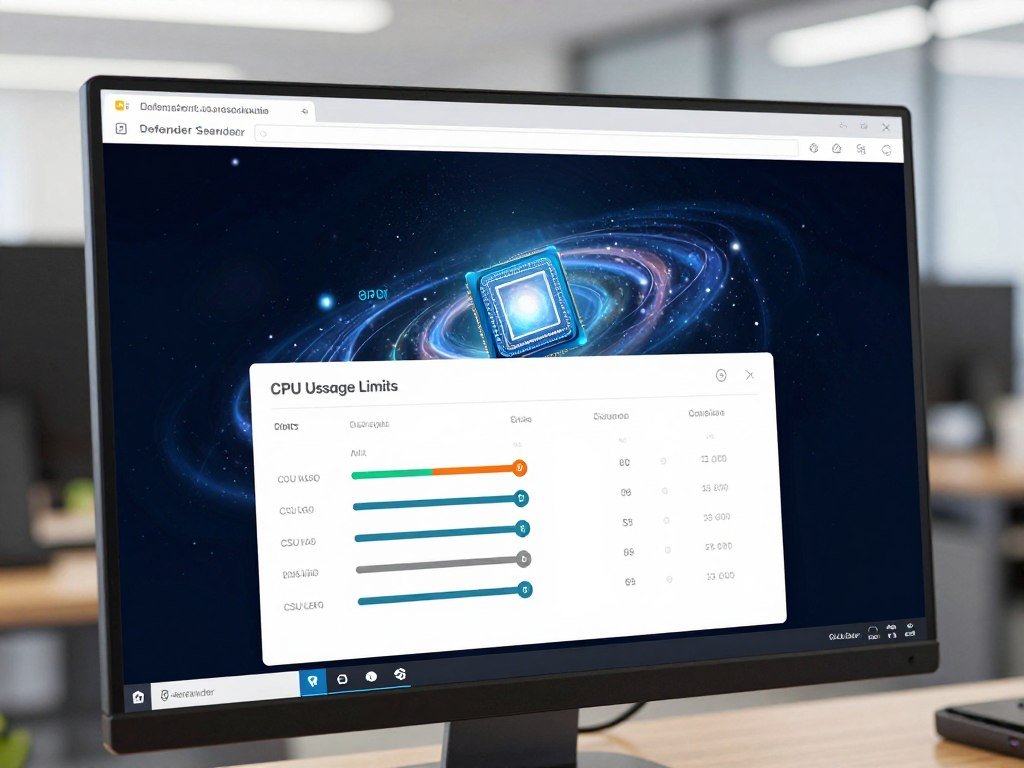
Microsoft Defender Antivirus has a maximum CPU load factor with a default of 50 and configured values from 5 to 100. This setting limits scan CPU load, but it does not limit real-time protection scans. Manual scans and scheduled scans can also follow different rules.
The default ScanOnlyIfIdle setting means scans run only while the device is idle. Idle-only scans are unthrottled by default because DisableCpuThrottleOnIdleScans is enabled. ThrottleForScheduledScanOnly is also enabled by default, so throttling applies to scheduled scans, not manual scans.
| Setting | Default or valid value | Effect |
|---|---|---|
| Maximum CPU load factor | Default 50; valid 5-100 | Limits scan CPU load |
| ScanOnlyIfIdle | Enabled | Scans only while idle |
| ThrottleForScheduledScanOnly | Enabled | Throttles scheduled, not manual, scans |
| EnableLowCpuPriority | Disabled | Enabling lowers scheduled-scan priority |
Choose settings without disabling protection
EnableLowCpuPriority is off by default; turning it on lowers the priority of scheduled scans. These controls can make a scheduled scan less disruptive, but they do not stop file checks that happen during normal use. A manual scan may not follow the same throttle setting.
Changing protected Defender settings may require care. Tamper protection can block a change even when a command appears to succeed. PowerShell can disable tamper protection only in Defender for Endpoint troubleshooting mode, not during normal operation.
Use the load factor only when you understand that it changes scan CPU limits, not the presence of scans. If a protected setting appears to change but has no effect, check tamper protection rather than repeatedly editing it.
Should You Use Exclusions or Dev Drive Performance Mode?
A narrow exclusion can reduce repeat scanning, but it also means Defender skips the excluded item. Keep exclusions specific and compare their protection cost with the need for speed. Do not exclude broad personal folders as a routine fix.
| Option | Where it applies | Scan behavior | Protection tradeoff |
|---|---|---|---|
| Specific file or folder exclusion | Selected file or folder | Defender skips the selected item | Less protection for that item |
| Performance mode | Trusted Dev Drive on Windows 11 | Defers scans until after a file-open operation | Less than synchronous scanning, more than exclusions |
An exclusion can make sense for a known file or folder that gets scanned often, but keep its scope as small as possible. Never exclude MsMpEng.exe, the Windows Defender folder, Downloads, or broad personal folders just to lower CPU usage.
Performance mode is available only on Windows 11 for a trusted Dev Drive, with real-time protection on. It needs antimalware platform version 4.18.2303.8 or later and security intelligence version 1.385.1455.0 or later. The mode defers scanning until after a file-open operation, so it offers less protection than synchronous scanning.
That approach offers more protection than folder exclusions, but it is not a fix for general CPU or memory use by MsMpEng.exe, WinDefend, or Antimalware Service Executable. Use Dev Drive performance mode only for a trusted development drive, not as a general-purpose performance switch.
What If Another Antivirus Is Installed?
If another antivirus is installed and registered, Microsoft Defender Antivirus can enter passive mode automatically on Windows 10 or newer. Check for overlap before assuming two tools are both scanning actively. Keep one active real-time antivirus solution on the device.
Check the installed security software in this order:
- Look for an old or duplicate security suite that may still be installed.
- Remove an unused product through Windows Settings, not by deleting its files.
- Restart Windows, then confirm which antivirus is registered in Windows Security.
- Keep one active real-time antivirus solution to avoid overlapping protection.
On Windows 10 or newer, registering a non-Microsoft antimalware product can put Defender into passive mode. In passive mode, scheduled scans are disabled unless specific configurations apply. That behavior can change the service activity you see.
If you are comparing alternatives, use a guide to top antivirus software for Windows to weigh device coverage and performance. To answer how to disable Antimalware Service Executable, do not forcibly stop the process or its services. Removing an unused suite through Windows Settings is safer than changing system services.
Never disable or modify wscsvc, WinDefend, or MsMpEng to force the process to stop.
Those services support security and Windows stability, so forced changes can leave the device vulnerable. Passive mode is the built-in response when another registered antimalware solution takes over protection.
What Changes for Windows 10 and Windows 11?
The main troubleshooting approach is to confirm the process, let active scans finish, and adjust scan timing rather than disable protection. The core checks apply to Microsoft Defender Antivirus on both versions, though settings and interface labels can vary. Windows 10 support ended on October 14, 2025.
To fix high CPU use in Windows 10, confirm which process is busy, let scans finish, and adjust scan timing. For high memory usage from Antimalware Service Executable in Windows 11, confirm the process and investigate continued activity instead of forcing it to stop.
Devices without applicable Extended Security Updates no longer receive technical support, feature updates, or security updates. The Windows 10 Consumer Extended Security Updates program can protect an enrolled device until October 12, 2027.
Do not force-quit a process just because its memory reading is high; investigate what keeps it active.
Windows 11 interface names may differ from Windows 10, so use the setting labels shown on your own device. A Windows 10 device still in use should be enrolled in applicable Extended Security Updates or moved to a supported Windows version.
Conclusion
A scan-related slowdown is best handled by adjusting when and how scheduled scans run, not by removing core protection. Small changes to timing are safer first steps than disabling Defender or deleting its files. Recheck Task Manager after the next scheduled scan to see whether CPU use has settled.
If the slowdown continues, use the process readings and update status to decide whether more troubleshooting is needed. Avoid ending a protected process just to make the number drop. Set a convenient scan time, restart if needed, and check Task Manager afterward to see whether the slowdown has eased.
FAQ
How to fix 100% CPU usage?
Confirm which process reaches 100% in Task Manager, then let any active Defender scan finish. If Antimalware Service Executable remains busy, move its scheduled scan to a quieter time and check for updates. Ongoing high CPU use needs investigation, since ending a protected process can interrupt security checks without fixing the cause.
How do I stop Microsoft Defender antivirus service from running in the background?
Do not stop Microsoft Defender Antivirus services directly. On Windows 10 or newer, installing and registering a non-Microsoft antimalware product can put Defender into passive mode automatically. That changes how Defender provides protection, and scheduled scans are disabled in passive mode unless specific configurations apply. Keep one active real-time antivirus product registered.
Why is Microsoft Defender antivirus service using a lot of memory?
Microsoft Defender Antivirus can use memory while it scans files or checks them in real time. Confirm the process name and see whether a scan is active before treating the reading as a fault. If memory use stays high, check for repeated activity, another antivirus product, or a possible malware problem instead of ending the process.
How do I stop antimalware service executable from using high memory?
Confirm Antimalware Service Executable in Task Manager, then let active scans finish before judging the memory use. If the high reading continues, check updates and look for a conflicting security product or malware. Do not delete or forcibly stop MsMpEng.exe, since it supports Microsoft Defender Antivirus protection.
Is it okay to delete antimalware service executable?
No, do not delete Antimalware Service Executable or MsMpEng.exe. The executable is part of Microsoft Defender Antivirus, and removing it can damage protection or system stability. If another antivirus is meant to replace Defender, install and register that product through its normal setup process rather than removing Windows security files.
How to permanently stop antimalware service executable?
Do not permanently disable Antimalware Service Executable by stopping or changing its services. If you choose another antivirus, install and register it so Microsoft Defender Antivirus can enter passive mode automatically on Windows 10 or newer. That is safer than forcing the process to stop, and it keeps an active real-time antivirus solution in place.
How long will antimalware service executable last?
A scan can last from a brief period to considerably longer, depending on the number of files and the device. A full scan may take much longer than a quick scan. Let an active scan finish before judging persistent CPU use, then check whether the slowdown remains after the scan ends.



