A home connection links phones, computers, and smart devices, so a few careful settings can make it harder for unwanted users to get in. Your SSID is the name devices see when choosing a Wi-Fi network. Hackers may look for weak spots to reach personal information or misuse a connection, which can put your privacy and data at risk.
These steps help you reduce unwanted access by reviewing router settings and the devices that use your connection. No setting can promise complete protection, but practical changes can make common risks harder to exploit. You can make the changes gradually, starting with the router settings you can access today.
Key Takeaways
- Replace default router login details.
- Use a unique Wi-Fi passphrase.
- Choose WPA3 Personal or WPA2 AES.
- Turn off features you do not need.
- Review connected devices and updates.
What should I find before opening router settings?
Start by identifying the router or Wi-Fi gateway that carries your household’s internet connection. A Wi-Fi gateway typically combines a modem and Wi-Fi router, so one box may handle both jobs. Start with the label, then use the model name to find the right settings path.
More household devices now connect to the internet and may handle personal information, making privacy a growing concern for digital technology users. Knowing which router model you have helps you find the right controls instead of guessing through settings.
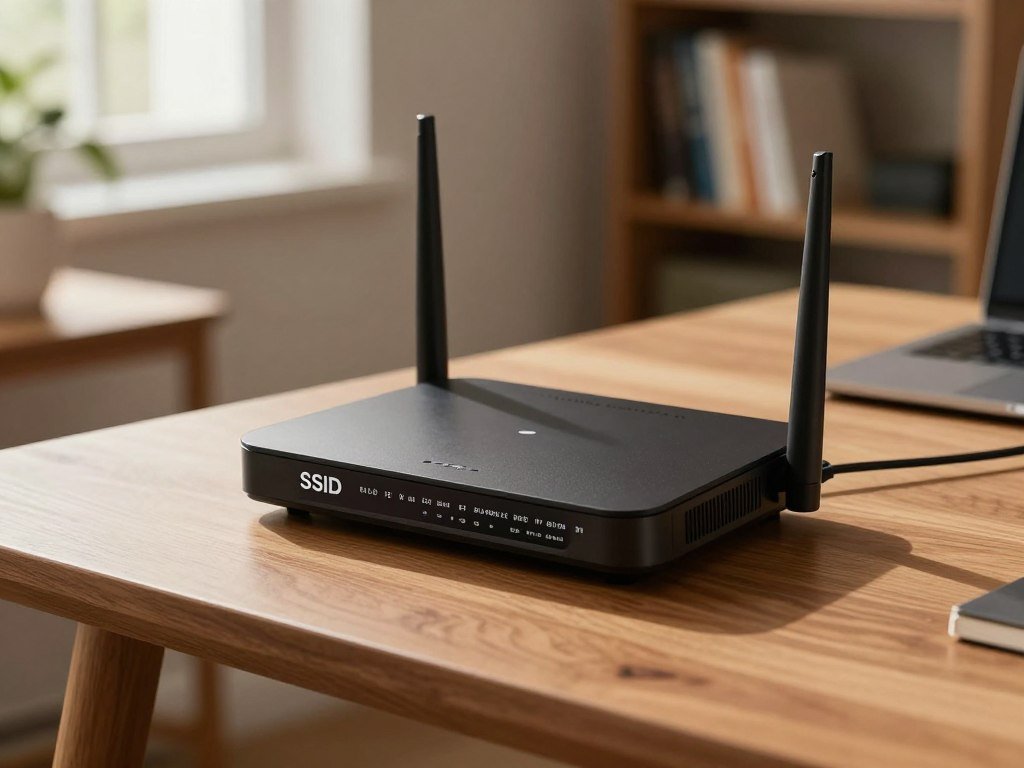
Identify the router or Wi-Fi gateway
Look for a label on the router, gateway, or its box. It may list these details:
- IP address
- SSID
- Wi-Fi key
- MAC address
- Account name
The IP address can help you reach the admin panel, while the SSID identifies the network. The Wi-Fi key may be the original Wi-Fi passphrase. Keep the label out of plain view, since it can expose useful network details to visitors.
A label is a starting point, not a model-specific instruction sheet.
Open the admin panel or provider app
Use the router’s app or type its listed IP address into a browser on your home network. Router models place settings in different menus, and the manufacturer’s manual gives instructions for your exact model.
Provider tools can offer a simpler path. Frontier customers with an Arris router can use Manage Wi-Fi in the MyFrontier app, while eero customers use the eero app. Those routes are specific to those services and devices, not universal instructions.
Router settings may also appear under names such as wireless, network, or advanced controls. If the address does not open a panel, check that your phone or computer is connected to the home network and try the app instead.
Use the manual for the exact model when its app or label does not make the admin panel easy to find.
Which passwords and network name should I change?
Change the router’s default administrator login before relying on it to protect the settings panel. The admin password protects router settings; the Wi-Fi passphrase lets your devices join the network. Keep these credentials separate, because they control different kinds of access.
Replace both default admin credentials and the original Wi-Fi passphrase. A Wi-Fi passphrase should be memorable and unique, not one you use for another account. A network name should not reveal personal details.
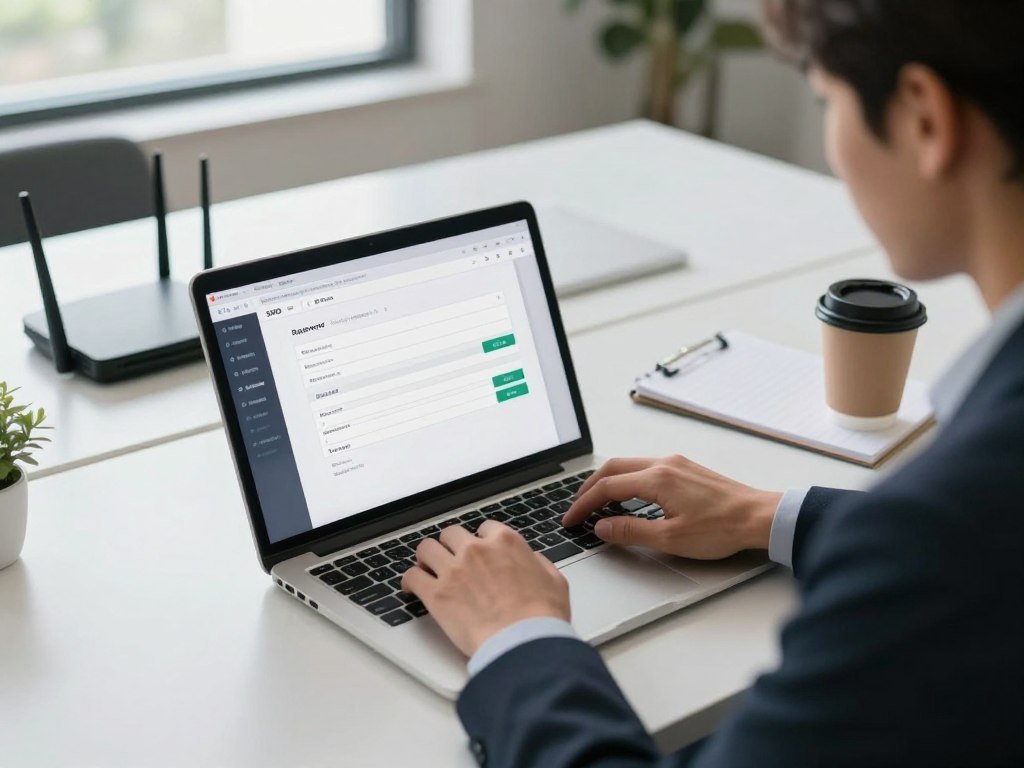
Replace the admin login
Change the default router administrator username and password if the settings allow both changes. The admin password should differ from the Wi-Fi passphrase, so joining the network does not also grant control of router settings. A default username can also be worth changing when the router offers that choice.
| Setting | What it controls | What to change | Keep it separate from |
|---|---|---|---|
| Admin username | Router settings access | Default username | Wi-Fi name |
| Admin password | Router settings access | Default password | Wi-Fi passphrase |
| Wi-Fi name (SSID) | Network identification | Personal details | Account name |
| Wi-Fi passphrase | Device network access | Default passphrase | Other account passwords |
Rename Wi-Fi and set a new passphrase
Choose a passphrase made from 5 to 7 unrelated words, totaling at least 16 characters. A string of words is easier to recall than a random mix of symbols, but it should still be unique to this network. Do not reuse it for email, shopping, or other accounts.
Choose a network name that does not include your name, address, birthday, phone number, or other identifying detail. A plain name helps keep personal information out of view without claiming to hide the network itself. For more ideas, browse these Wi-Fi network name ideas and choose one that does not identify you.
Save the new credentials in a password manager so you can retrieve them without reusing them elsewhere.
Which router features should I turn off?
Remote management is the setting to disable first if you do not need to change router settings from outside your home. It allows changes over the internet, so leaving it on can expose the admin panel beyond your home network. Turn it off unless you have a clear need for remote access.
Disable remote management, WPS, and UPnP when you do not need them. CISA recommends turning off these features as part of router security. CISA’s router feature guidance also warns that UPnP can expose smart devices to malware or remote control.
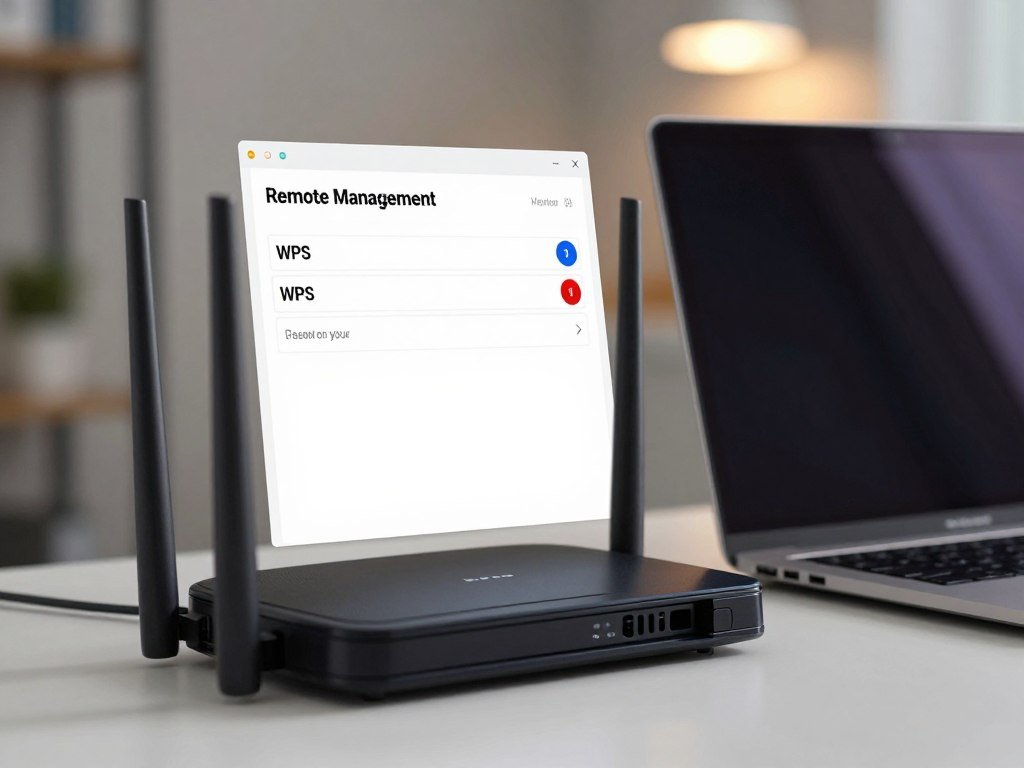
Disable remote management
Look for remote management, remote administration, or a similar setting in the admin panel. The exact label depends on the router model. A person at home can still manage the router through its local network after remote management is off.
Turn off WPS and UPnP
Wi-Fi Protected Setup, or WPS, offers a quick way to connect devices. Turn it off if you do not need that method. Universal Plug and Play, or UPnP, can let devices request network access automatically, which may create openings you did not intend.
You may need UPnP while adding a device or setting up a service. After setup, turn it off and check whether the device still works. Keep this short checklist handy:
- Remote Management off
- WPS off
- UPnP off after device setup
Hiding the SSID does not secure a network, and MAC address filtering cannot reliably block unwanted access. A hidden network name can still be detected, while device addresses can change or be copied. Neither option replaces sound router security.
Physical access matters, too: someone with access to the router may reset it and use default credentials. Keep the router in a place where visitors cannot easily reach its reset button or default-information label.
How to Secure Your Home Wi-Fi Network with WPA3 or WPA2
Choose WPA3 Personal for a home network when the router and your devices support it. WPA3 Personal is the preferred encryption option here; use WPA2 AES if WPA3 is unavailable. Avoid WEP, WPA, and WPA2 TKIP, which are older or weaker choices.
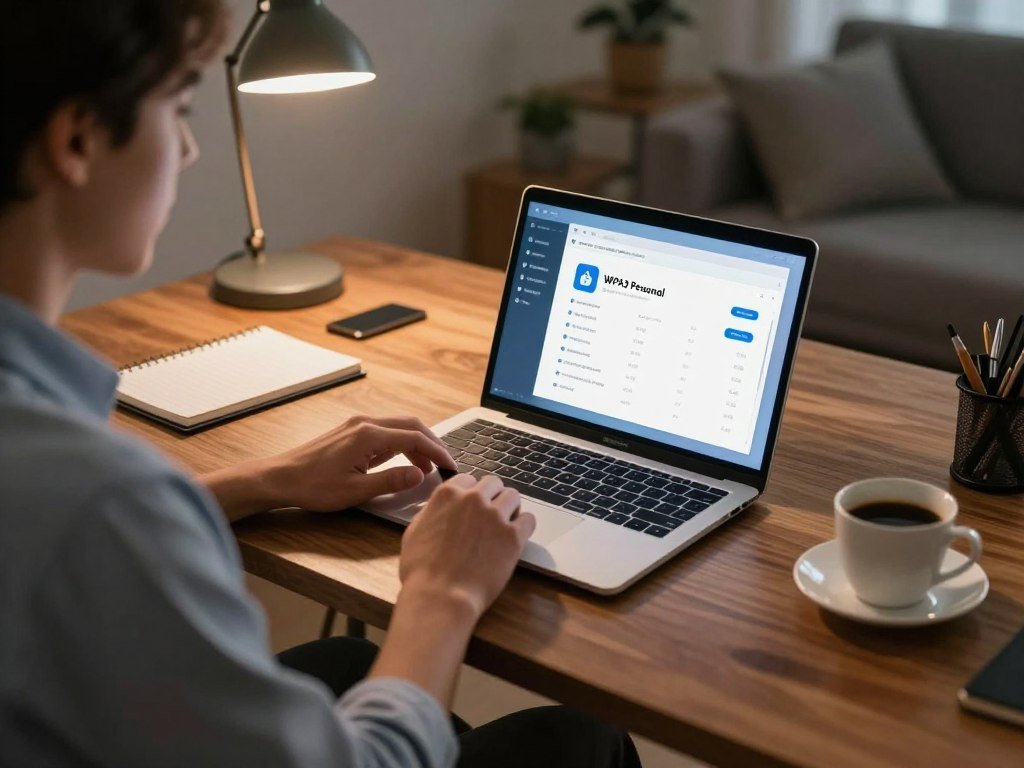
Some older devices may not connect with WPA3 alone. In that case, WPA2/WPA3 Transitional lets newer and older devices share a network. Apple lists WPA2 Personal (AES) as a fallback when stronger choices are not available in its recommended router security settings.
Check the security menu on the router, since menu names vary by model. Choose a supported option that avoids the older standards. If the menu offers only WEP, WPA, or WPA2 TKIP, ask the internet service provider about a supported router upgrade.
How can a guest network protect other devices?
A guest network gives visitors a separate way to use the internet without sharing the main Wi-Fi passphrase. It can limit what guests can reach on your home network, including router settings and other devices. Separate access helps keep the main connection private while still giving guests internet access.
Use a guest network for visitors and internet-only smart-home devices. These internet-connected home devices can use guest Wi-Fi to limit access to other devices and router settings on the main network.
Keep visitors off the main network
Give visitors the guest network details instead of the main passphrase. CISA recommends a separate, long, random, unique password for guest Wi-Fi. That way, you can change visitor access without changing how your own devices join the main network.
Isolate internet-only smart-home devices
A connected speaker, camera, or appliance may need internet access but not access to your computer. Putting an internet-only device on guest Wi-Fi can limit what it reaches inside the home. Use these setup steps:
- Enable guest Wi-Fi.
- Choose a separate network name.
- Set a unique passphrase.
- Place internet-only smart-home devices on it.
A separated guest network may block local connections between devices. For example, a smart-home device may need to talk to a phone, hub, or another device on your main network. If that local link is blocked, the app or feature may stop working even when internet access remains available.
Some routers offer settings that control whether guests can see other devices on the guest network. If available, review those options before sharing access. Keep visitors on the guest connection rather than giving them the main network details.
Test any smart-home feature that relies on communication with another local device before leaving it on the guest network.
Which Wi-Fi band and channel settings should I use?
Keep one network name across bands rather than creating separate names for 2.4 GHz, 5 GHz, and 6 GHz. Use a unique, case-sensitive SSID for all three bands. One name lets the router and compatible devices choose a band without making you select among several network names.
Set channel selection to Auto when your router supports it. The recommended channel widths differ by band:
| Wi-Fi band | Recommended channel width | Network name |
|---|---|---|
| 2.4 GHz | 20 MHz | Same unique, case-sensitive SSID |
| 5 GHz | Auto or all available widths | Same unique, case-sensitive SSID |
| 6 GHz | Auto or all available widths | Same unique, case-sensitive SSID |
The 2.4 GHz band can reach farther, while 5 GHz and 6 GHz can offer faster connections at shorter range. Device support and walls affect which band works best in each room. These settings help manage connection quality, but a channel choice does not replace other network security steps.
Microsoft explains band and channel tradeoffs in its guide to Wi-Fi and home layout. Leave channel selection on Auto when the router supports it.
What should I update and check after setup?
Automatic firmware updates, when available, help keep router software current without relying on memory. Firmware is the software that runs the router. Turn on automatic updates if your model offers them, and keep a simple routine for the rest of your connected devices.
Check for updates and unfamiliar devices on a regular schedule. Use these three maintenance steps:
- Enable automatic router firmware updates when available.
- Update operating systems, browsers, and security software on connected devices.
- Review the connected-device list for unfamiliar entries.
Treat security-app alerts as a reason to check a connection, not proof that every device or threat is covered.
Keep router firmware and connected devices current
Router firmware updates can fix problems and add protections. Enable automatic updates when available, then check the settings occasionally to confirm they remain on. Computers, phones, and internet-connected home devices also need current operating systems and apps.
A device list is useful, but an unfamiliar entry does not always mean an intruder. Some phones and computers use randomized MAC addresses, which can make the same device appear under a changed address. Check the device name and connection time before removing access.
Understand optional provider security tools
T-Mobile Advanced Cyber Security is included with Amplified and All-In Home Internet plans and is managed in the T-Life app. Its threat history shows blocked threats and sites from the last 30 days. It may omit a device name or threats when that device has not connected in the last 7 days.
A site can be unblocked for 1 hour before blocking resumes. T-Mobile’s security tool details also explain that McAfee Security for T-Mobile provides antivirus and virus scanning only on PCs and Android devices. Identity protection and secure VPN depend on qualifying plans.
The McAfee app alerts users when a device connects to unsecured Wi-Fi or a hotspot. An alert can help you decide whether to switch networks or pause sensitive tasks, but it does not show every risk across every device. Treat security-app alerts as a prompt to check a connection, not proof that every device or threat is covered.
Conclusion
A safer home connection comes from keeping a few important settings current, not from relying on one feature. Unique credentials and current router software are useful basics, while no single setting guarantees protection. Small checks matter because devices and router options can change over time.
Pick one setting you have not checked yet and open the router app or admin panel to review it. You do not need to redo every choice at once; a focused check can help you spot a missed update or unfamiliar device.
Check the router’s update setting today, then set a reminder to review connected devices periodically.
FAQ
Can someone see everything on my phone if I use their Wi-Fi?
No, joining someone’s Wi-Fi does not automatically reveal everything on your phone. HTTPS and encrypted apps protect much of the content you send and receive. The network operator may still see connection details, such as which services your phone contacts, and can read unencrypted traffic. Avoid entering sensitive details on pages without HTTPS, and do not ignore security warnings from your browser.
Can someone see my texts on Wi-Fi?
Usually, someone using the same Wi-Fi cannot read messages sent through an end-to-end encrypted app. SMS is different because it travels through your mobile carrier rather than Wi-Fi. Wi-Fi calling, cloud backups, and access to your phone or messaging account can change what someone might see. Use a screen lock, protect account sign-ins, and check which devices have access to your messaging accounts.
How do I tell if someone is monitoring my internet activity?
Check the router’s connected-device list and review account or DNS settings for changes you did not make. Those checks can reveal clues, but a device list alone cannot prove that anyone is monitoring you. HTTPS limits what a network operator can read from most secure sites, though connection details may remain visible. Check your router account and device settings if a specific change seems unfamiliar.
Can someone be connected to your Wi-Fi without you knowing?
Yes, someone can connect without you noticing, especially if you rarely check the router’s device list. Look for unfamiliar device names, addresses, or connection times, then compare them with phones, computers, TVs, and smart devices in your home. An unknown entry is not proof of an intruder: some devices use randomized MAC addresses and may appear under a different address.
Should I hide my Wi-Fi network name to keep strangers out?
No, hiding the SSID does not secure the network or reliably keep strangers out. Devices can still detect a hidden network, and hiding its name can make joining it less convenient. Choose WPA3 Personal or WPA2 AES and use a unique Wi-Fi passphrase instead. A network name without personal details also avoids revealing your identity to people nearby.



