
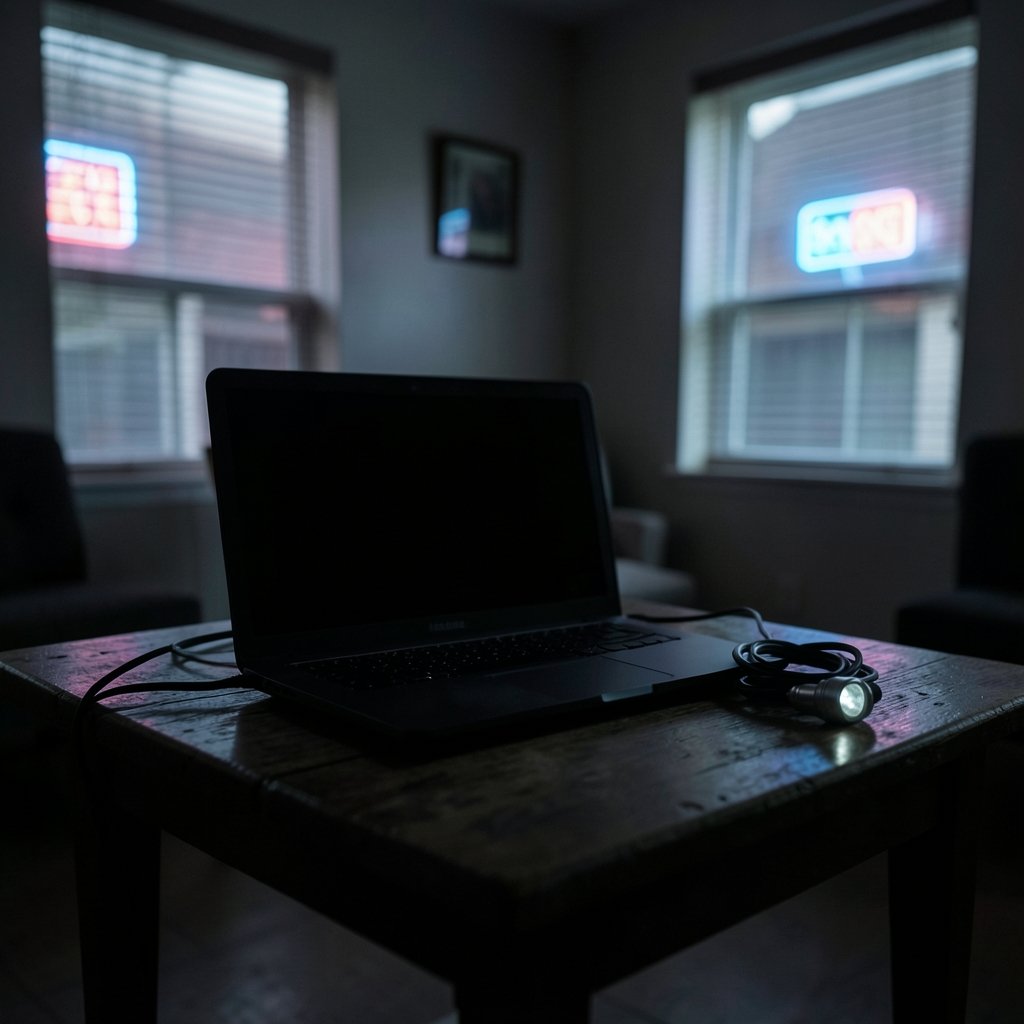
Your Acer laptop boots, the fans spin up, the power light glows steady, and yet the screen stays stubbornly black. What gives? A dead display is one of the most frustrating failures a laptop can throw at you, partly because the symptom looks identical whether the problem is a five-dollar cable or a failing mainboard. The good news is that a logical sequence of tests can separate those possibilities in under half an hour, using nothing more exotic than an HDMI cable and a flashlight.
This guide walks through the diagnosis in the order a repair technician would use it, from the free checks to the ones that involve a screwdriver. Along the way it flags the mistakes people make most often, the ones that turn a simple fix into an expensive one. (Fix google play store not working practical troubleshooting)
Start With the External Monitor Test
Before touching a single screw, plug the laptop into an external monitor or TV. This one step splits the entire problem in half.
If the external screen shows a normal Windows desktop, the graphics processor, memory, and storage are all fine. The fault lives in the laptop’s own panel, the ribbon cable that feeds it, or the backlight circuit. If the external screen stays dark too, the machine is not producing an image at all, which points to memory, the GPU, or the mainboard rather than the display itself.
A few practical notes on running this test properly:
- Connect the cable, then wait a full ten seconds. Some Acer models take that long to handshake with a new display.
- Press the display toggle key combination, usually Fn + F4 or Fn + F5 depending on the model, to force output to the external port.
- Try a different cable if nothing appears. A surprising share of “dead display” cases turn out to be a bad HDMI lead.
- If the external screen works but the laptop panel does not, you have confirmed a panel-side fault and can skip ahead to the backlight test below.
Getting a projector or second screen talking to a laptop has its own quirks, and the wired and wireless fixes for connecting a projector to a laptop cover the handshake problems that can mimic a dead display.
The Flashlight Test: Backlight or Image Failure

Here is the trick that separates two very different repairs. Shine a bright flashlight at an angle across the dark screen, or cup your hands around it to block room light. Look closely.
If you can faintly see the Windows login screen, desktop icons, or a mouse cursor, the LCD panel is receiving a signal and drawing an image. What has failed is the backlight, the light source behind the panel. Older laptops used cold cathode fluorescent lamps driven by an inverter; modern Acer machines use LED backlighting with a driver circuit and a fuse. Either way, the repair is on the power side of the panel, not the data side.
If the screen is uniformly black with no ghost image whatsoever, the panel is getting no signal or no power at all. That widens the suspect list to the ribbon cable, the connector on the mainboard, or the panel itself.
This test costs nothing and takes twenty seconds, yet plenty of people skip it and order a replacement panel they did not need. Do not be one of them.
Rule Out the Boring Causes First
A meaningful share of “display not working” reports are not hardware failures at all. Work through these before assuming the worst.
The hard reset
A stuck embedded controller can leave the display dark while the rest of the machine runs. The fix is a power drain, and it resolves a genuinely surprising number of cases:
- Unplug the charger.
- If the battery is removable, take it out. If not, skip to the next step.
- Hold the power button down for 15 to 30 seconds.
- Reconnect power and start the laptop normally.
On models with a sealed battery, many Acer machines have a pinhole reset button on the bottom. A paperclip pressed for a few seconds does the same job.
Brightness and output settings
Turn the brightness all the way up with the function keys. A laptop that booted with brightness at zero looks exactly like a dead panel. Then check the display toggle: pressing Fn plus the display key cycles through internal only, duplicate, extend, and external only. It is easy to leave it on external only and conclude the screen has died.
Windows itself
If the machine responds to keyboard input, connects to a network, or plays the startup sound, Windows may be running with a display driver problem rather than a hardware fault. Booting into safe mode, or connecting the external monitor and rolling back the graphics driver, is worth ten minutes. If the laptop is generally sluggish and prone to odd behaviour, the broader fixes in this guide to speeding up an old laptop in 2026 can clear up symptoms that look like hardware failure. (How to Restart an Acer Laptop: Safe Steps for 2026) (Laptop)
Memory and POST Failures
If the external monitor stays dark as well, the laptop is likely failing its power-on self-test, the startup routine that checks hardware before handing control to the operating system. When POST fails, no display output is generated at all, which is why the screen stays black.
Memory is the usual culprit. On laptops with socketed SO-DIMM modules, a stick that has worked loose, collected oxidation on its contacts, or simply failed will halt POST. The fix is straightforward:
- Power off, unplug, and discharge by holding the power button.
- Open the bottom cover using the model’s service manual as a guide.
- Release the retention clips and lift out each memory module.
- Wipe the gold contacts gently with a pencil eraser, blow out the slot, and reseat firmly until the clips snap.
- Test with one module at a time to isolate a bad stick.
If the laptop shows other signs of refusing to start at all, including no fan spin or no charge light, the problem may be power delivery rather than display, and these fixes for a Dell laptop that won’t turn on walk through the same power-rail logic that applies to any brand.
Cables, Hinges, and Panel Hardware
Once you have confirmed a panel-side fault, the ribbon cable becomes the prime suspect. The eDP or LVDS cable runs from the mainboard, through the hinge, and up the back of the screen. Every time the lid opens and closes, that cable flexes. Over years of use, it can wear, get pinched, or work loose at either connector.
A telltale sign is a display that works at certain lid angles and fails at others, or one that flickers when you tap the bezel. If the image returns when you gently flex the lid, the cable is almost certainly the problem, and it is a far cheaper part than a panel.
Replacing a panel or cable is well within reach for a careful beginner. Community teardown guides are freely available, and the general procedure is consistent across models: remove the bezel, unscrew the panel bracket, disconnect the cable, and reverse the process with the new part. The single biggest mistake is prying the bezel with a metal tool and cracking the panel or gouging the lid. Use a plastic spudger and go slowly.
Before ordering anything, find the exact model number on the bottom sticker, in a format like A515-56. Acer’s official support site publishes model-specific service manuals and drivers, and the manual tells you the correct panel part number and cable routing for your machine. Ordering by model number rather than by photo prevents the classic mistake of buying a panel with the wrong connector or resolution.
When It Is the GPU or Mainboard
If the external monitor shows nothing, memory has been reseated, and a hard reset has been tried, the fault is likely on the mainboard. Symptoms that point this way include no fan activity, no charge indicator, a burning smell, or repeated beeps at startup.
At this stage the decision is economic rather than technical. Mainboard repair or replacement often costs a large fraction of a new laptop’s price, particularly on budget models. Before spending, check the warranty position. In the European Union, a minimum two-year legal guarantee applies to goods bought under contracts from 1 January 2022, as set out in the EU Sale of Goods Directive (EU) 2019/771, regardless of what the manufacturer’s own warranty says. In the United States there is no general federal warranty right, so the manufacturer’s terms govern. Acer’s regional warranty pages state the coverage for each country and product line, and it varies.
One more consideration: opening the chassis yourself can void a manufacturer warranty. If the laptop is still covered, contact support before reaching for a screwdriver.
A Quick Decision Table
| Symptom | Most likely cause | First action |
|---|---|---|
| External monitor works, laptop panel black | Panel, cable, or backlight | Flashlight test |
| Faint image visible under flashlight | Backlight circuit | Check warranty, then service |
| Nothing on external monitor either | POST failure, memory, GPU | Hard reset, then reseat RAM |
| Display works at some lid angles | Hinge ribbon cable | Inspect and replace cable |
| No fans, no lights, no image | Power delivery or mainboard | Test charger, check warranty |
| Image appears after Fn key press | Output toggle setting | Set to duplicate or internal only |
Mistakes That Make It Worse
The most common error is ordering a replacement panel before running the external monitor and flashlight tests. People see a black screen, assume the worst, and spend money on the wrong part.
The second is skipping the hard reset because it sounds like superstition. It is not; it clears a real controller state, and it takes thirty seconds.
The third is prying at the bezel with a flathead screwdriver. Laptop bezels clip in place and crack easily. Plastic tools exist for a reason.
The fourth is ignoring the lid-angle clue. Intermittent display behaviour is a gift of a diagnostic hint, and treating it as a random glitch wastes it.
Finally, people often forget that a laptop with a dead screen can still be used. Plugging into an external monitor turns it into a perfectly serviceable desktop replacement, which buys time to decide on a repair. The same logic applies when comparing platforms for real work, as this breakdown of MacBook versus Windows laptops in 2026 shows: a working machine with an external display often beats an unnecessary replacement.
Conclusion
A black Acer screen is a puzzle with a clear order of operations. Test the external monitor to split panel faults from system faults. Use a flashlight to separate backlight failure from signal failure. Run the hard reset and check the display toggle before assuming hardware. Reseat the memory if nothing appears anywhere. Then, and only then, open the lid and inspect the cable.
Most cases resolve at one of the early steps, and the ones that do not usually point to a cable rather than a panel. Work in order, note what each test tells you, and you will spend money only on the part that is actually broken.
Frequently Asked Questions
Why is my Acer laptop screen black but the laptop is still running?
The machine is producing power but not an image the panel can show. The most common causes are a stuck embedded controller state, a failed backlight, a loose display ribbon cable, or a memory module that is blocking the startup self-test. Run the external monitor test first to narrow it down, then the flashlight test.
How do I know if the backlight or the LCD panel has failed?
Shine a flashlight at the screen at an angle. If you can faintly see the desktop or a login screen, the panel works and the backlight has failed. If the screen is completely uniform black with no ghost image, the panel is receiving no signal or no power.
Can a bad RAM stick cause a laptop display to stop working?
Yes. Faulty or poorly seated memory can halt the power-on self-test, and when that happens the laptop never generates any display output, internal or external. Reseating the modules and testing them one at a time is a standard diagnostic step on laptops with removable memory.
Does the Fn key really turn off the laptop screen?
On many Acer models, a function key combination cycles the display output between internal only, duplicate, extend, and external only. If it lands on external only with no monitor attached, the built-in screen goes dark while the laptop runs normally. Press the combination again or use the Windows display settings to switch back.
Will opening my Acer laptop to check the display cable void the warranty?
It can. Many manufacturers treat user disassembly as grounds to decline a claim, and the terms differ by country and product line. If the laptop is still covered, contact Acer support first. In the EU, a two-year legal guarantee applies independently of the manufacturer’s warranty for purchases made under contracts from January 2022.
Is it worth repairing a laptop with a dead screen?
It depends on which part failed. A ribbon cable is inexpensive and worth replacing on almost any machine. A panel is moderate. A mainboard is often not economic on budget laptops, especially out of warranty. If the laptop still works with an external monitor, that is a valid stopgap while you decide.



