

Your Acer laptop powers on, the fans spin, the power light glows, and yet the screen stays stubbornly black. What do you do when the screen is not working on an Acer laptop and you have no idea whether you are facing a five-minute fix or a costly repair? (Black Lines on Lenovo Laptop Screen? Causes & Fixes) (Laptop)
The good news is that most blank-screen cases fall into a small number of categories, and you can narrow them down yourself in about twenty minutes with no special tools. This guide walks through the tests that actually separate a dead panel from a software glitch, the fixes that work most often, and the point at which you should stop poking at the machine and hand it to a service center.
Start With the Obvious Before You Touch Anything
It sounds almost too simple, but a surprising share of “dead screen” calls end with a brightness setting at zero or a laptop that was never fully awake. Before you dismantle anything, run through this quick list:
- Press the brightness-up key several times. On many Acer models it is a function-key combination, and a stray keypress in a bag can dim the panel to invisible.
- Tap the power button once and wait ten seconds. A machine in sleep can look completely dead.
- Listen for the fan and watch the power LED. If the laptop is clearly running, the fault is display-side, not power-side.
- Try the machine on battery alone with the charger unplugged, then with the charger only.
If the laptop will not power on at all, that is a different problem from a blank screen, and the power path should be checked first. A separate walkthrough of why a Dell laptop won’t turn on covers the same power-drain logic that applies to most brands, including Acer.
The External Monitor Test Is the Single Most Useful Step
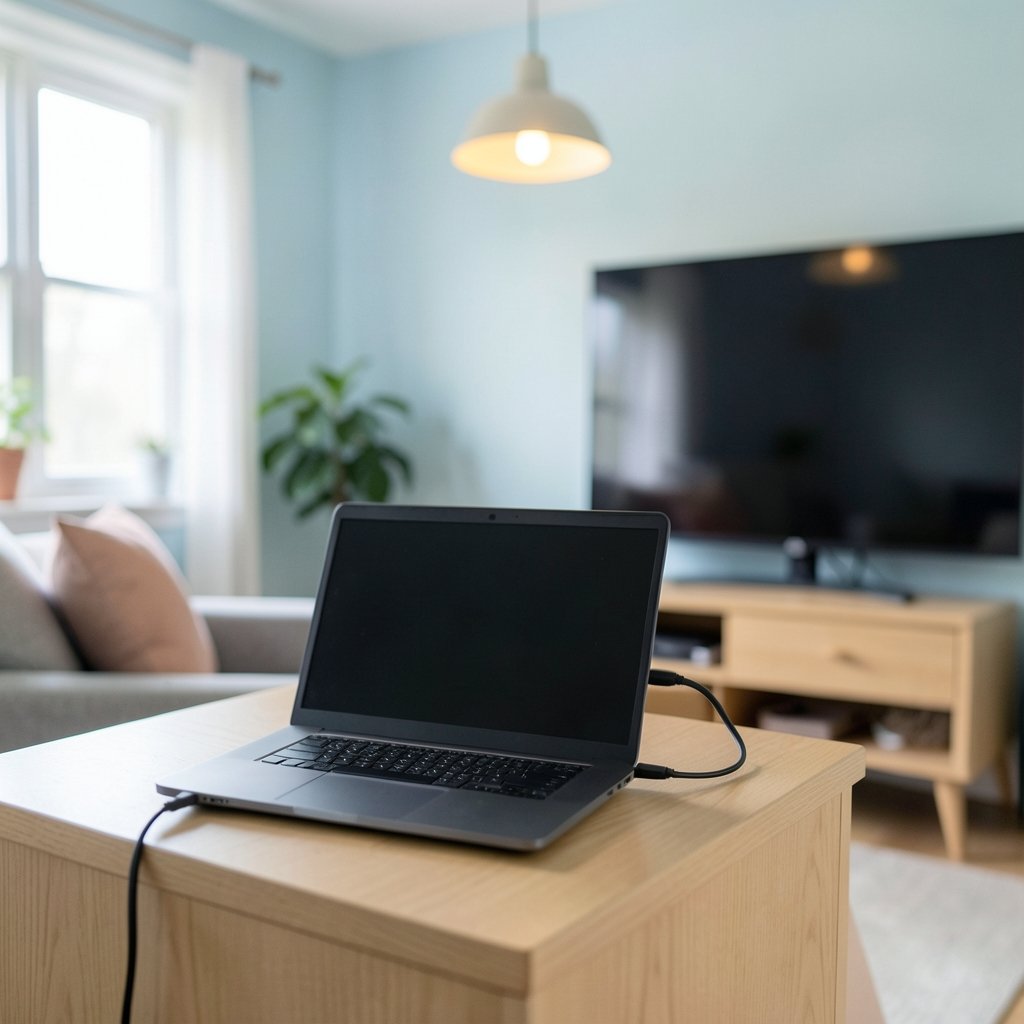
If you only do one diagnostic, do this one. Plug the Acer into a TV or monitor with an HDMI cable, then press the display-switch shortcut (usually Fn plus one of the F-keys, marked with a screen icon) or use the projection menu in Windows.
The result splits the problem cleanly in two:
| What you see | What it means | Where to look next |
|---|---|---|
| External screen shows a normal desktop | Graphics chip and software are fine; the internal panel, its cable, or the backlight is at fault | Hardware inspection, warranty claim |
| External screen also stays blank | The fault is in the graphics system, memory, or firmware | Safe mode, driver rollback, service |
| External screen works but looks wrong (resolution, flicker) | Driver or cable quality issue | Driver update, cable swap |
If you plan to use a projector rather than a monitor, the setup differs slightly between wired and wireless connections, and a guide to connecting a projector to a laptop covers both paths so you do not waste time on a cable that was never going to work.
The Flashlight Trick: Backlight or Dead Panel?
Here is a field test that technicians use constantly and that costs nothing. In a dim room, shine a phone flashlight at the screen at a steep angle, close to the glass. Look carefully at the dark surface.
If you can faintly see a desktop, a login screen, or even the mouse pointer, the panel itself is producing an image and the backlight has failed. On older laptops with CCFL tubes this often meant a failed inverter; on modern LED-backlit Acer models it usually points to the backlight circuit or the display cable. If the screen stays utterly black with no ghost of an image, the panel is receiving no signal at all, which shifts suspicion to the cable or the graphics hardware.
Hard Reset and Power Drain
A stuck power state can leave a laptop running with no display output. The fix is a hard reset, sometimes called a power drain, and it clears the residual charge that keeps the machine in that state.
- Shut down by holding the power button for ten seconds.
- Unplug the charger and remove the battery if your Acer model has a removable one.
- Hold the power button down for 15 to 30 seconds with no power connected.
- Reconnect the charger only, then press power.
On sealed models with an internal battery, skip the removal step and simply hold the button longer. This procedure is standard across laptop brands and resolves a meaningful share of no-display complaints, particularly after a crash or a forced shutdown.
When Windows Loads but the Screen Stays Black
Sometimes the screen works during the Acer logo and goes dark once Windows starts. That pattern almost always points to a display driver problem, often triggered by a Windows update or a driver update that arrived at the wrong moment.
Boot into safe mode, which loads a basic display driver, and see whether the screen behaves. If safe mode shows a normal image, roll back or reinstall the graphics driver from Windows Update or the laptop maker’s support pages. If a recent update is the culprit, uninstalling it is often faster than chasing the driver.
A green tint, flicker, or colour shift after an update is a close cousin of the black-screen problem and usually has the same root cause. The diagnostic plan in this guide to fixing a laptop green screen walks through driver and cable checks in a sensible order.
Cables, Hinges, and the Damage You Cannot See
The display cable runs through the hinge, and hinges flex every time you open the lid. Over years of use, that cable can work loose at the connector or develop a break where it bends. The classic symptom is a screen that flickers or cuts out when you adjust the lid angle, or a panel that works intermittently and then stops entirely.
Two things are worth trying before you assume the worst:
- Open and close the lid slowly while watching the screen. Any change in behaviour at a particular angle is a strong cable signal.
- Press gently along the bottom bezel. If the image returns or distorts, the connector or panel bonding is suspect.
Pressure points on a panel are a related failure mode, and the explanation of black pressure marks on a laptop screen covers how those marks form, which ones fade on their own, and how warranty claims are usually handled.
Software Causes People Overlook
Not every black screen is hardware. A few software situations mimic panel failure convincingly:
- A corrupted display mode. Windows can be set to a resolution or refresh rate the panel cannot display, producing a black screen right after login.
- A failed graphics driver update. The machine boots, the fan runs, and nothing appears.
- Fast Startup conflicts. This Windows feature can leave the display in a bad state after shutdown rather than a true restart.
A clean restart, as opposed to a shutdown, clears several of these. If you own an Acer and want the exact key sequence and the situations where a forced restart is safe, this guide on how to restart an Acer laptop safely covers every scenario, including the frozen-screen case where the power button is your only option.
What to Check Before You Open the Laptop
Opening the chassis has consequences. On most Acer laptops, the standard warranty runs for one year from the date of purchase, though the exact term varies by country and model, so check the terms for your region before you pick up a screwdriver. Many warranties exclude damage caused by unauthorised disassembly, and a self-repair attempt can turn a covered panel replacement into a paid one.
Before you decide, confirm three things:
- The purchase date and the warranty length for your specific model and country.
- Whether the fault appeared after a drop, a liquid spill, or a hinge strain, since those change how a claim is assessed.
- Whether an authorised service centre is within reasonable distance, because panel replacements are not a DIY job on modern glued assemblies.
If the machine is out of warranty and the external monitor test pointed to the panel or cable, a local repair shop is usually the cheaper route than a full replacement, and it is worth asking for a quote before approving any work.
Common Mistakes That Make Things Worse
A few habits turn a fixable screen into an expensive one. Pressing hard on a black panel to “check” it can crack the glass or worsen pressure damage. Repeatedly forcing shutdowns during a Windows update can corrupt the installation and leave you with two problems instead of one. And spraying liquid cleaner directly onto a screen, or using a household glass cleaner, can damage the anti-glare coating permanently; the correct method for how to clean a laptop screen without damaging the coating is worth reading once so you do not learn it the hard way.
Another frequent error is assuming the worst. People replace laptops when a fifteen-second power drain or a driver rollback would have restored the display. The order of testing matters: external monitor first, flashlight second, hard reset third, software fourth, hardware last.
Conclusion
A blank Acer screen is a puzzle with a limited number of answers, and the external monitor test eliminates half of them in under a minute. From there, the flashlight check separates backlight failure from a dead panel, a hard reset clears stuck power states, and safe mode reveals whether Windows or the hardware is to blame. Most readers will find their answer within the first three steps.
If the tests point to the panel, the cable, or the graphics hardware, stop there. Check your warranty terms, gather your purchase date, and let an authorised technician handle the repair. The screen may be dark, but the diagnosis is rarely a mystery once you work through it in the right order.
Frequently Asked Questions
Why does my Acer laptop turn on but show no screen?
The most common causes are a stuck power state, a failed backlight, a loose display cable, or a graphics driver problem. Run the external monitor test first: if a monitor shows a normal image, the internal panel or its cable is the likely fault. If the monitor stays blank too, suspect the graphics system or software.
How can I tell if the backlight or the LCD panel has failed?
Shine a flashlight at the screen at an angle in a dark room. If you can faintly see a desktop or a cursor, the panel is producing an image and the backlight has failed. If the screen is completely black with no trace of an image, the panel is receiving no signal, which points to the cable or graphics hardware.
Will a hard reset fix a black screen on an Acer laptop?
It often does when the cause is a stuck power state or a crash during sleep. Unplug the charger, remove the battery if it is removable, hold the power button for 15 to 30 seconds, then reconnect power only and start the machine. It will not fix a physically damaged panel.
Can a Windows update cause the Acer screen to stop working?
Yes. A faulty graphics driver or a corrupted display setting can produce a black screen after the logo appears. Boot into safe mode to confirm, then roll back the driver or the update. If safe mode displays normally, the hardware is almost certainly fine.
Is a black screen covered by the Acer warranty?
Usually, if the fault is a manufacturing defect and the laptop is within its warranty period, which is typically one year but varies by country and model. Accidental damage, liquid damage, and unauthorised disassembly are commonly excluded, so confirm your terms before opening the machine.
When should I stop troubleshooting and take it for repair?
Stop when the external monitor test points to the panel or cable, when the flashlight test shows no image at all, or when the fault appeared after a drop or spill. Those cases need parts and disassembly. Continuing to press on the screen or force restarts risks turning a covered repair into a paid one.



