
What actually changes in your daily work when you move from a B850 board to an X870 or X870E one? Not the marketing bullet points. The real answer comes down to lanes, ports, and how many fast devices you can plug in before something starts sharing bandwidth with something else.
AMD’s AM5 platform now spans three chipsets that look similar on a spec sheet but behave very differently once you attach a capture card, three NVMe drives, and a dock. This guide breaks down the practical workflow differences, where the money goes, and which board class fits which kind of user in 2027.
The Short Version of What Each Chipset Is
All three chipsets use the same AM5 socket and run Ryzen 7000, 8000, and 9000 series processors. The silicon underneath is where they split.
B850 is the value tier. It is a single-chipset design and does not require USB4. Board makers can add USB4, but many do not, especially on cheaper models.
X870 is the mainstream enthusiast tier. It is also a single-chipset design, but USB4 is mandatory. That one requirement changes what vendors build.
X870E is the flagship tier. It effectively uses two chipset dies, which means more total PCIe lanes and more high-speed ports. It is the only one of the three where you can usually run a heavy device load without lane-sharing compromises.
The naming is genuinely confusing because X870 sits below X870E, not above it. Think of X870E as “X870 with a second chipset bolted on.”
Why Lane Allocation Beats Raw Specs
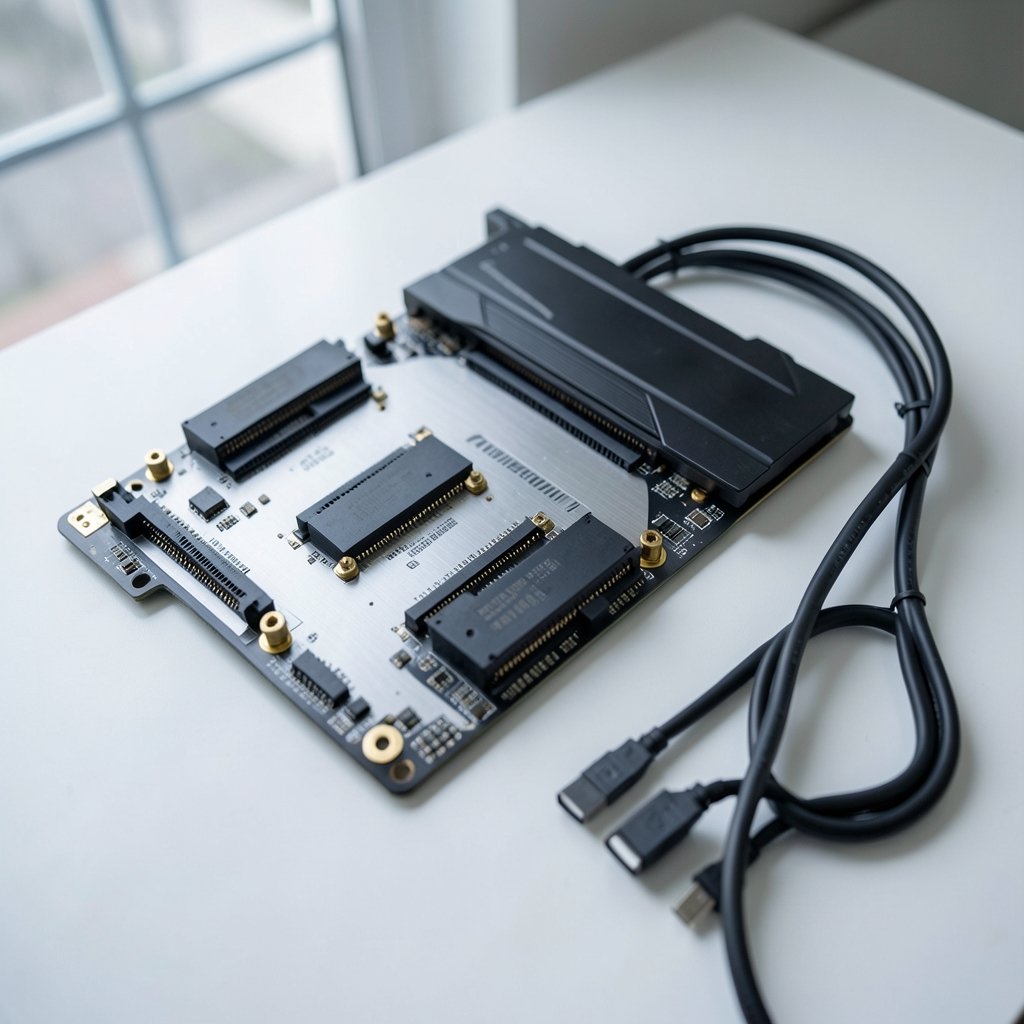
Most buyers compare chipsets by counting ports. That is the wrong metric. The question that matters is: which ports share bandwidth with which other ports?
A board can advertise four M.2 slots and still be a bad fit for a video editor, because two of those slots may disable SATA ports or drop the graphics slot from x16 to x8 when populated. The chipset sets the ceiling, but the vendor decides how to spend it.
| Feature | B850 | X870 | X870E |
|---|---|---|---|
| Chipset dies | One | One | Two |
| USB4 required | No | Yes | Yes |
| Total PCIe lanes | Fewest | Moderate | Most |
| Typical M.2 slots | 2 to 3 | 3 to 4 | 4 or more |
| x16 splitting for add-in cards | Rare | Occasional | Common |
| Overclocking and EXPO | Yes | Yes | Yes |
| Typical price tier | Lowest | Mid | Highest |
The pattern is clear. B850 gives you a clean, simple board. X870 gives you guaranteed 40 Gbps connectivity. X870E gives you headroom.
The USB4 Question Is the Real Decider
USB4 runs at up to 40 Gbps and carries DisplayPort, PCIe tunneling, and power. If your workflow involves an external NVMe enclosure for project files, a Thunderbolt or USB4 dock, or an external GPU, the mandatory USB4 on X870 and X870E is not a luxury. It is the feature that makes the machine work.
On B850, USB4 is optional. Some boards have it. Many do not. If you buy a B850 board without checking the port list carefully, you may end up with USB 3.2 Gen 2 at 10 Gbps and a dock that runs at a quarter of its rated speed.
A practical rule: if you plan to move large media files to and from external drives daily, price the X870 board against the cheapest B850 board that actually includes USB4. The gap is often smaller than expected.
Storage-Heavy Workflows: Where X870E Earns Its Price
Photographers, video editors, and anyone running local datasets tend to accumulate drives. Each NVMe drive needs four PCIe lanes. On a single-chipset board, those lanes come from a fixed pool shared with USB, SATA, and secondary slots.
X870E’s second chipset die expands that pool. In practice, this means more M.2 slots that stay at full speed when all are populated, and fewer situations where adding drive number four forces a trade-off.
There is a second, subtler benefit. On many X870E boards, more of the M.2 slots are wired directly to the CPU rather than through the chipset. CPU-attached storage has lower latency and does not compete with chipset devices. For database work, virtual machines, or scratch disks, that difference is measurable in day-to-day responsiveness. (Chipset)
If you run two drives and nothing else, none of this matters. If you run four, it matters a lot.
Graphics and Add-In Card Splitting
All three chipsets commonly provide a CPU-attached PCIe 5.0 x16 slot for the graphics card. The difference is what happens when you want to add something else.
On X870E, boards more often support splitting that x16 into x8/x8. That lets you run a capture card, a second GPU for compute, or a high-speed network card alongside the main graphics card without dropping to chipset-fed lanes.
On B850 and most X870 boards, adding a card usually means using a chipset-attached slot, which is fine for a sound card or a modest network card but less ideal for anything bandwidth-hungry.
Streamers who run a dedicated capture card and a separate encoding GPU should look hard at this. It is one of the few cases where X870E is clearly the right answer rather than a nice-to-have.
Overclocking, EXPO, and the B850 Reputation Problem
Older AMD B-series chipsets sometimes locked features that enthusiasts cared about. B850 does not do that in any meaningful way. It supports memory EXPO profiles and CPU overclocking.
The real B850 weakness is not the chipset. It is the variance across boards. Budget B850 models sometimes ship with weaker VRMs and less polished BIOS releases. On a high-core-count Ryzen chip running sustained all-core loads, that can show up as thermal throttling or unstable memory kits.
The fix is boring but effective: read the VRM breakdown for the specific board, not the chipset. A good B850 board beats a cheap X870 board for a pure CPU workload. Chipset tier is not a quality guarantee.
Building a Workflow-First Buying Checklist
Rather than picking a chipset first, list what you plug in. Then match.
- Write down every device you connect in a normal week: drives, docks, capture cards, displays, audio interfaces.
- Note the interface each one needs and its rated speed.
- Count how many NVMe drives you will run within two years, not today.
- Check whether any device needs USB4 or Thunderbolt specifically.
- Only then compare boards, reading the lane-sharing table in each manual.
That last step catches most mistakes. Vendor manuals list exactly which slots disable which ports. It is dry reading, but it prevents the classic situation where a buyer discovers their third M.2 slot killed two SATA ports after the build is done.
If your work leans on software rather than hardware, the board choice matters less than the tools on top of it. A disciplined setup for using Claude in a writing workflow that actually works will do more for output than an extra PCIe lane. Likewise, if your real bottleneck is file sync and storage strategy, comparing Dropbox alternatives by use case that actually fit your workflow is a better use of an afternoon than agonizing over chipset tiers.
Common Mistakes Buyers Make
Buying X870E for a two-drive gaming and office build. The extra lanes sit idle. The money would be better spent on a better cooler or more RAM.
Buying B850 without checking for USB4. Then discovering the dock runs at 10 Gbps. This is the single most common regret in this segment.
Assuming the x16 slot always runs at x16. It does, until you populate certain M.2 slots. Check the manual.
Ignoring BIOS maturity. A new chipset with a shaky first BIOS release can be more frustrating than an older, stable board. Early buyers sometimes spend weeks waiting for memory compatibility fixes.
Mixing up X870 and X870E. They are not the same tier. The “E” is not cosmetic.
The 2027 Angle: What to Expect and What to Ignore
Forward-looking buyers in 2027 face a moving target. Platform roadmaps shift, and no public information confirms a specific 2027 chipset refresh with named changes. Treat any claim about 2027-specific chipset features as speculation unless it comes from AMD directly.
What is reasonable to plan for is direction, not dates. Device speeds keep climbing, USB4 and its successors keep spreading downward into cheaper boards, and storage demands keep rising. That trend favors buying slightly more lane headroom than you need today if you keep machines for five years.
The counterargument is equally sound. Chipsets age well for basic connectivity but poorly for cutting-edge I/O. A B850 board bought in 2027 will still run every AM5 CPU released for the socket, and it will still handle a normal workload fine. Spending the difference on a better monitor or more storage may serve you better than future-proofing for ports you never use.
There is also a software side to longevity. Keeping the machine lean matters as much as the hardware. If background assistants slow the system down, learning to disable Copilot in Windows 11 without breaking your workflow is a five-minute job with an immediate payoff.
Matching Chipset to Workflow Type
A few concrete pairings help.
| Workflow | Best fit | Why |
|---|---|---|
| Office, browsing, light photo editing | B850 | Two drives and no docks; lanes never stressed |
| Software development with containers | B850 or X870 | Fast storage matters more than port count |
| Video editing with external media | X870 | Mandatory USB4 for fast external NVMe |
| Streaming with capture card plus second GPU | X870E | x8/x8 splitting and extra lanes |
| Local AI or data work with many drives | X870E | More CPU-attached M.2 slots |
| Music production with audio interfaces | B850 | Low-latency USB audio needs no extra lanes |
Notice that the expensive tier only wins when devices genuinely compete for bandwidth. For most people, most of the time, B850 is enough. The trick is being honest about which group you are in.
Conclusion
The B850, X870, and X870E split is not about performance. It is about connectivity headroom. B850 gives you a clean, affordable board with optional USB4. X870 guarantees USB4 and a moderate lane budget. X870E adds a second chipset die for people who plug in a lot and refuse to compromise.
Buy the chipset that matches your device list, not the one that sounds most impressive. Read the lane-sharing table. Check for USB4 if you use a dock. And remember that a well-chosen B850 board with a strong VRM will outperform a cheap X870 board in everything except ports. The workflow comes first. The chipset follows.
Frequently Asked Questions
Is X870 better than B850?
For connectivity, yes. X870 requires USB4, while B850 makes it optional. For raw CPU performance, they are identical because the CPU and socket are the same. The difference is ports and lanes, not speed.
Do I need X870E for gaming?
Almost never. Games use one graphics card and one or two drives. X870E’s extra lanes only pay off with capture cards, multiple GPUs, or four or more NVMe drives. A good B850 or X870 board is the smarter buy for pure gaming.
Does B850 support USB4?
It can, but it is not required. Some B850 boards include USB4 controllers and some do not. Always check the specific board’s port list before buying if USB4 matters to your workflow. (USB4 specification overview)
Can I overclock on B850?
Yes. B850 supports CPU overclocking and memory EXPO profiles. The limitation is board quality, not chipset policy. Budget B850 models may have weaker power delivery, so check reviews for the specific model.
What is the difference between X870 and X870E?
X870E uses two chipset dies, which provides more total PCIe lanes and more high-speed ports. X870 uses one die. Both mandate USB4. X870E boards more often support splitting the graphics slot into x8/x8.
Will these chipsets support future AM5 processors?
AMD has committed to the AM5 socket across multiple CPU generations, and all three chipsets run the current Ryzen lineup. Specific future compatibility depends on BIOS updates from each board vendor, so check the manufacturer’s support page for your model.



