You can start creating images from a written prompt for free, but the best starting tool depends on what you need the image to do. A free AI text to image generator may offer daily credits, a small number of creations, or slower generation after a quota runs out. A credit is a platform-specific usage unit deducted when you use a generative feature.
This comparison helps you match seven free starting points to your real task. Some tools suit general image creation, while others work best for design tasks, text in images, or business projects. Your choice also depends on how much editing you need and how often you plan to create.
Key Takeaways
- Free access can renew daily, use credits, or slow after a quota.
- Microsoft Designer is a practical first try for casual image creation.
- Gemini and ChatGPT let you refine images through conversation.
- Ideogram is a useful first test for readable words in images.
- Check visibility, usage terms, and export size before using an image.
- Choose a tool based on your task, not the word “free” alone.
Choose a tool based on the image you need and the restrictions you can live with, not the word “free” alone.
How Were the Free Image Generators Compared?
A generator is worth trying when it produces a usable result from your prompt without making you work around its free-plan limits. The comparison looks at prompt match, image quality, ease of starting, speed, and the practical value of free access.
The highest score is only one clue, not a guarantee that a tool fits your project. The tests covered requests for a specific style, several combined elements, and long descriptions with more than one detail.
CNET scored Google Nano Banana 2 at 8.5 out of 10, Adobe Firefly at 8.0, and Canva at 7.5. Stable Diffusion and ChatGPT Images 2.5 each scored 7.0, while Midjourney scored 6.5.
CNET’s Canva Magic Media review tested prompt match, creativity, and response speed. Its examples included style requests, combined elements, and detailed descriptions.
Judge a tool with the kind of prompt you will actually use, since a polished sample may not match your subject or style.
Prompt match and visual quality
First, check whether the output follows your instructions. A realistic portrait can look polished yet miss the requested clothing, pose, or setting.
Compare results from the same prompt when possible. That helps you see how different models handle the same subject, style, and composition.
Published test scores offer a useful comparison, but they cannot promise the same results for every prompt or account. A model may also change, so one test does not settle every use case.
Free access and ease of use
Next, consider how quickly you can start and what happens after free access runs out. A tool may be easy to open but less useful if its quota does not fit your routine.
Four practical criteria help keep the choice grounded:
- Visual match: Does the image show the subject and details you asked for?
- Control and editing: Can you adjust a result without starting over?
- Free access: Does the allowance suit your expected use?
- Workflow fit: Can you move the output into your next task easily?
For a wider look at features and results, compare these AI image generators by use case. Judge a tool with the kind of prompt you will actually use, since a polished sample may not match your subject or style.
Which Free Image Generators Are Worth Trying First?
Magic Hour, Krea, Pixlr, Clipdrop, and Fotor offer useful free starting points, but their allowances serve different tasks. A free AI image generator from text may give you a daily image quota or a small credit balance.
Some free entries focus more on editing than on creating images from text. Check the condition column before choosing a tool for a full text-to-image workflow.
| Tool | Free allowance | Useful condition |
|---|---|---|
| Magic Hour | 10 images per day | No account needed |
| Krea | 100 compute units per day | Units support generation and editing |
| Pixlr | 3 advanced AI edits per day | Uploads up to 4096×4096 pixels |
| Clipdrop | Limited free generations | Some outputs have watermarks; select tools reach 2048×2048 |
| Fotor | 5 AI credits per day | Basic editing is unlimited |
Magic Hour is the simplest place to test text prompts without creating an account. Its daily allowance gives you a few chances to try a subject or art style.
Magic Hour’s 10 free images per day are available without an account. Krea’s compute units can suit people who want to try both creation and edits.
Pixlr, Clipdrop, and Fotor can help when you already have an image that needs changes. Their editing features do not make them equal replacements for text-to-image generators.
CNET lists Nano Banana 2 and ChatGPT Images 2.5 as free, with upgrades starting at $20 per month. Canva is also free, with upgrades starting at $13 per month.
These apps give you different ways to test image generation before paying. Start with one tool whose free allowance matches how often you expect to generate, and check its limits before building a workflow around it.
Is Google Gemini a Good Free Image Generator?
Gemini is a strong free starting point when you want to create images in a conversation and do not need a fixed, unlimited quota. It suits you especially well if you already use Google services and want conversational editing.
Gemini availability depends on your account, tier, and weekly limit. Google says Gemini Apps usage limits refresh every five hours until the weekly limit is reached, and limits may change.

That five-hour refresh describes app usage limits, not a daily image count. Gemini Basic allows up to 20 Nano Banana 2 image generations per day.
Google AI Plus allows up to 50 daily generations, Google AI Pro up to 100, and Google AI Ultra up to 1,000. Google AI Plus starts at $4.99 per month.
Gemini Apps limits refresh every five hours, but reaching the weekly cap can affect access before another refresh helps. The account’s tier also changes how many Nano Banana 2 images you can create.
Gemini works well when you want to build an idea through short exchanges. You can ask for a draft, then request a new background, a different color, or a change in framing.
That back-and-forth may feel easier than writing one long prompt from scratch. It also helps when you are still deciding what the final image should show.
Google’s image generation access is not the same for every account. A free account may show different availability than a paid tier, and the weekly cap affects how long access lasts.
Use Gemini for conversational creation, but do not plan a large batch around a limit you have not seen in your account. Check the limit shown in your own account before planning a batch of images, because access and caps can change.
How Much Can Microsoft Designer Generate for Free?
Microsoft Designer gives you 15 fast image-generation boosts before later requests enter a slower queue. Those fast boosts suit occasional requests when you want drafts without waiting through a long queue.
Generation continues more slowly after the 15 boosts run out. That makes Designer workable for casual use, though less suited to time-sensitive batch work.
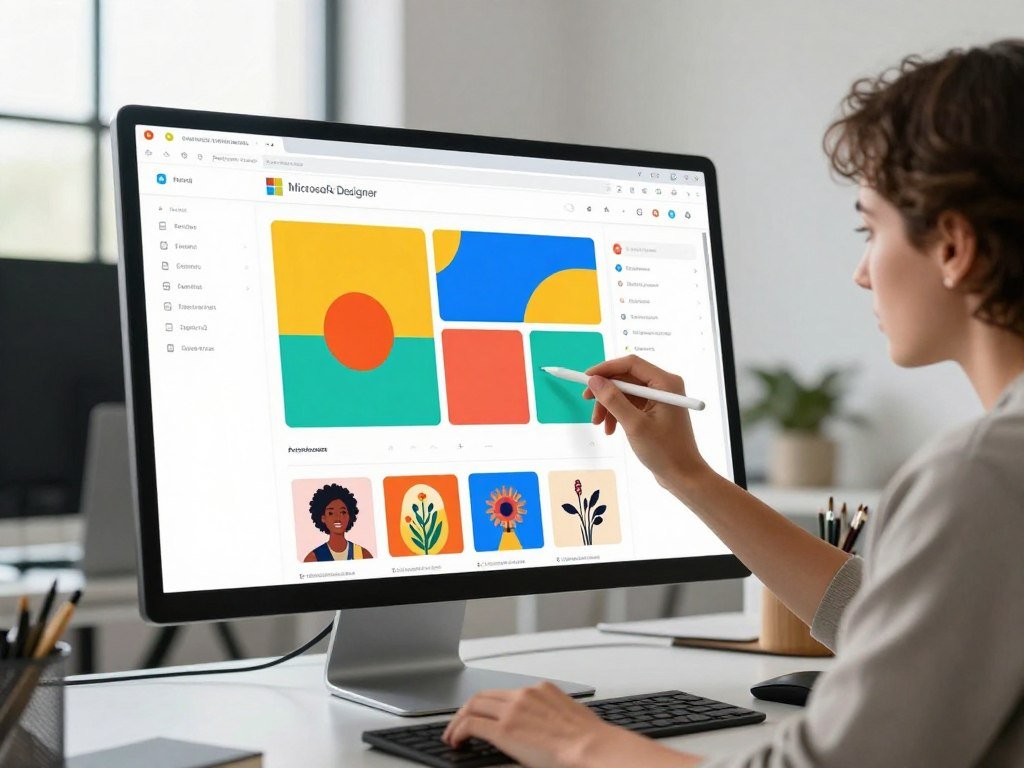
You can use Designer through a Microsoft account in a browser. The workflow is simple: enter a prompt, review the output, then adjust the description if the image misses a key detail.
Copilot can help shape a prompt if you know the subject but are unsure how to describe the scene. You might name the subject first, then add its setting, mood, or visual style.
The fast generation boosts are most useful when you have a few ideas to test. If you need dozens of options on a deadline, the slower queue may interrupt your pace.
A slower queue can still suit a personal project or a small number of images. It gives you a way to keep creating after the fast boosts are gone, rather than stopping entirely.
For a casual user, Designer offers a clear path from prompt to image without a complex setup. Save time-sensitive work for the fast part of the allowance, especially when you need several drafts.
If a project has a deadline, generate drafts while your fast boosts remain rather than relying on the slower queue.
Does ChatGPT Make a Good Free Image Generator?
ChatGPT is useful when you want to create an image and then refine it through follow-up instructions in the same conversation. Its iterative editing makes it handy for brainstorming and small changes.
The free tier caps daily image generations, and generation may slow during busy periods. ChatGPT notifies you when you reach a limit, so you can see when free access has paused.
A follow-up instruction can refine an existing result without making you rewrite the whole prompt. You could keep the subject and composition, then ask for warmer light or a simpler background.
That approach works best when you change one part at a time. If you request a new outfit, setting, style, and camera angle at once, it can be hard to tell which change improved the result.
Try these four prompt-refinement moves:
- Name the subject clearly, including key features.
- Specify the setting, such as a kitchen or city street.
- State the style, such as a paper collage or ink drawing.
- Request one change at a time after the first result.
ChatGPT Go starts at $8 per month and offers fewer restrictions than the free plan. The free tier can still be enough for a few idea sketches or an image you want to revise in steps.
CNET’s ChatGPT Images review tested text legibility and noted errors in a water-cycle infographic. Results can differ by model and prompt, so check any words or facts in your output.
Save the strongest prompt and its successful revisions so you can recreate the look after a free limit resets.
Is Adobe Firefly the Best Free Choice for Commercial Work?
Adobe Firefly is a strong starting point for commercial work when you use Firefly’s own models and confirm the terms for the specific output. Its Adobe editing workflow can help when you need to create and adjust an image in one place.
Adobe permits commercial use of outputs from its own Firefly models, while partner models have different terms and credit costs. Check which model created each result before using it for a client or brand.
The free plan offers limited daily generations, while paid plans expand access. Firefly plans start at $10 per month.
You can provide reference images to guide a result, then create up to four image options from one prompt. That gives you several directions to review without changing the request right away.
Firefly’s editing workspace includes Generative Fill, Crop and Expand, and Generative Remove. These tools let you add or remove details and change the frame after creating an image.
For a brand task, that workflow can be more practical than moving between separate generation and editing apps. You can make an image, adjust its edges, and refine a selected area within the same workspace.
Partner models add more choice, but their terms and credit use may differ from Firefly’s own models. Treat each model as a separate choice rather than assuming one set of terms covers every output.
Before using a generated asset in client work, verify which model made it and keep a record of the applicable usage terms.
Which Free Image Generator Handles Text Best?
Ideogram is the first free tool to try when the image itself needs to show readable words. Its text-focused generation makes it a useful first test for posters, signs, and other designs with lettering.
Ideogram’s free plan offers about 10 slow credits per day, and free-tier images are public by default. Slow credits do not mean fast generation, so allow time for results to arrive.
Words inside generated images can still contain errors. A letter may be missing, a word may change, or spacing may look uneven even when the rest of the image works.
That makes Ideogram a starting point, not a substitute for proofreading. A short sign or headline is easier to inspect than a paragraph of tiny text.
The public-by-default setting matters if you are planning a private campaign or testing an unreleased product name. Avoid entering confidential details into a creation that other people may be able to view.
You can also create a version with blank space and add final wording in a design app. That gives you control over spelling and type placement when the exact words matter.
Slow credits are useful for a small number of planned tests, but they may not suit rapid rounds of revisions. Keep the prompt focused so each generation tests one clear idea.
Proofread every generated word at full size before using the image in a design or campaign.
Canva Magic Media: Is It Enough for Free Designs?
Canva is most useful when you want to create an image and place it straight into a design you are already building. Magic Media and Dream Lab fit design-first work such as presentations and social posts.
Canva’s free image-generation allowance is limited. The free tier includes roughly 20 premium AI credits per month for image generation through Magic Media or Dream Lab.
Generation happens on the design page, so you can move from an image to Canva’s layout and editing tools without switching apps. This can save steps when the output needs to sit beside text, shapes, or other page elements.
Canva offers more than 10 preset styles and lets you choose an aspect ratio. A wide image can suit a presentation slide, while a square crop may fit a social post.
Those controls help you think about the image in its final setting. You can test whether a scene leaves enough clear space for a heading or a logo.
The free tier has a hard limit on image generations, and paid plans start at $13 per month. Use the allowance for images you plan to place in a finished design, rather than spending it on loose experiments.
Canva works best when the next step is layout, not endless image changes. If you need many prompt tests before choosing a scene, a separate generator may suit that part of the task better.
Use your free credits on the image that best fits the finished layout, not on repeated drafts you could test in a separate tool.
Is Leonardo AI Worth Using on Its Free Plan?
Leonardo AI is worth trying when you want more style and model controls than a one-prompt generator usually provides. Its customization options suit users exploring different kinds of art and image looks.
The free plan provides 150 fast tokens per day, and its images are public by default. Token use depends on the action, so it does not translate neatly into one fixed number of images.
Before starting a batch, check how many tokens a chosen model or action uses. A basic generation and a more involved edit may not draw the same amount.
Leonardo can suit you when the look matters as much as the subject. You can explore different models and styles to find a direction that matches a game concept, character, or illustration.
That flexibility also asks for more choices from you. A simple tool may be easier for a quick image, while Leonardo gives you more settings to consider before you generate.
The public default affects what you enter and upload. A reference image from a client or a private concept could expose details you would rather keep to yourself.
Free-plan access can work for personal experiments where public visibility is acceptable. Keep private references and confidential project notes out of prompts and uploads.
A carefully chosen model can shape the result, but token use can shape how many attempts fit your day. Avoid uploading sensitive references or entering confidential project details when creations are public by default.
Best AI Text to Image Generator Free by Use Case
For most people who want a strong free starting point, try Microsoft Designer first, then switch tools when a specific feature matters more. It is the best free starting pick for casual, high-quality image creation.
For realistic photos, Microsoft Designer is the free choice to try first. Lighting, faces, and prompt detail affect whether a result looks convincing.
Google Nano Banana 2 scored 8.5 out of 10 in CNET’s tests, Adobe Firefly scored 8.0, and Canva scored 7.5. Scores help compare tested results, but they do not predict every subject or style.
If you want conversational creation within Google’s ecosystem, try Gemini. Ideogram is a better first test when words must appear in the image, while Canva suits designs built inside Canva.
For realistic scenes and general-purpose images
Start with Microsoft Designer for a general prompt or a realistic scene. Describe the light and setting clearly, since a portrait at dusk may look very different from one in bright studio light.
Gemini is another sensible option if you prefer to refine an image through a conversation. That may fit a user who already works in Google’s ecosystem.
For typography and ready-made designs
Try Ideogram when the image needs readable words, such as a storefront sign or a simple poster. For a finished social post or slide, Canva keeps generation close to the layout tools you will use next.
These choices solve different problems. Pick Ideogram for lettering inside the image, and Canva when the image needs to fit a larger design.
For commercial projects and creative control
Adobe Firefly is a useful choice for commercial projects when you use its own models and follow their terms. Leonardo suits users who want more control over model and style choices.
| Use case | Recommended tool | Why it fits |
|---|---|---|
| Realistic photographs | Microsoft Designer | Free starting point for casual image creation |
| Text inside images | Ideogram | Made for visuals with readable words |
| Social or presentation design | Canva | Places generation in a design workflow |
| Commercial work | Adobe Firefly | Adobe permits use of its own model outputs |
| Custom artistic styles | Leonardo AI | Offers model and style controls |
Midjourney is a paid alternative for people who value distinctive artistic output over a free starting plan. Its plans start at $10 per month for about 200 images per month and include commercial usage rights.
For business assets, make the tool’s usage terms part of the decision rather than treating image quality as the only test.
How Do Image Generators Work?
A text-to-image model turns a written description into visual output by using patterns it learned between words and images. The prompt guides the model, but the model’s training and design also shape what appears.
Different models can interpret the same wording in different ways. More detail can help, but vague or conflicting instructions may pull the result away from your request.
Text-to-image systems learn links between written language and visual material. They use those learned patterns to build an image that fits the words and other instructions in your prompt.
Diffusion models build an image in steps
Diffusion models start with random visual noise, then refine it in steps. Each step moves the image toward patterns that fit the prompt, such as a cat, a garden, or a painted style.
The process is a little like finding a picture in a cloudy blur, though the model does not search for a hidden photo. It creates a new image from learned patterns.
Autoregressive models predict image chunks
Autoregressive models build images by predicting chunks in sequence. Each predicted part helps shape what comes next, much like text models predict a series of words.
Both methods use a prompt, but their steps differ. Model capability and prompt detail affect how closely the final output matches what you requested.
Use this four-step prompt routine:
- Describe the subject and what it is doing.
- Add the setting and mood.
- Specify the style and composition.
- Inspect the result and refine one detail.
A prompt such as “a small brown dog” leaves many choices open. Adding “sitting on a red chair in a sunny kitchen, in a watercolor style” gives the model clearer direction.
Overpacked prompts can also cause trouble. If a request combines clashing styles or many unrelated objects, the model may miss the details that matter most.
When a result misses the mark, revise the specific detail that failed instead of replacing the whole prompt.
What Should You Check Before Using AI-Generated Images?
Before you publish or sell a generated image, check its usage terms, visibility, watermark, and export resolution. Those four checks can affect whether an image suits your project.
A free AI image editor may limit output size or lock useful features behind a paid plan. The right resolution depends on where you will display the image.
- Read the terms for the specific model and plan.
- Check whether your creations are public or private.
- Look for visible or invisible watermarks.
- Check export resolution and remaining credits.
Usage rights depend on the model and plan
Terms can change by model, plan, and use. Microsoft Designer’s consumer license is for personal, non-commercial use, while Krea’s commercial license is paid.
Gemini images include visible and invisible SynthID watermarks. These marks can remain relevant even when they are not easy to spot in the image itself.
Public visibility and watermarks affect privacy
Some free plans make creations public, so the visibility setting matters when prompts involve an unreleased product or client work. A watermark may also affect how an image looks or how you can use it.
Keep your intended use in mind before uploading a reference. A family photo, draft logo, or private product design may not belong in a public creation space.
Editing limits and hosted-model costs
Many free editing plans cap output around 1024×1024 pixels or use credits for advanced changes. Canva AI-powered photo edits allow output up to 1080×1080 pixels.
Krea’s free plan generates and edits at native 2K resolution, with most edits returning in under eight seconds. It includes basic upscaling to 2K, while the 8K-class Enhancer and commercial license are paid features.
Pixlr, Clipdrop, and Fotor offer editing alternatives, while Photoleap has a seven-day free trial that can be canceled at any time. Photoleap includes text-to-image, filters, upscaling, 4K visuals, object removal, background changes, image expansion, and resolution enhancement.
Open weights give you another route: you can run a model on your own hardware instead of paying for hosted access. FLUX.2 [klein] 4B has Apache 2.0 open weights, and Black Forest Labs lists about 13 GB of VRAM for its reference setup.
Hosted image generation charges by use: FLUX.2 [pro] costs $0.03 per megapixel, Seedream V4.5 costs $0.04 per image, Ideogram V3 costs $0.03-$0.09 per image, and GPT Image 1.5 starts at $0.009 per image.
FLUX 1.1 [pro] Ultra can produce output up to 2K without post-processing upscaling for $0.06 per image. For a one-off edit, a free web editor may be enough, but compare hosted-model fees with local hardware needs before choosing an open-weight workflow.
Conclusion
The right free starting point is the one that produces a useful image within the limits and terms you can accept. Microsoft Designer is a practical first try for casual creation, while the best alternative may depend on Google integration, typography, design workflow, or commercial terms.
You do not need to pay before testing whether a tool fits your real task. A focused prompt will show more than a gallery of polished examples.
Write one prompt for your next real project and test it in the tool that best matches your use case.
FAQ
Can I use free AI-generated images for a small business?
Yes, some free AI-generated images may be used for a small business, but rights depend on the tool, model, and plan. Adobe permits commercial use of outputs from its own Firefly models. Partner-model terms can differ, and other services may limit business use. Check the terms for the exact model and account tier that created your image.
Which free image generator lets me create images without an account?
Magic Hour lets you create 10 free images per day without an account. That makes it a quick way to test a text prompt before setting up a profile. The daily allowance is limited, so save your prompt and use each generation to test a clear idea. Other tools may ask you to sign in before creating images.
Why do free AI image generators slow down or stop generating?
Free AI image generators slow down or stop when you reach a daily cap, use up available credits, or hit an account usage limit. Some services place later requests in a slower queue after fast boosts run out. Limits can also depend on the account tier. A reset may restore access, but the timing differs by platform.
Are AI-generated images private by default?
No, you should not assume AI-generated images are private by default. Some free plans make creations public, which can expose a draft or reference to other users. Check the visibility setting before entering sensitive prompts or uploading private images. If a platform’s privacy terms do not fit your project, use another tool or avoid sharing confidential details.
What resolution should I choose for a free AI image editor?
Choose a resolution that fits where the image will appear, rather than aiming for the largest number. Many free editing plans cap output around 1024×1024 pixels, which may suit a small web graphic but not every print job. A larger display or close crop needs more pixels. Check the final export size before placing the image in your design.
Can I generate an image from a photo as well as from text?
Yes, some tools accept a photo as a reference for generation or editing, while others only take text prompts. A reference can guide details such as pose, color, or composition, but the result may still change parts of the image. Input types, file limits, and editing controls differ by platform, so review those settings before uploading a photo.