
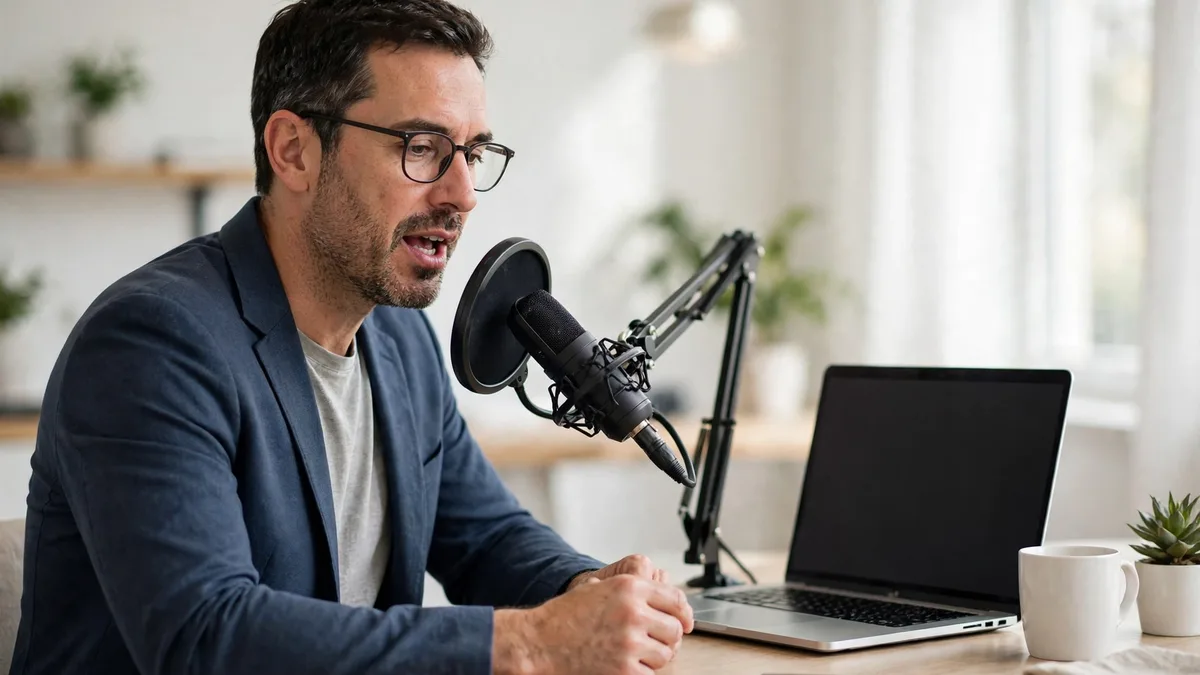
Speaking is roughly three times faster than typing for most people, and the best AI tools for dictation in 2027 turn that speed into finished text with far fewer errors than the dictation tools of a few years ago. Modern dictation handles natural speech, punctuation commands and multiple languages, and it runs on phones, laptops and in the browser, so you can draft an email, a report or a first chapter while walking or resting your hands.
What separates the good tools from the average ones is accuracy on real speech, not read-aloud demos. A strong dictation tool copes with accents, background noise, fast speakers and specialist vocabulary, and it learns the words you use most. It should also fit your workflow, because dictating into a notes app is useless if you then have to copy the text into the document where it belongs.
We compared the tools below for accuracy, punctuation handling, language support, integrations and price. Dragon Professional leads for heavy professional use, Otter.ai is the strongest all-rounder for meetings and live dictation, and Google Docs Voice Typing is the best free starting point.
Key takeaways
- Dragon Professional is the best dictation tool for heavy professional use, with deep vocabulary training and desktop control.
- Otter.ai is the best all-rounder, combining live dictation with meeting notes and searchable transcripts.
- Google Docs Voice Typing is the best free option and needs nothing more than a browser and a microphone.
- Dictation accuracy depends on your microphone, so a decent headset improves every tool on this list.
- Always proofread dictated text, because homophones and names are the most common errors.
At a glance: the shortlist
| Product | Best for | Starting price | Standout limit |
|---|---|---|---|
| Dragon Professional | Heavy professional use | From about $699 one-time | Windows only, high upfront cost |
| Otter.ai | Meetings and live notes | Free; Pro from about $10 a month | Free plan caps monthly minutes |
| Google Docs Voice Typing | Free dictation | Free with a Google account | Works only inside Google Docs |
| Microsoft Word Dictate | Office users | Included with Microsoft 365 from about $7 a month | Needs a Microsoft 365 plan |
| Apple Dictation | Apple users | Free on Mac, iPhone and iPad | Fewer advanced commands than Dragon |
| Notta | Multilingual dictation | Free; Pro from about $9 a month | Free plan caps monthly minutes |
| Wispr Flow | Fast hands-free writing | Free; Pro from about $12 a month | Newer tool with fewer integrations |
Prices are approximate starting prices and plans change often, so check current pricing before you buy.
Dragon Professional — Best for heavy professional use
Dragon Professional has been the standard for serious dictation for years, and it still leads on accuracy and control for people who dictate for hours every day. It learns your vocabulary, handles specialist terms in legal, medical and business documents, and lets you control your computer by voice. The accuracy after a short training period is noticeably better than most built-in tools.

The trade-offs are price and platform, since Dragon is a paid Windows product with a high upfront cost. It is overkill for occasional notes, but for professionals who dictate reports and case notes all day, the time saved pays for it quickly. If you already record meetings and need transcripts as well as dictation, the best AI tools for transcription are worth comparing alongside it.
Pros: Excellent accuracy, deep vocabulary training, voice control of the computer, strong specialist vocabularies.
Cons: High upfront cost, Windows only, and setup takes time.
Otter.ai — Best for meetings and live notes
Otter.ai records speech in real time and turns it into a searchable transcript, which makes it useful both as a dictation tool and as a meeting companion. You can dictate notes, join a video call and leave with a transcript, a summary and a list of action items, all without typing. Speaker labels keep multi-person conversations clear.
The live transcript is accurate on clear speech, and the mobile app works well for dictating on the go. Otter integrates with Zoom, Google Meet and Microsoft Teams. The free plan is generous enough to test properly, although heavy users will hit the monthly minute cap and need a paid plan.
Pros: Live transcripts, meeting summaries, speaker labels, strong integrations.
Cons: Free plan caps monthly minutes, and accuracy drops on noisy calls.
Google Docs Voice Typing — Best free dictation
Google Docs Voice Typing is free, built into Google Docs, and better than many paid tools were a few years ago. Open a document, switch on voice typing, and speak naturally while the words appear on the page, with support for dozens of languages and simple punctuation commands. There is nothing to install and nothing to pay for.
The limits are real but fair for a free tool. Voice typing only works inside Google Docs in Chrome, it needs an internet connection, and it offers fewer voice commands than Dragon. Even so, for drafting documents, emails and essays, it is a strong free option that many people never outgrow.
Pros: Completely free, easy to start, good language support, no install needed.
Cons: Works only inside Google Docs, needs Chrome and an internet connection.
Microsoft Word Dictate — Best for Office users
Microsoft Word Dictate is built into Word and Outlook for Microsoft 365 subscribers, so Office users get solid dictation without buying another tool. It handles punctuation commands, supports many languages, and is accurate on clear speech. Dictating directly into a Word document also avoids the copy-and-paste step that slows other tools down.
Word Dictate works in the desktop app, the web version and the mobile app, so you can start a draft on your phone and finish it on your laptop. It also includes auto-punctuation in some languages. It is not as powerful as Dragon for voice control, but for everyday drafting inside Office it is more than good enough.
Pros: Included with Microsoft 365, works across devices, direct dictation into Word.
Cons: Needs a Microsoft 365 plan, and voice control is limited.
Apple Dictation — Best for Apple users
Apple Dictation is built into macOS, iOS and iPadOS, and it is free for anyone using an Apple device. It works system-wide, so you can dictate into any app, from Messages and Mail to Pages and Notes, and it supports many languages with on-device processing on newer hardware. For quick notes, messages and short documents, it is fast and convenient.
Accuracy is good for everyday speech, and the on-device option keeps dictation working without an internet connection on supported devices. The main limit is depth, since Apple Dictation offers fewer advanced commands and less vocabulary training than Dragon.
Pros: Free and built in, works in any app, on-device processing on newer devices.
Cons: Fewer advanced commands, and less vocabulary training than specialist tools.
Notta — Best for multilingual dictation
Notta supports more than 50 languages and is built for people who dictate, record and transcribe across languages. You can dictate live, upload audio, or record a meeting, and Notta returns a transcript with timestamps, speaker labels and a summary. The translation feature can turn a transcript into another language, which is useful for international teams and multilingual creators.
The interface is clean and the web app, mobile app and browser extension cover most workflows. Accuracy is strong on clear speech, and the summary feature saves time when you need the key points rather than every word.
Pros: Strong multilingual support, translation, summaries, clean interface.
Cons: Free plan caps monthly minutes, and some features need a paid plan.
Wispr Flow — Best for fast hands-free writing
Wispr Flow is a newer dictation tool built for people who want to write quickly without touching the keyboard, and it focuses on speed above all else. It transcribes speech with high accuracy, removes filler words automatically, and lets you dictate into any app on Mac, Windows or iPhone. The auto-editing feature cleans up ums and false starts, so the text reads more like writing than a raw transcript.
The tool also learns your vocabulary and handles commands for formatting and editing, which keeps your hands off the keyboard for longer stretches. It is still a young product with fewer integrations than Otter or Dragon, but for fast drafting it is one of the most pleasant tools to use.
Pros: Fast and accurate, automatic filler-word removal, works in any app.
Cons: Newer tool with fewer integrations, and some features need Pro.
How to choose
Start with where you dictate and how often. Occasional users should begin with a free built-in option, such as Google Docs Voice Typing or Apple Dictation, and only pay for a tool when the free one limits them. Heavy professional users who dictate for hours should look at Dragon, while people who live in meetings should look at Otter, and Office users should try Word Dictate before buying anything else.
Test accuracy with your own voice, accent and vocabulary, because a tool that scores well in a demo can struggle with your specialist terms. Also check your microphone, since a decent headset improves every tool on this list more than any setting will. If dictation is part of a wider writing workflow, the best AI tools for writing can help turn dictated drafts into polished final copy.
Checklist: before you pay
- Test the tool with your own voice, accent and specialist vocabulary.
- Check which apps and devices it works with before you commit.
- Confirm the languages you need are supported.
- Try the free plan or trial for a full working week.
- Check the monthly minute cap and what happens when you reach it.
- Check how easy it is to cancel, and whether your data can be exported.
Frequently asked questions
Is dictation really faster than typing?
For most people, yes. Average speech runs at roughly 150 words a minute, while average typing runs at around 40, so dictation can triple your drafting speed. Editing still takes time, but the first draft arrives much faster.
Do I need a special microphone for dictation?
No, a phone or laptop microphone works, but a decent headset improves accuracy noticeably, especially in noisy rooms. A good microphone is the cheapest upgrade you can make to any dictation setup.
Can dictation tools handle punctuation?
Yes, most tools support spoken punctuation such as comma, full stop and new paragraph, and some offer auto-punctuation. It takes a little practice, but it soon becomes natural.
Which dictation tool is best for writers?
Dragon Professional suits writers who dictate long drafts daily, while Wispr Flow suits writers who want fast, clean first drafts. Google Docs Voice Typing is a good free starting point for any writer.
Is my dictated audio private?
It depends on the tool. Some process audio on your device, while others send it to cloud servers for transcription, so check the privacy policy before dictating sensitive material. Avoid dictating confidential information into any tool you have not checked.
Should I proofread dictated text?
Yes, always. Homophones, names and technical terms are the most common mistakes, and a quick read catches most of them. The best AI tools for proofreading can help with a final check before you publish or send a dictated draft.
The bottom line
For most people, the best place to start with dictation in 2027 is a free built-in tool, and the best paid choice depends on how you work. Dragon Professional leads for heavy professional use, Otter.ai leads for meetings and live notes, and Wispr Flow leads for fast hands-free drafting. Google Docs Voice Typing, Word Dictate and Apple Dictation cover the free and built-in cases well.
Whichever tool you pick, give it a full week of real use before judging it, and invest in a decent microphone. Dictation improves with practice, and the right tool is the one that fits your voice, your apps and the documents you actually write.



