
Best AI Tools for Google Workspace in 2027
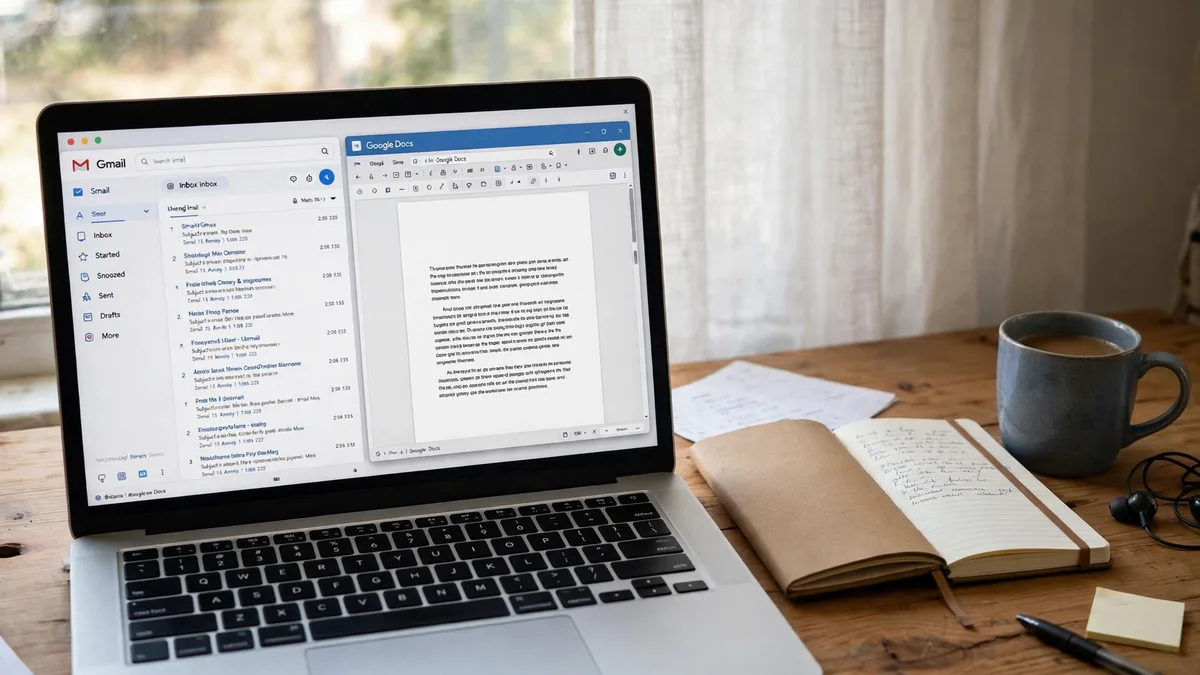
Google Workspace already holds most of the working day for millions of teams: Gmail, Docs, Sheets, Slides, and Meet. In 2027, the best AI tools for Google Workspace do not replace those apps. They sit inside them, drafting replies, summarising meetings, cleaning up spreadsheets, and turning rough notes into polished documents.
The choice has grown fast. Google’s own Gemini is now baked into every Workspace app, and third-party tools have built deep integrations on top of Docs, Gmail, Sheets, and Meet. Some are useful every day; others add a sidebar you open once and forget. The difference usually comes down to how well a tool respects the way your team already works.
This roundup covers seven AI tools that work directly with Google Workspace in 2027, judged on integration, time saved, cost, and weak spots. Whether you run a small team or a one-person business, at least one of these will earn its place in your routine.
Key takeaways
- Gemini for Google Workspace is the default starting point, because it works natively inside every Workspace app.
- Grammarly, Fireflies.ai, and Otter.ai each do one job better than the built-in tools: writing polish, meeting transcription, and searchable notes.
- Zapier is the best pick for automating repetitive work across Workspace apps.
- Plus AI and Tactiq fill the gaps Google leaves open: fast slide decks and detailed Meet transcripts in Docs.
- No single tool covers everything, so most teams pair Gemini with one or two specialists.
| Tool | Best for | Works with | Starting price |
|---|---|---|---|
| Gemini for Workspace | All-round AI inside every app | Gmail, Docs, Sheets, Slides, Meet | Included in Business Standard and above |
| Grammarly | Writing polish and tone | Docs, Gmail, Slides | Free plan; Pro from $12 per user a month |
| Fireflies.ai | Meeting transcription and summaries | Meet, Docs, Drive | Free plan; Pro from $10 per user a month |
| Otter.ai | Searchable live meeting notes | Meet, Docs, Drive | Free plan; Pro from $8.33 per user a month |
| Zapier | Automating work between apps | Gmail, Sheets, Docs, Drive, Calendar | Free plan; Professional from $19.99 a month |
| Plus AI | Fast slide decks from a prompt | Slides, Docs | From $10 per user a month |
| Tactiq | Detailed Meet transcripts in Docs | Meet, Docs, Drive | Free plan; Pro from $8 per user a month |
1. Gemini for Google Workspace
Gemini is Google’s own AI, and that is its biggest advantage: it lives inside the apps instead of alongside them. In Gmail it drafts replies and summarises threads. In Docs it writes first drafts. In Sheets it builds formulas from plain-language requests, in Slides it generates images, and in Meet it produces summaries with action items.
For teams already on a Business Standard or higher Workspace plan, Gemini is effectively free, which makes it the obvious first step. Its writing is solid for everyday business text, and it respects Workspace permissions. If you are weighing Workspace against a rival suite, our comparison of Google Workspace vs Microsoft 365 for small teams breaks down where each platform’s AI offering stands.
Pros:
- Native integration across every Workspace app, with no extra setup
- Strong meeting summaries and email drafting
- Respects existing sharing and permission settings
Cons:
- Full features require higher-tier Workspace plans
- Writing can feel generic on creative or technical topics
- Spreadsheet analysis is useful but shallow compared with dedicated tools
2. Grammarly
Grammarly has been polishing workplace writing for years, and its Workspace integration is still one of the smoothest available. It works inside Docs and Gmail, catching grammar mistakes as you type, and its tone suggestions help a blunt email read as firm rather than rude.
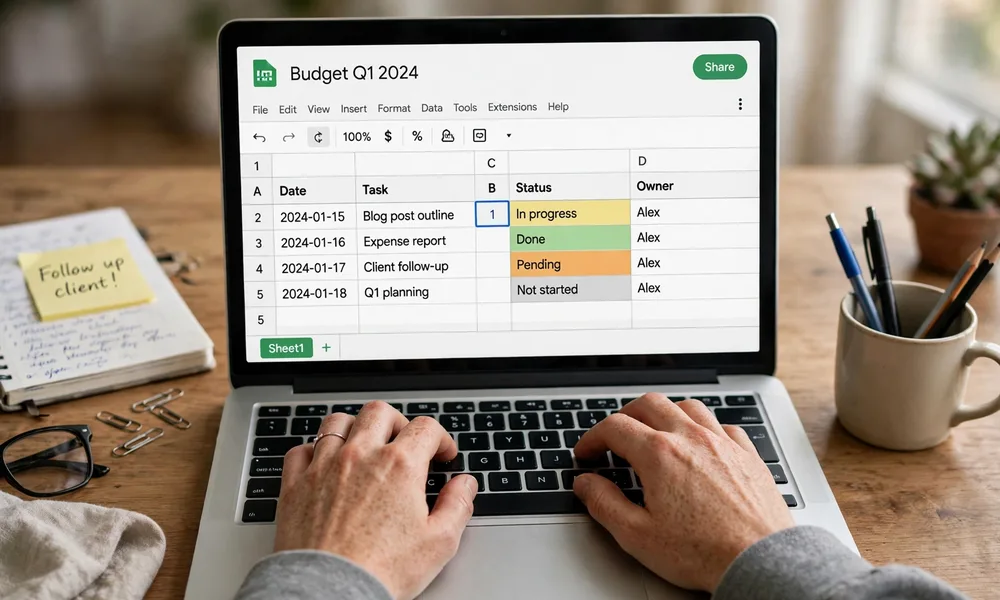
Where Grammarly earns its keep is consistency. A team sets a style guide once, and everyone writing in Docs gets the same corrections and tone guidance. It refines text better than it creates it from scratch.
Pros:
- Excellent real-time grammar, clarity, and tone checks in Docs and Gmail
- Team style guides keep everyone’s writing consistent
- Works in the browser as well as inside Workspace apps
Cons:
- Better at editing than at drafting from nothing
- Pro plan adds up quickly for larger teams
- Occasional suggestions can flatten a writer’s natural voice
3. Fireflies.ai
Fireflies.ai joins your Google Meet calls, records them, and produces a transcript, summary, and action items in your inbox and Drive. The summaries pick out decisions, deadlines, and owners, and you can search across every meeting you have ever recorded.
It also integrates with Docs, so a summary can be dropped into a shared document. For sales teams, searching for a phrase like “pricing agreed” across dozens of calls justifies the subscription alone. Setup takes minutes.
Pros:
- Accurate transcripts with clear, decision-focused summaries
- Searchable archive of every recorded meeting
- Action items with named owners are extracted automatically
Cons:
- Some participants dislike a bot joining their calls
- Transcription accuracy drops with heavy accents or crosstalk
- Free plan limits storage and transcription minutes
4. Otter.ai
Otter.ai transcribes live, so you can watch words appear during the call and highlight the important parts. Afterward, the transcript, summary, and action items sync to Docs and Drive, and its AI chat lets you ask who agreed to send the proposal and by when.
Otter’s live view is the standout feature, and it also handles in-person meetings through the mobile app. Its summaries are slightly less polished than Fireflies, and the free plan caps monthly transcription minutes fairly tightly.
Pros:
- Live transcription you can follow and highlight during the call
- Ask questions about past meetings with AI chat
- Works for in-person meetings as well as Meet calls
Cons:
- Summaries are less polished than the best rivals
- Free plan transcription limits are tight for heavy users
- Speaker identification sometimes needs manual correction
5. Zapier
Zapier is the glue between Workspace apps and everything else. Describe what you want in plain language, such as “when a form response arrives, add a row to Sheets and email the team,” and Zapier builds the automation. It also offers AI actions inside workflows, like summarising a Gmail thread before logging it to a Sheet.
The value shows up in repetitive jobs: copying form responses into spreadsheets, saving Gmail attachments to Drive, creating Calendar events from emails, and posting Docs updates to Slack. If email is the bottleneck, pairing Zapier with a dedicated writing assistant helps; our roundup of the best AI email writing tools covers the drafting side in more detail.
Pros:
- Thousands of integrations across Workspace and other apps
- Plain-language AI builder creates automations without code
- Removes repetitive copy-and-paste work across apps
Cons:
- Costs climb as the number of automated tasks grows
- Complex multi-step workflows still need careful testing
- Over-automation can create notification noise for the team
6. Plus AI
Plus AI has one job: turning a prompt or an outline into a finished Google Slides deck. Give it a topic and a few bullet points, and it generates slides with layouts, images, and speaker notes in your brand colours.
The decks are genuinely presentable, not the generic templates most AI slide tools churn out. For anyone who builds a pitch or a training deck every week, it can save hours. The trade-off is scope: it does little outside presentations.
Pros:
- Fast, good-looking slide decks from a short prompt
- Brand colours and layouts stay consistent across decks
- Speaker notes are generated alongside the slides
Cons:
- Useful almost entirely for presentations
- Generated images can look generic without editing
- Heavy decks still need a human pass for accuracy
7. Tactiq
Tactiq is the quietest tool on this list, and for some teams the most useful. It transcribes Google Meet calls in real time and sends the transcript, summary, and action items into a Google Doc, with timestamps and speaker labels. It runs as a browser extension, so no extra participant joins the call.
That suits teams that want meeting records without announcing a recording bot to clients. Transcripts are detailed, each meeting is saved as a formatted Doc in Drive, and for straightforward meeting notes it is hard to beat at its price.
Pros:
- No bot joins the call; transcription runs via extension
- Transcripts land directly in well-formatted Google Docs
- Good value on the Pro plan for small teams
Cons:
- No searchable archive across all past meetings
- Requires the extension to be running in Chrome
- Fewer integrations than the bigger meeting tools
How to choose the right AI tool for Google Workspace
Start with the job that eats the most time. If meetings dominate your week, a transcription tool pays for itself first. If writing does, Grammarly or Gemini will matter more. If the pain is repetitive admin, Zapier is the answer.
Check the integration before paying. Some tools claim a Workspace integration that turns out to be a browser extension with limited access. Look for native add-ons in the Workspace Marketplace, and test the free plan with a real document or meeting first.
Finally, think about data. Any AI tool that reads your emails, documents, or meetings handles sensitive material. Check where it stores data, how long it keeps recordings, and whether it trains its models on your content.
Checklist: picking AI tools for Google Workspace
Use these checks before you subscribe to any AI tool for your Workspace account.
- Confirm it has a real native integration with the Workspace apps you use daily
- Test it on a real document, email, or meeting during the free trial
- Check the per-user price at your actual team size, not the headline rate
- Read the data retention and model-training policy before granting access
- Make sure it respects Workspace sharing and permission settings
- Agree on one owner who reviews the tool after 30 days and keeps or cancels it
Frequently asked questions
What is the best AI tool for Google Workspace in 2027?
Gemini for Google Workspace is the best all-round choice, because it works natively inside Gmail, Docs, Sheets, Slides, and Meet. Most teams then add one specialist, usually a meeting tool or a writing assistant, to cover the gaps.
Is Gemini included with Google Workspace?
Gemini features are included in Business Standard and higher Workspace plans, with some advanced features reserved for the top tiers. Lower plans may need an upgrade to unlock the full set.
Can AI tools read my private Google Docs and emails?
Yes, they need access to content to summarise or edit it. Check where content is stored, how long it is kept, and whether it is used to train models before you connect a tool.
Which AI tool is best for Google Meet transcription?
Fireflies.ai produces the most polished summaries and the best searchable archive, while Otter.ai is stronger for live transcription. Tactiq is the best budget option for straightforward transcripts in Docs.
Do these AI tools work on the free version of Google Workspace?
Most third-party tools work with free Google accounts through the Workspace Marketplace, but Gemini requires a paid Workspace plan. Check each tool’s requirements before signing up.
Will AI tools replace Google Workspace itself?
No. These tools add capabilities to Workspace rather than replacing it. Your documents, emails, and meetings still live in Google’s apps; the AI simply helps you manage them faster.
If email automation is the part you want to improve first, our guide on how to use Gemini 3 for email automation walks through setting up automated replies, summaries, and follow-ups inside Gmail.
The bottom line
The best AI tools for Google Workspace in 2027 are the ones that disappear into your workflow. Gemini covers the basics, Grammarly keeps writing sharp, Fireflies and Otter handle meetings, Zapier removes repetitive admin, and Plus AI and Tactiq fill the presentation and transcript gaps. Pick the tool that fixes your biggest daily frustration and test it before adding a second.
Resist the urge to buy the whole stack at once. A team that adopts one tool well gets more value than a team that half-adopts five. Start with Gemini, add the specialist that matches your busiest task, and review the setup after a month.



