AI tools for screen recording have turned a once tedious job into a fast, mostly automatic workflow. The best AI tools for screen recording in 2027 capture your screen, clean up mistakes, remove filler words, add captions, and cut a rough recording into a polished video without a separate editing session. For tutorials, product demos, training videos, and async team updates, that speed is the whole point.
What matters most is not the recording itself. Every tool on this list records in high definition, so the real differences are AI editing, transcription accuracy, caption quality, and export limits. A tool that auto-removes silences and ums saves more time than one with a slightly sharper capture.
Our shortlist covers eight tools, from free open-source capture to AI-first editors built for creators and teams. Descript leads for all-round AI editing, Loom leads for quick team videos, and OBS Studio remains the best free option. Prices below are approximate starting prices, so check current pricing before you buy.
Key takeaways
- Descript is the best overall AI screen recording tool, because it edits video by editing a transcript.
- Loom is the best choice for fast team updates, with AI titles, summaries, and chapters built in.
- OBS Studio is the best free option, with no time limits and full control over capture quality.
- Camtasia is the best pick for polished, structured training courses and tutorials.
- Free plans cap recording length and exports, so check the monthly limit before you commit to a tool.
At a glance: the shortlist
| Product | Best for | Starting price | Standout limit |
|---|---|---|---|
| Descript | AI editing overall | From $12 per month | Free plan is 1 hour of transcription per month |
| Loom | Team updates | From $12.50 per user, per month | Free plan caps videos at 5 minutes |
| Camtasia | Training courses | From about $180 per year | No free tier, only a trial |
| OBS Studio | Free recording | Free | No built-in AI editing |
| ScreenPal | Budget recording | From $4 per month | Lower tier limits stock media and AI features |
| Tella | Quick AI-edited clips | From $19 per month | Recording limits vary by plan |
| Riverside | Interviews and podcasts | From $15 per month | Separate audio and video tracks use more storage |
| Vmaker | AI highlights | From $10 per month | Free plan adds a watermark |
Descript — Best overall
Descript records your screen and webcam, transcribes the audio, and lets you edit the video by editing the text. Delete a sentence from the transcript and it disappears from the video. Its AI removes filler words, silences, and retakes in one pass, and the Studio Sound feature cleans up noisy microphone audio. For creators who record tutorials and talking-head videos every week, this is the fastest route from raw recording to finished video.
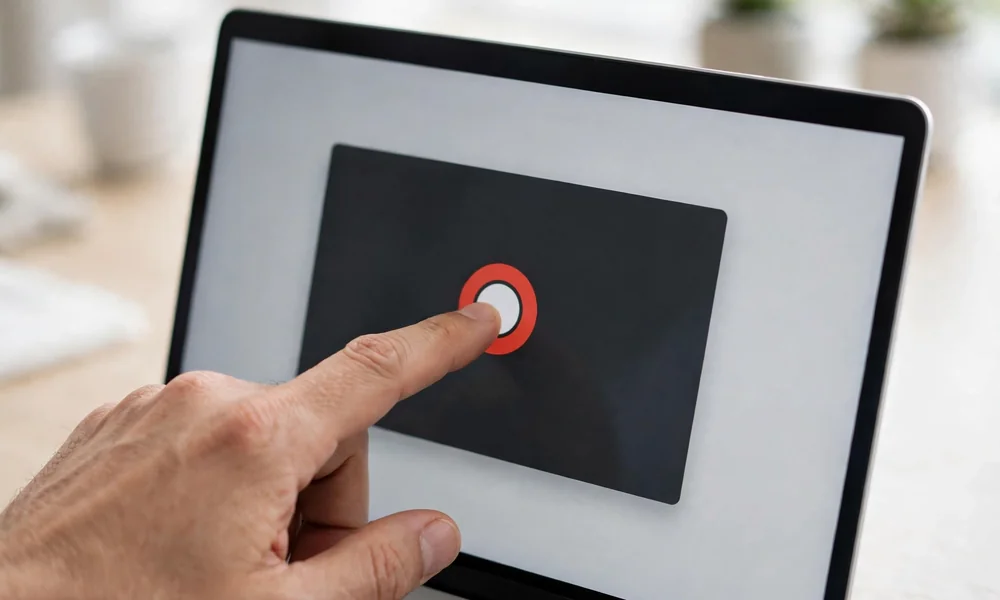
Descript also generates clips, captions, and show notes from a single recording, which makes one session useful across YouTube, social media, and internal training. If your work involves long recordings that need heavy cutting, Descript repays its price in saved hours. For a broader look at AI video workflows, see our guide to the best AI tools for video editing.
Pros: transcript-based editing, strong filler-word removal, good audio cleanup
Cons: free plan transcription allowance is small, screen-only capture is less flexible than OBS
Loom — Best for team updates
Loom is built for short, async video messages. Record your screen, camera, or both, share a link, and your team watches without downloading anything. Its AI writes a title, summary, and chapters for each video, removes silences and filler words, and can turn a recording into a written document. That makes it a strong fit for product walkthroughs, bug reports, onboarding, and design feedback.
The viewer experience is a real advantage. People can comment at a timestamp, react with emoji, and watch at double speed. Loom is less suited to long, heavily produced tutorials, since its editor is deliberately simple. For everyday workplace communication, few tools are faster from record to shared link.
Pros: instant sharing, useful AI summaries, timestamped comments
Cons: free plan limits videos to 5 minutes, editing tools are basic
Camtasia — Best for training courses
Camtasia pairs a solid screen recorder with a full timeline editor aimed at educators and corporate trainers. You can record screen, camera, and audio together, then add callouts, quizzes, annotations, and transitions without leaving the app. Recent versions add AI features such as automatic captions, background removal, and noise reduction, which close much of the gap with AI-first rivals.
Where Camtasia wins is structure. It is designed for lessons that follow a plan, with reusable templates, libraries of assets, and SCORM export for learning management systems. The price is higher than subscription rivals, and there is no free tier, but teams that publish training regularly get a complete toolkit in one purchase.
Pros: complete editor included, quiz and SCORM support, reusable templates
Cons: expensive, no free tier, heavier install than browser tools
OBS Studio — Best free option
OBS Studio is free, open source, and the most flexible recorder on this list. It captures multiple screens, windows, cameras, and audio sources at once, streams live, and records without time limits or watermarks. There is no built-in AI editing, but many creators pair OBS with an AI editor such as Descript, using OBS for capture and the editor for cleanup.
The trade-off is setup time. OBS has a steeper learning curve than the other tools here, and you configure scenes, sources, and encoders yourself. If you record gameplay, live streams, or multi-source productions, that control is exactly what you want.
Pros: completely free, no recording limits, total capture control
Cons: no built-in AI editing, steep learning curve, no cloud sharing
ScreenPal — Best for budget recording
ScreenPal, formerly Screencast-O-Matic, is a low-cost recorder with a surprisingly complete feature set. It records screen and webcam, offers a simple editor, and adds AI captions, text-to-speech narration, and automatic summaries on paid plans. Hosting and sharing are built in, so a recording can go from capture to a shareable link in minutes.
The editor is not as powerful as Camtasia or Descript, and AI features are limited on the cheapest plan. For straightforward how-to videos and support walkthroughs, it does the job at a fraction of the cost.
Pros: very low price, built-in hosting, easy to learn
Cons: editor is basic, AI features need a higher plan, limited stock media
Tella — Best for quick AI-edited clips
Tella records screen and camera in the browser, then uses AI to cut silences, remove filler words, and generate clips from the best moments. Its layout tools make it easy to switch between full screen, camera, and split views, which gives short videos a professional look with little manual work. The focus is speed: record once, let AI tidy the result, and publish.
Tella works well for creators who publish short tutorials, social clips, and product demos every day. It is less suited to long-form courses or complex multi-track projects. If your main problem is turning raw recordings into shareable clips quickly, Tella is one of the most direct tools for it.
Pros: fast AI cleanup, clean layouts, browser-based recording
Cons: limited long-form editing, recording limits vary by plan
Riverside — Best for interviews and podcasts
Riverside records each participant locally in high quality, so a remote interview stays sharp even on a weak connection. Its AI tools transcribe the recording, remove filler words, and generate short shareable clips, while the text-based editor lets you cut video by deleting words. Separate audio and video tracks for every speaker give you full control in post-production.
The main use case is remote recording with more than one person on camera: interviews, podcasts, webinars, and panel discussions. For solo screen tutorials it is more than you need. If your recordings involve guests, Riverside solves the quality problem that ruins most remote video.
Pros: local high-quality recording per guest, AI clips, separate tracks
Cons: overkill for solo tutorials, multitrack files use more storage
Vmaker — Best for AI highlights
Vmaker records screen and webcam and uses AI to find the highlights of a recording automatically. It adds virtual backgrounds, blur, annotations, and captions, and can turn a long session into short clips for social media. Scheduling and sharing features suit teams that record demos and walkthroughs on a regular cycle.
Vmaker is a good middle ground between a basic recorder and a full AI editor: it automates the boring parts without asking you to learn a timeline editor.
Pros: automatic highlight detection, virtual backgrounds, simple editor
Cons: free plan has a watermark, fewer advanced editing tools
How to choose
Start with how you will use the recordings. If you edit heavily and publish often, choose a transcript-based editor such as Descript. If you mostly share short updates with colleagues, Loom or Tella will be faster. For training courses with quizzes and structured lessons, Camtasia is the natural fit. And if your budget is zero, OBS Studio captures anything for free.
Check three limits before paying: the monthly recording or transcription allowance, the maximum video length, and the export resolution. A cheap plan that caps exports at 720p is a false economy for public tutorials. Captions matter more than most buyers expect, and our guide to the best AI tools for video captioning explains what to look for.
Checklist: before you pay
- Record a test video and check the audio quality, capture sharpness, and export speed.
- Confirm the monthly recording, transcription, and export limits on the plan you would buy.
- Test AI filler-word and silence removal on a real recording, not a demo clip.
- Check caption accuracy for your accent and vocabulary before committing.
- Confirm you can export without a watermark at the resolution you need.
- Check how recordings are stored, shared, and deleted, and whether download is allowed.
Frequently asked questions
What is the best AI tool for screen recording overall?
Descript is the best overall pick for most creators, because transcript-based editing, filler-word removal, and audio cleanup save the most time. Loom is better for quick team updates, and OBS Studio is the best free option.
Can AI screen recorders remove filler words automatically?
Yes. Descript, Tella, Loom, and Riverside can detect and remove ums, ahs, and silences automatically. Accuracy varies with audio quality, so a decent microphone improves results noticeably.
Do these tools add captions automatically?
Most of them do. Descript, Camtasia, ScreenPal, Loom, and Riverside all generate captions or transcripts with AI. Check whether captions are included in your plan, since some tools reserve them for paid tiers.
Is OBS Studio really free?
Yes. OBS Studio is free and open source, with no recording time limits and no watermarks. It has no built-in AI editing, so many users pair it with an AI editor for cleanup and captions.
Which tool is best for recording tutorials?
Camtasia is the best choice for structured tutorials and courses, thanks to its editor, annotations, and quiz support. Descript is the best choice if you want the fastest editing workflow for talking-head tutorials.
Can I transcribe a screen recording into text?
Yes. Most AI screen recorders generate a transcript automatically, and you can export it as text or subtitles. If you need dedicated transcription, our guide to the best AI tools for speech to text covers tools built for that job.
The bottom line
For most creators, Descript is the best AI screen recording tool in 2027: it records, transcribes, and edits in one workflow, and the time it saves pays for itself quickly. Choose Loom for fast team communication, Camtasia for structured training, and OBS Studio when your budget is zero and you want full control.
Whichever tool you pick, run a real recording through it first. Capture quality, caption accuracy, and export limits decide whether a tool fits your work, and a short trial reveals all three before you spend anything.