
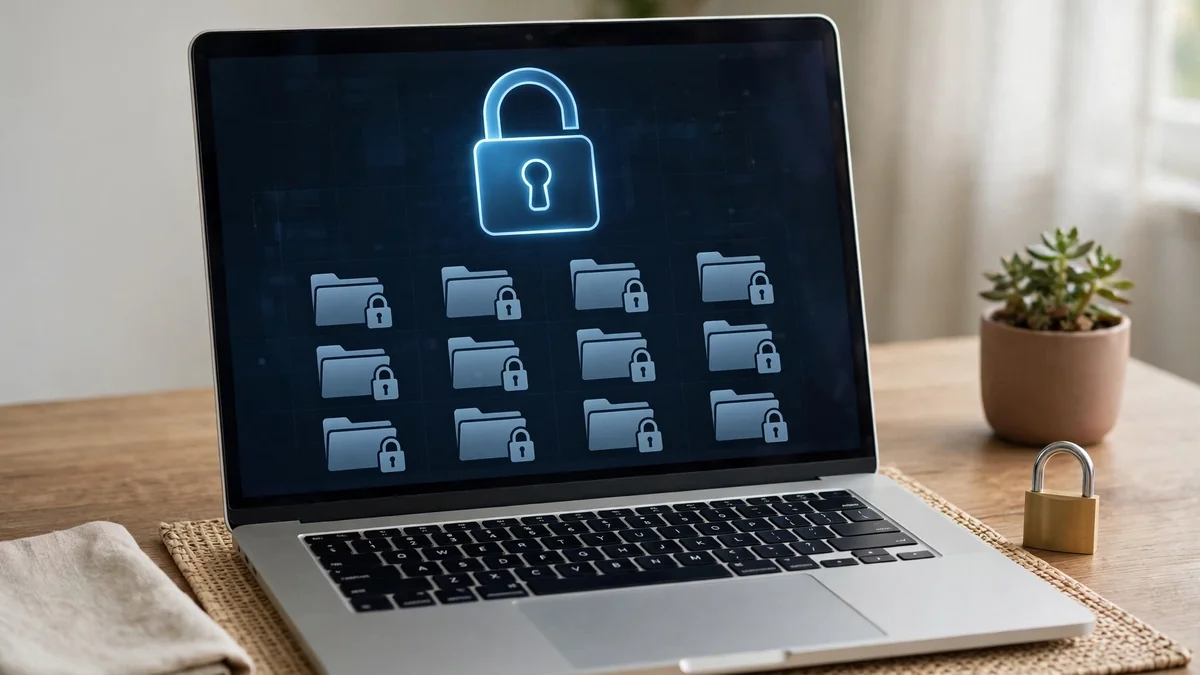
Encryption software turns readable files into scrambled data that only someone with the right key can open. It protects sensitive documents when a laptop is stolen, a USB drive is lost or a cloud account is breached, and it has become a basic expectation for businesses handling client records, financial data or health information. The best encryption software in 2027 is easy enough for everyday use that people actually keep it switched on, rather than a powerful tool nobody touches.
The right choice depends on what you need to protect. Some tools encrypt individual files and folders, others encrypt a whole drive, and a few focus on secure cloud storage with end-to-end encryption built in.
This guide compares eight leading options for 2027, from free open-source tools to business-grade platforms, covering file encryption, full-disk encryption and encrypted cloud storage. Every price below is an approximate starting price, so check current pricing before you buy, as plans and per-user rates change often.
Key takeaways
- NordLocker is the best overall encryption software for 2027, combining simple file encryption with a secure cloud locker.
- VeraCrypt is the best free option, offering powerful open-source encryption for drives, partitions and containers.
- BitLocker and FileVault are the best built-in choices, free with Windows Pro and macOS respectively.
- Cryptomator is the best tool for encrypting files before they reach cloud storage such as Google Drive or Dropbox.
- Always keep a secure backup of your recovery key, because lost keys usually mean permanently lost files.
At a glance: the shortlist
| Product | Best for | Starting price | Standout limit |
|---|---|---|---|
| NordLocker | Best overall | From about $2.99 per month | Free plan limited to 3 GB |
| VeraCrypt | Best free option | Free, open source | Interface feels technical |
| Microsoft BitLocker | Windows full-disk | Free with Windows Pro | Not in Windows Home |
| Apple FileVault | Mac full-disk | Free with macOS | Mac only |
| AxCrypt | Simple file encryption | From about $4.99 per month | Windows and Mac only |
| Cryptomator | Cloud file encryption | Free desktop, mobile from about $10 | No built-in cloud storage |
| Tresorit | Business cloud encryption | From about $10.42 per user, monthly | Higher price than rivals |
| Folder Lock | Windows file locking | From about $39.95 one-time | Windows only |
NordLocker — Best overall
NordLocker, from the team behind NordVPN, encrypts files and folders on your device and stores them in a secure cloud locker with end-to-end encryption. Files are protected with modern encryption standards, and only you hold the keys, so even NordLocker cannot read your data. A simple drag-and-drop interface makes it one of the easiest encryption tools to use daily.

The premium plan adds 500 GB of encrypted cloud storage, while the free plan includes 3 GB for trying the service. For individuals and small teams that want encryption without a learning curve, NordLocker is the most approachable option. It also pairs naturally with a good privacy setup, and our guide to the best VPN services for online privacy covers the other half of keeping your connection private.
Pros: Very easy to use, end-to-end encrypted cloud storage, secure file sharing, strong modern encryption.
Cons: Free plan storage is small, no Linux app, advanced users may want more control.
VeraCrypt — Best free option
VeraCrypt is a free, open-source encryption tool descended from TrueCrypt, and it remains the most powerful option that costs nothing. It can encrypt entire drives or partitions, create encrypted containers that behave like virtual drives, and even hide an operating system inside an encrypted volume for plausible deniability.
Because the code is open source and regularly audited, security-conscious users trust it for sensitive work. For a personal laptop or an external drive holding confidential files, though, nothing else free comes close.
Pros: Completely free and open source, very strong encryption options, hidden volumes, works on Windows, macOS and Linux.
Cons: Technical interface, no cloud storage or sharing, setup mistakes can lock you out.
Microsoft BitLocker — Best for Windows full-disk encryption
BitLocker is built into Windows Pro, Enterprise and Education editions, and it encrypts the entire system drive with a single switch. Once enabled, everything on the disk is protected automatically, including temporary files and cached data that file-level tools can miss, and the performance impact on modern hardware is minimal thanks to hardware acceleration.
BitLocker integrates with Active Directory and Microsoft Entra ID, so IT teams can store recovery keys centrally and enforce encryption across a fleet.
Pros: Free with Windows Pro, encrypts the whole drive automatically, central key management, minimal performance impact.
Cons: Not available on Windows Home, recovery key management needs care, no file-level sharing.
Apple FileVault — Best for Mac full-disk encryption
FileVault is Apple’s built-in full-disk encryption for Mac, and it is free with macOS. Turning it on encrypts the entire startup disk, and your login password becomes the key that unlocks it. On Macs with Apple silicon, encryption is handled by the Secure Enclave, making the protection both strong and fast.
The main risk is the same as with any full-disk tool: if you forget your password and lose the recovery key, your data is unrecoverable, so store the recovery key somewhere safe before you switch it on.
Pros: Free and built into macOS, hardware-backed on Apple silicon, seamless with backups, no extra software.
Cons: Mac only, no file-level sharing, recovery depends on keeping your key safe.
AxCrypt — Best for simple file encryption
AxCrypt focuses on one job: encrypting individual files quickly. Right-click a file, choose encrypt, and it is protected with AES-256 encryption. Double-clicking an encrypted file prompts for your password and opens it in the original application, so the workflow feels almost invisible once you are used to it.
It is a good fit for professionals who handle sensitive documents daily, such as accountants, lawyers and freelancers, and who want protection without learning a complex system.
Pros: Very simple right-click workflow, strong AES-256 encryption, secure sharing, works well for daily document handling.
Cons: Windows and Mac only, subscription pricing, no full-disk encryption.
Cryptomator — Best for cloud file encryption
Cryptomator solves a specific problem: your files are stored in Google Drive, Dropbox or OneDrive, and you want them encrypted before they leave your device. It creates an encrypted vault inside your cloud folder, and each file and folder name is scrambled, so your cloud provider sees only meaningless data while you work with normal files.
The desktop app is free and open source, with paid mobile apps for iOS and Android, and because Cryptomator encrypts files rather than providing storage, you keep your existing cloud plan. Encryption is only one part of a resilient setup, and a solid cloud backup for small businesses makes sure encrypted files can still be recovered after a failure.
Pros: Free desktop app, works with any cloud storage, open source, encrypts file names as well as contents.
Cons: No storage included, mobile apps are paid, setup takes a few minutes to understand.
Tresorit — Best for business cloud encryption
Tresorit is a business-focused, end-to-end encrypted cloud storage and collaboration platform based in Switzerland. Files are encrypted on your device before upload, sharing links can carry passwords and expiry dates, and the admin console offers user management, audit logs and compliance features for regulated industries.
The price is higher than consumer cloud storage, but the combination of encryption, collaboration and compliance reporting justifies it for regulated businesses.
Pros: True end-to-end encryption, strong compliance features, secure sharing controls, Swiss data protection standards.
Cons: More expensive than consumer alternatives, smaller ecosystem than Google or Microsoft, setup needs admin time.
Folder Lock — Best for Windows file locking
Folder Lock is a long-running Windows utility that locks, hides and encrypts files and folders, and can also encrypt USB drives and create secure wallets for passwords and cards. It uses AES-256 encryption and adds practical extras such as a file shredder for secure deletion and a history cleaner.
It is Windows-only and less suited to team collaboration, but for a single PC holding private documents, it remains a reliable, affordable choice.
Pros: One-time purchase, locks and hides as well as encrypts, USB encryption included, easy interface.
Cons: Windows only, no cloud storage, dated design, limited team features.
How to choose
Start by deciding what you are protecting against. If the main risk is a stolen laptop, full-disk encryption such as BitLocker or FileVault is the answer, and it costs nothing extra. If the risk is files stored in the cloud or shared by email, you need file-level encryption like NordLocker, AxCrypt or Cryptomator instead, because a stolen-device tool does nothing once a file leaves the disk.
Next, think about who else needs access. Solo users can pick almost anything, but teams should favour tools with sharing, admin controls and recovery options, because an employee leaving or forgetting a password can otherwise strand important files.
Finally, check compliance needs. Regulated industries may require specific standards, audit trails or data residency, which pushes the choice toward business tools like Tresorit rather than consumer apps. Losing access to your own data is a real risk too, and identity theft protection for small businesses adds a useful layer when stolen credentials are part of the threat.
Checklist: before you pay
- Decide whether you need full-disk, file-level or cloud encryption.
- Confirm the tool supports every device and operating system you use.
- Store recovery keys in a safe place separate from the encrypted device.
- Test restoring an encrypted file before you encrypt anything important.
- Check whether sharing, admin controls and audit logs are included.
- Confirm the renewal price and what happens to your files if you cancel.
Frequently asked questions
What is encryption software?
Encryption software scrambles files or entire drives so they can only be read with the correct key or password. It protects data from theft, loss and unauthorised access, and it is a standard control for businesses handling sensitive information.
Is free encryption software safe?
Yes, when it comes from a reputable source. VeraCrypt and Cryptomator are open source and independently audited, and BitLocker and FileVault are built by Microsoft and Apple. Avoid unknown free tools from untrusted websites, which may contain malware.
What is the difference between full-disk and file encryption?
Full-disk encryption protects everything on a drive automatically and guards against a stolen device. File encryption protects selected files wherever they go, including in cloud storage and email, but leaves other files unprotected unless you encrypt them too.
Can encryption slow down my computer?
On modern hardware the impact is negligible, because processors include hardware acceleration for common encryption standards. Older machines may notice a small slowdown with full-disk encryption, but for most users it is imperceptible.
What happens if I forget my encryption password?
In most cases your files are permanently unrecoverable, which is the point of strong encryption. Some tools offer recovery keys or admin recovery, so set those up before you encrypt anything important and store them somewhere secure.
Do I still need backups if my files are encrypted?
Yes. Encryption protects confidentiality, not availability, so a failed drive or ransomware attack can still destroy encrypted files. Keep regular backups of both the encrypted files and your recovery keys.
The bottom line
For most people, NordLocker is the best encryption software in 2027, because it combines simple file encryption with secure cloud storage at a fair price. If you only need to protect a device, switch on the free BitLocker or FileVault already built into your computer, and if you want maximum control for free, VeraCrypt remains unmatched.
Businesses with compliance needs should look at Tresorit, while anyone storing files in Google Drive or Dropbox should add Cryptomator on top. Whatever you choose, set it up today, store your recovery key safely, and test a restore before you trust it with anything irreplaceable.



