
For most Windows users, Microsoft Defender is the easiest free starting point, while Bitdefender Antivirus Free is a strong alternative when you want a separate real-time antivirus. Real-time protection checks files and activity continuously as you access or download them. A malware scanner can find an existing infection, while real-time antivirus also helps prevent new infections. That difference matters when you are choosing security software for a home PC: one tool may clean up a problem, while another guards your computer as you work. You do not always need to install more than one product. Microsoft Defender is already part of Windows, and a separate scanner can add a manual check when something seems wrong.
These picks serve different needs, from a built-in baseline to a second-opinion scan. Keep real-time protection enabled while using a separate cleanup scan only when you need a second check. That approach helps you avoid running two real-time antivirus programs at once.
Key Takeaways
- Microsoft Defender is the easiest no-install choice for most casual Windows users.
- Bitdefender Antivirus Free offers a separate free option with real-time protection.
- Malwarebytes Free scans on demand but does not provide real-time protection.
- Use a cleanup scan when you suspect malware or want a second check.
- Windows 10 users should plan for the end of operating-system security updates.
Do you need a virus remover or real-time antivirus?
If you want protection while you browse and open files, choose a tool with real-time protection rather than a scanner that runs only on demand. The difference is timing: one checks activity as it happens, and the other waits for you to start a scan. An on-demand scan does not continuously monitor your computer.
Real-time antivirus for ongoing prevention
Malware is a broad term for harmful software. A computer virus is one kind of malware, and ransomware is another type that can block access to your files.
Real-time protection checks files as you access them. It can also check activity as you download files or browse the web. Some free antivirus products limit protection to scans you start manually, so check what the free plan includes.
Choose real-time protection for ongoing defense, and use an on-demand scan when you need a targeted check.
On-demand scanners for targeted cleanup
An on-demand scanner starts when you run it, making it useful when a file looks suspicious or your computer acts strangely. It can check selected files or scan the whole system.
A manual scan can help spot a known threat, but it does not watch new activity between scans. CISA explains the risks of malware, phishing, and ransomware, including how harmful software can steal data or disrupt a system.
Before installing a second product, check whether it will run real-time protection alongside your current antivirus.
Best Free Virus Removal Tools for Windows
For most Windows 11 PCs, Microsoft Defender is the simplest free baseline, while Bitdefender Antivirus Free is the clearest choice if you want a separate real-time product. The right fit depends on the job: everyday protection, a second-opinion scan, or both. Microsoft Defender is the easiest no-install pick for most Windows 11 users.
These free tools differ in Windows availability and the work they do. The table separates ongoing antivirus protection from manual cleanup, so you can compare their free roles at a glance.
| Tool | Windows availability | Free role | Standout free capability |
|---|---|---|---|
| Microsoft Defender | Windows 10 and 11 | Built-in real-time antivirus | Included with Windows |
| AVG AntiVirus Free | Windows 7, 8, 8.1, 10, and 11 | Free antivirus | File, web, and ransomware protection |
| Bitdefender Antivirus Free | Windows 10 and 11 | Free real-time antivirus | Real-time protection and virus scanner |
| Avast One | Windows | Free antivirus features | SmartScan and file, web, and behavior shields |
| Malwarebytes Free | Windows | On-demand scanner | Manual malware scans |
Best free malware removal for a Windows PC
Microsoft Defender is the easiest starting point if you want protection without another download. It is built into Windows 10 and Windows 11, and it suits many home users who need a basic, ongoing layer.
For best free malware removal, choose the tool that matches your need. Bitdefender is the separate free real-time choice, while Malwarebytes is for on-demand cleanup. Readers looking for the best free malware removal for Windows 11 can start with Defender, then add a manual scan when needed.
When a second-opinion cleanup scan makes sense
A second scan can help when a warning keeps returning or a file seems unsafe. Malwarebytes Free is an option for best malware removal for a PC when you want a manual check, not another always-on antivirus.
Avira Free Security is another product you may compare. See our free Windows antivirus comparison for more detail on roles and free features. Match the tool to whether you need ongoing defense, a manual cleanup scan, or both.
Is Microsoft Defender enough for Windows 11?
Yes, Windows 11 includes Microsoft Defender Antivirus, and it provides real-time protection without a separate installation. For many home users, it offers a practical baseline. Windows Security combines Microsoft Defender with Windows Firewall and Smart App Control.
Windows Security also gives you a Quick scan under Virus & threat protection. To check one file or folder, right-click it in File Explorer and choose “Scan with Microsoft Defender.” You may need to choose “Show more options” first.
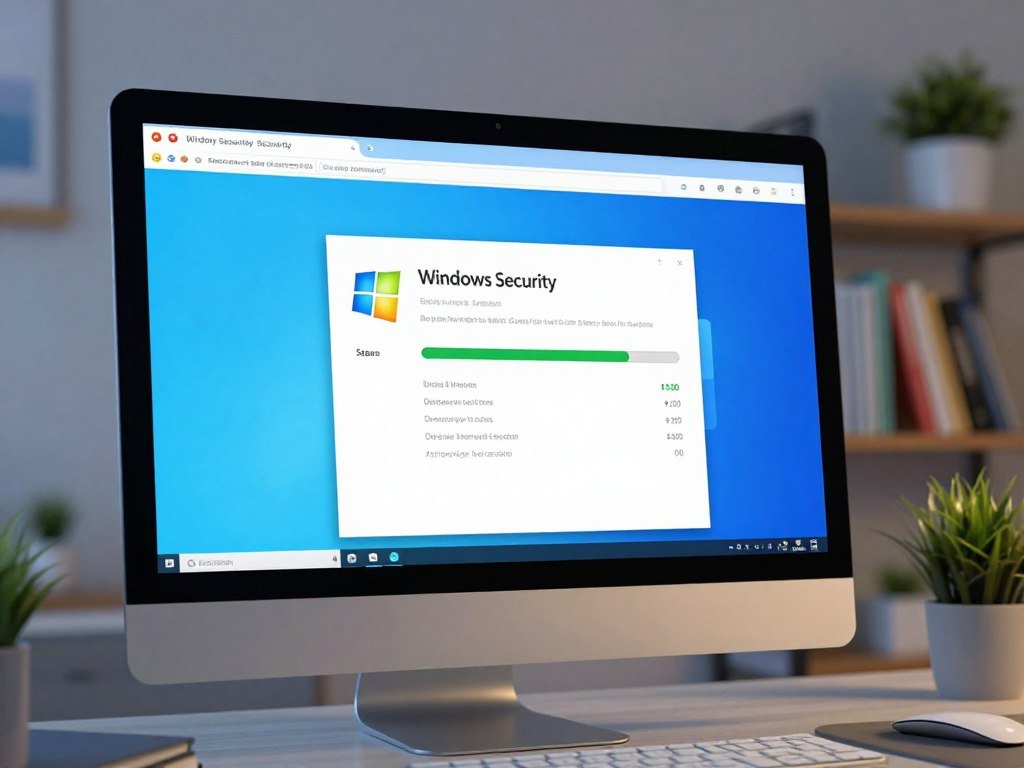
Windows 11 SmartScreen warns you about potentially harmful websites, apps, and downloads. Those warnings add a useful check before you open something unfamiliar.
PCMag rated Microsoft Defender Antivirus 3.5 out of 5 in its 2026 free-antivirus review. The review reported very good lab scores, a poor phishing-detection score, and mediocre hands-on results. Its Microsoft Defender review also discusses independent test results and product features.
When no other antivirus protection is present, Microsoft Defender is always on. If you switch real-time protection off, it stops scanning files you open or download, then turns back on automatically soon. If you turn real-time protection off temporarily, switch it back on as soon as the task that required it is finished.
AVG AntiVirus Free vs. Microsoft Defender: Which is better?
AVG has the edge on performance in the July-August 2026 Windows 11 evaluation, while Microsoft Defender is the simpler choice because it is already installed. For a casual user, Defender avoids another setup. AVG scored higher for performance while matching Defender in protection and usability.
AV-TEST reviewed 15 home-user security products and scored protection, performance, and usability out of six points each. Here are the results for these two free options.
| Product | Protection | Performance | Usability |
|---|---|---|---|
| AVG Antivirus Free 26.6 | 6 out of 6 | 6 out of 6 | 6 out of 6 |
| AVG Antivirus Free 26.7 | 6 out of 6 | 6 out of 6 | 6 out of 6 |
| Microsoft Defender Antivirus 4.18 | 6 out of 6 | 5.5 out of 6 | 6 out of 6 |
In this AV-TEST evaluation, AVG leads on performance and ties Defender in the other two categories. The CISA guidance on active security protections also stresses keeping operating-system and antivirus defenses on.
PCMag reported that AVG scored 97% in its malware-blocking test and 100% in its phishing test. That is a different test from the AV-TEST scores above. PCMag also reported perfect scores from two antivirus testing labs and very good results in its hands-on tests.
AVG includes real-time malware protection, manual and automated scans, scheduling, ransomware and phishing protection, and a performance scanner. It needs 4 GB of RAM and 2 GB of disk space. ARM support applies only to Windows 11, and AVG Secure Browser may be bundled during setup.
Defender wins for a casual user who wants no installation, while AVG suits someone who wants scheduled scans and added protections. Check the installer’s optional offers before confirming each setup screen.
What does Bitdefender Antivirus Free protect?
Bitdefender Antivirus Free is a suitable pick if you want a separate Windows antivirus with real-time protection and no trial deadline. Its free Windows product has no expiry date, and it is designed for Windows 10 and Windows 11. It includes both ongoing protection and a virus scanner.
The scanner checks for viruses and other cyber threats, while real-time protection checks files and activity as you use the computer. The free offer is aimed at one device, so it is a focused choice for a single Windows PC.
Manual and automated scans are listed in the free offering, along with scan scheduling. The free plan also includes ransomware protection and phishing protection. Those features make it a separate antivirus option, rather than just a cleanup tool.
Bitdefender’s free VPN includes up to 200 MB of encrypted traffic per device per day. That cap can suit a brief, occasional connection, but it is not the same as unlimited VPN use.
Server-location selection and unlimited traffic require Premium VPN. If you need those options, the free VPN does not provide them. It remains useful as a small extra for a short task, not as a full VPN replacement.
Our free antivirus picks for 2026 compare tools by device coverage and free-plan limits. Check whether the 200 MB daily VPN limit is enough before treating the included VPN as a full VPN replacement.
When is Malwarebytes Free useful?
Malwarebytes Free is best treated as an on-demand cleanup scanner, not a replacement for real-time antivirus protection. It starts when you run it, so it can serve as a manual second opinion when you want another check. Malwarebytes Free does not provide real-time protection.
Use the scanner when you suspect a file or program may be harmful, or when you want to check your computer after a warning. It scans on demand rather than watching activity between scans.
On-demand malware scanning
A manual scan can complement an active antivirus, but it cannot fill the same role. If you install Malwarebytes Free as your only malware scanner, your PC will lack its real-time layer.
That distinction matters when you compare malware tools. A cleanup scanner checks the files you ask it to inspect, while real-time protection checks files and activity as they arrive or open.
Browser Guard for web distractions
Browser Guard is a separate browser extension, not the Malwarebytes Free scanner. Its free offering blocks ads and related trackers while you browse.
That feature can reduce web distractions, but it does not turn the on-demand scanner into antivirus software. Keep a separate real-time protection layer enabled when relying on Malwarebytes Free.
What can Microsoft’s Malicious Software Removal Tool remove?
MSRT is a useful supplemental removal tool for prevalent malware, not a full antivirus replacement. Its scope is limited to common malware families, so it complements full antimalware protection. MSRT does not provide comprehensive protection against every threat.
Windows Update can download and run MSRT in the background. Microsoft generally releases it monthly, commonly on the second Tuesday. You can also launch the standalone tool on demand when you want an extra scan.
Use the standalone version with local administrator privileges. It produces a results report and saves a log at %windir%\debug\mrt.log. Follow these steps if you need to run it yourself:
- Get the standalone Windows Malicious Software Removal Tool if needed.
- Run the tool with local administrator privileges.
- Review the results report and the log at %windir%\debug\mrt.log.
Microsoft Safety Scanner is a separate option for broader on-demand detection and removal. The two tools have different roles, so choose the one that fits the check you need.
Treat an MSRT scan as an extra check, not as proof that every possible threat has been removed.
Can Chrome scan a Windows PC for malware?
Chrome for Windows has a built-in cleanup scan, but it is a browser tool rather than a complete antivirus. It can check your computer for malicious programs, though the feature is limited to Chrome for Windows. Chrome’s cleanup feature does not replace ongoing antivirus protection.
Open the cleanup tool through Chrome’s settings. Use this path:
- Open Settings, then open Advanced.
- Choose Reset and clean up.
- Select Clean up computer.
The scan can help when you want to check for software that affects Chrome or the computer. Browser security and privacy extensions can offer limited protection against browser-based threats, but they do not cover every kind of malware.
A pop-up that claims your PC has a virus is not proof that your computer is infected. Do not use a fake warning to decide which program to download, since the alert itself may be deceptive.
Chrome’s cleanup feature is a browser-specific check, not a system-wide replacement for antivirus software. Use a reputable security app for ongoing coverage beyond Chrome’s cleanup feature.
What should Windows 10 users do after support ends?
Windows 10 still runs after support ended, but a free antivirus cannot replace the security updates the operating system no longer receives. The main risk is unpatched software: Windows 10 support ended October 14, 2025. Consumer Extended Security Updates can provide security updates through October 12, 2027.
Microsoft no longer provides technical assistance, feature updates, or security updates outside applicable Extended Security Updates coverage. Microsoft Defender remains a free built-in antivirus option, but it cannot restore missing Windows updates.
Stay on Windows 10 with Extended Security Updates
Consumer Extended Security Updates, or ESU, provide critical and important security updates. ESU does not add new features or customer-requested nonsecurity updates. A Windows 10 PC must run version 22H2 to qualify.
Upgrade an eligible PC to Windows 11
An eligible Windows 10 PC running version 22H2 and meeting Windows 11’s minimum hardware requirements can upgrade to Windows 11 for free. Windows 10 computers continue to work after support ends, but face greater virus and malware risk without security updates.
| Option | Security updates | Feature or nonsecurity updates | Eligibility or timeframe |
|---|---|---|---|
| Standard Windows 10 after support | No regular security updates | No feature or technical support updates | Support ended October 14, 2025 |
| Enrolled consumer ESU | Critical and important updates | No new features or requested nonsecurity updates | Version 22H2; through October 12, 2027 |
| Eligible Windows 11 upgrade | Windows 11 security updates | Windows 11 feature updates | Version 22H2 PC meeting minimum hardware needs |
Check the PC’s Windows version and hardware eligibility before choosing ESU or a Windows 11 upgrade.
How do you remove malware safely from a Windows PC?
If you suspect an infection, use a reputable security app and let its scan and quarantine process handle detected files. Quarantine isolates a file so you can review or restore it, rather than deleting it at once. A full-system scan checks more of the PC than a quick scan and usually takes longer.
Run one real-time antivirus at a time because two active products can conflict. Follow this careful cleanup sequence:
- Update the security app you chose.
- Run a full scan of the computer.
- Quarantine detected files instead of manually deleting system files.
- Follow the app’s removal steps or restart prompts.
A scan may take longer when it checks more files, but it gives the app a broader view of the system. Let the security software handle files it flags, especially if they sit in Windows folders.
If an infection blocks normal operation, ask a trusted technician for help. Do not manually delete an unfamiliar system file just because a scan flags it.
How can you reduce the chance of another infection?
Keeping software updated and treating unexpected links as untrusted lowers the chances of another infection. Small habits help, especially when phishing messages imitate a person or business you know. An offline backup can preserve a separate copy if ransomware blocks access to your PC.
Phishing uses deceptive messages or websites to trick you into sharing information or opening harmful links. A backup gives you another way to recover important files if ransomware locks them.
- Keep Windows and your apps updated.
- Avoid unexpected email attachments and links.
- Check a website address before entering account details.
- Maintain an offline backup of important files.
Keep a separate offline copy of important files so ransomware cannot lock every copy at once.
Backups work best when you know they can be used. Test that an important backup can be restored before you depend on it.
Conclusion
For most people, Microsoft Defender is the simplest free starting point, while Bitdefender suits users who want a separate real-time antivirus. Choose by role: Defender for built-in coverage, Bitdefender for separate ongoing protection, or Malwarebytes Free for an on-demand second opinion.
Windows 10 owners also need a plan for operating-system security updates, since a malware scanner cannot replace them. Your next step is simple: open Windows Security or the official download page for the tool that matches your need, then confirm real-time protection is active.
FAQ
What is the best free virus cleaner app for PC?
Microsoft Defender is the simplest built-in choice for most Windows users. Bitdefender Antivirus Free is a better fit if you want a separate free product with real-time protection. Malwarebytes Free suits a manual cleanup scan, but it does not watch files continuously. Pick the role you need, and keep an active real-time antivirus when using an on-demand scanner.
Is there any 100% free antivirus?
Yes, Microsoft Defender comes with Windows, and Bitdefender Antivirus Free has no trial requirement or validity due date. Both provide a no-cost way to get antivirus protection. Some separate products also offer paid upgrades or extras, so a free download may include optional features that cost money. Check the plan details during setup and choose only the features you want.
What is the most powerful free antivirus?
Bitdefender Antivirus Free is a strong choice for a separate free product with real-time protection. Microsoft Defender is the easier no-install baseline for most Windows users. The better fit depends on whether you value a separate product or a tool already built into Windows. Keep one real-time antivirus active, and use a manual scanner only as an added check.
Does Windows 11 have a built-in antivirus?
Yes, Microsoft Defender Antivirus is built into Windows 11 and provides real-time protection through Windows Security. It checks files and activity as you access or download them. Windows Security also contains other features, including Windows Firewall and Smart App Control. You can use Defender without installing a separate antivirus, then run a manual scan when you need an extra check.
Which is better, AVG AntiVirus FREE or Windows Defender?
AVG scored 6 out of 6 in all three AV-TEST categories in July-August 2026. Microsoft Defender matched AVG for protection and usability, but scored 5.5 for performance. Defender remains the simpler no-install choice because it comes with Windows. AVG suits users who want features such as scheduled scans and additional protections in a separate product.
What is the top 3 antivirus?
Microsoft Defender is the top built-in option for Windows coverage, Bitdefender Antivirus Free is a separate free real-time choice, and AVG AntiVirus Free suits users who want scheduled scans and added protections. These picks serve different needs rather than one shared use case. Compare their free roles, then choose the product that fits your PC and preferred setup.
Do I still need antivirus in 2026?
Yes, keep real-time protection enabled in 2026. Windows 11 includes Microsoft Defender, which checks files and activity as you use the computer. Windows 10 users also need to address the end of support, since antivirus cannot replace missing operating-system security updates. Use a supported Windows version when possible, and keep your security app and other software updated.



