
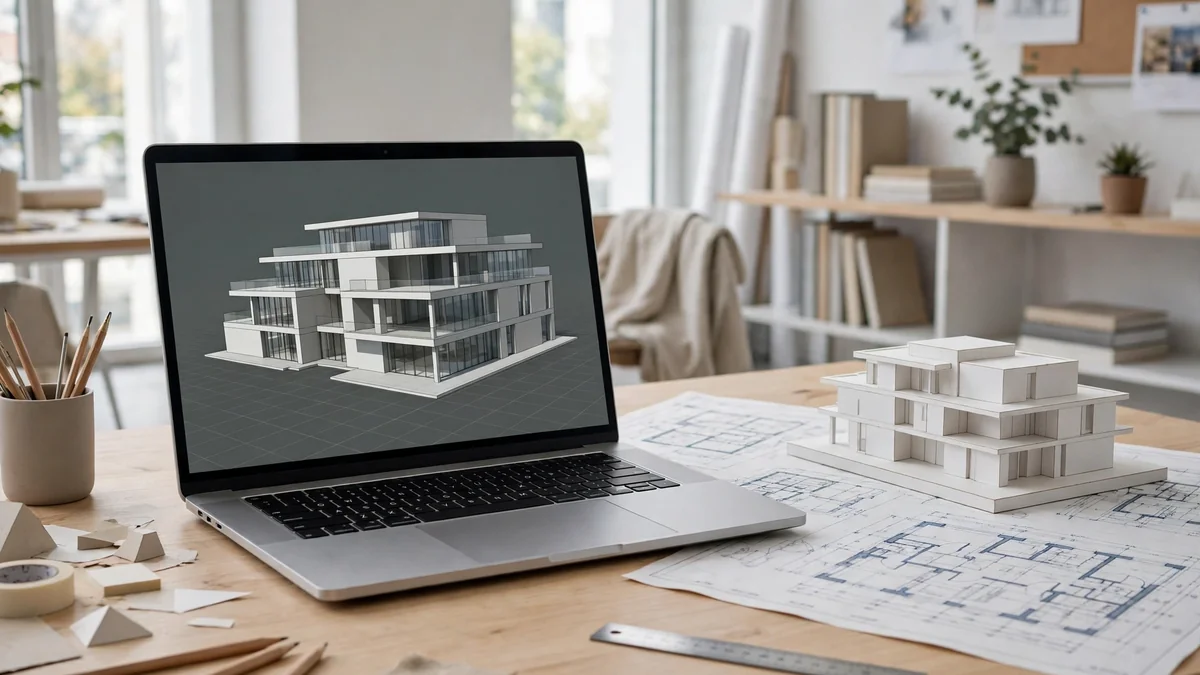
Architecture work pushes a laptop harder than almost any other profession. Revit models, Rhino viewports, Lumion renders, and Photoshop sheets all compete for the same processor, graphics card, and memory, The best laptops for architecture in 2027 are therefore workstations first and laptops second: powerful dedicated graphics, at least 32GB of memory, a color-accurate display, and cooling that holds up under a full-day render.
We judged every machine on the tasks architects actually run: BIM modelling in Revit and ArchiCAD, 3D work in Rhino and SketchUp, real-time rendering in Enscape, Lumion, and Twinmotion, and 2D work in AutoCAD and Adobe Creative Cloud. Battery life, weight, and screen quality mattered too. Every price below is an approximate starting price, so check current pricing before you buy.
The shortlist covers every budget and workflow, from the MacBook Pro 16 to Windows workstations for heavy BIM files. If you render constantly, buy the most graphics power you can afford; if you mostly document and present, prioritize the display and the keyboard. Either way, the six laptops below are the strongest architecture machines for 2027.
Key takeaways
- The Apple MacBook Pro 16 with M4 Max is the best overall laptop for architecture, pairing outstanding render performance with a superb display.
- The Dell Precision 5690 is the best Windows workstation, with ISV-certified graphics and up to 64GB of memory.
- Buy at least 32GB of RAM and a dedicated GPU with 8GB of VRAM or more; 16GB machines struggle with large BIM files.
- A color-accurate display covering close to 100% of DCI-P3 matters as much as raw speed for client presentations.
- Budget buyers should start with the Lenovo ThinkPad P14s Gen 5, the cheapest capable architecture laptop here at around $1,499.
At a glance: the shortlist
| Laptop | Best for | Starting price | Standout limit |
|---|---|---|---|
| Apple MacBook Pro 16 (M4 Max) | Best overall | From $2,499 | Some Windows-only BIM tools need virtualization |
| Dell Precision 5690 | Best Windows workstation | From $2,899 | Heavy at 2.46kg; premium price |
| Lenovo ThinkPad P16 Gen 2 | Best for large BIM models | From $2,549 | 16-inch chassis is bulky for travel |
| HP ZBook Studio G11 | Best for rendering on the go | From $2,699 | Battery drains fast under render loads |
| ASUS ProArt Studiobook 16 OLED | Best display | From $2,299 | OLED panel needs care to avoid burn-in |
| Lenovo ThinkPad P14s Gen 5 | Best budget pick | From $1,499 | Entry GPU limits heavy real-time rendering |
Apple MacBook Pro 16 (M4 Max) — Best overall
The MacBook Pro 16 with the M4 Max chip is the laptop most architecture studios reach for first: it renders fast, stays quiet, and its 16.2-inch Liquid Retina XDR display is the best screen in this roundup. With up to 128GB of unified memory, it chews through Rhino models and Photoshop files that would slow lesser machines, and battery life is genuinely all-day, often 18 hours or more.

The main compromise is software. Revit still has no native macOS version, so Windows-only BIM work needs Parallels or a second machine. For architects whose workflow is Rhino, SketchUp, ArchiCAD, and Adobe tools, that rarely matters. If your studio already runs on Apple hardware, this is the obvious pick, and it shares the same demand for sustained performance as the top picks in our guide to the best laptops for coding.
Pros: Exceptional CPU and GPU performance; best-in-class display; silent under load; outstanding battery life.
Cons: No native Revit; expensive as configured; limited port selection.
Dell Precision 5690 — Best Windows workstation
The Dell Precision 5690 is the classic architect’s Windows workstation, and the 2027 configuration is its strongest yet. It pairs Intel Core Ultra processors with NVIDIA RTX Ada professional graphics, up to 64GB of memory, and ISV certification for Revit, AutoCAD, and Rhino, meaning the drivers are tested against the exact software architects run every day. In practice that means fewer viewport glitches and crashes in large BIM files.
Display options include a 4K OLED panel with excellent color accuracy, and the chassis is built to survive years of site visits. Dell’s ProSupport service is a genuine advantage for firms: next-business-day on-site repair beats mailing a laptop away for two weeks. A well-configured model passes $3,500 quickly, but for a primary work machine, the Precision 5690 is the safest Windows choice in this roundup.
Pros: ISV-certified for major BIM software; powerful RTX professional graphics; excellent support options; 4K OLED display available.
Cons: Heavy; expensive when configured with 64GB of RAM; fans are audible under sustained renders.
Lenovo ThinkPad P16 Gen 2 — Best for large BIM models
When a Revit model grows past a gigabyte, most laptops start to crawl. The ThinkPad P16 Gen 2 is built for exactly that moment, with up to 128GB of memory, NVIDIA RTX professional graphics, and a 16-inch display that still fits in a laptop bag. It is the workstation to buy when your projects are hospitals, airports, and towers, because the extra memory keeps huge models responsive where 32GB machines swap to disk.
The keyboard is the best in this roundup, which matters when you document all day. The trade-off is bulk: at over 2.8kg with the charger, it is a desk-to-meeting-room machine rather than a travel companion. For senior staff working on the largest files, it is the right tool.
Pros: Up to 128GB of RAM for huge BIM files; superb keyboard; ISV-certified graphics; durable build.
Cons: Heavy and bulky; battery life is modest; premium pricing.
HP ZBook Studio G11 — Best for rendering on the go
The ZBook Studio G11 is HP’s answer to architects who render on site and present the same day. It packs NVIDIA RTX graphics and Intel Core Ultra processors into a sub-20mm chassis, with a 16-inch DreamColor display option covering 100% of DCI-P3. Enscape walkthroughs run smoothly, and vapor-chamber cooling keeps clock speeds high during longer renders.
HP’s DreamColor calibration is a real differentiator: on-screen colors match printed sheets and client displays closely. The compromise is battery life, which drops to a few hours under heavy GPU load, so keep the charger in your bag. It is pricey with the DreamColor panel and 64GB of memory, but for architects who live in real-time rendering, it earns it.
Pros: Thin for a workstation; DreamColor display with full DCI-P3 coverage; strong sustained render performance; good build quality.
Cons: Short battery life under GPU load; pricey with top options; limited upgradeability.
ASUS ProArt Studiobook 16 OLED — Best display
If display quality decides your purchase, the ProArt Studiobook 16 OLED wins outright. Its 16-inch 3.2K OLED panel delivers perfect blacks, exceptional contrast, and color accuracy that makes renders look their best. ASUS calibrates the panel at the factory, and the included dial speeds up brush work in Photoshop.
Intel Core processors and NVIDIA RTX graphics handle Rhino, SketchUp, and Lumion competently, with 32GB of memory standard. It is not the fastest renderer here, and the OLED panel needs sensible brightness habits to avoid burn-in, but for presentation-heavy work the screen alone justifies the price. It is also noticeably cheaper than the MacBook Pro 16 and ZBook Studio.
Pros: Outstanding OLED display; factory color calibration; useful control dial; strong value.
Cons: OLED burn-in risk with static toolbars; mid-pack render speed; average battery life.
Lenovo ThinkPad P14s Gen 5 — Best budget pick
Not every architect needs a $3,000 workstation, and the ThinkPad P14s Gen 5 proves it. This 14-inch mobile workstation offers NVIDIA RTX graphics, up to 64GB of memory, and ISV certification in a portable 1.6kg chassis, starting at around $1,499. It handles AutoCAD, SketchUp, and medium-sized Revit models comfortably, and a 2.8K OLED display option punches well above the price.
The compromise is render horsepower: the entry-level RTX graphics run Enscape and Twinmotion, but large real-time scenes need lower settings or longer waits. For students, junior architects, and anyone whose heaviest work is documentation and 2D drafting, that is a fair trade. The ThinkPad keyboard, solid build, and business-class support make it a smarter buy than a cheaper consumer laptop with similar specs, and it is the most sensible first architecture laptop you can buy — see also our guide to the best laptops for students.
Pros: Genuinely portable workstation; ISV-certified; excellent keyboard; best price in this roundup.
Cons: Entry GPU limits heavy rendering; smaller 14-inch screen; speakers are mediocre.
How to choose
Start with your software, not the laptop. If your firm runs Revit as its primary BIM tool, buy a Windows workstation with an NVIDIA RTX card and at least 32GB of RAM, because Revit has no native macOS version. If your workflow is Rhino, ArchiCAD, SketchUp, and Adobe tools, the MacBook Pro 16 is a serious option. Next, match the display to your work: a color-accurate panel covering close to 100% of DCI-P3 is essential if you present renders to clients.
Memory matters more than most buyers expect. Architecture software is memory-hungry, and 16GB is the floor, not the target; buy 32GB as a minimum and 64GB for large commercial models. Storage should be at least 1TB of fast NVMe, since project files and caches grow quickly. Finally, weigh portability honestly: a 17-inch workstation is wonderful at a desk and miserable on a site visit, so daily travellers should pick a 14- or 16-inch machine with a good battery. The same logic applies across professional machines, as our guide to the best laptops for business explains.
Checklist: before you buy
- Confirm your core software runs natively on your chosen operating system, especially Revit on macOS.
- Buy at least 32GB of RAM and a dedicated GPU with 8GB of VRAM or more.
- Check the display covers close to 100% of DCI-P3 for accurate presentations.
- Choose at least 1TB of NVMe storage, and confirm it is upgradeable.
- Test the keyboard and trackpad in person if you type and draft all day.
- Check warranty and on-site repair options, since a week without your work machine is expensive.
Frequently asked questions
How much RAM do architects need in a laptop?
At least 32GB for professional work in 2027. Large Revit and ArchiCAD models, plus a browser and Photoshop open alongside, push a 16GB machine into slowdowns.
Is a MacBook good for architecture?
Yes — for Rhino, SketchUp, ArchiCAD, and Adobe workflows, the MacBook Pro 16 is one of the best architecture laptops available. The exception is Revit, which has no native macOS version.
Do architects need a dedicated graphics card?
Yes. A dedicated GPU with at least 8GB of VRAM makes real-time rendering in Enscape, Lumion, and Twinmotion smooth and speeds up viewport work in Rhino and Revit. Integrated graphics handle 2D drafting but struggle with 3D.
What screen size is best for architecture laptops?
16 inches is the sweet spot, balancing screen space with portability. A 14-inch machine suits daily travel, while 17 inches suits desk work.
Is OLED worth it for architecture work?
OLED displays offer superb contrast and color accuracy that make renders look their best. They are worth it for presentation-heavy work, but avoid static toolbars at maximum brightness for hours.
How much should an architect spend on a laptop?
Expect $1,500 to $3,000 for a capable machine in 2027. Budget picks like the ThinkPad P14s Gen 5 cover documentation and medium models, while $2,500 and above buys the graphics and memory for heavy BIM work.
The bottom line
For most architects, the Apple MacBook Pro 16 with M4 Max is the best laptop you can buy in 2027, thanks to its speed, display, and battery. If your firm runs Revit or needs Windows, the Dell Precision 5690 is the safest workstation choice, and the Lenovo ThinkPad P14s Gen 5 is the best budget pick for students and junior architects.
Whichever machine you choose, prioritize the graphics card, memory, and display over thinness and brand loyalty. Architecture software only gets heavier, and a laptop bought with headroom today will still feel fast on your next, larger project.



