
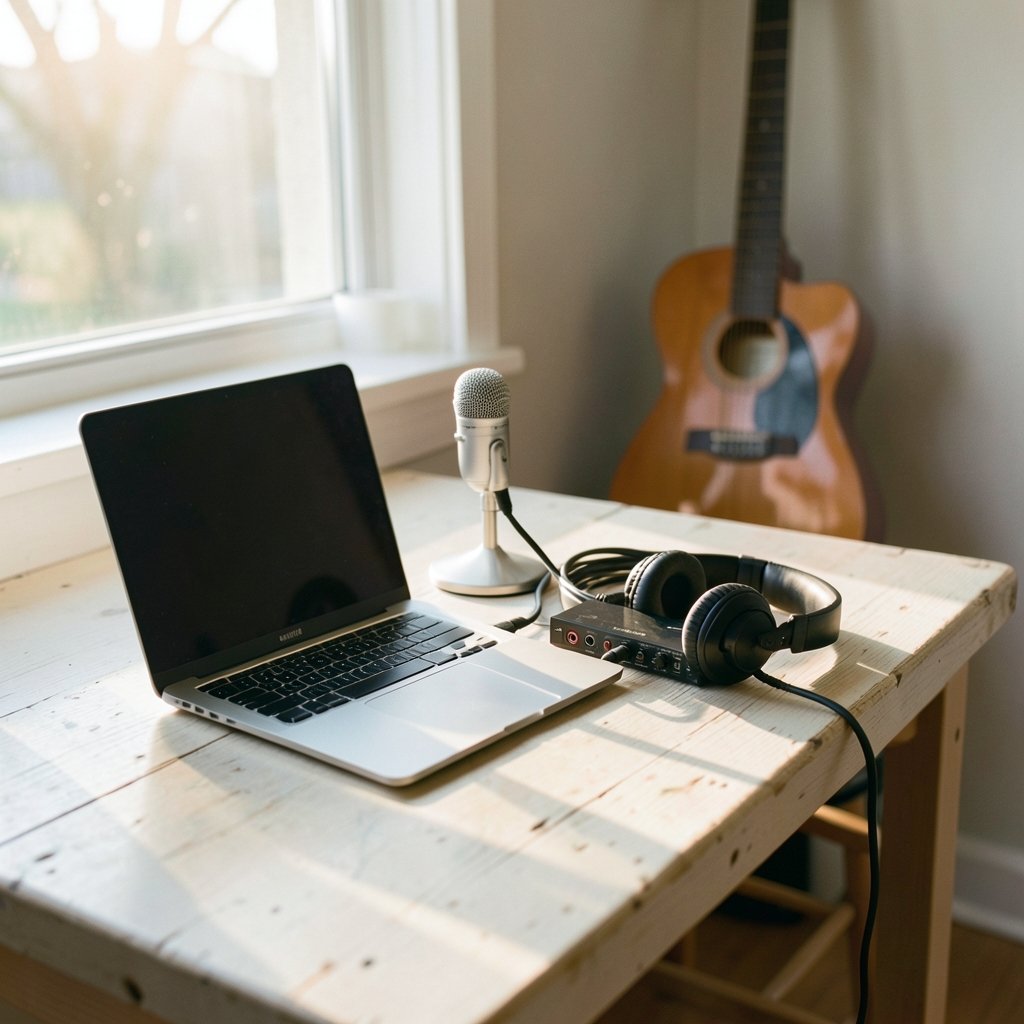
What if you could record a demo that sounds good enough to share without spending a single dollar on software? That is not a fantasy. Some of the most widely used recording tools in the world cost nothing at all, and the paid options sit in the price range of a decent dinner rather than a month’s rent. The catch is knowing which tool fits which job, because the “best” cheap recorder for a solo singer is not the same as the best one for a band tracking eight microphones at once.
This guide breaks down the low-cost demo recording landscape by what each tool actually does well, where it stumbles, and the mistakes that trip up beginners most often. No hype, no affiliate pressure, just a practical map of the cheap end of the recording market.
Start With the Right Question: Recorder or DAW?
Before comparing tools, it helps to separate two categories that get blurred together constantly.
A simple recorder captures audio. You press record, you play, you stop. It handles one track, maybe two. A digital audio workstation (a DAW) captures audio and then lets you arrange multiple tracks, edit timing, add effects, and mix everything into a finished file.
For a demo, a simple recorder often suffices. If you are capturing song ideas on an acoustic guitar or sketching vocal melodies, a phone voice memo or a free audio editor works. A DAW becomes necessary once you want a bass line under a guitar part, a second vocal harmony, or drums beyond you hitting a cardboard box.
The mistake most beginners make is buying an expensive DAW before they have written enough songs to need one. The second most common mistake is trying to build a full multi-track arrangement inside a tool designed only for capturing a single stream of audio. Match the tool to the job, and the budget question mostly solves itself.
Audacity: The Free Workhorse That Refuses to Die
Audacity has been around since 2000, and it remains the default answer to “what free software can I record with.” It is open source, runs on Windows, macOS, and Linux, and handles basic multi-track recording, editing, noise reduction, and export to common formats.
Where Audacity shines is straightforward capture and cleanup. Recording a voice memo, trimming silence, reducing background hum, normalizing volume, exporting an MP3: all of that is quick and free. For podcast-style demos, spoken-word sketches, or single-instrument recordings, it is genuinely sufficient.
Where it struggles is anything resembling modern music production. The interface feels dated, real-time effects monitoring is clunky, and MIDI support is limited. It is a recorder and editor, not a creative production environment.
One practical caveat worth knowing: in May 2021, a proposed privacy policy update that would have allowed data collection for legal and security purposes drew significant backlash, and the policy was revised that July. For privacy-conscious users, it is worth reading the current policy before installing rather than assuming the controversy is fully settled.
The practical tip here: use Audacity for what it is good at and stop expecting it to behave like a full studio. People burn hours fighting its limitations when a different free tool would have solved the problem in minutes.
OBS Studio: Free Screen and Audio Capture for Video Demos
If your demo involves showing something on screen, whether that is a software walkthrough, a virtual instrument interface, or a video performance, OBS Studio is the free standard. It is open source, cross-platform, and built for capturing screen and audio together, with streaming as a bonus.
For musicians, OBS is underrated. It can record a performance video with decent audio sync, capture a plugin interface while you demonstrate a sound, or produce a simple music video with a static camera and a clean audio input. The learning curve is real, and the settings menu is intimidating at first, but the price is impossible to argue with.
The common mistake with OBS is skipping the audio setup. New users often record and discover the audio is clipping, out of sync, or coming from the wrong input device. Do a thirty-second test recording before every session. It saves an entire wasted take.
Reaper: The Paid Tool That Costs Almost Nothing
Reaper occupies a strange and wonderful spot in the market. It is not free, but its evaluation license is uncapped and non-expiring, and a discounted license for personal and small-business use has long been offered at a fraction of what mainstream DAWs charge. Exact pricing shifts over time, so check the current figures rather than trusting an old forum post.
What you get for that modest outlay is a full-featured DAW: unlimited tracks, strong routing, excellent performance on older hardware, and a community that produces an enormous library of free themes and scripts. Producers who mix on a laptop from five years ago frequently praise Reaper for running smoothly where heavier software chokes.
The honest downside is that Reaper assumes you know what you are doing. Its default interface is sparse, its menus are deep, and there is no hand-holding. Beginners sometimes bounce off it and retreat to something friendlier. The people who stick with it tend to stay for years, because the flexibility rewards the effort.
If you are weighing whether a paid tool is worth it at all, it helps to understand how subscription creep quietly drains budgets across the software world. The same logic that applies to free AI tools and their real costs applies to recording software: the sticker price is rarely the whole story, and a one-time purchase often beats a monthly fee for a hobbyist.
GarageBand: The Best Free Option If You Own a Mac
GarageBand ships free with macOS and iOS, and for Apple users it is hard to beat as a starting point. It covers multi-track recording, software instruments, loops, and basic mixing, all with an interface designed to be approachable. A beginner can have a listenable demo out of it within an afternoon.
The obvious limitation is that it is Apple-only. If you are on Windows or Linux, this option simply does not exist for you. The second limitation is depth: GarageBand hides or omits features that Logic Pro, its paid sibling, provides, and users eventually hit a ceiling.
Still, for a free tool bundled with hardware you already own, the value is hard to argue with. The mistake people make is dismissing it as a toy. Plenty of released music has started life as a GarageBand project.
BandLab: Free, Cloud-Based, and Built for Collaboration
BandLab offers a free cloud-based DAW with collaborative features, which makes it unusual. Two people in different cities can work on the same project without passing files back and forth. For a band scattered across a region, or a songwriter collaborating with a friend, that is a meaningful advantage.
Free tiers change, and terms of service shift, so verify the current limits before committing a project to any cloud platform. The general caution with cloud-based tools is the same one that applies across the software world: free access often comes with tradeoffs in storage, export quality, or feature gates that appear later. If you have ever wondered whether free tools actually cost you in the long run, cloud DAWs are a good case study, because the cost can show up as time, storage limits, or a sudden paywall rather than a bill.
BandLab works well for sketching and collaboration. It is less ideal for detailed mixing, where a desktop DAW still has the edge.
How the Main Options Compare
| Tool | Cost | Platform | Best For | Main Limitation |
|---|---|---|---|---|
| Audacity | Free | Windows, macOS, Linux | Audio capture, cleanup, simple edits | Weak for multi-track music production |
| OBS Studio | Free | Windows, macOS, Linux | Screen plus audio demo videos | Steep setup curve, audio config errors |
| Reaper | Low-cost one-time license | Windows, macOS, Linux | Full multi-track production on a budget | Unforgiving for beginners |
| GarageBand | Free with Apple hardware | macOS, iOS | Beginner-friendly song demos | Apple-only, feature ceiling |
| BandLab | Free tier | Browser, mobile | Collaboration and sketching | Cloud limits, changing terms |
The Technical Details That Actually Affect Demo Quality
Tool choice matters less than most people think. A great demo recorded in Audacity beats a muddy one recorded in an expensive DAW. Three technical points do most of the heavy lifting.
Loudness. Streaming platforms generally target around −14 LUFS integrated, which is approximate industry guidance rather than a fixed rule, and individual platforms vary. If your demo is dramatically louder or quieter than everything else in a playlist, listeners will reach for the volume knob. Normalizing to a sensible target before sharing avoids that.
File format. Record and mix in WAV. Share in MP3 or AAC. Lossy formats degrade each time they are re-encoded, so keep a clean original and export copies from it rather than converting a converted file.
Room and mic placement. No software fixes a recording made in a reverberant kitchen with a mic pointed at the ceiling. A closet full of clothes, a blanket fort, and a mic positioned a hand’s width from the mouth will outperform a plugin chain every time. This is the single highest-return improvement available to a budget recordist.
Common Mistakes That Wreck Cheap Demo Sessions
The same errors show up again and again, and each one is avoidable.
- Recording too hot. Peaks that touch zero distort permanently. Aim for peaks around −6 dB and leave headroom.
- Skipping the test take. Thirty seconds of checking levels and sync prevents an hour of regret.
- Ignoring the noise floor. A humming fridge or a laptop fan becomes obvious in headphones. Turn things off.
- Mixing on laptop speakers only. Check the mix on two or three systems, including headphones, before calling it done.
- Over-processing. Heavy reverb and compression on a demo hide the song rather than help it.
- Forgetting to back up. Cloud sync is not a backup. Keep a copy somewhere else.
If budgeting software is part of your planning, the same discipline that applies to cloud cost management applies here: know what you are paying for, cancel what you do not use, and prefer one-time costs over recurring ones for a hobby.
A Practical Starter Path
For someone starting from zero with no budget, the sequence that works most reliably looks like this. Record ideas on a phone first, because capturing the song matters more than capturing it well. When an idea deserves a real demo, move to Audacity or GarageBand depending on your platform. Add OBS only if video is part of the plan. Upgrade to Reaper when you find yourself fighting the free tool’s limits rather than writing songs.
That progression keeps spending near zero while the skill and the material develop. The people who buy the expensive setup first usually end up with expensive software and no finished demos.
Conclusion
The best low-cost demo recording tool is the one that gets a finished song out of your head and into a file. Audacity and OBS Studio cost nothing and cover capture and video. GarageBand is free and friendly if you live in Apple’s world. BandLab handles collaboration without a server. Reaper asks for a modest one-time payment and gives back a full production environment that runs on modest hardware.
None of them will write the song for you, and none of them will fix a bad room or a clipped take. Pick the tool that matches your platform and your ambition level, do a test recording before every session, and keep the source files clean. The demo that gets finished beats the demo that gets perfect, every single time.
Frequently Asked Questions
What is the best completely free tool for recording a music demo?
For audio capture and editing, Audacity is the most established free option across Windows, macOS, and Linux. For Apple users, GarageBand is friendlier and includes software instruments. For video demos, OBS Studio is the free standard. The right pick depends on whether you need audio only or audio plus screen.
Do I need a DAW to record a demo, or is a simple recorder enough?
A simple recorder is enough for capturing song ideas, single-instrument performances, and spoken-word sketches. A DAW becomes necessary when you want multiple tracks arranged together, such as guitar, bass, vocals, and drums in one project. Start simple and upgrade only when you hit a real limitation.
Is Reaper really cheaper than other DAWs?
Reaper is notably cheaper than most mainstream DAWs, and it offers an uncapped, non-expiring evaluation license plus a discounted personal and small-business license. Exact prices change over time, so check the current figures directly rather than relying on older comparisons.
How loud should a demo be before I share it?
Streaming platforms generally target roughly −14 LUFS integrated, though this is approximate guidance and individual platforms differ. The practical goal is to be in the same loudness neighborhood as commercial releases so listeners are not reaching for the volume control.
Can I record a decent demo in a bedroom?
Yes, and the room matters more than the software. Soft furnishings, blankets, and a closet full of clothes reduce reflections. Place the microphone close to the source, keep peaks around −6 dB, and eliminate background noise like fans and fridges before recording.
What file format should I use for recording and sharing?
Record and mix in WAV to preserve quality, then export copies as MP3 or AAC for sharing. Lossy formats degrade with repeated re-encoding, so always export from the clean original rather than converting an already-compressed file.



