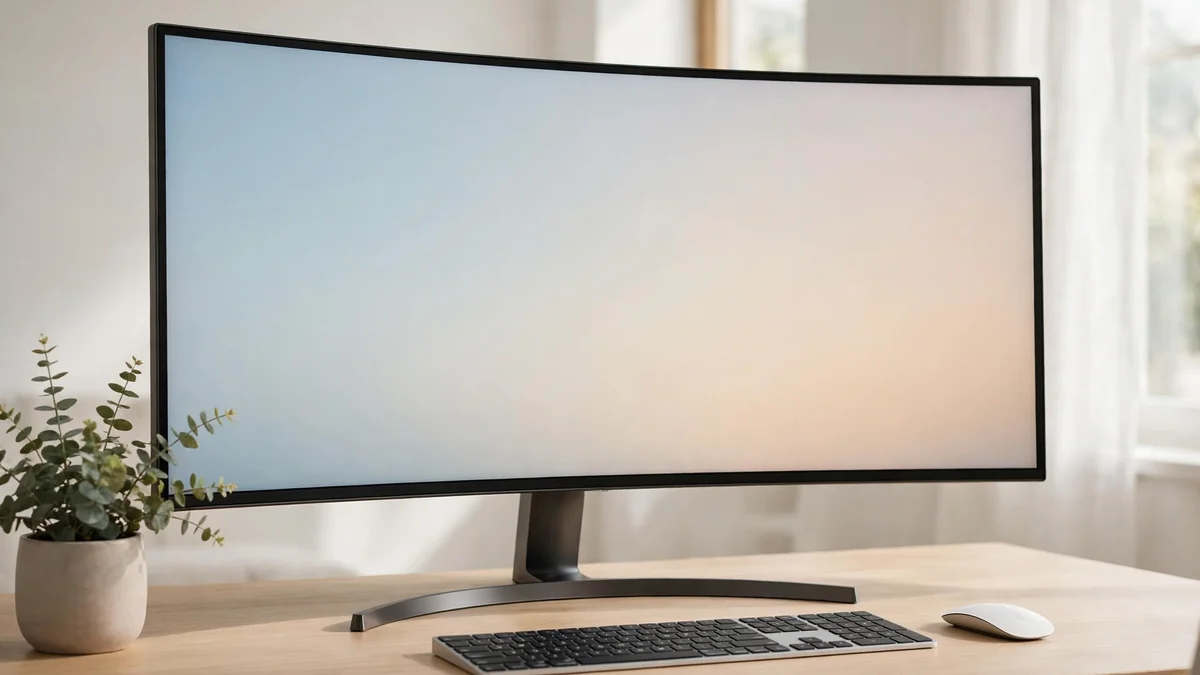
The best monitors for ultrawide setups replace two screens with one wide, seamless panel — a 34-inch 21:9 display holds two full windows side by side, and a 49-inch 32:9 display holds three, with no bezel running down the middle and no second cable to manage. For remote workers, editors, traders, and gamers, that single wide canvas changes how a desk feels: fewer windows stacked on top of each other, less alt-tabbing, and a workspace that finally matches the way you actually work.
We compared ultrawide monitors on the things that decide whether one is worth the desk space: panel type and colour accuracy, resolution and text sharpness, refresh rate for gaming, curve and viewing comfort, and connectivity — because an ultrawide that only has one usable port is a bottleneck, not an upgrade. We also weighed size honestly: a 34-inch ultrawide suits most desks, a 40-inch 5K2K suits creators, and a 49-inch super-ultrawide needs a deep desk and a strong graphics card.
Our shortlist covers every kind of ultrawide setup, from a $499 budget 34-inch panel to a premium 49-inch OLED, with options for work, for creators, and for gaming. Prices below are approximate starting prices — check current pricing before buying, because monitor prices move with every sale season.
Key takeaways
- Best overall: LG UltraGear 34GS95QE — a 34-inch OLED ultrawide with superb contrast and a 240Hz refresh rate.
- Best for gaming: Samsung Odyssey OLED G8 34-inch — QD-OLED colour, 175Hz, and a slim, premium design.
- Best for work: Dell UltraSharp 34 U3425WE — a curved IPS panel with a built-in KVM and a USB-C hub.
- Best super-ultrawide: Samsung Odyssey G9 49-inch — two 1440p screens in one 32:9 panel.
- Watch out for: buying a 49-inch ultrawide for a shallow desk — measure your desk depth first, and check your graphics card can drive the resolution.
At a glance: the shortlist
| Product | Best for | Starting price | Standout limit |
|---|---|---|---|
| LG UltraGear 34GS95QE | Best overall | From $1,099 | No built-in speakers of note |
| Samsung Odyssey OLED G8 (G85SD) 34-inch | Best for gaming | From $1,199 | Glossy panel reflects bright rooms |
| Dell UltraSharp 34 Curved U3425WE | Best for work | From $829 | 60Hz — not for gaming |
| Samsung Odyssey G9 (G95C) 49-inch | Best super-ultrawide | From $1,099 | Needs a deep desk and a strong GPU |
| LG UltraWide 40WP95C-W 40-inch 5K2K | Best for creators | From $1,499 | Most expensive here |
| Gigabyte M34WQ 34-inch | Best budget | From $499 | Flat panel, no curve |
| MSI MPG 341CQPX QD-OLED 34-inch | Best value OLED | From $799 | No USB-C power delivery |
LG UltraGear 34GS95QE — Best overall
The LG UltraGear 34GS95QE is the ultrawide most people should buy. Its 34-inch OLED panel delivers perfect blacks and infinite contrast, the 3440×1440 resolution is sharp at normal desk distances, and the 240Hz refresh rate makes it as good for gaming as it is for work. The 800R curve wraps the screen gently around your field of view, so the edges feel as close as the centre, and the colour accuracy is strong enough for photo work after a quick calibration.
If colour accuracy is your priority, our guide to the best monitors for designers compares colour-accurate panels in more depth.
Pros: Superb OLED contrast; 240Hz refresh rate; 800R curve; HDMI 2.1 and USB-C with power delivery
Cons: Weak built-in speakers; OLED needs care to avoid burn-in; premium price
Samsung Odyssey OLED G8 (G85SD) 34-inch — Best for gaming
The Odyssey OLED G8 uses a QD-OLED panel, which pairs the perfect blacks of OLED with brighter, more saturated colour than standard OLED — and in games it shows. The 175Hz refresh rate, 0.03ms response time, and FreeSync Premium Pro support make fast games feel immediate, while the 1800R curve is gentle enough for work and immersive enough for racing and first-person games alike.
Pros: QD-OLED colour and brightness; 175Hz and 0.03ms response; built-in streaming apps; slim premium design
Cons: Glossy panel shows reflections; expensive; the smart TV features are unnecessary for some buyers
Dell UltraSharp 34 Curved U3425WE — Best for work
The Dell UltraSharp 34 U3425WE is the ultrawide for people who work all day and never game. Its 34-inch curved IPS panel is factory calibrated to 99% sRGB, text is crisp at 3440×1440, and the 120Hz refresh rate keeps scrolling smooth without the cost of a gaming panel. The real reason to buy it is the hub: a built-in KVM switch, USB-C with 90W power delivery, and enough USB ports to dock a laptop, a keyboard, and a webcam with a single cable.
Pros: Built-in KVM and USB-C hub; factory-calibrated colour; 90W power delivery; excellent stand and warranty
Cons: Not a gaming monitor; IPS contrast is ordinary; no HDR to speak of
Samsung Odyssey G9 (G95C) 49-inch — Best super-ultrawide
The Odyssey G9 is two 27-inch 1440p monitors fused into a single 49-inch 32:9 panel, and once you have worked on one, going back to a single screen feels cramped. Three full windows sit side by side with room to spare, the 1000R curve matches the natural curve of your vision, and the 240Hz refresh rate with a 1ms response time makes it a serious gaming display as well as a productivity monster.
Pros: Huge 32:9 workspace; 240Hz refresh rate; 1000R curve; replaces two monitors completely
Cons: Needs a deep desk; demands a strong graphics card; some apps do not support 32:9
LG UltraWide 40WP95C-W 40-inch 5K2K — Best for creators
The LG 40WP95C-W is a 40-inch 5K2K ultrawide — 5120×2160 pixels — which gives creators a canvas that is both wide and tall, with text and images sharp enough for detailed photo and video work. The Nano IPS panel covers 98% of DCI-P3, the Thunderbolt 4 port docks a MacBook or a laptop with a single cable and 96W of power, and the 72Hz refresh rate is smooth enough for everyday work.
Pros: 5K2K resolution; 98% DCI-P3 colour; Thunderbolt 4 with 96W power; huge workspace for editing
Cons: Most expensive here; 72Hz is not for gaming; the stand is large
Gigabyte M34WQ 34-inch — Best budget
The Gigabyte M34WQ is the cheapest way into a proper ultrawide setup, and it does not feel cheap. The 34-inch flat IPS panel runs at 3440×1440 and 144Hz, with 92% DCI-P3 colour coverage, a built-in KVM switch, and USB-C connectivity — features that cost twice as much on other brands. For work, the flat panel is arguably better than a curve, because straight lines stay straight, which matters for documents and design.
Pros: Best price for a 34-inch ultrawide; 144Hz and 92% DCI-P3; built-in KVM; USB-C connectivity
Cons: Flat panel, less immersive; basic HDR; the stand is functional rather than premium
MSI MPG 341CQPX QD-OLED 34-inch — Best value OLED
The MSI MPG 341CQPX brings QD-OLED to a price that undercuts the Samsung and LG flagships by hundreds, with the same 34-inch 3440×1440 panel, a 240Hz refresh rate, and a 0.03ms response time. Colour is vivid and accurate, contrast is perfect, and the 1800R curve is gentle enough for long work sessions. For gamers who want OLED without the flagship price, it is the value pick.
Pros: QD-OLED for $799; 240Hz and 0.03ms response; three-year warranty with burn-in cover; KVM switch included
Cons: No USB-C power delivery; the design is gamer-styled; no built-in speakers of note
How to choose
Start with size. A 34-inch ultrawide suits most desks and most graphics cards, a 40-inch 5K2K suits creators who need pixels, and a 49-inch super-ultrawide needs a deep desk and a strong GPU — measure your desk depth and check your graphics card before you commit. Then choose the panel: OLED for contrast and gaming, IPS for colour accuracy and text work, and VA only if budget is the priority.
Then check connectivity. An ultrawide that docks your laptop over a single USB-C cable with power delivery removes a tangle of wires from your desk, and a built-in KVM switch lets you share the screen between a work laptop and a personal machine. And think about the curve: a gentle 1800R curve suits mixed work, while a tight 800R or 1000R curve is more immersive for gaming. If the ultrawide is the centrepiece of a home office, our guide to the best monitors for home offices covers the smaller screens that pair well with it.
Finally, be honest about how you will use it. If you game, prioritise refresh rate and response time; if you edit photos or video, prioritise colour coverage and resolution; if you mainly work in documents and spreadsheets, prioritise the hub, the KVM, and the warranty. An ultrawide is a five-year purchase, so buy the panel that fits your work, not the one with the brightest spec sheet.
Checklist: before you pay
- Measure your desk depth — 34-inch panels need about 70cm, 49-inch panels need 80cm or more.
- Check your graphics card can drive 3440×1440, or 5120×1440 for a 49-inch panel.
- Confirm USB-C power delivery if you want single-cable laptop docking.
- Check the colour coverage — 99% sRGB for work, 95% DCI-P3 or better for creators.
- Look for a KVM switch if you share the screen between two computers.
- Check the OLED warranty — burn-in cover matters if you buy an OLED panel.
Frequently asked questions
Is an ultrawide monitor better than two monitors?
For most people, yes — one wide panel has no bezel in the middle, needs one cable and one stand, and lets you snap windows to any width. Two monitors still win if you need one screen vertical or want to mix very different panels.
What size ultrawide should I buy?
34 inches suits most desks and is the sweet spot for work and gaming. 40-inch 5K2K panels suit creators who need pixels, and 49-inch super-ultrawides suit multitaskers with a deep desk and a strong graphics card.
Do ultrawide monitors work with a MacBook?
Yes — most modern ultrawides work well with a MacBook over USB-C or Thunderbolt, with a single cable for video, data, and charging. Check that the monitor supports the resolution and refresh rate you want over USB-C before buying.
Is a curved ultrawide better than a flat one?
A curve makes the edges feel closer and reduces eye strain on wide panels, which is why most 34-inch and larger ultrawides are curved. A flat panel is better if you work with straight lines, such as architecture or design, because curves can distort them.
Can I game on an ultrawide monitor?
Yes — most modern games support 21:9, and many support 32:9, with a wider field of view than a standard monitor. Older games may show black bars at the sides, and you will need a stronger graphics card to drive the extra pixels at high refresh rates.
Do OLED ultrawides suffer from burn-in?
OLED panels can show burn-in if the same static image sits on screen for very long periods, such as a taskbar. Modern panels have pixel refresh and screen shift features to prevent it, and most now come with a three-year warranty that covers burn-in.
For the editing side of the setup, our roundup of the best monitors for video editing covers colour-accurate panels for timelines and grading.
The bottom line
For most buyers, the LG UltraGear 34GS95QE is the right ultrawide: OLED contrast, 240Hz, and a curve that wraps the screen around you. Gamers who want the brightest colour should take the Samsung Odyssey OLED G8 instead, workers who want a hub and a KVM will be happiest with the Dell UltraSharp 34, and multitaskers with a deep desk should look at the 49-inch Odyssey G9. If budget is tight, the Gigabyte M34WQ delivers the core ultrawide experience for $499.
Whatever you choose, measure your desk first, check your graphics card, and buy the panel that fits your work — OLED for contrast and gaming, IPS for colour and text, and 5K2K if you edit for a living. The best ultrawide is the one that makes your second monitor feel unnecessary, and every panel on this list does exactly that.