
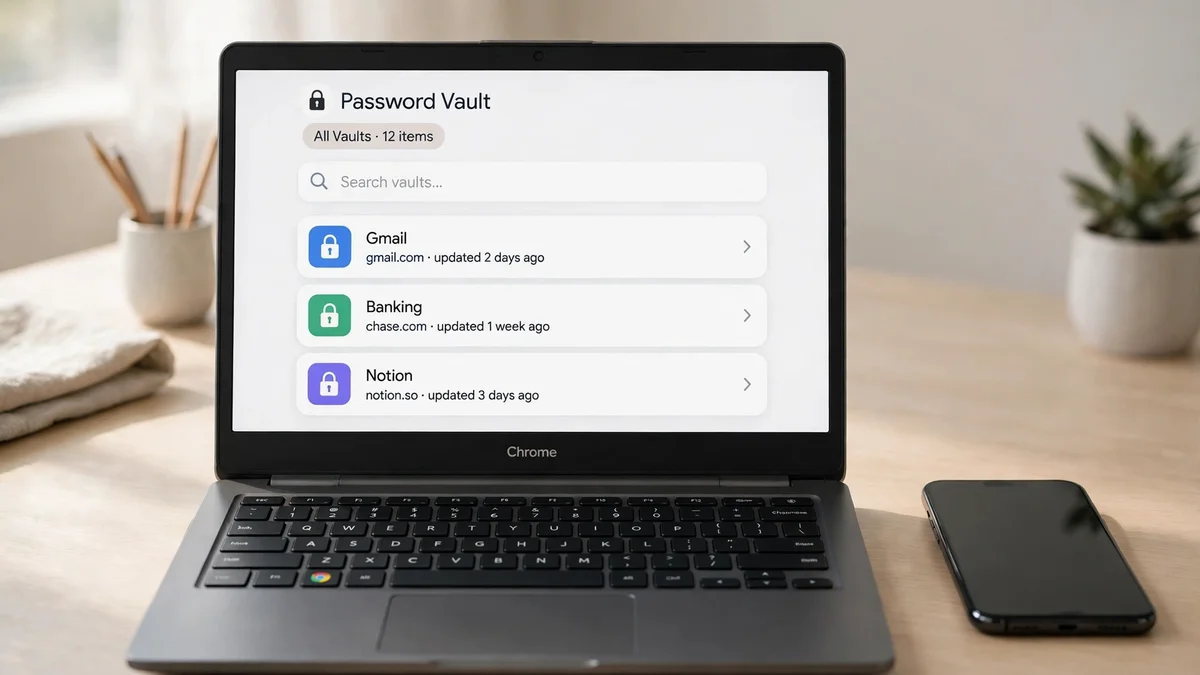
Chromebooks are simple machines, and that simplicity is the point. They boot fast, update themselves, and keep most of your work in the browser, which is why they suit students, remote workers, and small teams that do not want to manage a fleet of laptops. The weak point is not the hardware. It is the dozens of passwords a Chromebook owner still needs, for email, banking, school portals, work tools, and shopping accounts.
A good password manager for Chromebook work has to live where you live: in Chrome. It should autofill logins on websites and in Android apps, sync instantly to your phone, and unlock with a fingerprint or PIN instead of a master password you type on a small keyboard. It should also work offline, because a Chromebook without Wi-Fi still needs access to the logins already saved on it.
We compared the leading managers for Chrome extension quality, Android app support, offline access, sharing, and price on a Chromebook. 1Password leads overall, Bitwarden is the best free option, and Dashlane is the easiest choice for someone who wants a manager that also watches for leaked passwords. Here is the full shortlist.
Key takeaways
- Best overall: 1Password, for the smoothest Chrome extension and the best sharing on Chromebook.
- Best free: Bitwarden, with unlimited passwords and sync across devices at no cost.
- Best for simplicity: Dashlane, with a clean vault and built-in breach alerts.
- Watch out: some managers need their Android app for full autofill on Chromebook, so check how yours fills logins in Android apps.
- What to avoid: a manager with no offline mode, because a Chromebook is useless for logins when the Wi-Fi drops.
At a glance: the shortlist
| Product | Best for | Starting price | Standout limit |
|---|---|---|---|
| 1Password | Overall use | About $2.99 a month, billed annually | No free tier |
| Bitwarden | Free use | Free; Premium about $10 a year | Interface feels plain |
| Dashlane | Simplicity | About $4.99 a month, billed annually | Free plan limited to one device |
| Keeper | Families and teams | About $2.92 a month, billed annually | Some extras cost more |
| NordPass | Clean design | About $1.49 a month, billed annually | Free plan is basic |
| RoboForm | Form filling | About $1.99 a month, billed annually | Apps look dated |
| Enpass | Offline vaults | About $1.99 a month, billed annually | Sync needs your own cloud |
| Zoho Vault | Small teams | About $0.90 a month per user | Personal use is basic |
1Password — Best overall
1Password is the most polished password manager you can run on a Chromebook. Its Chrome extension is fast, it fills logins, credit cards, and addresses without fuss, and it works well with the Android app when a Chromebook app needs a login.
Sharing is where 1Password pulls ahead. Shared vaults let a family or a small team hand over a login without sending a password in a message, and you can revoke access in seconds when someone leaves. It also supports passkeys and hardware security keys, and its Watchtower feature flags weak, reused, and compromised passwords. Check current pricing before you buy, as plans change.
Pros: Excellent Chrome extension; strong sharing and passkeys; Watchtower flags weak passwords.
Cons: No free tier; the family plan costs more than budget rivals.

Chromebooks are built around the browser, so the extension matters more than the app, and the best password managers for Chrome are a useful second check before you choose, since the same extension quality decides how smooth daily use feels.
Bitwarden — Best free
Bitwarden is the best free password manager for Chromebook owners. The free plan stores unlimited passwords, syncs across every device, and includes the Chrome extension and the Android app, which is more than most rivals give away. It is open source, which means its code can be inspected, and it encrypts your vault before anything leaves your device.
The trade-off is polish. Bitwarden looks plain next to 1Password or Dashlane, and setting up sharing takes a little more patience. The Premium plan, at about $10 a year, adds useful extras such as security reports and emergency access. Check current pricing before you buy, as plans change.
Pros: Free plan with unlimited passwords and sync; open source; very cheap Premium plan.
Cons: Plain interface; sharing setup is less guided than rivals.
Dashlane — Best for simplicity
Dashlane is the easiest password manager to live with on a Chromebook. Setup takes minutes, the vault is clean and easy to search, and the Chrome extension fills logins reliably. It also includes a dark web monitor that warns you when an email address appears in a known breach, which is a genuinely useful safety net for people who reuse old passwords.
The catch is the free plan, which is limited to one device, so most Chromebook owners will need the paid plan to sync with a phone. Dashlane is also pricier than Bitwarden for the same core job. Check current pricing before you buy, as plans change.
Pros: Very easy to set up; built-in breach alerts; clean, friendly vault.
Cons: Free plan limited to one device; pricier than budget rivals.
Keeper — Best for families and teams
Keeper suits Chromebook owners who share logins with family or a small team. Its vaults are well organised, the Chrome extension is reliable, and the admin controls let a family organiser or a team lead manage who sees what. It also supports passkeys and hardware keys, and its breach monitoring, called BreachWatch, checks your passwords against known leaks.
Some of the extras, such as extra secure storage, cost more on top of the base plan, so read the plan details before you pay. Check current pricing before you buy, as plans change.
Pros: Good sharing and admin controls; BreachWatch breach alerts; passkey support.
Cons: Some extras are paid add-ons; setup takes a little longer.
NordPass — Best for clean design
NordPass comes from the team behind NordVPN, and it shows in the design: the vault is tidy, the Chrome extension is simple, and the Android app works well on Chromebook.
The free plan is basic and best suited to a single device, so most people will want the paid plan for syncing. NordPass is a good fit if you already use other Nord products and want one account across them. Check current pricing before you buy, as plans change.
Pros: Clean, simple design; good Chrome extension; breach checks included.
Cons: Free plan is basic; fewer sharing options than 1Password.
RoboForm — Best for form filling
RoboForm has been filling web forms longer than most rivals, and it still does that job better than anyone. On a Chromebook it handles long sign-up forms, addresses, and payment details with fewer clicks, which matters if you register for many accounts.
The apps look dated next to newer rivals, and the design will not win any prizes. If you value raw filling power over looks, RoboForm is a smart, cheap choice. Check current pricing before you buy, as plans change.
Pros: Best form filling of any manager here; fast vault search; low price.
Cons: Dated app design; fewer modern extras than rivals.
Enpass — Best for offline vaults
Enpass is different: your vault can live on your own device or in your own cloud storage, rather than on the company’s servers. That appeals to Chromebook owners who want full control of their data, and it works well offline, which matters on a laptop that is often used without Wi-Fi.
Syncing across devices needs your own cloud account, such as Google Drive, and setup is more hands-on than a service that syncs for you. Check current pricing before you buy, as plans change.
Pros: Vault can stay on your own storage; strong offline use; low cost.
Cons: Sync needs your own cloud account; setup is more hands-on.
Zoho Vault — Best for small teams
Zoho Vault is the cheapest way to get proper team password controls on a Chromebook. For about $0.90 a month per user it offers shared vaults, user groups, and access controls that small teams usually pay far more for. The Chrome extension is reliable, and it fits well if your team already uses Zoho tools.
As a personal manager it is plain, and the interface is built for work rather than for home use. Check current pricing before you buy, as plans change.
Pros: Very cheap team plan; proper shared vaults and access controls.
Cons: Plain for personal use; best when paired with Zoho tools.
How to choose
Start with how you use your Chromebook. If most of your work happens in Chrome, pick the manager with the best extension: that is what you will touch every day. If you also use Android apps on your Chromebook, test autofill inside an Android app before you commit, because some managers fill websites well and apps poorly.
Next, check offline access and sync. Your vault should open without Wi-Fi and sync to your phone the moment you save a login. Then look at sharing: a manager that shares securely beats sending passwords in a message.
Finally, weigh price against the extras you will actually use. A free plan from Bitwarden covers the core job, while a paid plan buys breach alerts, family sharing, and priority support. If you are still unsure about cost, the best free password managers show what you can get without paying at all, which is a useful baseline before you spend anything.
Checklist: before you pay
- Test the Chrome extension on your five most-used sites and confirm autofill works.
- Check autofill inside an Android app on your Chromebook, not just in Chrome.
- Confirm the vault opens offline when Wi-Fi is off.
- Check the renewal price, not just the first-year price.
- Make sure you can export your passwords if you ever switch managers.
- Turn on two-factor authentication for the manager account itself.
Frequently asked questions
Do password managers work on Chromebooks?
Yes. Most leading managers offer a Chrome extension and an Android app, and both run on ChromeOS. The extension handles websites, while the Android app helps with autofill in Android apps.
Is the built-in Google password manager enough?
Google Password Manager covers the basics for Chrome and Android, but a dedicated manager adds secure sharing, breach alerts, cross-browser use, and passkey support that Google does not match.
Can I use a password manager offline on a Chromebook?
Yes, if the manager supports offline mode. Your saved vault is stored locally and opens with your master password or PIN, though new syncs need a connection. Check this before you choose, because offline access varies.
What is the best free password manager for Chromebook?
Bitwarden is the best free option, with unlimited passwords and sync across devices. Its Premium plan is also one of the cheapest paid upgrades available.
Do password managers support passkeys on Chromebook?
Most leading managers now support passkeys, including 1Password, Dashlane, Keeper, and Bitwarden. Passkeys let you sign in with a fingerprint or PIN instead of a typed password on supported sites.
How do I move my passwords to a new manager?
Export your passwords from your current manager or browser as a CSV file, then import that file into the new manager. Delete the export file afterwards, and check that every login arrived before you remove the old manager. A comparison of 1Password and Bitwarden is a good place to see how the two most popular options differ before you switch.
The bottom line
For most Chromebook owners, 1Password is the best overall pick, thanks to its excellent Chrome extension, strong sharing, and passkey support. If you want to pay nothing, Bitwarden covers the essentials for free and syncs everywhere. Dashlane is the easiest option for anyone who wants breach alerts and a clean vault without thinking about settings.
Whichever you choose, the important step is to start: move your logins into a manager, turn on two-factor authentication, and let it create a unique password for every account.



