
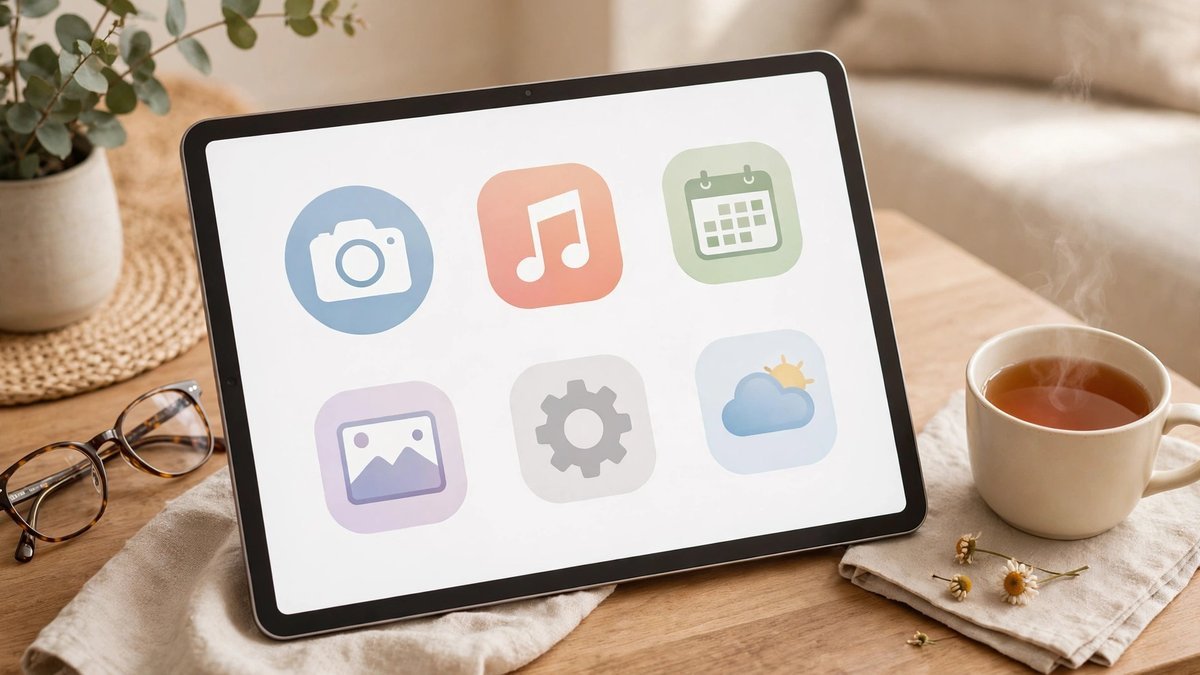
The best tablets for seniors in 2027 are the ones that get out of the way. Big text, clear icons, loud speakers, and a screen that stays readable without glasses — those matter far more than processor speed or camera quality. A good senior tablet is one that a grandparent can pick up and use without a manual.
What makes a tablet good for older users is different from what makes one good for work. Large, high-contrast text comes first, because small fonts are the most common complaint. Simple software comes second: a clean home screen with big buttons beats a powerful tablet buried under menus. And good speakers matter, because video calls with family are the main reason many seniors use a tablet at all.
We picked seven tablets that work well for older users, from the simplest budget option to the premium pick with the best screen and speakers. Prices are approximate starting prices, and every pick below can be set up with large text and a simplified home screen.
Key takeaways
- Best overall for seniors: iPad (A16) — the simplest software, the best accessibility features, and the clearest screen.
- Best budget pick: Amazon Fire HD 10 — under $150, big screen, and easy to set up with large text.
- Best Android option: Samsung Galaxy Tab A9+ — light, affordable, and Samsung’s Easy Mode simplifies everything.
- Turn on large text first: every tablet here supports bigger fonts, but you have to enable them in settings.
- Video calls decide the pick: check the front camera and speakers, because family calls are the main job.
At a glance: the shortlist
| Tablet | Best for | Starting price | Standout limit |
|---|---|---|---|
| iPad (A16, 11-inch) | Most seniors | $349 | Accessories cost extra |
| Samsung Galaxy Tab A9+ | Android simplicity | $219 | Modest performance |
| Amazon Fire HD 10 | Budget buyers | $139 | No Google Play by default |
| Lenovo Tab M11 | Big screen on a budget | $179 | Average speakers |
| Samsung Galaxy Tab S9 FE | Premium Android pick | $449 | Heavier than budget picks |
| GrandPad | Simplest of all | $79/month | Subscription required |
| TCL Tab 10 | Eye comfort | $199 | Slower chip |
iPad (A16, 11-inch) — Best overall
The base iPad is the best tablet for most seniors. Apple’s accessibility features are the best in the business: large text, bold text, button shapes, VoiceOver, and a magnifier are all built in and easy to turn on. The 11-inch screen is bright and clear, the battery lasts around ten hours, and the tablet weighs just 477 grams.

What makes the iPad the safest choice is the support network. Apple Stores offer free setup help, family members can manage the device remotely through Family Sharing, and almost every senior centre and library runs iPad classes. Readers who want a dedicated reading device should also compare the options in our guide to the best tablets for reading.
Pros: Best accessibility features; simplest software; excellent support; clear screen.
Cons: Case and stand cost extra; storage upgrades are expensive.
Samsung Galaxy Tab A9+ — Best Android option
The Galaxy Tab A9+ is the best Android tablet for seniors. Samsung’s Easy Mode replaces the home screen with large icons and a simplified layout, the 11-inch screen is bright, and the tablet is light at 480 grams. At $219 it is the cheapest full-size tablet from a major brand.
Performance is modest, but it is more than enough for video calls, email, news, and reading. The microSD slot lets you add storage cheaply, and Samsung’s software support runs for years. For seniors who already use a Samsung phone, the shared interface makes the tablet feel familiar from day one.
Pros: Easy Mode simplifies everything; light; low price; long software support.
Cons: Modest chip; screen dimmer outdoors; no stylus.
Amazon Fire HD 10 — Best budget pick
The Fire HD 10 is the cheapest tablet worth buying for a senior. For $139 you get a 10.1-inch Full HD screen, around thirteen hours of battery, and a simple interface that can be set to large text. The Show Mode turns it into an Alexa smart display, so it can show photos, tell the time, and answer questions by voice.
The catch is Amazon’s app store, which lacks Google Play by default — but the apps seniors need most, like video calling, email, and news, are all available. The build is tough, the price is low, and if it gets dropped, replacing it costs less than repairing a premium tablet.
Pros: Cheapest pick; long battery; voice control built in; tough build.
Cons: No Google Play by default; slower chip; ads on the lock screen unless removed.
Lenovo Tab M11 — Best big screen on a budget
The Lenovo Tab M11 gives seniors an 11-inch screen for $179, with a stylus included in some bundles. The display is sharp, the tablet is light at 465 grams, and Lenovo’s software is clean and simple. A folio case with a stand is affordable and turns the tablet into a hands-free video call screen.
Speakers are average, so video calls sound better with headphones or an external speaker, and the cameras are basic. But for reading, browsing, and video calls at home, the large screen and low price make it an excellent value.
Pros: Large screen for the price; light; stylus in some bundles; clean software.
Cons: Average speakers; basic cameras; shorter software support than Samsung.
Samsung Galaxy Tab S9 FE — Best premium Android pick
The Galaxy Tab S9 FE is the premium Android choice for seniors who want the best screen and speakers. Its 10.9-inch display is bright and vivid, the speakers are loud and clear, and the S Pen stylus comes in the box. It is water resistant, which is a bonus for a device that will live in kitchens and gardens.
At $449 it costs twice the Tab A9+, and at 523 grams it is heavier — but the brighter screen and better speakers make a real difference for older eyes and ears. Easy Mode simplifies the interface just like on the cheaper Samsung tablets.
Pros: Bright screen; loud speakers; stylus included; water resistant.
Cons: Premium price; heavier; overkill for basic use.
GrandPad — Best simplest of all
The GrandPad is not a normal tablet — it is a tablet designed from scratch for seniors, and it is the simplest device on this list. There are no app stores, no settings menus, and no passwords to remember. Big buttons for calls, photos, email, and music sit on a single home screen, and family members manage everything from their own phones.
It costs $79 a month including the data plan, which is expensive over time, and it cannot run the apps a normal tablet can. But for a senior who finds even an iPad confusing, or who lives alone and needs a simple way to stay in touch, the GrandPad removes every barrier. It also includes 24/7 support by phone.
Pros: Simplest interface available; family manages it remotely; data included; 24/7 support.
Cons: Monthly subscription; cannot run normal apps; expensive over time.
TCL Tab 10 — Best for eye comfort
The TCL Tab 10 is the pick for seniors with sensitive eyes. Its NXTPAPER display has a matte, paper-like finish that cuts glare and blue light, so reading feels easier and the screen stays readable in bright rooms. The 10.4-inch screen shows large text clearly, and the tablet is light at 470 grams.
Performance is modest and the app selection is standard Android, so it does everything a normal tablet does — just with a kinder screen. For seniors who get headaches or eye strain from glossy displays, the matte finish is worth the trade-off in colour punch.
Pros: Matte glare-free screen; kind on the eyes; light; low price.
Cons: Muted colours; slower chip; limited availability in some regions.
How to choose
Start with the eyes and ears, not the specs. Check that the tablet supports large, bold text and high contrast, and test the speakers at full volume — video calls are useless if you cannot hear the other person. A bright screen matters too, especially for reading in a sunny room.
Next, think about who will help. If family members use iPhones, an iPad makes remote help easy through Family Sharing and screen sharing. If the senior already has a Samsung phone, a Samsung tablet feels familiar. And if nobody nearby can help with technology, the GrandPad’s built-in support line is worth the subscription. For bedtime reading, a warm-light screen helps, and our roundup of the best e-readers with warm light covers the gentlest options.
Finally, buy a stand. A folio case or a simple tablet stand keeps the screen at eye level for video calls and stops the tablet sliding off a lap. It is the single most useful accessory for a senior tablet, and it costs less than $30. Grandparents buying for grandchildren should also see our guide to the best tablets for kids.
Checklist: before you pay
- Turn on large text: check the accessibility settings before buying — big, bold text should be one tap away.
- Test the speakers: play a video call at full volume and check it is loud and clear.
- Check the front camera: video calls need a decent front camera, not just a good rear one.
- Buy a stand: a folio case or stand keeps the screen at eye level for calls.
- Confirm the help: check who can help with setup — Apple Stores, family, or a support line.
- Simplify the home screen: remove unused apps and keep only calls, photos, email, and news on the front page.
Frequently asked questions
What is the easiest tablet for a senior to use?
The iPad is the easiest mainstream tablet, thanks to Apple’s accessibility features and simple interface. For seniors who find even that confusing, the GrandPad is simpler still — it has no settings menus at all, but it needs a monthly subscription.
Can I make the text bigger on a tablet?
Yes. Every tablet here supports larger text, bold text, and higher contrast in its accessibility settings. On iPad, go to Settings, then Accessibility, then Display and Text Size. On Android, the same options are under Settings and Accessibility.
Do seniors need a cellular tablet?
Usually not. Wi-Fi at home covers calls, email, and browsing, and a family member’s phone hotspot covers trips out. Cellular adds cost and complexity, so buy Wi-Fi only unless the senior travels alone often.
What is the best tablet for video calls with family?
The iPad, because FaceTime is built in and easy to use, and the front camera and speakers are excellent. Samsung tablets work well too with Google Meet or WhatsApp. Whichever you choose, buy a stand so the tablet stays upright during calls.
How do I set up a tablet for an older parent?
Set it up yourself before handing it over: enable large text, remove unused apps, save Wi-Fi passwords, add family contacts with photos, and install the video calling app they will use. Test a call together before you leave.
Is a cheap tablet good enough for a senior?
Yes, for most uses. The Fire HD 10 and Galaxy Tab A9+ handle calls, email, news, and reading well. Pay more only for a brighter screen, louder speakers, or better support — the iPad’s support network is its real advantage.
The bottom line
For most seniors, the iPad (A16) is the right buy: the simplest software, the best accessibility features, and the best support. Android users should get the Galaxy Tab A9+ with Easy Mode, and budget buyers will be happy with the Fire HD 10. If even an iPad feels too complex, the GrandPad removes every barrier for a monthly fee.
Whatever you choose, set it up before handing it over: large text on, unused apps removed, contacts saved with photos, and a stand in the box. A tablet that is ready to use on day one is a tablet that actually gets used.
Note: Prices and plans change. Check the product’s current plan details before buying — no link is provided here by design, all links in this article go to other occcy.com guides.



