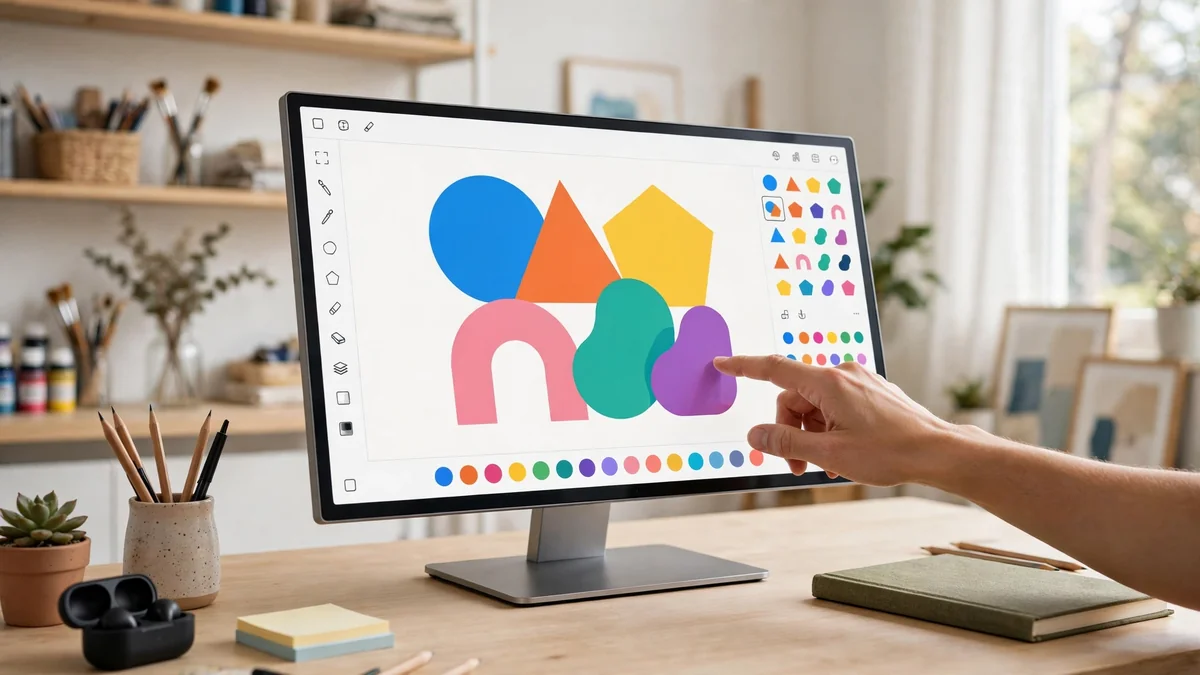
A touchscreen monitor turns a regular desk into a hands-on workspace. Instead of reaching for the mouse to scroll, zoom, or tap a button, you can touch the screen directly, which feels faster for drawing, annotating documents, and signing forms. For artists, teachers, and retail staff, that direct interaction changes how the computer feels to use.
Modern models use ten-point capacitive touch, the same technology as a tablet, so taps and swipes register accurately and without delay. Many include tilt and lay-flat stands, stylus support, and anti-glare coatings. Prices have come down too, with good 24-inch models starting around $200.
This guide compares seven of the best touchscreen monitors in 2027, from budget 21-inch displays to portable models you can carry in a laptop bag, with starting prices noted so you can check current pricing before you buy.
Key takeaways
- The Dell P2424HT is the best overall touchscreen monitor, with a flexible stand and reliable ten-point touch.
- The Acer UT222Q is the best budget pick, bringing touch to a desk for around $200.
- The ASUS ZenScreen Touch MB16AMT is the best portable touchscreen, with a built-in battery and USB-C.
- Look for ten-point capacitive touch, a tilt or lay-flat stand, and an anti-glare coating.
- Check whether a stylus is included, since touch accuracy for drawing depends on it.
At a glance: the shortlist
| Monitor | Best for | Starting price | Standout feature |
|---|---|---|---|
| Dell P2424HT | Best overall | From $330 | Articulating stand with lay-flat mode |
| ViewSonic TD2455 | Best value | From $280 | Ten-point touch and USB-C |
| ASUS ZenScreen Touch MB16AMT | Portable use | From $350 | Built-in battery, 15.6-inch |
| Lenovo ThinkVision T24t-20 | Office work | From $320 | Near-edgeless design, good ergonomics |
| Acer UT222Q | Best budget | From $200 | Lowest price for a touch display |
| HP E24t G5 | Business setups | From $300 | Strong build and warranty support |
| Philips 242B9T | Retail and kiosks | From $260 | Projected capacitive touch, sturdy base |
Dell P2424HT — Best overall
The Dell P2424HT is the most versatile touchscreen monitor you can buy for a desk. Its 24-inch Full HD IPS panel supports ten-point capacitive touch, so taps, pinches, and swipes feel as responsive as a tablet, and the anti-glare coating keeps fingerprints manageable. The picture is bright and accurate enough for office work, video calls, and light photo editing.

What makes the P2424HT stand out is its articulating stand, which tilts from upright all the way to a near-flat angle, so you can use it like a drafting table. It includes HDMI, DisplayPort, and USB-C, plus a built-in USB hub, and the stand adjusts for height. If you want a fast display for gaming as well as touch, our roundup of the best monitors for gaming covers high-refresh alternatives.
Pros: Excellent articulating stand; responsive ten-point touch; USB-C and USB hub; three-year warranty.
Cons: Full HD resolution, not 4K; 60Hz refresh rate; the stand takes up desk depth when tilted flat.
ViewSonic TD2455 — Best value
The ViewSonic TD2455 offers the best balance of price and features in this roundup. Its 24-inch Full HD IPS panel supports ten-point capacitive touch with good accuracy, and the anti-glare coating helps in bright rooms. The picture is clean at up to 250 nits, which suits typical office lighting.
Connectivity is strong for the price, with USB-C, HDMI, DisplayPort, and VGA inputs, plus a USB hub. The stand tilts and adjusts for height, and the monitor can lay almost flat for drawing or signing documents. At around $280 it is a smart buy for schools, offices, and home users who want touch without paying a premium.
Pros: Strong value; USB-C and wide connectivity; good touch accuracy; height-adjustable stand.
Cons: 250-nit brightness is modest; no stylus included; speakers are weak.
ASUS ZenScreen Touch MB16AMT — Best portable touchscreen
The ASUS ZenScreen Touch MB16AMT is a 15.6-inch touchscreen monitor you can carry in a laptop bag. It weighs under a kilogram, connects over a single USB-C cable, and includes a built-in 7800mAh battery, so it can run for hours without drawing power from your laptop. The Full HD IPS panel supports ten-point touch.
This is the monitor to buy if you work from cafes, client offices, or hotel rooms and want a second screen with touch. It is useful for presenting and reviewing documents on the move, and it works with laptops, phones, and some game consoles over USB-C.
Pros: Built-in battery; very light and portable; single-cable USB-C; cover doubles as a stand.
Cons: Small 15.6-inch screen; no height adjustment; battery adds weight compared with non-battery portables.
Lenovo ThinkVision T24t-20 — Best for office work
The Lenovo ThinkVision T24t-20 is a clean, professional touchscreen monitor designed for office desks. Its 24-inch Full HD IPS panel supports ten-point touch with a smooth feel, and the near-edgeless design keeps the footprint small. The picture is bright and accurate, with wide viewing angles that make it easy to share with a colleague.
The stand offers height, tilt, swivel, and pivot adjustment, plus a cable management slot. Connectivity includes HDMI, DisplayPort, and USB-C with 65 watts of power delivery, so a laptop can dock with a single cable. A low blue light mode and flicker-free backlight keep long sessions comfortable.
Pros: Excellent ergonomics; 65W USB-C charging; near-edgeless design; comfortable for long sessions.
Cons: Full HD resolution only; no stylus included; touch can feel less precise at the screen edges.
Acer UT222Q — Best budget
The Acer UT222Q is the cheapest way to add touch to a desk, starting at around $200. Its 21.5-inch Full HD IPS panel supports ten-point capacitive touch, and the picture is bright and clear enough for everyday work and video. The slim design suits small desks, and the monitor tilts back to a comfortable angle for tapping.
For the price, the feature set is reasonable, with HDMI and VGA inputs and a VESA mount. The stand tilts but does not adjust for height, so you may want a monitor riser for the best ergonomics. The UT222Q suits a second monitor, a point-of-sale display, or a family computer where touch makes navigation easier.
Pros: Lowest price in this roundup; responsive ten-point touch; compact size; VESA mount support.
Cons: No USB-C; no height adjustment; 21.5-inch screen feels small for heavy multitasking.
HP E24t G5 — Best for business setups
The HP E24t G5 is a business-grade touchscreen monitor built for reliability. Its 24-inch Full HD IPS panel supports ten-point touch with good accuracy, and the anti-glare coating keeps the screen readable in bright offices.
The stand adjusts for height, tilt, swivel, and pivot, the monitor includes HDMI, DisplayPort, and USB-C with 65 watts of charging, and the build feels solid. HP backs it with a three-year warranty and business support, which matters when buying several monitors for a team.
Pros: Solid build and business support; 65W USB-C charging; fully adjustable stand; three-year warranty.
Cons: Higher price than similar panels; Full HD resolution; no stylus included.
Philips 242B9T — Best for retail and kiosks
The Philips 242B9T is built for public-facing use, such as retail counters, reception desks, and self-service kiosks. Its 24-inch Full HD panel uses projected capacitive touch, which stays responsive even with light gloves, and the durable edge-to-edge glass resists scratches and wipes clean. The sturdy base and VESA mount suit fixed installations.
It includes HDMI, DisplayPort, VGA, and USB connectivity, plus a built-in speaker for kiosk audio. The stand tilts to a low angle for comfortable touch use, and the panel is rated for long daily use in commercial settings.
Pros: Durable glass surface; works with light gloves; sturdy base and VESA mount; built-in speaker.
Cons: Basic picture quality; no USB-C; limited ergonomics compared with office models.
How to choose
Start with the touch technology. Capacitive touch, the same as a phone or tablet, is the best choice for most people, with fast and accurate ten-point input. Resistive touch works with any object and with gloves, but it feels less responsive. Check that the monitor supports ten points of touch, since cheaper models may only track one or two fingers.
Next, think about the stand. A touchscreen monitor gets touched constantly, so the stand needs to be stable enough to stop the screen wobbling with every tap. A tilt stand that goes down to a low angle is ideal for drawing, while a height-adjustable stand matters if the monitor will also be used as a regular display. Our guide to the best monitors for programming looks at screen orientation in more detail.
Finally, check the practical details. Look for an anti-glare coating, confirm the connectivity matches your computer, and check whether a stylus is included, since a good stylus makes a big difference for drawing. Most touchscreen monitors are Full HD, and a 4K touch display costs considerably more for a benefit you may not notice at 24 inches.
Checklist: before you pay
- Confirm the touch type is capacitive with ten-point support, not single-touch.
- Test the stand stability and tilt range, ideally down to a low drawing angle.
- Check whether a stylus is included, or budget for a compatible one.
- Verify the inputs match your computer, especially USB-C if you want single-cable docking.
- Look for an anti-glare coating and a screen that is easy to clean.
- Check current pricing, warranty length, and the return policy before buying.
Frequently asked questions
Are touchscreen monitors good for everyday work?
Yes, for the right tasks. Touch is faster than a mouse for scrolling, tapping buttons, and zooming, and it feels natural for design work. For long typing sessions, a keyboard and mouse are still more comfortable, so most people use touch as a complement rather than a replacement.
Do touchscreen monitors work with Mac?
Most touchscreen monitors work with a Mac as a regular display, but touch input is usually limited, because macOS does not natively support touchscreens. Windows and ChromeOS offer the best touch support, so check compatibility before buying for a Mac.
Can I use a stylus with a touchscreen monitor?
Yes, most capacitive touchscreen monitors work with a capacitive stylus, and some models include one in the box. A fine-tip active stylus gives better accuracy for drawing than a finger, so check which stylus types the monitor supports.
Is a touchscreen monitor worth it for programming?
Touch is a nice extra for developers, but it is not essential. Scrolling through code and tapping to place a cursor can be handy, but a sharp, high-resolution screen matters far more.
Do touchscreen monitors get dirty quickly?
Fingerprints are unavoidable, but an anti-glare coating and a microfiber cloth keep the screen clean with a quick wipe. Avoid harsh cleaners, which can damage the coating, and clean the screen when it is off so you can see smudges clearly.
What is the best budget touchscreen monitor?
The Acer UT222Q is the best budget touchscreen monitor, starting at around $200 with ten-point capacitive touch and a compact 21.5-inch screen. If you want a larger screen and better ergonomics, the ViewSonic TD2455 costs a little more and adds USB-C and height adjustment. For a low-cost gaming display instead, our roundup of the best gaming monitors under $300 covers fast panels at similar prices.
The bottom line
For most people, the Dell P2424HT is the best touchscreen monitor, combining a flexible articulating stand, responsive ten-point touch, and solid connectivity. If budget matters more, the ViewSonic TD2455 offers most of the same features for around $280, and the Acer UT222Q brings touch to a desk for about $200. Frequent travellers should look at the portable ASUS ZenScreen Touch MB16AMT, which adds a battery and a single-cable setup.
Whichever model you choose, prioritize ten-point capacitive touch, a stable tilt stand, and an anti-glare coating. Those three things shape your daily experience far more than small differences in brightness or resolution.