The best two-factor authentication apps in 2027 add a second lock to every account that matters, so a stolen password alone is no longer enough to get in. A good authenticator app generates a fresh six-digit code every 30 seconds, or sends a one-tap approval to your phone, and it works even when you have no mobile signal.
What matters most is reliable code generation, a secure backup method, and support for the accounts you actually use, from email and banking to cloud storage and social media. Prices below are approximate starting prices for paid plans, so check current pricing before buying, and note that most authenticator apps are free for personal use.
The shortlist below covers eight apps, from simple free code generators to business-grade tools with push approvals and hardware key support. Google Authenticator leads overall for simplicity, Microsoft Authenticator wins for work accounts, and Authy is the pick for easy multi-device backup.
Key takeaways
- Google Authenticator is the best overall pick: free, simple, and now able to back up codes to a Google account.
- Microsoft Authenticator is the best choice for work and school accounts, with push approvals and passwordless sign-in.
- Authy is the easiest way to move codes between phones, with encrypted cloud backup and multi-device sync.
- Hardware-backed apps such as Yubico Authenticator add the strongest protection, because codes stay tied to a physical security key.
- Never store your backup codes and your authenticator on the same phone without a separate copy, and switch off SMS codes wherever an app is offered instead.
At a glance: the shortlist
| Product | Best for | Starting price | Standout limit |
|---|---|---|---|
| Google Authenticator | Most people | Free | No desktop app |
| Microsoft Authenticator | Work accounts | Free | Best inside Microsoft services |
| Authy | Multi-device backup | Free | Desktop app discontinued |
| 1Password | Passwords plus codes | About $3 a month | Paid only after trial |
| Duo Mobile | Business teams | Free for up to 10 users | Admin setup takes time |
| Yubico Authenticator | Hardware key users | Free app; key from about $25 | Needs a YubiKey to work |
| LastPass Authenticator | LastPass users | Free | Best with a LastPass account |
| Aegis Authenticator | Android privacy | Free, open source | Android only |
Google Authenticator — Best overall
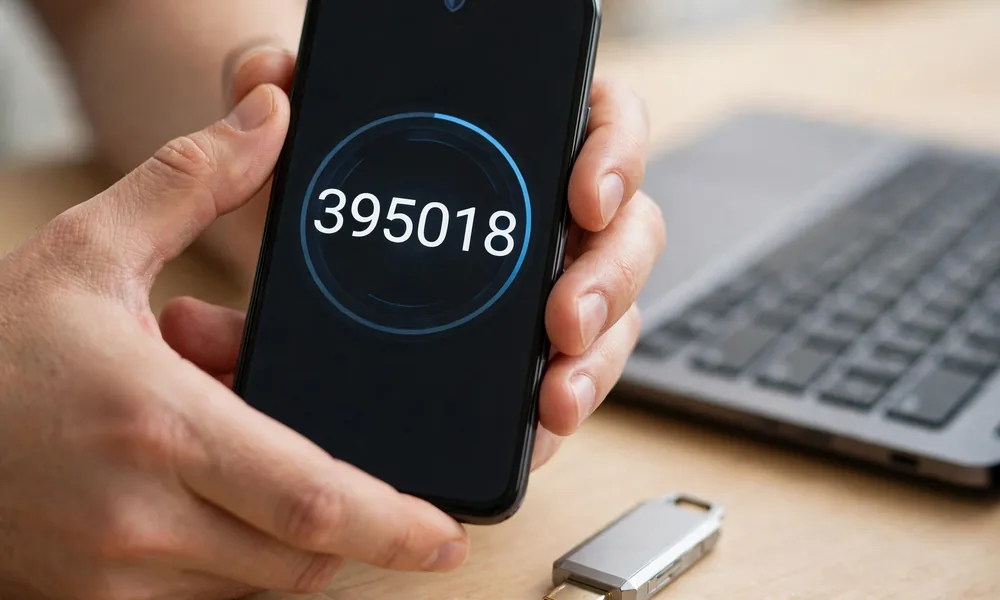
Google Authenticator is the best two-factor authentication app for most people because it does one job well: it generates time-based codes for any account that supports them, with no account, subscription, or setup beyond scanning a QR code. The interface is plain, the codes are large and easy to read, and the app works offline, which matters when you are travelling or on a weak connection.
Recent versions added the option to back up codes to a Google account, which finally solves the old problem of losing every code when a phone is lost or replaced. For a wider look at account protection, see this guide to the best AI tools for phishing simulation, which explains how attackers try to steal login codes in the first place.
Pros: completely free, very simple to use, works offline, backup to a Google account, supports almost every service.
Cons: no desktop app, no push approvals, no password manager built in, backup is tied to Google.
Microsoft Authenticator — Best for work accounts
Microsoft Authenticator is the natural choice if you sign in to Microsoft 365, Outlook, Teams, or a work or school account, because it supports one-tap push approvals instead of typed codes. You approve the sign-in on your phone, and for sensitive accounts the app asks you to match a number shown on the login screen, which blocks accidental approvals and many phishing attempts.
It also works as a standard code generator for Google, Facebook, Amazon, and other services, and it can store passwords and autofill them in apps and browsers.
Pros: push approvals with number matching, passwordless sign-in, works as a general code generator, free for everyone.
Cons: strongest inside Microsoft services, backup requires a Microsoft account, interface is busier than Google Authenticator.
Authy — Best for multi-device backup
Authy built its reputation on backup. Your codes are encrypted with a password only you know and synced across your phones and tablets, so replacing a lost phone no longer means resetting two-factor authentication on every account. The app also lets you lock it with a PIN or fingerprint and hide codes until you tap to reveal them.
The desktop app has been discontinued, so it is now a mobile-first tool, but for anyone who has lost codes to a broken phone before, its encrypted backup remains the most reassuring feature in this roundup.
Pros: encrypted multi-device backup, easy phone replacement, PIN and fingerprint lock, clean code list.
Cons: desktop app discontinued, backup password must not be forgotten, fewer extras than password managers.
1Password — Best for passwords plus codes
1Password is a password manager that also generates two-factor codes, which means your passwords and codes live in one vault and fill in together when you sign in. That convenience is real: instead of opening a second app and copying a code, 1Password pastes it automatically after your master password or fingerprint unlocks the vault.
Keeping codes in the same place as passwords is a trade-off, because anyone who gets into the vault gets both factors, so it works best when the vault itself is protected by a strong master password and a separate hardware key.
Pros: codes autofill with passwords, excellent family and team sharing, Watchtower breach alerts, works on every platform.
Cons: paid only after a trial, codes and passwords in one vault, costs more than a free authenticator.
Duo Mobile — Best for business teams
Duo Mobile is the authenticator behind Cisco Duo, and it is built for organisations rather than individuals. Staff get push approvals, and administrators get policies that check whether a device is up to date, encrypted, and running security software before allowing a sign-in. That device check is the feature that sets Duo apart from consumer apps.
For a small business, the free tier covers up to 10 users, which is enough to protect a tiny team, and setup is straightforward once the admin portal is configured.
Pros: device health checks before sign-in, push approvals, free for up to 10 users, strong admin controls.
Cons: admin setup takes time, overkill for one person, some features need a paid plan.
Yubico Authenticator — Best for hardware key users
Yubico Authenticator works with a YubiKey, a small USB or NFC security key, and stores your two-factor secrets on the key itself rather than on your phone. To see a code you plug in or tap the key, which means the codes cannot be copied off your phone by malware, and they move with you when you switch devices.
The app is free, but you need to buy a YubiKey, starting from about $25, and ideally a spare key kept somewhere safe.
Pros: secrets stored on the physical key, works across phones and computers, supports passkeys, no codes stored on the phone.
Cons: needs a YubiKey purchase, codes need the key nearby, losing both keys means account recovery.
LastPass Authenticator — Best for LastPass users
LastPass Authenticator pairs with the LastPass password manager, offering one-tap approvals for LastPass logins and standard six-digit codes for other services. If your passwords already live in LastPass, adding its authenticator keeps the whole sign-in flow in one place and avoids installing a separate app.
The app is free and simple, though it is clearly designed to work best alongside a LastPass account, and anyone not using LastPass will find Google Authenticator or Authy just as good on their own.
Pros: free, one-tap approvals for LastPass, encrypted backup, works for non-LastPass accounts too.
Cons: best with a LastPass account, fewer business features than Duo, no desktop version.
Aegis Authenticator — Best for Android privacy
Aegis Authenticator is a free, open-source authenticator for Android that is popular with people who prefer software they can inspect. It supports encrypted vault backups, fingerprint unlock, custom icons, and grouping, and it can import codes from Google Authenticator and other apps, so switching is painless.
Because it is open source and stores nothing in the cloud unless you choose to back the vault up yourself, it suits Android users who want full control over their data.
Pros: free and open source, encrypted vault backups, easy import from other apps, fingerprint unlock.
Cons: Android only, no cloud sync by default, community support only.
How to choose
Start with the accounts you protect. If you mainly use Google services and personal accounts, Google Authenticator is enough. If your work runs on Microsoft 365, use Microsoft Authenticator for its push approvals.
Next, decide how much security you want. A hardware key with Yubico Authenticator is the strongest choice for banking and email, while a password manager such as 1Password suits anyone who wants codes and passwords together. For a small business, this guide to the best endpoint security software is a useful next step, because device protection and two-factor authentication work best as a pair.
Checklist: before you switch on two-factor authentication
- Turn on backup or sync in your authenticator before adding your most important accounts.
- Save the recovery codes each service gives you, and store them somewhere separate from your phone.
- Use an authenticator app instead of SMS codes wherever the service offers a choice.
- Buy a spare hardware key if you use one, and keep it somewhere safe.
- Check that your authenticator works on a second device or after a phone restore.
- Remove old codes for accounts you no longer use, so a lost phone exposes less.
Frequently asked questions
Is a free authenticator app safe to use?
Yes. Free authenticator apps from Google, Microsoft, Authy, and the open-source Aegis project generate codes on your device and do not send your secrets to a server unless you turn on backup. Download them only from the official app store.
What happens if I lose my phone?
If your app has encrypted backup or sync, install it on the new phone and restore. If not, use the recovery codes you saved when setting up two-factor authentication, or contact each service to reset it.
Are authenticator apps better than SMS codes?
Yes. SMS codes can be intercepted if your number is hijacked, while app codes are generated on your device and change every 30 seconds. Use an app wherever a service offers the choice.
Can I use the same authenticator for every account?
Almost always. Any service that supports standard time-based codes works with Google Authenticator, Authy, Aegis, and the others, so one app usually covers email, banking, social media, and cloud storage.
Do I still need a password manager?
Yes, for most people. An authenticator protects sign-ins, but a password manager creates and stores strong unique passwords, which is the first factor the authenticator is protecting.
What is the difference between two-factor authentication and passkeys?
Two-factor authentication adds a code to your password. Passkeys replace the password entirely with a cryptographic key on your device. This guide to the best antivirus with VPN covers bundles that add device protection alongside either sign-in method, which is worth considering for shared or travel devices.
The bottom line
For most people, Google Authenticator is the best two-factor authentication app in 2027: free, simple, offline-friendly, and now with backup. Microsoft Authenticator is the pick for work accounts, Authy is the pick for easy recovery, and Yubico Authenticator with a hardware key is the strongest option of all.
Whichever app you choose, turn it on this week for your email and banking first, save your recovery codes somewhere separate, and check current pricing before paying for any premium plan.