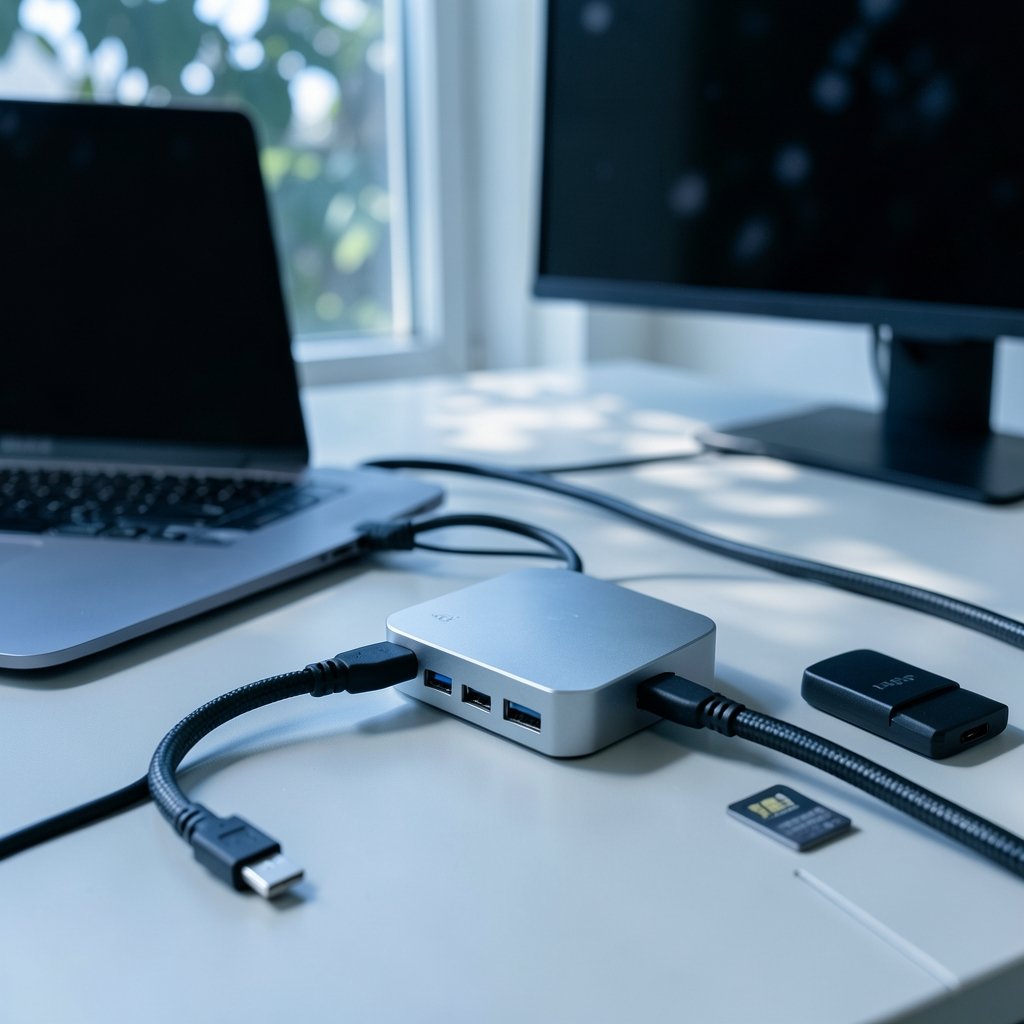
What good is a laptop with three Thunderbolt ports if every accessory you own needs a different hole? That is the daily reality for MacBook Pro owners, and it is why the search for the best USB-C hub keeps going. The right hub turns one port into a small command center. The wrong one turns a $2,000 laptop into a machine that drops Wi-Fi on calls, refuses to drive a monitor at 60Hz, or quietly throttles a fast external SSD.
This roundup skips the theory and goes straight to named options. Each pick below names who it suits, what it does well, and one real limitation. A comparison table sits near the top so you can scan fast, and a short “how to choose” section at the end ties it together.
The Shortlist at a Glance
| Hub | Best for | Key ports | Notable limit |
|---|---|---|---|
| Anker 555 USB-C Hub (8-in-1) | Most people, most desks | 4K@60Hz HDMI, 10Gbps USB, Gigabit Ethernet, SD | Card readers are UHS-I, not UHS-II |
| Satechi USB4 Multiport Adapter | Fast storage and pro workflows | USB4 at up to 40Gbps | Premium price for the bandwidth |
| UGREEN Revodok Pro 6-in-1 | Editor’s-choice all-rounder | HDMI, USB-A, card slots, charging | Fewer ports than 8-in-1 rivals |
| UGREEN Revodok 107 (6-in-1) | Wired calls on a budget | 4K@60Hz HDMI, Gigabit Ethernet, SD/TF | Needs DisplayPort 1.4 for 60Hz |
| Anker 547 (7-in-2) | Keeping MagSafe free | Two-plug design, HDMI, USB-A | Occupies two ports at once |
| Plugable USBC-7IN1E | Driverless reliability | 4K@60Hz HDMI, Gigabit Ethernet, 100W PD | Single display output only |
| Satechi 7-in-1 Pro Slim | Travel and tidy desks | Slim body, HDMI, card slots | Slim body means fewer ports |
1. Anker 555 USB-C Hub (8-in-1): The Pick Most People Should Buy
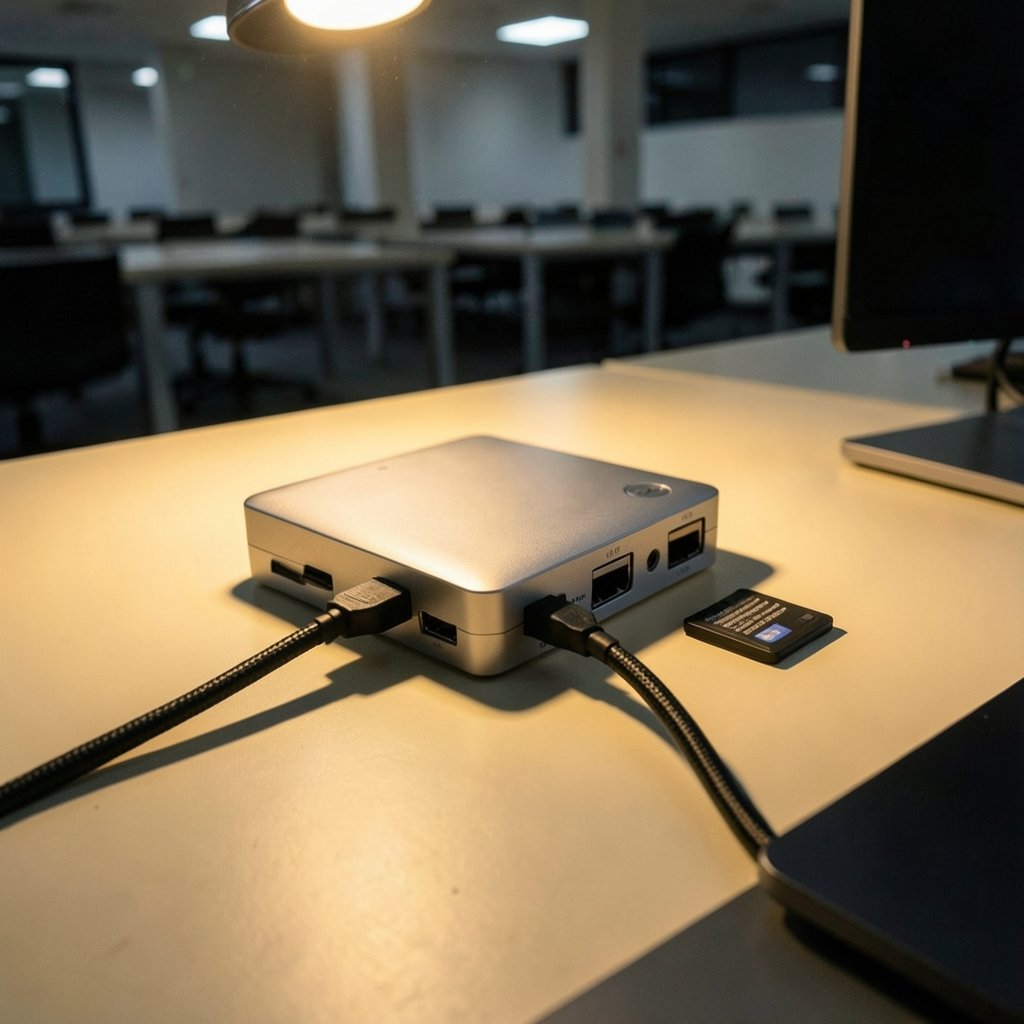
If someone wants one hub and does not want to think hard about it, this is the name that keeps surfacing. It pairs 4K at 60Hz HDMI with Gigabit Ethernet, 10Gbps USB ports, and SD card readers, which covers the conference-room and home-office combination that matters most. Video output and a wired network connection running at the same time is exactly where cheap hubs fall apart, and in hands-on testing this class of hub handled simultaneous 4K HDMI and Gigabit Ethernet without drops.
The limitation is in the fine print: the card readers are UHS-I, not UHS-II. Photographers dumping big RAW files from a fast card will notice the ceiling. For everyone else, it is a non-issue. Expect to pay a middle-ground price, and check the current listing rather than trusting an old figure.
2. Satechi USB4 Multiport Adapter: For Anyone Moving Big Files
This is the speed play. The Satechi USB4 Multiport runs at USB4 bandwidth up to 40Gbps, which is the difference between editing off an external SSD and waiting for one. For creative editors and power users who treat the MacBook Pro as a desktop brain, that headroom justifies the size and the cost.
The honest limitation is price. You are paying for bandwidth, not port count, so if your work is email, spreadsheets, and a single monitor, this is more hub than you need. If you are weighing a laptop purchase alongside the hub, the same “pay for the right spec, not the biggest number” logic shows up in our breakdown of the MacBook Pro M4 vs M5 decision — buy for the workload you actually have.
3. UGREEN Revodok Pro 6-in-1: The Balanced All-Rounder
The Revodok Pro 6-in-1 earns editor’s-choice nods because it does the boring things well: HDMI, USB-A, card slots, and pass-through charging in an aluminum body that matches the laptop. It is the hub you leave in a bag and forget about until you need it.
Its limitation is arithmetic. Six ports is fewer than the 8-in-1 crowd, so if you routinely connect a monitor, Ethernet, two drives, and a card reader at once, you will run out of holes. Buy it for portability first.
4. UGREEN Revodok 107 (6-in-1): Best Cheap Ethernet
Wi-Fi that stutters mid-call is the problem this hub solves. The Revodok 107 (model 60515) adds Gigabit Ethernet to a familiar mix: 4K@60Hz HDMI, two USB-A 3.0 ports at 5Gbps, SD and TF slots, and a USB-C charging port rated for 100W input with up to 85W passed through to the laptop.
Two caveats worth repeating. First, the laptop must support video output over DisplayPort 1.4 to reach 4K at 60Hz. Second, 1Gbps Ethernet needs a router with a 1Gbps LAN port and a CAT5e cable; otherwise you have bought a fast pipe into a slow wall. Neither is the hub’s fault, but both are common disappointments.
5. Anker 547 USB-C Hub (7-in-2): The MagSafe-Friendly Option
Here is a design problem almost nobody mentions until they hit it: a hub that plugs into the left side can block the MagSafe charging port. The Anker 547 uses a two-plug design built specifically to leave MagSafe clear, so you can charge at full speed while the hub handles data.
The trade-off is that it occupies two ports at once. On a 14-inch MacBook Pro with three Thunderbolt ports, that leaves you one free. It is a smart pick for people who charge over MagSafe and want the fast charger out of the hub’s power budget.
6. Plugable USBC-7IN1E: Driverless and Dependable
Some hubs need software. This one does not. The Plugable 7-in-1 offers a single 4K@60Hz HDMI output, Gigabit Ethernet, 100W power delivery, two USB-A ports, and SD/microSD slots in an aluminum case, and it works without installing a driver. Owner reviews on retail listings describe it as smooth across a wide range of devices, with one buyer noting it felt sturdier than an unbranded hub they had tried before.
The limitation: it is a single-display hub. If you want two external monitors on a MacBook Pro, you need a Thunderbolt dock, not this. Also note that MacBook Air models with Apple Silicon drive only one external display natively, so a DisplayLink dock is the workaround there.
7. Satechi 7-in-1 USB-C Hub Pro Slim: For Bags and Clean Desks
The Pro Slim exists to fix dangling cables on the go. It sits close to the laptop, adds HDMI and card slots, and looks like it was designed for the machine rather than borrowed from a drawer.
The limitation is the same thing that makes it appealing: a slim body means fewer ports. It is a travel companion, not a desk dock. If you want one cable to connect everything at home, look at the 8-in-1 or a Thunderbolt dock instead.
What About Thunderbolt Docks?
A USB-C hub and a Thunderbolt dock are not the same animal, and mixing them up is the most expensive mistake in this category. Hubs typically top out around 10Gbps and usually drive one external display. Thunderbolt docks run at 40Gbps, can drive up to two external 4K displays, push 90W or more to the laptop, and let you daisy-chain devices. The CalDigit TS4, with 18 ports and 98W charging, is the reference point for desk setups that need dual monitors.
If your day involves two screens and a nest of peripherals, budget for a dock. If it involves one screen, a card reader, and a wired connection, a hub is the smarter spend.
How to Choose Without Overpaying
Work through these in order. The first two decide everything else.
- Check your MacBook’s DisplayPort version. 4K at 60Hz depends on the laptop as much as on the hub. All current Apple Silicon MacBooks support DP 1.4 and get 60Hz. Older Intel MacBooks with DP 1.2 are capped at 4K at 30Hz no matter which hub you buy.
- Count your monitors. One display: any hub here works. Two displays on a MacBook Pro: you need Thunderbolt. Two displays on a MacBook Air: you need DisplayLink.
- Match the charger to the laptop. Under sustained CPU or GPU load, a MacBook Pro needs real wattage. Compare the hub’s pass-through figure with what your model draws. A lower-wattage supply can charge slowly or fail to hold the battery steady during heavy use.
- Decide if Ethernet is non-negotiable. Ethernet alongside HDMI is the combination that matters for conference rooms and home offices. If calls drop on Wi-Fi, this is your fix.
- Check card reader speed. UHS-I versus UHS-II matters if you shoot on fast cards. It does not matter if you transfer phone photos twice a month.
- Avoid unbranded hubs. Cheap no-name units fail, throttle, and in the worst cases damage MacBook ports. The savings are not worth the risk.
One practical note on ports: on the 14-inch MacBook Pro, plan for how many Thunderbolt ports you actually have free after charging. A two-plug hub like the Anker 547 is clever, but it consumes real estate. People who travel with a console or a handheld alongside the laptop run into the same port math, which is why our PS5 Pro vs PS5 everyday gaming comparison focuses on what you plug in daily rather than peak specs.
Common Mistakes That Cost Real Money
The most frequent error is buying a hub for its port count and ignoring the display spec. A 12-in-1 hub that outputs 4K at 30Hz will feel worse than a 6-in-1 that does 60Hz, because the mouse cursor alone will look like it is wading through syrup.
The second error is assuming the hub fixes a laptop limitation. It cannot. If your MacBook Air only drives one external display natively, no USB-C hub changes that.
The third is skimping on the power supply. A hub rated for 100W input that passes 85W is fine for a MacBook Air and marginal for a loaded MacBook Pro. Check both numbers, not the first one alone.
Finally, cable quality gets ignored until it fails. Hubs with detachable cables last longer, and a stiff fixed cable that tugs at the port is a slow-motion repair bill.
Conclusion
The best USB-C hub for a MacBook Pro in 2027 comes down to one question: what does your desk actually demand? For most people, the Anker 555 covers the essentials with 4K at 60Hz, Gigabit Ethernet, and 10Gbps USB at a fair price. Creatives moving large files should look at the Satechi USB4 Multiport for its 40Gbps headroom. Budget-conscious call-takers get the most from the UGREEN Revodok 107, while MagSafe loyalists should shortlist the Anker 547. If dual monitors are non-negotiable, skip hubs entirely and budget for a Thunderbolt dock. Match the hub to the job, verify the display spec against your own MacBook, and the purchase stops being a gamble.
Frequently Asked Questions
Do I need a Thunderbolt dock or a USB-C hub for a MacBook Pro?
It depends on monitor count. A USB-C hub typically handles one external display at up to 10Gbps and costs far less. A Thunderbolt dock runs at 40Gbps, drives up to two external 4K displays, and delivers 90W or more of charging, which is why it costs more. One screen and a card reader: hub. Two screens and a pile of peripherals: dock.
Why does my hub only output 4K at 30Hz?
The hub is usually not the culprit. Whether a hub outputs 4K at 60Hz depends on your MacBook’s DisplayPort version. All current Apple Silicon MacBooks support DP 1.4 and get 60Hz. Older Intel MacBooks with DP 1.2 are capped at 4K at 30Hz regardless of which hub you connect.
Can a USB-C hub drive two monitors on a MacBook Air?
Not natively. MacBook Air models with Apple Silicon drive only one external display without help. For dual monitors you need a DisplayLink dock, which uses software compression rather than native display output. A standard USB-C hub will not solve this.
Is Gigabit Ethernet worth having on a hub?
Yes, if you take calls or move large files. Ethernet alongside HDMI is the combination that matters for conference room and home office setups, and it is the most reliable fix for Wi-Fi drops during video calls. Just confirm your router has a 1Gbps LAN port and you are using a CAT5e cable, or the speed gain will not appear.
How much power should a hub pass through to a MacBook Pro?
Compare the hub’s laptop-output figure with what your specific model draws under load. Many hubs accept 100W input but pass only about 85W to the laptop. That is generally fine, but under sustained CPU or GPU work a lower-wattage supply can charge slowly or fail to keep the battery level steady.
Are cheap unbranded USB-C hubs safe to use?
They are a gamble. Unbranded hubs are known to fail, throttle connected drives, and in some cases damage MacBook ports. Stick to established brands with published specs, and check that the hub states its display refresh rate and pass-through wattage clearly rather than hiding them in a footnote.