The best vector graphics software 2027 has to offer depends on what you draw, how you work and what you can spend — but for most professionals, Adobe Illustrator remains the benchmark, with Affinity Designer 2 as the strongest one-off alternative and Inkscape as the best free option. Vector graphics matter because they scale cleanly: a logo drawn as vectors looks sharp on a business card and a billboard alike, with no pixelation. This guide compares the leading tools on drawing power, typography, file compatibility and value, so you can pick the one that fits your work rather than the one with the loudest marketing.
Key takeaways
- Adobe Illustrator is still the industry standard for professional vector work, especially logos and print.
- Affinity Designer 2 offers comparable power for a one-off payment, with no subscription.
- Inkscape is free and genuinely capable, though its interface feels less polished.
- Figma and Linearity Curve suit screen and interface design better than print work.
- Check current pricing before you buy — subscription and perpetual licence costs change often.
What makes a great vector tool
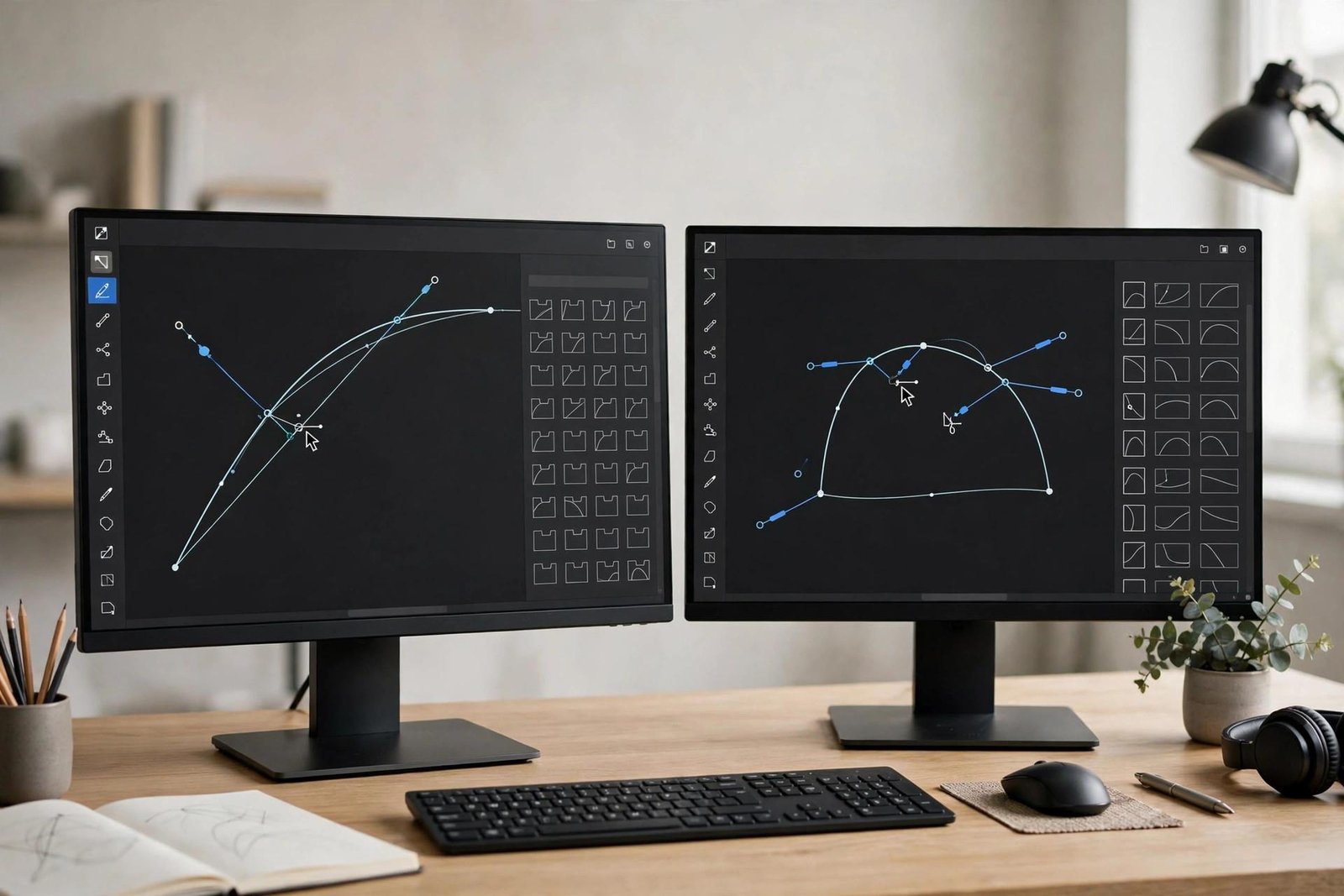
A strong vector editor starts with precise drawing tools. You want a reliable pen tool, smooth bezier controls, boolean shape operations and a way to work with strokes, fills and gradients without fighting the interface. Typography matters too: logos, posters and packaging live or die on type handling, so look for solid text-on-path support, OpenType features and easy font management.
File compatibility is the quiet deal-breaker. If clients send AI, EPS or SVG files, your tool needs to open them cleanly and export them without mangling the artwork. Colour management matters for print work, where CMYK output and Pantone-style libraries are expected. For screen work, SVG export quality and pixel-perfect alignment matter more.
Finally, think about how the tool fits your workflow. A solo freelancer who designs logos needs something different from a product team building interface icons. Price structure matters as well: subscriptions spread the cost but never end, while one-off licences cost more upfront and nothing after. Try the free trial or free version of any tool on a real project before committing.
1. Adobe Illustrator
Best for: Professional logo, illustration and print design.
Illustrator is the tool most design studios expect you to know, and that expectation is its biggest strength. Clients send AI files, printers ask for Illustrator-ready artwork, and collaborators assume you can open anything they send. Its drawing engine is precise, its type tools are the deepest in the category, and its pattern, brush and gradient systems handle everything from simple icons to elaborate illustrations.
The subscription model is the main drawback. Illustrator is sold through Adobe’s Creative Cloud, so you pay monthly or annually for as long as you use it, and the price adds up over years. The interface is also dense, with a learning curve that can intimidate newcomers. That said, the sheer volume of tutorials, plugins and community knowledge makes learning easier than the interface suggests.
If you earn your living from vector work, Illustrator is hard to argue against. It is the safest choice for client work, the most capable for print, and the one your peers most likely use. Check current pricing on Adobe’s site, as plan structures and bundles change regularly.
2. Affinity Designer 2
Best for: Designers who want professional power without a subscription.
Affinity Designer 2 is the closest thing to a like-for-like Illustrator replacement, and its one-off pricing is the reason most people switch. You pay once and own the version you bought, which makes it dramatically cheaper over two or three years. The drawing tools are excellent, with a fast pen tool, strong shape operations and a clean, modern interface that feels less cluttered than Illustrator’s.
Its vector persona and pixel persona let you mix vector shapes with raster painting in one document, which is handy for illustration work. Export options are generous, including SVG, PDF and EPS, and the software runs well on modest hardware. Affinity also offers iPad and desktop versions that share files, which suits designers who sketch on the go.
The trade-offs are real but manageable. Some advanced print features and colour libraries are thinner than Illustrator’s, and you will occasionally hit a file compatibility wrinkle with complex AI files. For freelancers, small studios and anyone who resents subscriptions, though, Designer 2 is the best value in vector software. Check current pricing, as Serif periodically runs sales.
3. Inkscape
Best for: Free, open-source vector design on any platform.
Inkscape is free, open source and available on Windows, Mac and Linux, which makes it the easiest vector tool to recommend to beginners and budget-conscious designers. Its drawing tools are genuinely capable: the pen tool, node editing, path operations and text tools cover the fundamentals well, and its SVG support is excellent because SVG is its native format.
The interface is the weak point. It looks dated next to commercial rivals, and some workflows take more clicks than they should. Performance can lag on very complex documents, and CMYK support for print work is limited without extensions. But for logo sketches, icons, diagrams and web graphics, Inkscape delivers far more than its price suggests.
Inkscape also has an active community producing tutorials and extensions, so help is easy to find. If you are learning vector design, building a side project or working on Linux, start here. You can always move to a paid tool later, and the skills transfer directly.
4. CorelDRAW Graphics Suite
Best for: Print shops, sign makers and Windows-based design teams.
CorelDRAW has been around for decades and remains a workhorse in print, signage and engraving. Its drawing tools are fast and intuitive, with strong curve handling, excellent text tools and a focus on practical production work. The suite bundles photo editing, font management and layout tools, which suits small shops that need one package for everything.
Its strength is in production workflows: vinyl cutting, large-format printing and laser engraving are areas where CorelDRAW’s toolset shines. The interface is more approachable than Illustrator’s for many users, and the learning curve is gentler. Corel offers both subscription and perpetual licence options, so check current pricing to see which suits your budget.
The downside is ecosystem. Fewer freelancers and agencies use CorelDRAW, so collaboration can mean converting files, and the tutorial and plugin community is smaller. If your work is print production rather than agency design, though, CorelDRAW is a serious contender that deserves a trial.
5. Figma
Best for: Interface icons, UI assets and collaborative design teams.
Figma is not a traditional illustration tool, but for screen-based vector work it is superb. Its vector networks are flexible, its component system keeps icon sets consistent, and real-time collaboration means a whole team can work on the same file. For product designers building icon libraries, illustrations for apps or marketing assets that live on screens, Figma is often the fastest option.
The free tier is generous for individuals and small teams, and the browser-based approach means nothing to install. Exporting SVG and PNG assets is straightforward, and the plugin ecosystem adds automation and asset management. Figma’s vector tools are simpler than Illustrator’s, though — you will not be doing complex illustration work in it comfortably.
Think of Figma as a specialist: outstanding for interface and screen graphics, limited for print and detailed illustration. Many designers pair it with Illustrator or Affinity for exactly that reason. If your vector work is mostly digital, Figma may be the only tool you need. It also works well for early interface sketches — see our best wireframing tools guide.
6. Linearity Curve (formerly Vectornator)
Best for: iPad-first designers and Apple ecosystem users.
Linearity Curve started as Vectornator on iPad and has grown into a capable cross-platform vector editor for Mac, iPad and iPhone. Its touch-friendly interface and Apple Pencil support make drawing on a tablet feel natural, and the desktop version is solid for finishing work. It handles SVG, AI and PDF import and export, and its auto-trace feature converts sketches and photos into editable vectors.
Pricing has varied over the years between free and subscription tiers, so check current pricing before you commit. The feature set is narrower than Illustrator’s, particularly for print production, but for creative illustration and logo work it is more than capable.
If your workflow is Apple-first and you like drawing with a stylus, Curve is worth a serious look. It is the most pleasant vector tool to use on an iPad, and its desktop companion keeps files in sync.
Comparison table
| Tool | Best for | Pricing model | Platforms |
|---|---|---|---|
| Adobe Illustrator | Professional print and logos | Subscription | Windows, Mac, iPad |
| Affinity Designer 2 | Subscription-free pro work | One-off payment | Windows, Mac, iPad |
| Inkscape | Free vector design | Free, open source | Windows, Mac, Linux |
| CorelDRAW | Print and signage production | Subscription or perpetual | Windows, Mac |
| Figma | UI icons and team design | Free tier, then subscription | Browser, desktop, mobile |
| Linearity Curve | iPad and Apple Pencil work | Check current pricing | Mac, iPad, iPhone |
How to choose: a practical checklist
- List the work you actually do: logos, illustration, icons, print or screen — then shortlist tools built for it.
- Check file compatibility: can it open and export the formats your clients and printers use?
- Test the pen tool on a real drawing, not a demo file, during the free trial.
- Compare total cost over three years, not just the first month — subscriptions add up.
- Confirm the platform you use is supported, including tablet apps if you draw by hand.
- Look at the learning resources available: tutorials, community forums and plugin support.
- Export a test file and open it in another tool to check nothing breaks.
- Decide whether you need print colour management (CMYK) or only screen output (RGB/SVG).
FAQs
Is Inkscape good enough for professional work?
Yes, for many kinds of work. Inkscape handles logos, icons, diagrams and web graphics well. Its limits show in print production, where CMYK support is weaker, and in very complex documents. For freelance and small-business work it is a legitimate choice.
Can Affinity Designer open Illustrator files?
It can open AI and PDF files in most cases, and it exports SVG, PDF and EPS cleanly. Very complex Illustrator files with proprietary effects may not translate perfectly, so test with your actual files before switching.
Do I need Illustrator to work as a designer?
Not strictly, but it helps. Many studios and clients expect Illustrator files, so knowing it improves your employability. Freelancers with their own clients have more freedom to choose Affinity, Inkscape or CorelDRAW.
What is the difference between vector and raster graphics?
Vector graphics are built from mathematical paths, so they scale to any size without losing sharpness. Raster graphics are made of pixels, so enlarging them causes blurring. Logos and icons should be vectors; photographs are raster.
Is Figma a replacement for Illustrator?
For interface and screen design, often yes. For print, detailed illustration and logo work, no — Figma’s vector tools are simpler and it lacks print colour management. Many designers use both.
Which vector tool is best for beginners?
Inkscape if your budget is zero, Affinity Designer 2 if you want a polished paid tool without a subscription, and Illustrator if you plan to work in a studio. All three teach transferable vector skills.
The bottom line
The best vector graphics software in 2027 is the one that matches your work, your clients and your budget — not the one with the longest feature list. Illustrator remains the professional default, Affinity Designer 2 is the best value for independents, and Inkscape proves that free software can be genuinely capable. Pick two, try them on a real project, and let the work decide. Your next step is simple: download a trial or the free version, redraw an existing logo in it, and see which tool gets out of your way fastest.