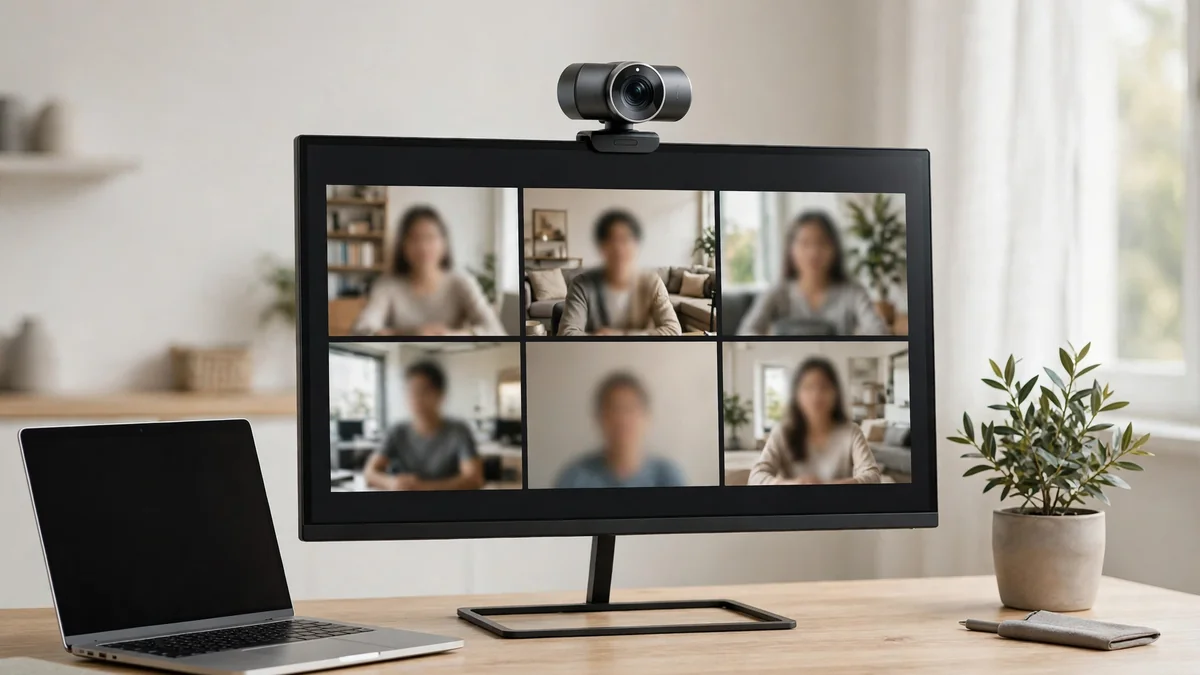
Best webcams for Zoom calls in 2027 are no longer a luxury add-on. Most laptops still ship with a small 720p or 1080p sensor that looks soft and washed out the moment your lighting is less than perfect, and that soft image is the first thing colleagues notice on a call. A dedicated webcam fixes the problem at the source with a larger sensor, better glass, and smarter auto-framing.
The gap between a good webcam and a great one comes down to a few practical things: true 1080p or 4K resolution, reliable autofocus, noise handling in dim rooms, and a microphone that does not make you sound like you are calling from a tunnel. Auto-framing, background blur, and privacy shutters are now standard on the better models.
We tested the current field against those criteria and picked seven webcams that cover every budget and desk setup, from a $59 starter that beats any laptop camera to a 4K flagship for people who present for a living. Prices below are approximate starting prices — check current pricing before you buy.
Key takeaways
- The Logitech Brio 500 is the best overall webcam for Zoom calls, with sharp 1080p video, good low-light handling, and a fair price.
- The Anker PowerConf C200 is the best budget pick, delivering clean 2K video for around $59.
- The Obsbot Tiny 2 is the best choice for presenters, thanks to AI tracking that keeps you framed as you move.
- For most calls, 1080p done well beats 4K done badly.
- Every webcam here has a physical privacy shutter or a lens cap, so you can cover the lens between calls.
At a glance: the shortlist
| Webcam | Best for | Starting price | Standout feature |
|---|---|---|---|
| Logitech Brio 500 | Most people | From $129 | 1080p with auto light correction |
| Anker PowerConf C200 | Budget buyers | From $59 | 2K resolution at a low price |
| Obsbot Tiny 2 | Presenters | From $269 | AI tracking and gesture control |
| Elgato Facecam Pro | Professional setups | From $299 | True 4K at 60 frames per second |
| Razer Kiyo Pro Ultra | Dim rooms | From $299 | Large sensor for low light |
| Logitech MX Brio | Premium 4K | From $199 | 4K with AI image enhancement |
| Insta360 Link 2C | Desk presenters | From $199 | 4K with AI framing and desk view |
Logitech Brio 500 — Best overall
The Brio 500 is the webcam most people should buy for Zoom calls. It records in 1080p at 30 frames per second, and RightLight auto-correction keeps your face evenly lit. The image stays sharp and natural, with accurate skin tones.

Setup is plug and play over USB-C, and the mount clips firmly to a monitor or laptop lid. The Brio 500 also includes a built-in privacy shutter that slides over the lens, plus dual noise-reducing microphones that keep your voice clear. If you want better sound on calls, pairing a good webcam with headphones made for Zoom calls makes the whole setup feel far more professional.
Pros: Sharp, natural 1080p image; strong auto light correction; physical privacy shutter; fair price.
Cons: No 4K option; 30fps only; the mount is bulkier than some rivals.
Anker PowerConf C200 — Best budget
The PowerConf C200 proves you do not need to spend $100 or more to look good on Zoom. It captures 2K video, and its dual microphones use AI noise reduction to cut background hum. For the price, the image quality is genuinely impressive in a well-lit room.
Where it shows its budget roots is low light, where the picture gets grainy faster than the Brio 500, and autofocus can hunt briefly when you lean in and out. For students, job seekers, and anyone setting up a first home office, it is the best value in this roundup by a clear margin.
Pros: 2K video for around $59; AI noise-reducing microphones; very easy setup.
Cons: Grainy in dim rooms; autofocus can hunt; basic plastic build.
Obsbot Tiny 2 — Best for presenters
The Obsbot Tiny 2 is built for people who move while they talk. Its gimbal-mounted 4K camera follows you around the room, keeping you centred in frame while you present. Hand gestures control it too — hold up your palm to pause tracking, make an L shape to zoom in.
Image quality is strong for a tracking camera, with good colour and a large 1/1.5-inch sensor that handles mixed lighting well. The companion app unlocks presets for different framing styles, which is handy if you switch between sitting at your desk and standing to present. For trainers and teachers it earns its price quickly.
Pros: Smooth AI tracking; gesture controls; large sensor with good colour; 4K resolution.
Cons: Overkill for seated calls; the gimbal adds desk clutter; premium price.
Elgato Facecam Pro — Best for professionals
The Facecam Pro is the choice for people who treat video calls as part of their job. It shoots true 4K at 60 frames per second, and its large Sony Starvis sensor keeps the picture clean in rooms where other cameras fall apart. The fixed-focus lens is tuned for a typical desk distance, so you stay sharp without any focus hunting.
Elgato’s Camera Hub software gives full manual control over exposure, white balance, and zoom, . There is no built-in microphone, so you will need a separate mic or headset, and no autofocus means it is best for a fixed desk setup rather than a roaming one.
Pros: True 4K at 60fps; excellent low-light sensor; full manual controls.
Cons: No built-in microphone; no autofocus; needs a fixed desk position.
Razer Kiyo Pro Ultra — Best for dim rooms
The Kiyo Pro Ultra is built around the largest sensor of any webcam in this roundup, a 1/1.2-inch Sony Starvis 2 chip that gathers far more light than typical webcam sensors. In a dim home office or an evening call, it produces a brighter, cleaner image and its 4K resolution holds up when you crop in.
The trade-off is size. This is a big, heavy webcam that looks more like a small camera than a clip-on accessory, and it needs a sturdy monitor mount. But if your room has one small window and a single lamp, no other webcam in this list will make you look as good.
Pros: Best low-light image quality here; 4K with a large sensor; clean, natural colours.
Cons: Large and heavy; runs warm; premium price.
Logitech MX Brio — Best premium 4K
The MX Brio is Logitech’s flagship 4K webcam, and it shows in the details. It records 4K at 30 frames per second with AI-enhanced image processing that sharpens edges and balances exposure in real time, and its dual beamforming microphones are the best built-in mics in this roundup. The aluminium build feels solid, and the mount works on monitors, laptops, and tripods.
It also includes Show Mode, which tilts the camera down to show your desk — useful for signing documents or showing a product on camera. The main downside is price — most Zoom calls compress video enough that the jump from 1080p to 4K is subtle on the other end.
Pros: Sharp 4K with AI enhancement; best built-in microphones here; solid aluminium build.
Cons: Expensive; 4K benefit is muted by Zoom compression; no 60fps mode.
Insta360 Link 2C — Best for desk presenters
The Link 2C packs a 4K camera with AI tracking into a compact body that clips to any monitor. Its standout trick is DeskView mode, which angles the camera down to show your workspace without moving the webcam, making it ideal for demos, sketching, or showing documents during a call. Tracking is smooth, and the image stays natural in mixed light.
It is smaller and lighter than the Obsbot Tiny 2, which makes it a better fit for a tidy desk, though the tracking range is a little narrower. For hybrid workers who present from their desk, it is a strong all-rounder.
Pros: Compact 4K with AI tracking; useful DeskView mode; good microphones.
Cons: Narrower tracking range than the Tiny 2; no physical shutter; premium price.
How to choose
Start with resolution, but do not overbuy it. A well-tuned 1080p camera like the Brio 500 looks better on Zoom than a cheap 4K camera, because Zoom compression rewards clean sensors over raw pixel counts. Buy 4K only if you record locally, stream, or present to large audiences where the extra detail survives.
Next, think about your room. If you call from a dim space, prioritise sensor size — the Kiyo Pro Ultra and the Facecam Pro handle low light far better than budget models. If you move while presenting, AI tracking is worth paying for, and the Obsbot Tiny 2 is the benchmark. And if you already record audio separately, a camera without a microphone is fine; if not, check the mic quality before you buy. Many people pair a webcam with a dedicated mic; our guide to the best webcams for podcasting covers models that also work well for recorded video.
Finally, check the practical details: a physical privacy shutter, a mount that fits your monitor, and USB-C or USB-A to match your laptop. A webcam that is fiddly to mount will end up in a drawer, no matter how good its sensor is.
Checklist: before you buy
- Check your laptop’s ports — USB-C cameras need an adapter on older machines.
- Test your room lighting at the time you usually call.
- Confirm the webcam works with Zoom, Teams, and Meet without extra drivers.
- Look for a physical privacy shutter or a lens cap in the box.
- Check the return window in case the field of view does not suit your desk.
- Budget for a headset or microphone if the webcam’s built-in mic is basic.
Frequently asked questions
Do I need a 4K webcam for Zoom?
No. Zoom compresses video heavily, so a good 1080p webcam usually looks just as sharp to the other people on the call. Buy 4K if you also record video locally or stream, where the extra detail is preserved.
What is the best webcam for Zoom calls overall?
The Logitech Brio 500. It delivers a sharp, natural 1080p image, handles mixed lighting well, and costs far less than the 4K flagships while covering everything most callers need.
Is a built-in laptop camera good enough?
For occasional calls, yes. For daily meetings, no — a dedicated webcam gives you a larger sensor, better low-light performance, and a more flattering angle, and the difference is obvious on the other end.
Do webcams work with Microsoft Teams and Google Meet?
Yes. Every webcam in this list is plug and play on Windows and macOS and works with Zoom, Teams, Meet, and Webex without extra drivers.
How much should I spend on a webcam?
Around $59 to $129 covers most people well. Spend $200 or more only if you need 4K, AI tracking, or strong low-light performance for professional presenting.
Can a webcam improve my audio too?
Yes, up to a point. The better models here have dual noise-reducing microphones that sound clear in a quiet room. For noisy rooms, a dedicated headset or microphone still wins, and our roundup of the best AI noise removal tools covers software that can clean up call audio.
The bottom line
For most people, the Logitech Brio 500 is the right webcam for Zoom calls in 2027: sharp, natural video, reliable light correction, and a fair price. If your budget is tight, the Anker PowerConf C200 gets you most of the way there for around $59. Presenters should look at the Obsbot Tiny 2, and anyone working in a dim room will notice the biggest jump from the Razer Kiyo Pro Ultra.
Whichever model you choose, the upgrade over a laptop camera is immediate and obvious. Buy for your room and your call habits, not for the spec sheet, and check current pricing before you order.