

The best wireless trackball mice in 2027 let you move the cursor without moving your arm, and that single difference makes them the most comfortable pointing devices for long desk sessions. Instead of sliding a mouse across a pad, you roll a ball with your thumb or fingers while the body stays still, so they work in tight spaces, on armrests, and on desks where a regular mouse has no room to travel.
They are not the fastest choice for gaming, and they take a week or two to learn, but for office work and editing, a good trackball can feel easier on the hand than any standard mouse.
This shortlist covers seven wireless trackballs, from the affordable Logitech M575 to the precision-focused Kensington Expert Mouse. Every pick connects over Bluetooth or a USB receiver, runs on a rechargeable battery or long-life AA cells, and is still widely sold in 2027. Prices below are approximate starting prices, so check current pricing before buying.
Key takeaways
- Best overall: Logitech MX Ergo S, for its adjustable tilt, quiet clicks, and precise thumb ball.
- Best value: Logitech ERGO M575, a proven thumb trackball at roughly half the price of the MX Ergo S.
- Best for precision work: Kensington Expert Mouse Wireless, with a large 55 mm centre ball and a scroll ring.
- Finger-operated balls suit large hands and fine control; thumb balls are easier to learn.
- Expect a one to two week adjustment period, and clean the ball socket weekly to keep tracking smooth.
At a glance: the shortlist
| Product | Best for | Starting price | Standout limit |
|---|---|---|---|
| Logitech MX Ergo S | Most users | From $99 | Thumb ball, not for left-handers |
| Logitech ERGO M575 | Budget buyers | From $49 | No tilt adjustment |
| Kensington Expert Mouse Wireless | Precision work | From $99 | Large footprint |
| Kensington Orbit Wireless | Small desks | From $49 | No Bluetooth, receiver only |
| ProtoArc EM03 | Budget ergonomic | From $39 | Fewer software options |
| ELECOM HUGE Wireless | Large hands | From $79 | Bulky and heavy |
| Kensington SlimBlade Pro | Premium all-rounder | From $119 | Highest price here |
Logitech MX Ergo S — Best overall
The MX Ergo S is the trackball most people should buy first. Its thumb-operated ball is smooth and precise, the body tilts from flat to 20 degrees so you can find a wrist angle that feels natural, and the quiet clicks stay polite in shared offices. It pairs with up to three devices over Bluetooth or the included Bolt receiver, and Logitech Options+ lets you remap the extra buttons and tune pointer speed.
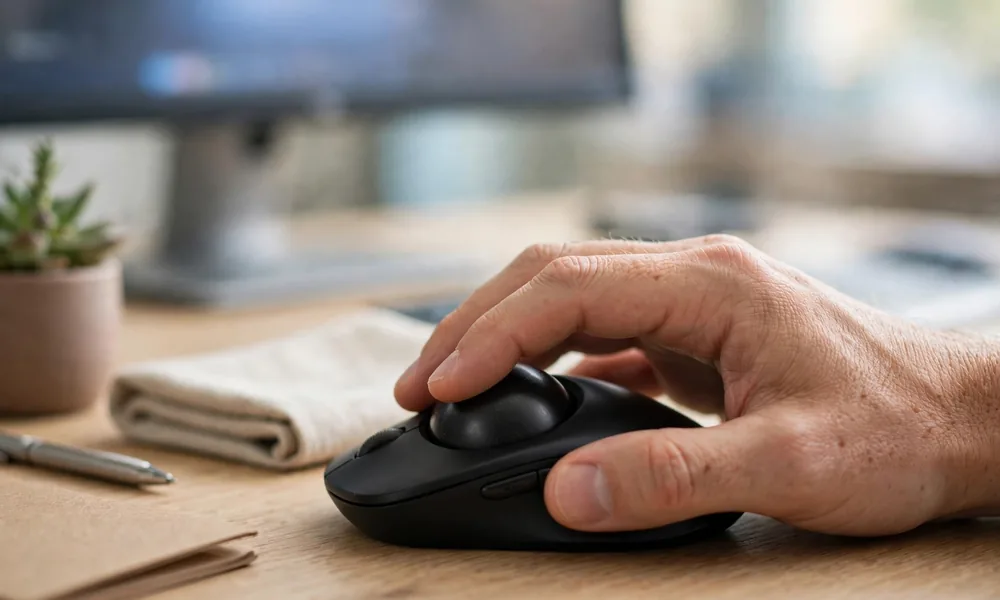
Battery life is rated at up to 120 days on a charge, and a one-minute top-up over USB-C gives a full day of use. The shape suits medium to large right hands, and the rubberised sides keep it planted while you roll the ball. best keyboards for typing when you set up your desk, since the keyboard you pair it with matters just as much as the pointer.
Pros: Adjustable 20-degree tilt, quiet clicks, multi-device pairing, long battery life.
Cons: Right-handed only, premium price, no finger-ball option.
Logitech ERGO M575 — Best value
The M575 is the same idea as the MX Ergo S at about half the price, and for many buyers it is all the trackball they need. The thumb ball tracks smoothly, the sculpted body fits most right hands, and it runs for up to 24 months on a single AA battery. It connects over Bluetooth or the included Unifying receiver, so it works with laptops that have no spare USB-A port.
There is no tilt adjustment and no rechargeable battery, but neither is a deal-breaker at this price. The M575 is the safest first trackball: cheap enough to try, comfortable enough to keep, and widely available. If you are unsure whether a trackball suits you, start here rather than spending twice as much.
Pros: Very affordable, excellent battery life, comfortable shape, Bluetooth included.
Cons: No tilt adjustment, uses a disposable AA battery, plain software.
Kensington Expert Mouse Wireless — Best for precision work
The Expert Mouse Wireless uses a large 55 mm ball in the centre of the device, controlled by the index and middle fingers rather than the thumb. That larger ball gives finer control, which is why it is popular with CAD users, video editors, and anyone who does detailed cursor work. A scroll ring around the ball replaces the usual wheel, and four buttons are programmable through KensingtonWorks software.
It connects over Bluetooth or a 2.4 GHz receiver and runs on a rechargeable battery. The footprint is wide, so it needs more desk space than a thumb trackball, but the payoff is the most precise cursor control in this roundup.
Pros: Large ball for fine control, scroll ring, detachable wrist rest, rechargeable.
Cons: Wide footprint, takes longer to learn, heavier than thumb models.
Kensington Orbit Wireless with Scroll Ring — Best for small desks
The Orbit Wireless is a compact centre-ball trackball that fits where the Expert Mouse cannot. Its 40 mm ball is still finger-operated, the scroll ring sits around it for easy page navigation, and the whole unit is small enough for a laptop tray or a crowded desk. It runs on two AA batteries and connects through a nano receiver that stores inside the body.
There is no Bluetooth, so a USB port or adapter is needed, and the small ball is less precise than the Expert Mouse for fine work. For general office use in a tight space, though, the Orbit is a neat, affordable compromise between size and control.
Pros: Compact size, scroll ring, affordable, receiver stores in the body.
Cons: No Bluetooth, smaller ball, AA batteries only.
ProtoArc EM03 — Best budget ergonomic
The ProtoArc EM03 brings the adjustable-tilt idea to a budget price. Its thumb ball sits in a body that tilts up to 20 degrees, it connects over Bluetooth or a 2.4 GHz receiver to three devices, and it is rechargeable over USB-C. Three DPI levels up to 2000 cover office work and light design tasks.
The software is basic compared with Logitech Options+, and the build feels lighter than the MX Ergo S, but the core experience is surprisingly close for less than half the money. For buyers who want tilt adjustment without the premium price, the EM03 is the pick.
Pros: Tilt adjustment at a budget price, triple-device pairing, USB-C rechargeable.
Cons: Basic software, lighter build, less polished scroll wheel.
ELECOM HUGE Wireless — Best for large hands
The ELECOM HUGE lives up to its name: it is a big, wide finger-ball trackball built for large hands that find smaller mice cramped. The 52 mm ball is controlled by the index finger, eight buttons are programmable, and the palm rest supports the whole hand. It connects over Bluetooth or a 2.4 GHz receiver and runs on AA batteries.
Its size is also its drawback: small hands will struggle to reach the far buttons, and it takes up a lot of desk space. For large-handed users who want a finger ball with plenty of buttons, though, nothing else in this price range fits as well.
Pros: Great for large hands, eight programmable buttons, large precise ball.
Cons: Too big for small hands, heavy, AA batteries.
Kensington SlimBlade Pro — Best premium all-rounder
The SlimBlade Pro is Kensington’s premium centre-ball trackball, with a low profile, a large ball, and a twist-to-scroll design: rotate the ball itself to scroll. It connects over Bluetooth or a receiver, is rechargeable over USB-C, and its four buttons are fully programmable. The low, flat shape suits users who find tall ergonomic mice awkward.
It is the most expensive trackball here, and the twist-scroll takes a few days to learn, but once it clicks it is fast and natural. Buy it if you want a premium finger-ball trackball and are willing to pay for the finish and the scroll design.
Pros: Premium build, twist-to-scroll, low profile, USB-C rechargeable.
Cons: Highest price in this list, twist-scroll needs practice.
How to choose
Start with the ball position. Thumb balls are easier to learn and suit most people, while centre finger balls give finer control and suit large hands and precision work. If you have never used a trackball, a thumb model is the safer first buy.
Check the connection and the battery. Bluetooth is best for laptops with few ports, a 2.4 GHz receiver is best for desktops, and rechargeable models save you buying batteries. A mouse that needs a receiver is less useful on the move, so best monitors for programming when you plan your full setup, not just the pointer.
Try the tilt and the size. An adjustable tilt helps your wrist stay neutral, and a trackball that is too small will cramp a large hand just as a regular mouse does. Measure your hand against the stated dimensions before ordering, and give any trackball at least a week before judging it.
Checklist: before you pay
- Confirm your hand size against the trackball’s dimensions, especially for large finger-ball models.
- Check whether it connects over Bluetooth, a USB receiver, or both, and whether your computer has a free port.
- Confirm the battery type: rechargeable over USB-C, or AA cells with a stated battery life.
- Check that the software supports your operating system if you want to remap buttons.
- Confirm the return window, since trackballs take one to two weeks to judge fairly.
- Check current pricing, as trackball prices vary widely between retailers.
Frequently asked questions
Are trackballs better than a regular mouse?
For comfort and small desks, yes: the body stays still, so your wrist and shoulder move far less, and you need almost no desk space. For fast gaming or quick flicks across a large screen, a regular mouse is still faster.
How long does it take to learn a trackball?
Most people feel comfortable within one to two weeks of daily use. Pointer speed feels odd at first, so start with a lower DPI and raise it gradually as your thumb or fingers get used to the ball.
Do trackballs work for gaming?
Casual and strategy games work fine, but competitive shooters are a poor match because fast, precise flicks are harder with a ball. If gaming is your priority, a lightweight wireless mouse is a better buy.
How do I keep a trackball tracking smoothly?
Remove the ball once a week and wipe the socket and the small support bearings with a dry cloth. Dust and skin oils build up there and are the usual cause of jerky cursor movement. best keyboards for productivity for a fuller look at desk gear that pairs well with a trackball.
Can left-handed users use a trackball?
Most thumb trackballs are right-handed only, but centre-ball models such as the Kensington Expert Mouse and Orbit are symmetrical and work for either hand. Check the shape before buying if you are left-handed.
Is a trackball good for wrist pain?
Many people with wrist strain find trackballs help because the wrist stays still and the fingers do the work. A trackball is not medical treatment, though, so see a clinician if pain persists or gets worse.
The bottom line
For most buyers, the Logitech MX Ergo S is the best wireless trackball mouse in 2027: comfortable, quiet, adjustable, and easy to live with. If the budget is tight, the Logitech ERGO M575 gives you most of the same comfort for about half the price, and precision workers should look at the Kensington Expert Mouse Wireless instead.
Give any trackball a full week before deciding: it feels strange on day one and natural by day ten. Check current pricing before buying, since these models are frequently discounted.



