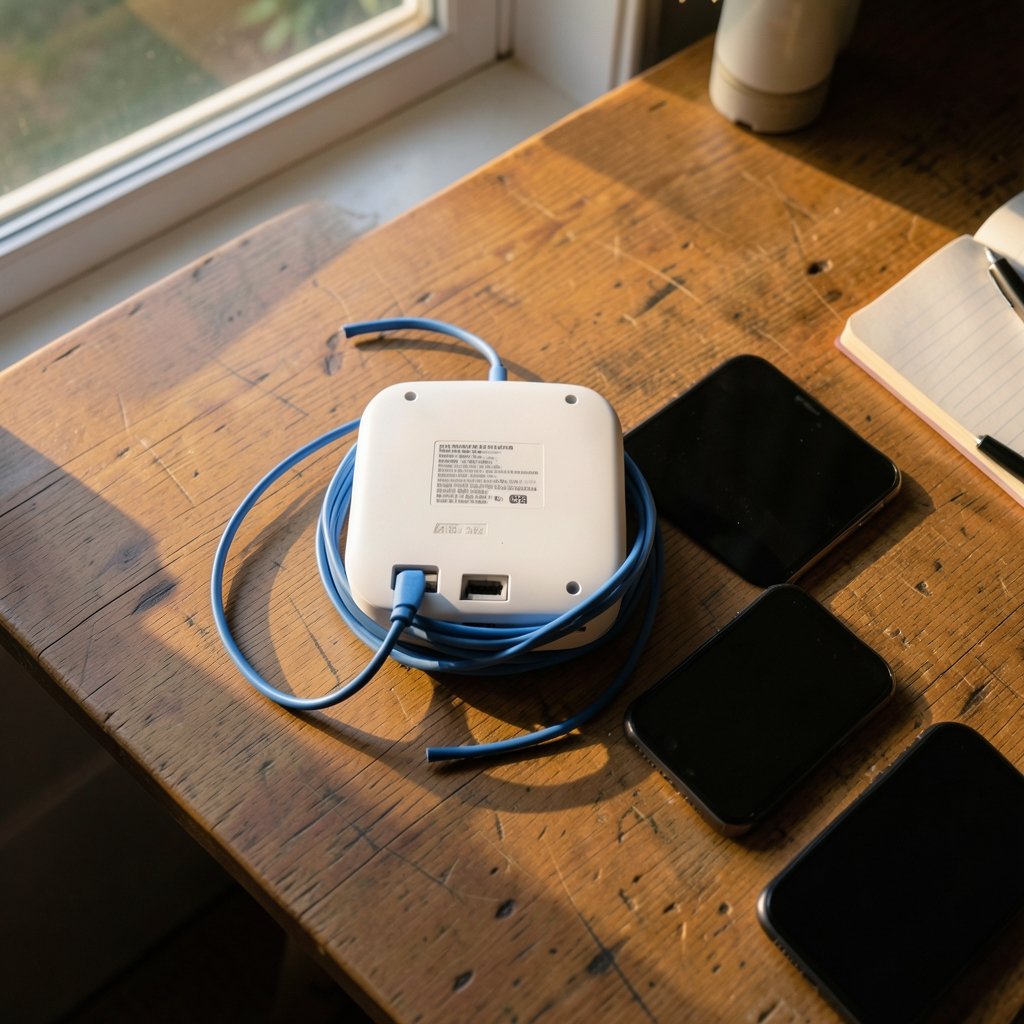
When was the last time you actually looked at your Wi-Fi password? If the answer is “the day the installer handed me the router,” you’re in good company. Most people never touch it, which is exactly why so many home networks still run on a weak key that a neighbor’s teenager could guess in an afternoon. The good news: changing it takes about five minutes once you know where to look, and you don’t need any special tools.
This guide walks through the whole job, from logging in to reconnecting every device in the house, plus the mistakes that leave people staring at a dead connection wondering what went wrong.
Why Changing the Wi-Fi Password Is Worth the Fuss
A Wi-Fi password isn’t just a gate for guests. On a modern router it’s the pre-shared key that authenticates every device on the network. If someone knows it, they’re not a guest, they’re a peer on your local network. They can see connected devices, poke at poorly secured smart-home gear, and eat your bandwidth.
The standard behind that key matters too. WPA2, defined in the IEEE 802.11i standard, uses a four-step exchange called the 4-way handshake to prove a device knows the passphrase. An attacker within radio range can capture that handshake and then guess passphrases offline, at whatever speed their hardware allows. That’s why length and unpredictability beat clever substitutions like swapping an “a” for an “@”. A long passphrase of random words is far harder to crack than a short, symbol-heavy one.
Newer routers add WPA3, which replaces the pre-shared key exchange with a method that resists offline guessing. If your router offers WPA3, use it. If it offers “WPA2/WPA3 mixed,” that’s a reasonable compromise while older devices are still in the house.
Before You Touch Anything: The Two-Minute Prep

The single most common disaster in this process is changing the password and then discovering you can’t log back into the router to fix a typo. Do these three things first.
- Find the router label. The sticker on the back or bottom lists the admin address (often something like 192.168.0.1 or 192.168.1.1), the admin username, and the default admin password. Photograph it with your phone.
- Connect a device by Ethernet if you can. A laptop plugged into a LAN port keeps working even if you fumble the Wi-Fi settings. This is the safety net that saves the whole job.
- Know your internet login, if required. A few providers (mostly fiber and DSL setups) require a PPPoE username and password stored in the router. Changing the Wi-Fi key shouldn’t touch it, but a factory reset would wipe it. Don’t factory reset unless you have those credentials.
One more thing worth understanding: the router admin password and the Wi-Fi password are two different things. Changing the Wi-Fi key does not change the admin login, and vice versa. If you’ve never changed the admin password from the factory default, do that in the same session. It’s the lock on the front door of the settings page. (Password Manager Vault Timeout Settings: Secure & Convenient)
Step 1: Log In to the Router’s Admin Page
Open a browser and type the admin address from the label into the address bar. Not the search bar, the address bar. Then enter the admin username and password.
If the login page refuses you, don’t panic. Common causes are a mistyped address, a stale saved password in the browser’s autofill, or a router that was set up by an installer who changed the default. If you’re stuck, the steps for recovering access differ by brand, but the general fixes for a refused login are worth working through before you consider resetting anything.
A quick note on browser behavior
Some routers use self-signed HTTPS certificates, so the browser throws a scary warning. On your own local network, that’s expected and safe to click through. Also, if you’re on a guest network or a VPN, turn the VPN off first. A VPN can route your request to 192.168.1.1 out to the internet instead of to the router sitting two feet away.
Step 2: Find the Wireless Settings Page
Once you’re in, look for a menu labeled Wireless, Wi-Fi, WLAN, or Wireless Settings. Vendors bury this in different places, and the naming is genuinely inconsistent. A rough map of what you’ll see:
| What you’re looking for | Common menu names | What it controls |
|---|---|---|
| Network name | SSID, Wireless Network Name | The name devices see when scanning |
| Password | Pre-shared key, WPA key, Security key, Passphrase | The key devices use to join |
| Security mode | WPA2-PSK, WPA3, WPA2/WPA3 mixed | How the key is checked |
| Guest network | Guest SSID, Guest Access | A separate network for visitors |
| WPS | Wi-Fi Protected Setup, WPS Push Button | Quick-pairing feature, best left off |
If your router broadcasts two bands, you’ll often see separate pages for 2.4 GHz and 5 GHz. Some routers let you use one name and password for both, which is easier for guests but means you can’t steer a device to a specific band. Either approach works.
Step 3: Set the New Password (and Do It Well)
Type the new password into the pre-shared key field. Here’s where most people undermine themselves:
- Length beats complexity. Sixteen characters or more of ordinary words is stronger and easier to type than eight characters of symbols.
- Avoid anything tied to your address or name. The SSID often gives away the household name, so don’t reuse it in the key.
- Don’t reuse a password from another account. If a breach dumps that password elsewhere, your Wi-Fi is exposed too. A password manager makes unique credentials easy to manage, and if you’re reconsidering which one to use, this comparison of password manager options covers the practical differences. Setting a sensible vault timeout also matters, since a manager that remains signed in defeats the purpose.
- Check the security mode. WPA2-PSK or WPA3, never WEP and never “open.” WEP is broken beyond repair.
While you’re on this page, turn WPS off. The PIN-based pairing method has a well-documented brute-force weakness, and leaving it enabled undercuts an otherwise strong key. The Wi-Fi Alliance’s overview of Wi-Fi Protected Setup explains what the feature was designed to do; the security tradeoff is why most hardening guides tell you to disable it. (CISA: Use Strong Passwords)
Then click Save or Apply. The router will restart its wireless radio, and every device on the network drops off within seconds. That’s normal.
Step 4: Reconnect Every Device
This is the part nobody warns you about. Changing the key logs out everything: phones, laptops, the TV, the thermostat, the doorbell, the robot vacuum, the printer. Plan for fifteen minutes of reconnecting.
The order that works best:
- Your phone or laptop first, so you can look things up if a device misbehaves.
- Streaming devices and smart speakers, which usually need the phone app rather than an on-screen keyboard.
- Smart-home gear, which is the fiddliest. Many plugs and bulbs only accept 2.4 GHz networks, so if you run separate band names, connect them to the 2.4 GHz one.
- Printers and anything with a tiny screen, last, because they’re the slowest to type into.
On a Mac, the old password may linger in Keychain and cause repeated connection failures. Clearing it out is quick once you know where to look, and this walkthrough on finding a saved Wi-Fi password on a Mac through Keychain and Terminal shows both the graphical and command-line routes.
If a device won’t reconnect
Forget the network on the device, then rejoin. “Forget” clears the cached key, which is usually the culprit. If a smart plug still refuses, check whether it’s locked to the old network name and needs a factory reset of the plug itself.
Step 5: Lock Down the Rest of the Router
You’re already inside the admin interface, so spend five more minutes on the settings that matter as much as the password itself.
Change the admin password. If it’s still “admin” or the factory default, anyone who gets onto your network can reconfigure the router.
Update the firmware. Router flaws show up regularly in the CISA Known Exploited Vulnerabilities catalog, which tracks vulnerabilities attackers are actively using, including networking gear. Most routers have a firmware update button in the admin menu. Turn on auto-update if it exists.
Consider a guest network for visitors and for smart devices you don’t fully trust. It keeps them off the network where your laptop lives.
Adjust DNS if you like. Some routers let you point DNS at a privacy-focused resolver, which can speed up browsing and cut down on ISP-level tracking. The process for changing DNS on your router is straightforward and reversible.
Common Mistakes That Cause Real Headaches
These come up again and again in support forums and help desks.
Changing the password and closing the browser before saving. Some interfaces apply changes only after a confirm dialog. Watch for it.
Typing the new key with Caps Lock on. The field is masked, so you won’t see the error. Type it into a notes app first, check it, then paste.
Confusing the Wi-Fi password with the admin password and locking yourself out of the settings page. If this happens, a wired connection plus the label on the router usually gets you back in.
Forgetting the IoT devices. People reconnect their phones, declare victory, and then wonder why the thermostat is offline a week later.
Skipping the admin password change. A strong Wi-Fi key with a default admin login is a locked door with the key taped to it.
How Often Should You Change It?
There’s no rule that says you must rotate a Wi-Fi password on a schedule. Security guidance generally emphasizes strong credentials and current firmware over periodic rotation. Change it when there’s a reason: a roommate moves out, you gave the key to a contractor, you suspect someone nearby is leeching bandwidth, or you’ve just never changed it from something weak.
If you do share the key often, a guest network solves the problem elegantly. Rotate the guest password instead of the main one, and your own devices never need reconnecting.
A Note on Router-Specific Instructions
Every router brand lays out its menus differently, and there’s no single official page that covers them all. The label on your hardware and the vendor’s support site are the authoritative sources for your model. Generic walkthroughs like this one get you 90% of the way; the last 10% is finding which submenu your particular firmware hid the SSID field in. When in doubt, the router’s own manual beats any blog post, including this one. (Router Hardware Offloading Explained: Fast Path Guide) (Wi-Fi Protected Access (WPA) explained)
Conclusion
Changing a Wi-Fi password is a five-minute job wrapped in fifteen minutes of reconnecting devices, and that reconnect phase is where most of the frustration lives. Do the prep work first: photograph the label, plug in a laptop by Ethernet, and know that the admin password and the Wi-Fi password are separate things. Then pick a long passphrase, choose WPA2 or WPA3, disable WPS, and update the firmware while you’re already logged in. Reconnect the important devices first and the smart-home gadgets last. Do that, and you’ll finish with a network that’s meaningfully harder to walk into than the one you started with.
Frequently Asked Questions
What happens to my devices when I change the Wi-Fi password?
Every device that used the old password loses its connection, because the key is how each device proves it’s allowed on the network. Each one needs the new password entered once. Phones and laptops usually prompt you automatically; smart plugs, printers, and cameras often need to be re-added through their app.
Do I need to change the router’s admin password too?
Yes, and it’s a separate setting. The admin password protects the router’s settings page, while the Wi-Fi password controls who joins the network. If the admin login is still the factory default, anyone who gets onto your Wi-Fi can reconfigure the router, so change both in the same session. (Change dns your router faster safer browsing)
What’s the difference between WPA2 and WPA3, and which should I pick?
WPA2 uses a pre-shared key exchange that an attacker nearby can capture and then guess offline, so passphrase strength matters a lot. WPA3 replaces that exchange with a method designed to resist offline guessing. Pick WPA3 if every device in your home supports it; otherwise use WPA2/WPA3 mixed mode and a long passphrase.
Can I change the Wi-Fi password without disconnecting everything?
Not really. The password is the credential every device uses, so changing it invalidates the old one for all of them. What you can do is minimize disruption: use a guest network for visitors so you rarely need to rotate the main key, and keep a written list of every connected device so reconnecting goes faster.
Why can’t I log in to my router’s settings page?
The usual culprits are a mistyped address, a VPN routing your request away from the local network, or an admin password that was changed during installation. Try a wired connection, disable the VPN, and check the label on the router for the correct address. If the admin password is genuinely lost, a factory reset restores it, but you’ll need your internet provider’s connection details to get back online.
Is it safe to keep WPS enabled for easy pairing?
It’s convenient but weakens your setup. WPS PIN pairing has a known brute-force weakness, so a strong Wi-Fi password offers less protection than it should while WPS stays on. Turn it off in the wireless settings and pair devices the normal way.