Has your laptop started feeling more like a paperweight than a productivity tool? You press the power button, walk away to make coffee, and come back to a spinning circle. Apps take seconds to respond. Fans roar like a jet engine. It is a frustrating experience, but here is the good news: most slow laptops are not dying. They are simply overloaded, clogged, or misconfigured, and a surprising number of problems can be fixed in an afternoon without spending a cent.
This guide walks through the fixes that actually work, in the order that makes sense. The idea is to diagnose before you treat, so you do not waste time deleting files when the real problem is a runaway background process.
Find the Bottleneck Before You Change Anything
The biggest mistake people make is guessing. They uninstall programs at random, install a “cleaner” tool, and reboot ten times. None of it helps because they never identified what was actually slow.
Open Task Manager (Ctrl+Shift+Esc on Windows) and click the Performance tab. On macOS, open Activity Monitor from Applications > Utilities. Both tools show the same four resources: CPU, memory, disk, and network. Watch them for a minute while the laptop feels sluggish.
| What you see | Likely cause | Where to go next |
|---|---|---|
| Disk pinned at 100% | Old hard drive or a background updater | Storage and hardware sections |
| Memory near 90% | Too many tabs or apps open | Background apps section |
| CPU constantly high | A misbehaving process or malware | Malware section |
| Everything moderate but still slow | Heat, power settings, or startup load | Thermal and startup sections |
That single minute of observation saves hours. A laptop with a healthy processor and plenty of RAM can still feel ancient if its disk is saturated, and no amount of software tweaking fixes a failing drive.
Cut the Startup Load
Every program that launches with the operating system competes for resources in the first few minutes after boot. Chat clients, cloud sync tools, printer utilities, game launchers, and updaters all pile up. Over a couple of years, that pile becomes a mountain.
In Windows, open Task Manager and go to the Startup tab. Look at the “Startup impact” column and disable anything marked High that you do not need immediately. Disabling an entry does not uninstall the program; it just stops it from launching automatically. On macOS, check System Settings > General > Login Items and remove what you do not recognize.
Here is a practical rule: keep antivirus and cloud backup enabled, and disable everything else. If you find yourself missing an app, re-enable it. A full walkthrough of the boot process, including firmware settings and scheduled tasks, is covered in this guide to fixing slow startup on Windows 11, which pairs well with the startup-tab cleanup. (Fix slow wi fi practical troubleshooting guide)
Deal With Background Apps and Browser Tabs
Modern browsers are memory hogs by design. Each tab runs in its own isolated process for security and stability, which is why thirty open tabs can consume several gigabytes of RAM. The Chromium project’s explanation of its multi-process architecture shows exactly why browsers behave this way, and why closing tabs genuinely helps.
When RAM runs out, the system starts swapping data to disk. Even a fast SSD is orders of magnitude slower than memory, so the whole machine stutters. The fix is simple and unglamorous:
- Close tabs you are not actively reading, or use a tab-suspension extension.
- Quit apps from the system tray or menu bar instead of just closing their windows.
- Uninstall programs you have not opened in six months.
- Restart the laptop at least once a week. Sleep is not the same as a fresh boot.
A weekly restart sounds trivial, but it clears memory leaks and pending updates that quietly accumulate.
Free Up Disk Space
Windows and macOS both need breathing room to manage temporary files, updates, and virtual memory. When a drive is nearly full, performance drops noticeably. A commonly repeated rule of thumb is to keep 10 to 15 percent of the drive free, though this is folk wisdom rather than an official standard. (Solid-state drive)
Use the built-in tools first. Windows has Storage Sense and Disk Cleanup; macOS has the Storage pane in System Settings. Clear out downloads folders, old installers, duplicate photos, and video files you never watch. Move large archives to an external drive or cloud storage. If you use a USB hub or dock for external drives, slow transfers are their own separate headache, and this guide to fixing a monitor USB hub with slow transfer speeds explains how to diagnose port bottlenecks. (Fix windows 11 running slow after update)
Check for Malware and Unwanted Software
Malicious or unwanted software is a classic cause of unexplained slowness. Crypto miners, ad injectors, and bundled “optimizer” tools all consume CPU and disk time in the background. Run a full scan with the built-in protection (Windows Security or macOS’s built-in defenses) and, if anything suspicious appears, follow up with a reputable second-opinion scanner.
Be skeptical of the category itself. Registry cleaners and RAM boosters are widely marketed as speed fixes, but no credible evidence shows they deliver real gains, and some cause harm. Microsoft has never recommended registry cleaners. If a free tool promises to “double your speed,” close the tab. (Speed up slow mac practical fix it guide)
Watch the Heat
A laptop that throttles feels slow even when the hardware is fine. When internal temperatures climb too high, the processor deliberately reduces its clock speed to protect itself. This mechanism, known as thermal throttling, is well documented in Intel’s guidance on processor thermal management. The result is a machine that benchmarks well on paper but crawls in practice.
Common culprits on laptops three years or older:
- Dust clogging the fan and heatsink fins
- Dried-out thermal paste between the processor and cooler
- Using the laptop on a bed or cushion, blocking the vents
- A worn fan that no longer spins at full speed
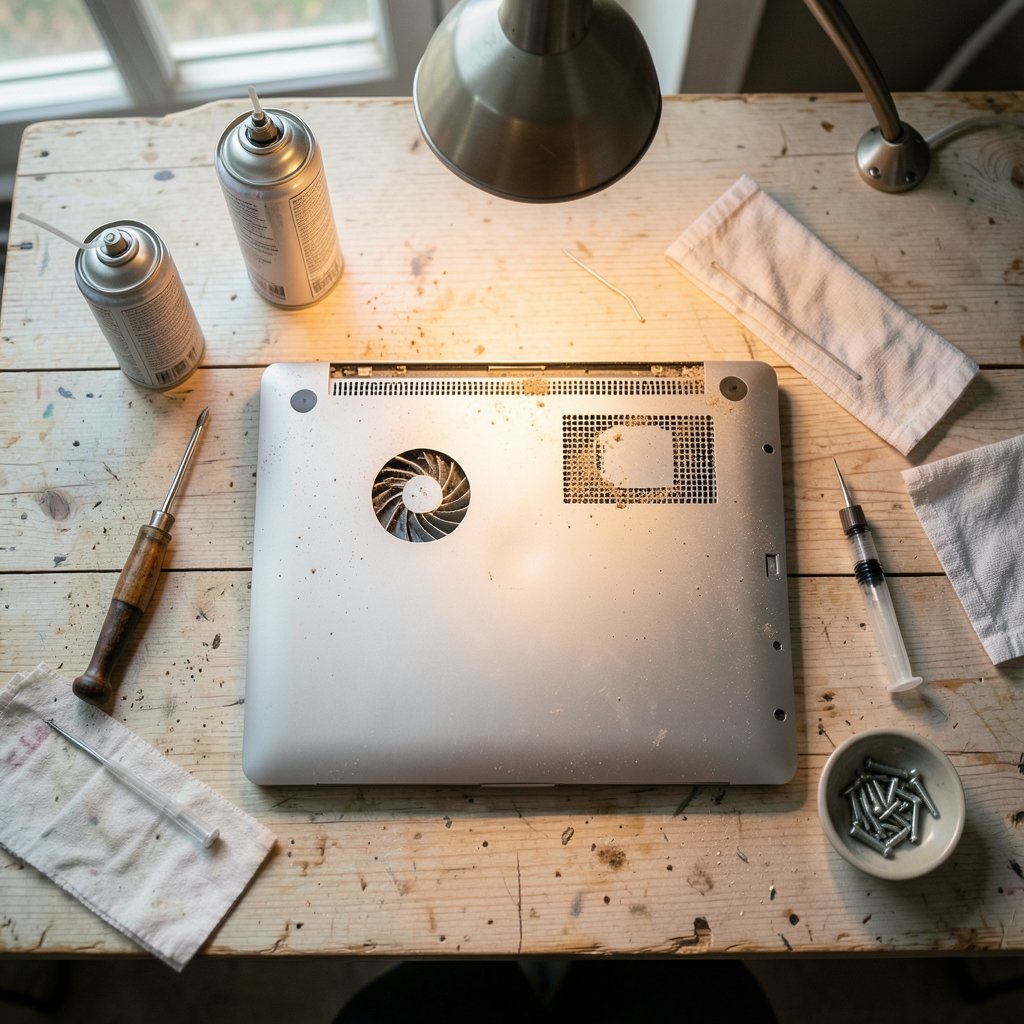
Compressed air and a can of contact cleaner can revive a dusty machine in twenty minutes. If you are comfortable with a screwdriver, repasting the CPU is a genuine upgrade, though it voids some warranties. A laptop cooling pad helps but does not fix a clogged heatsink.
Consider the Hardware Reality
Sometimes the honest answer is that the hardware is the bottleneck. Two upgrades deliver outsized returns:
Storage. A mechanical hard drive is the single most common reason an older laptop feels unusable. Replacing it with a solid-state drive transforms boot times, app launches, and file operations. This is consensus among manufacturers and reviewers rather than a single benchmark, but the difference is unmistakable in practice.
Memory. If Task Manager shows memory consistently above 80 percent with normal use, adding RAM helps. Check whether your model has soldered memory first; many thin laptops do not allow upgrades.
Battery health matters too. A worn battery can trigger aggressive power-saving behavior, and some laptops cap performance when they cannot draw enough power. If your machine slows down dramatically when unplugged, this guide to common laptop battery problems and how to fix them without buying new covers the diagnostics.
Update Everything
Operating system updates and driver updates fix real performance bugs. Graphics drivers in particular can cause stuttering in video playback and window animations. Set updates to install automatically and reboot when prompted. Skipping updates for months is a quiet performance tax.
Firmware updates, delivered through the manufacturer’s update utility, occasionally fix fan curves and power management. Check once or twice a year.
Tune the Operating System
A few settings are worth reviewing on any slow machine:
| Setting | Windows | macOS |
|---|---|---|
| Visual effects | Adjust for best performance | Reduce motion and transparency |
| Power plan | Balanced or High performance | Disable low power mode when plugged in |
| Background indexing | Limit search indexing locations | Let Spotlight finish, then exclude folders |
| Notifications | Turn off app notifications | Reduce notification load |
On macOS, the equivalent of Task Manager is Activity Monitor, and Apple’s guide to using Activity Monitor explains how to spot processes with runaway CPU or memory use. On Windows, the Task Manager performance tab does the same job.
If the machine is a tablet or a 2-in-1 rather than a traditional laptop, the same principles apply but with tighter memory limits. This troubleshooting guide for a slow tablet covers the mobile-specific angles, from storage pressure to background app refresh.
Know When to Stop
There is a point where fixing becomes more expensive than replacing. If the laptop is more than seven or eight years old, has a soldered processor and non-upgradable memory, and struggles with basic tasks, a new machine is the rational choice. The same applies if the drive is failing or the motherboard shows intermittent faults.
Before giving up, though, a clean operating system reinstall can breathe new life into an old machine. Back up your data, do a fresh install, and restore only what you actually use. Many “slow” laptops are simply carrying five years of accumulated software cruft.
Conclusion
A slow laptop is rarely a mystery. It is almost always one of a handful of causes: a saturated disk, exhausted memory, clogged cooling, malware, or a startup list that has grown out of control. The fix starts with measurement, not guesswork. Open the performance monitor, watch for a minute, and let the data point you toward the right section of this guide.
Work through the free fixes first: startup cleanup, tab discipline, disk space, updates, and a good dusting. Only then consider spending money on an SSD or extra RAM, and only if the rest of the machine is worth the investment. Most people are surprised by how much life a two-hour maintenance session can restore.
Frequently Asked Questions
Why is my laptop slow even when nothing is open?
An idle-looking desktop can still hide active background work: update services, cloud sync, indexing, antivirus scans, or malware. Check Task Manager or Activity Monitor to see which process is using disk or CPU. A disk stuck at 100 percent with no visible apps usually points to a failing drive or a stuck updater.
Will deleting files really make my laptop faster?
Only if the drive is nearly full. Operating systems need free space for temporary files and virtual memory, and performance degrades when the drive is packed. Clearing space helps in that specific situation, but it will not fix a memory shortage or an overheating processor.
Is it worth upgrading an old laptop with an SSD?
Usually yes, if the rest of the machine is healthy. Moving from a mechanical hard drive to an SSD is the most dramatic single upgrade for an older laptop, and it is often cheaper than replacing the device. Confirm the model supports the drive type and that the battery and cooling are still in reasonable shape first.
Do registry cleaners and RAM boosters work?
No credible evidence shows that they deliver speed gains, and some cause instability. Memory “optimizers” often force data out of RAM, which makes the system slower because it has to reload it from disk. Skip them and spend the time on startup cleanup and storage instead.
How often should I restart my laptop?
At least once a week for regular use. Restarting clears memory leaks, applies pending updates, and resets stuck background services. Closing the lid and sleeping is convenient, but it is not the same as a full shutdown and boot cycle.
My laptop is slow only when unplugged. Why?
Many laptops reduce processor performance and screen brightness on battery to extend runtime, and a worn battery can make that throttling more aggressive. Check the power plan or energy settings, and if the battery reports poor health, that is likely the cause. (Consumer Reports: Computers)