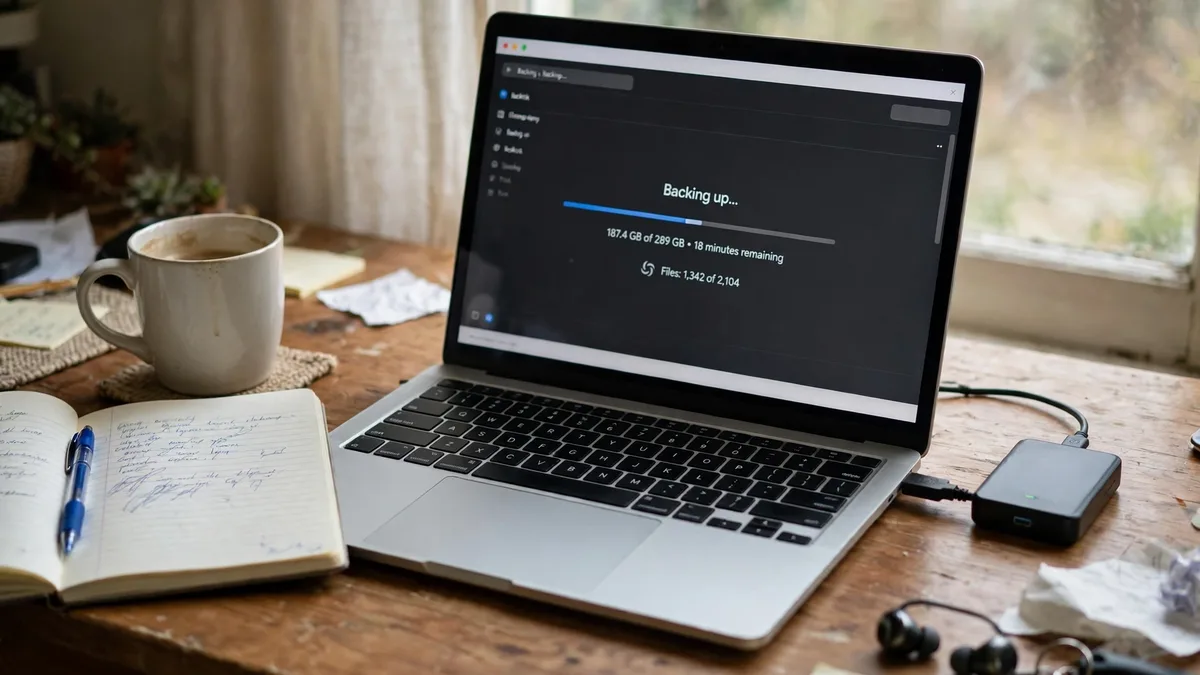
Learning how to back up your computer takes less than an hour, and it is the single best protection against a failed drive, a stolen laptop, or a ransomware attack wiping out years of photos and work. Hard drives fail without warning, laptops get dropped, and a single bad update can leave a machine that will not boot. A backup turns those disasters into an inconvenience: you restore your files and carry on.
Most people know they should back up, yet many have never done it, or did it once and never again. A modern computer already has the tools built in, and a cloud service or an external drive does most of the work once you set it up.
This guide walks through the whole job in seven steps, from deciding what to save to testing that the backup actually works. It covers local backups, cloud backups, and the combination of both that protects against almost every common failure.
Key takeaways
- Back up to two places: one local drive and one cloud service, so a single failure cannot take everything.
- Start with the files you cannot replace: photos, documents, and work, then add the rest.
- Use your operating system’s built-in backup tool first; it is free and already installed.
- Set the backup to run automatically, because a backup you must remember to start will not happen.
- Test a restore at least once, because a backup that cannot be restored is worth nothing.
At a glance: backup options
| Method | Best for | Typical cost | Main weakness |
|---|---|---|---|
| External hard drive | Fast, large backups | One-off drive cost | Lost or damaged with the computer |
| Cloud backup | Off-site protection | Monthly subscription | Slow first upload |
| Built-in OS backup | Simple, free start | Free | Needs a drive or cloud account |
| USB flash drive | Small, vital files | Low | Too small for a full backup |
| Network drive (NAS) | Whole households | Higher up-front cost | Needs setup and upkeep |
| Manual copy to cloud storage | Documents only | Free for small amounts | Easy to forget folders |
Step 1: Decide what to back up
Before you copy anything, make a list of what matters. Photos, videos, documents, email archives, and work files come first, because they cannot be downloaded again. Check your desktop, your documents folder, your downloads, and your photo library, and look for files saved in unusual places, such as a folder on the desktop or inside an app.
Next, list the things that are annoying but possible to replace: installed programs, browser bookmarks, and settings. Most backup tools handle these automatically, but knowing they exist helps you check that nothing was missed. Passwords deserve special care: export them from your browser or password manager into your backup, or better, keep them in a password manager that syncs separately.
Finally, estimate the total size. Right-click your main folders and add up the numbers, or check your drive usage in settings. A typical laptop holds 200 GB to 500 GB of personal files, and that number decides how large an external drive you need and how long the first cloud upload will take.
Step 2: Pick your backup destinations
The safest setup is the 3-2-1 rule: three copies of your data, on two different types of storage, with one copy off site. In practice that means your computer, plus an external drive at home, plus a cloud backup. If one fails, the other two are still there.
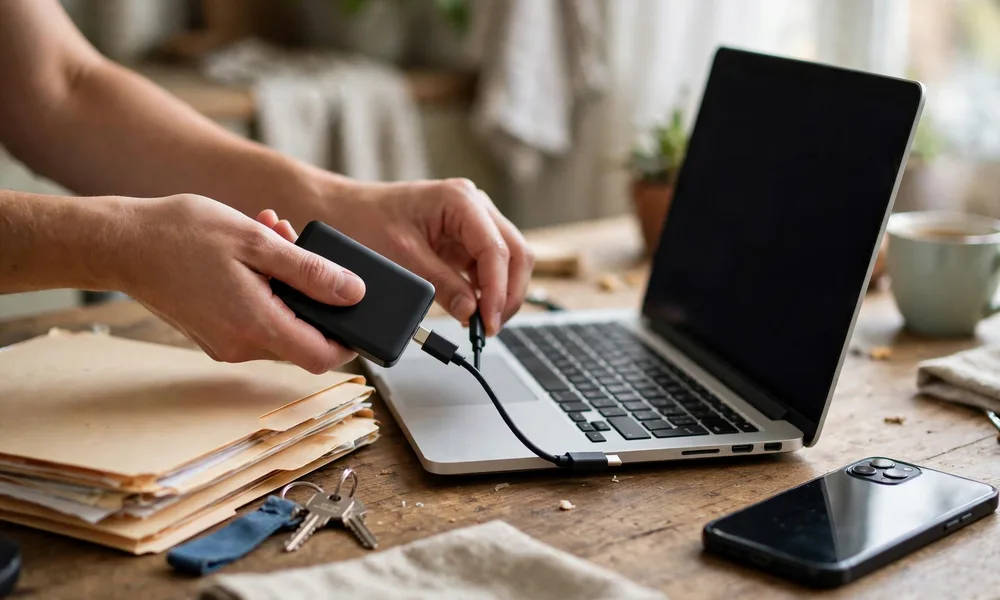
For the local copy, buy an external drive at least twice the size of the data you plan to back up, so there is room for older versions of files. A 1 TB or 2 TB portable drive suits most people and costs far less than data recovery. For the cloud copy, compare the main backup services on storage, price, and how easily they restore files. For a closer look at the cloud side, see the guide to the best cloud storage for backups in 2027 on this site.
Step 3: Set up the built-in backup tool
On Windows, open Settings, go to System, then Storage, then Advanced storage settings, and choose Backup options. Connect your external drive and turn on File History, which copies your documents, pictures, and desktop folders on a schedule you choose. Windows also offers a full system image tool under Backup and Restore in the Control Panel for a complete copy of the drive.
On a Mac, open System Settings, choose General, then Time Machine. Connect your external drive, select it as the backup disk, and Time Machine will take over, making hourly backups for the past day, daily backups for the past month, and weekly backups until the drive fills up. It deletes the oldest backups automatically when it needs space.
Step 4: Set up cloud backup
Cloud backup runs quietly in the background and protects you against fire, theft, and flood, which a drive sitting next to your computer cannot. Install your chosen backup service, sign in, and choose which folders to include. Most services back up your user folder by default, which covers documents, photos, and desktop files.
Expect the first upload to take a long time. A 300 GB backup on a typical home connection can take several days, because home upload speeds are much slower than download speeds. Leave the computer on and connected, and let it finish; later backups only upload what changed, so they take minutes. If your plan has a data cap, check it first, and consider starting the upload overnight.
Turn on two-factor authentication for the cloud account, and use a strong, unique password. A backup account holds a copy of your whole digital life, so it deserves the same protection as your email. For freelancers and small teams who work from several devices, the roundup of the best cloud storage for freelancers compares services that sync well across machines.
Step 5: Automate the schedule
A backup that depends on you remembering is a backup that will stop. Set your local backup to run at least once a day, and keep the external drive connected whenever you are at your desk. If you carry the drive in a bag, plug it in at least once a week and leave it connected until the backup finishes.
Cloud backup should run continuously, uploading new and changed files within minutes. Check that it is not paused, and that the computer is not set to sleep too quickly when plugged in, because a sleeping computer cannot upload. On a laptop, set the backup to run while the machine is charging so it does not drain the battery.
Step 6: Test that you can restore
Testing a restore is the step most people skip, and it is the one that matters most. Pick three files you care about: a photo, a document, and a folder. Delete the copies on your computer, or move them somewhere safe, then restore them from the backup and open them to check they are intact.
Also test a restore from each destination. Restore one file from the external drive and one from the cloud, so you know both routes work. Note how long each restore takes, and where the files land, because in a real emergency you will be stressed and will not want to work it out for the first time.
Step 7: Keep the backup safe and current
Store the external drive somewhere sensible when it is not in use. A drawer in a different room is better than a desk next to the computer, because it survives a spill or a knock. If you keep a second drive, store it at another address, such as a relative’s house or your office, and swap it monthly.
Keep your backup software updated, and keep the login details for your cloud account somewhere safe, such as a password manager. A backup you cannot log into is as useless as a backup that was never made. A good backup habit also sits alongside basic security hygiene, as explained in the small business guide to cybersecurity basics, which covers passwords, updates, and safe browsing in plain terms.
Troubleshooting common backup problems
If the backup is too slow, check your connection first. A cloud backup is limited by upload speed, not download speed, so a connection that streams video fine can still take days to upload 300 GB. Connect by cable instead of Wi-Fi, pause other uploads, and let the first backup run overnight. If an external drive is slow, try a different USB port, preferably a USB 3 port, and check the cable.
If the backup fails with a disk full error, free space by deleting old backups, or buy a larger drive. Most backup tools keep several versions of each file, which is useful, but it means a drive needs roughly twice the space of the data it protects. If files are missing from the backup, check the exclusion list: many tools skip video folders, downloads, or files over a certain size by default.
Checklist: a backup that actually works
- Your photos, documents, and work files are all included, with no folders missed.
- You have two copies: one local drive and one cloud service.
- Backups run automatically, at least once a day, without you doing anything.
- You have restored at least three files and opened them to confirm they work.
- Your cloud account has a strong password and two-factor authentication turned on.
- You check the backup status once a month and after any big change to your files.
Frequently asked questions
How often should I back up my computer?
Daily, automatically. That way the most you can lose is a day of work. A weekly backup is the minimum worth having, and a monthly backup leaves too much at risk.
How much storage do I need for a backup?
At least twice the size of the data you are backing up, so there is room for older versions of files. If you have 300 GB of files, a 1 TB drive is a comfortable choice, and a cloud plan of 1 TB or more covers most households.
Is cloud backup better than an external drive?
Neither is better on its own. An external drive is faster and works without the internet, while cloud backup survives theft, fire, and flood. Use both, and you are covered against almost every common failure.
Do I need to back up my whole computer or just my files?
Your files are the priority, because programs can be reinstalled. A full system image is worth having too, because it restores everything, including settings and programs, in one step after a drive failure.
What is the 3-2-1 backup rule?
Keep three copies of your data, on two different types of storage, with one copy off site. For most people that means the computer itself, an external drive at home, and a cloud backup.
How long does the first backup take?
A local backup of 300 GB to an external drive usually takes one to three hours. A cloud backup of the same size can take several days on a typical home connection, because upload speeds are slow. Later backups only copy what changed, so they are much faster.
The bottom line
Backing up your computer is a one-hour job that protects years of photos, documents, and work. Set up a local drive and a cloud service, turn on automatic backups, and test a restore once. That is the whole system, and it is enough for almost everyone.
The risk is not that a backup is hard. It is that it keeps getting put off until the day a drive fails. Do it this week, while your files are still safe, and you will never have to hope a repair shop can save them.