

Choosing an SSD for your laptop is one of the fastest upgrades you can make. A solid-state drive replaces a slow spinning hard drive with storage that reads and writes data several times faster, so your laptop boots in seconds, apps open almost instantly, and large files copy in a fraction of the time. The catch is that not every SSD fits every laptop, and the fastest drive on the shelf is wasted if your machine cannot use its speed.
The choice comes down to four checks: the form your laptop accepts, the speed it supports, how much storage you need, and how reliable the drive is. A 1 TB NVMe drive with a five-year warranty now costs less than a mid-range pair of headphones.
This guide walks you through each check in order, then shows you how to install the drive and move your files across without losing anything. You need little more than a small screwdriver, and most of the job takes under an hour.
Key takeaways
- Most laptops built since 2018 take an M.2 NVMe SSD; older models may need a 2.5-inch SATA drive.
- Check your laptop manual or the existing drive before buying, because the slot type decides everything.
- For most people, 1 TB is the sweet spot between price, capacity, and headroom.
- PCIe Gen 4 drives are the best value in 2026; Gen 5 only pays off on newer high-end laptops.
- Clone your old drive before you swap it, and verify the backup boots before you wipe anything.
At a glance: SSD types for laptops
| Type | Connector | Typical speed | Best for |
|---|---|---|---|
| M.2 NVMe PCIe Gen 4 | M.2 M-key | Up to 7,400 MB/s | Most laptops from 2020 onward |
| M.2 NVMe PCIe Gen 3 | M.2 M-key | Up to 3,500 MB/s | Budget upgrades and older laptops |
| M.2 SATA | M.2 B-key or B+M-key | Up to 550 MB/s | Thin laptops with an M.2 SATA slot |
| 2.5-inch SATA | SATA data and power | Up to 550 MB/s | Older laptops with a hard drive bay |
| External USB SSD | USB-C or USB-A | Up to 2,000 MB/s | Extra storage without opening the laptop |
Step 1: Find out what your laptop accepts
Before you look at a single product page, find out what your laptop can take. Check the manual or the manufacturer’s support page for your exact model number, which is usually printed on a sticker on the base or shown in the system information screen. Search for the model plus the words “SSD upgrade” and you will usually find the slot type, the maximum supported capacity, and whether a second slot exists.
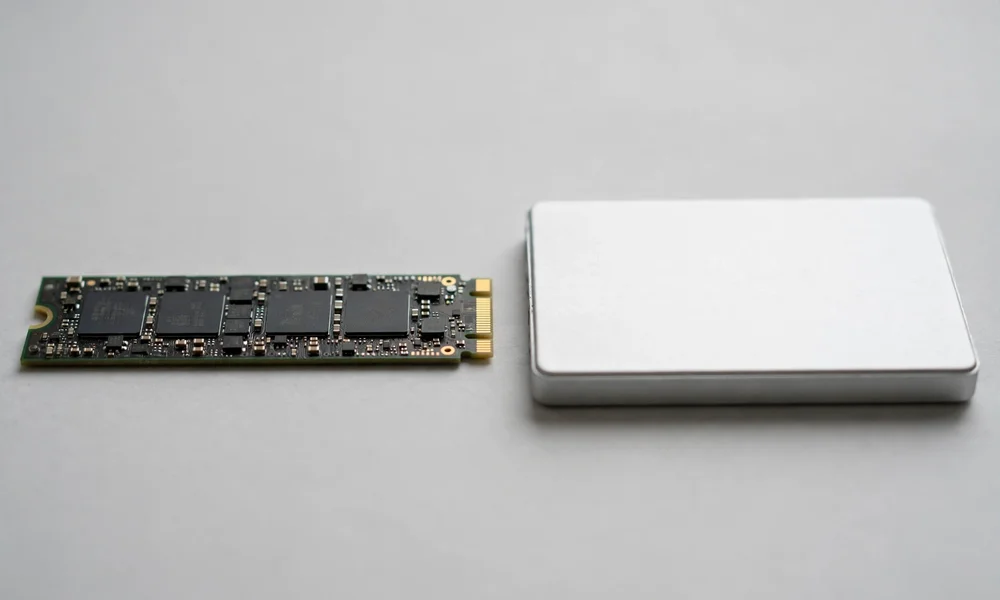
If you cannot find the manual, open the laptop and look at the drive inside. An M.2 drive is a small stick held down by one screw; a 2.5-inch drive is a flat rectangle about the size of a deck of cards. Photograph the label before closing the machine.
Watch out for the M.2 length
M.2 drives come in different lengths, and the most common is 2280, which means 22 mm wide and 80 mm long. Some compact laptops use the shorter 2230 or 2242 sizes, and a full-length 2280 drive will not fit in those slots. The length is printed on the drive and often on the slot itself, so buy the length your laptop takes, not the one with the best price.
Check whether the slot is NVMe or SATA
An M.2 slot can speak either the NVMe protocol over PCIe lanes or the older SATA protocol, and the two are not interchangeable. A slot with an M-key notch accepts NVMe drives, while a B-key slot accepts SATA drives. If your laptop has an M.2 SATA slot, a fast NVMe drive will simply not work in it. When in doubt, match the interface of the drive you are replacing.
Step 2: Decide how much speed you actually need
SSD speed is measured in megabytes per second, and the numbers on the box can mislead. A Gen 4 drive rated at 7,400 MB/s is twice as fast as a Gen 3 drive on paper, but for everyday work the difference is small, since booting and browsing are limited by other parts of the system too.
Where speed shows up is large file work: copying a 50 GB video project or exporting 4K footage finishes noticeably faster on a Gen 4 drive. If you edit video or run virtual machines, the faster drive is worth the small premium.
Step 3: Pick the right capacity
Capacity is the choice most people get wrong, usually by buying too little. A 256 GB drive sounds generous until the operating system and apps take 80 GB, and once an SSD passes 80 percent full it slows down and wears out faster.
For most laptop users, 1 TB is the right answer in 2026. It holds the operating system, apps, and a healthy library of files with room to spare, and the price per gigabyte at 1 TB is the lowest of any size.
Step 4: Check endurance, warranty, and the brand
SSDs wear out gradually as data is written to them, and endurance is measured in terabytes written (TBW). A 1 TB drive rated at 600 TBW would take a typical user writing 20 GB a day more than 80 years to wear out, so endurance is rarely the limiting factor at home.
The warranty matters more. Stick to drives with a five-year warranty from a manufacturer with real support, and avoid no-name drives with one-year warranties. A reputable brand is far more likely to honour a claim and to issue firmware updates.
Step 5: Buy the drive and the right tools
You need very little: a small Phillips screwdriver, usually PH0 or PH1, and a plastic pry tool or old credit card to open the base panel. Some laptops use Torx screws, so check the base first. Keep the tiny screws in a small bowl.
If you plan to clone your old drive rather than reinstall everything from scratch, you will also need a way to connect both drives at once. An inexpensive USB to M.2 enclosure or a SATA to USB adapter does the job, and you can reuse it afterwards as an external drive case for your old SSD. Free cloning software is available from most drive manufacturers, usually with a download link in the box or on the product page.
Step 6: Install the new SSD
Start by backing up your important files. Even a careful upgrade can go wrong, and a backup is the only thing that makes a mistake recoverable. Copy irreplaceable files to an external drive or cloud service first.
Remove the screws from the base panel and lift it off gently. Find the existing drive, remove its retaining screw, and slide it out at a slight angle. Insert the new drive the same way, press it flat, and secure it with the screw. Do not force anything.
Step 7: Move your data and verify the upgrade
If you cloned your old drive, the laptop should boot straight into your familiar desktop. Give it a few minutes on first boot, check your documents open, and run a quick speed test to confirm the drive performs near its rated speed.
Finally, make sure TRIM is enabled on Windows, which it is by default on modern versions, and keep the drive’s firmware up to date. Do not fill the drive beyond about 85 percent. If you want more performance, our guide on how to speed up a slow laptop covers the software side.
Troubleshooting common SSD problems
If the laptop does not detect the new drive, power off and reseat it, checking the connector for dust. Also check the BIOS or UEFI settings: the M.2 slot is sometimes disabled by default, or set to SATA mode when the drive needs NVMe mode.
If the drive is detected but much slower than expected, check which slot it is in. Some laptops have two M.2 slots, and only one runs at full speed. The manual will say which slot is the fast one. Also check that the drive’s firmware is current, and that you are testing with a large enough file, since small test files can understate the speed of a fast drive.
If cloning fails or the cloned drive will not boot, the usual cause is a partition size mismatch. Shrink the main partition on the old drive until the used space fits the new drive, then try again. If that fails, a clean install and manual restore is the reliable fallback.
Checklist: before you buy an SSD
- Confirm the slot type, interface, and maximum length your laptop accepts.
- Measure how much storage you use today and add 30 percent headroom.
- Choose 1 TB for most users, 2 TB for video, games, and large projects.
- Pick a drive with a five-year warranty and a published TBW rating.
- Buy the bare drive without a desktop heatsink for a laptop install.
- Back up your files and prepare cloning software before you open the laptop.
Frequently asked questions
Can I put any SSD in any laptop?
No. The laptop’s slot decides the form factor and the interface, and a drive that does not match will not fit or will not be detected. Check the manual or the existing drive before buying, and match the interface, the length, and the connector type exactly.
Is NVMe really faster than SATA for everyday use?
Yes, but the difference in everyday tasks is smaller than the numbers suggest. Both are far faster than a hard drive. NVMe shows its advantage with large files, video editing, and game loading, while SATA is still a solid upgrade for browsing and documents.
How much storage should I buy for a laptop?
Most people should buy 1 TB in 2026. It gives you room for the operating system, apps, and files without constantly managing space, and it has the best price per gigabyte. Buy 2 TB if you work with video or keep a large game library.
Will a new SSD make my old laptop feel new?
Often, yes. Storage is the most common bottleneck in older laptops, and an SSD upgrade is the single most effective performance improvement you can make. Boot times, app launches, and file operations all improve dramatically.
Do I need to reinstall Windows or macOS after fitting an SSD?
Not necessarily. Cloning copies everything from the old drive to the new one, including the operating system, so the laptop boots as before. A fresh install is cleaner but takes longer, since you must reinstall apps and restore files from a backup.
Can I upgrade the SSD in a MacBook?
Most MacBooks made since 2016 have soldered storage that cannot be upgraded by the user. For most Mac owners, the practical answer is an external SSD for extra space, and the best laptops for students guide is worth reading if you are choosing a new machine with upgradeable storage in mind.
The bottom line
Choosing an SSD for your laptop comes down to matching the drive to the slot, buying enough capacity, and picking a reliable brand with a five-year warranty. A 1 TB PCIe Gen 4 NVMe drive is the right choice for most laptops in 2026, while a 2.5-inch SATA drive is the answer for older machines with a hard drive bay. Check the manual, measure your usage, and back up before you start.
The upgrade itself takes under an hour, and the difference is immediate: faster boots, faster apps, and a laptop that feels years younger. Pair it with sensible security habits, including good encryption software for the data on the new drive, and your laptop is set for years of reliable service.



