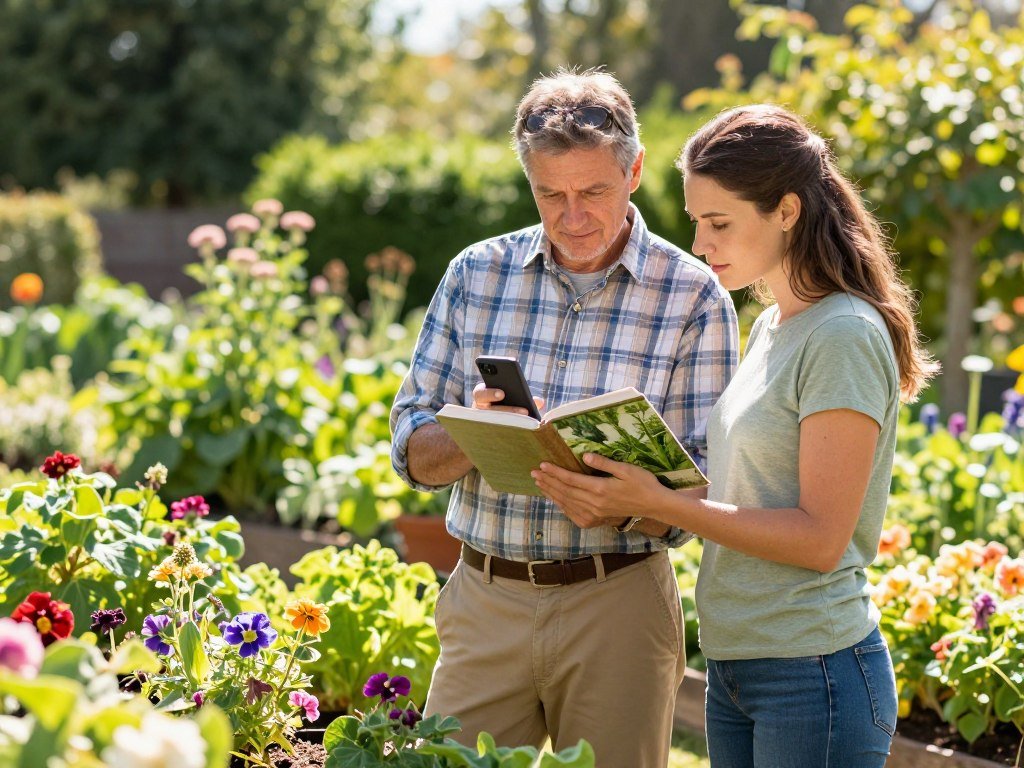
A clear picture can turn a mystery plant into a short list of likely names in moments. If you garden, hike, care for houseplants, or simply wonder what is growing nearby, a likely name can make learning easier. A genus is a taxonomic group that can include multiple closely related species. A species is a specific named plant type.
You can use online tools to get a first suggestion, then check it against what you see and where the plant grows. Clear photos and a few observations can improve the match, but a picture alone cannot guarantee the right answer. Treat the first match as a clue to check, not a final answer.
Key Takeaways
- Start with a clear view of the whole plant.
- Add close views of useful plant features.
- Share the location and date when you know them.
- Use a suggested identification as a starting point.
- Check a likely name against more than one clue.
How to Find the Name of a Plant From a Picture Online
Begin with one sharp picture that shows the plant’s overall shape, rather than a close-up that hides its context. A useful starter set has three views: the whole plant, a mature leaf, and a flower, fruit, or seed head when present. Bright, even light helps the tool read the image without confusing blur or deep shadows for plant details.
Use more than one view when you can, since a single picture may hide features that help identify plants. You can try a browser-based plant identification tool or Google Lens. Google Lens can search from a camera view, a saved image, or a screenshot, so it offers a free Google plant identifier route without a separate plant app.
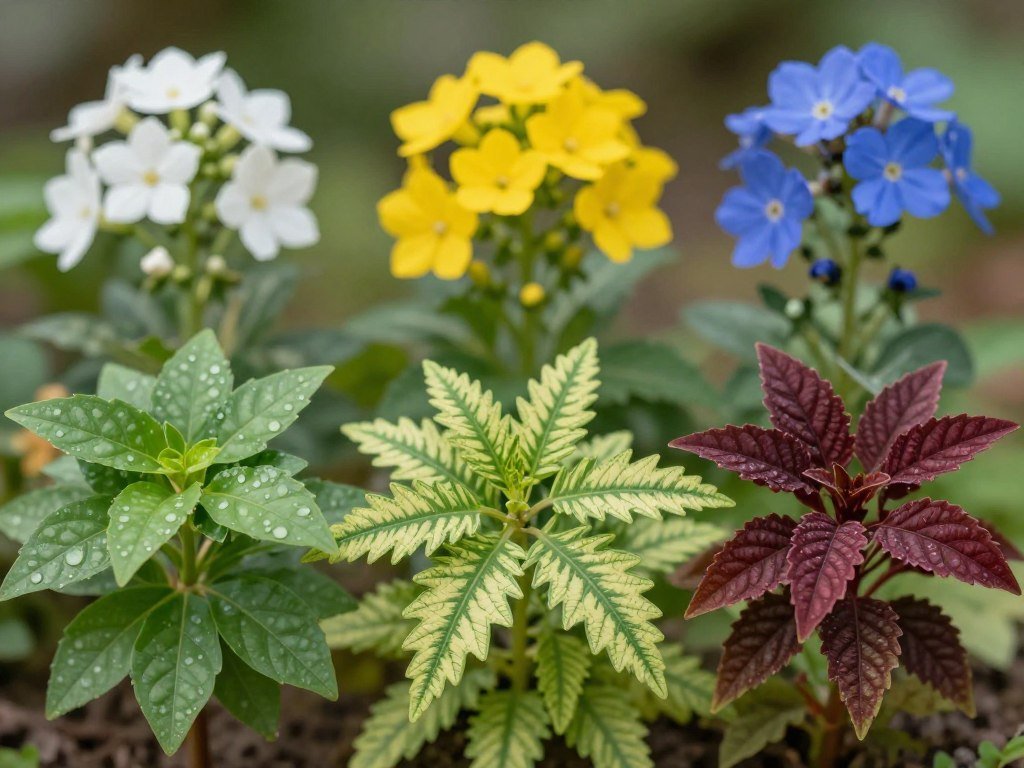
Start with a clear view
Frame the full plant first, including its shape and nearby growth. Then take a closer photo that stays in focus. A second close view can help when the plant has a flower, fruit, or seed head to show.
Keep the plant large enough to see, but leave a little space around it. If you photograph a tree or shrub, include enough of its form to show how it grows. Avoid filters that change its colors, since those can make a photo less useful.
- Take a whole-plant photo.
- Capture a close detail.
- Add a second diagnostic view if available.
- Upload it to a browser identifier or use Google Lens with a camera view, photo, or screenshot.
Add context and submit the photo
When you ask, “How to identify my plant,” add details that narrow the possibilities. Include the location, date, and whether the plant grows wild or in a garden. Those notes can help a tool judge which plants are likely in that area and season.
A suggested identification is a starting point, not proof that the name is right.
Some online tools show several possible names rather than one firm answer. Read the match list and note which plant features appear in the images or descriptions. If the first image gives only a broad match, submit a second view instead of repeatedly cropping the same photo.
Which Plant Features Make a Photo More Useful?
Two plants can share a leaf color while differing in leaf arrangement, edges, or flower structure. The most useful photos show several clues together, since plants often share one trait but differ in others. A mature leaf can be a better clue than bark alone, especially when you want to narrow a species.
A genus-level identification is often more dependable than a species-level match, especially from a bark photo. A 2022 comparison of six apps found leaf photos were identified more accurately than bark photos. The same test found genus-level identification more reliable than species-level results, based on 440 images of 55 New Jersey tree species.
The 2022 tree-app comparison tested a defined group of common trees, so its results do not guarantee the same accuracy for every plant.
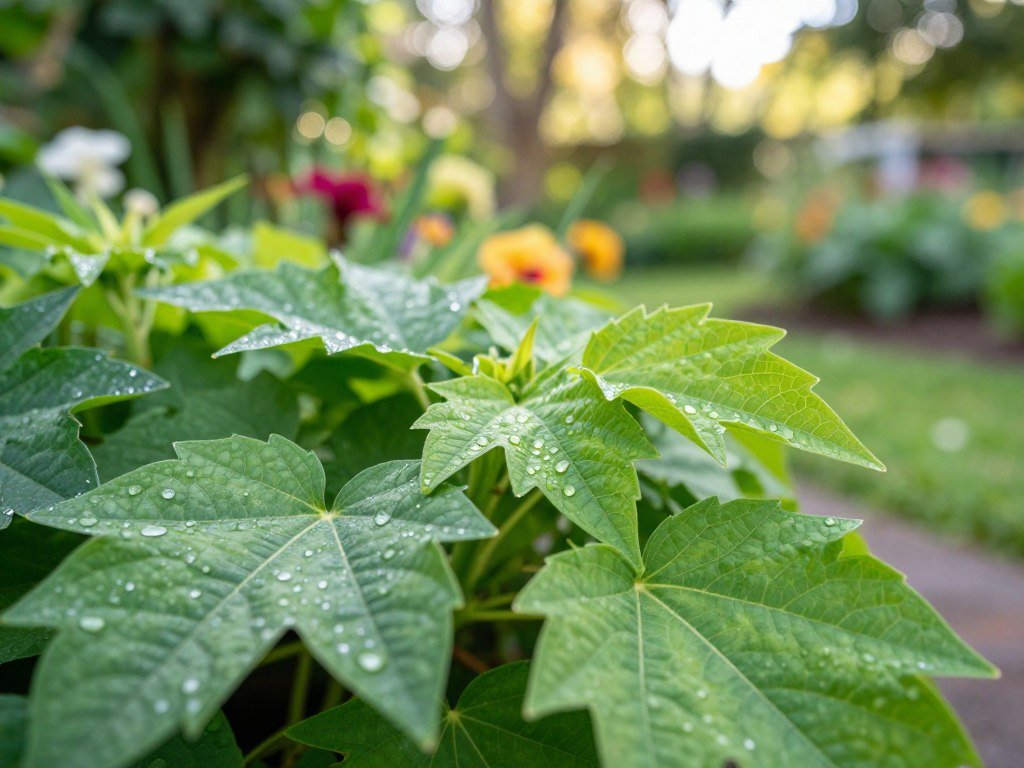
Compare leaves, stems, and bark
Look at where leaves attach to a stem, how they sit in pairs or groups, and whether their edges are smooth or toothed. Veins, surface texture, and leaf shape add more detail. A close view can also show stem color, thorns, or fine hairs.
For trees, bark can help, but it should not carry the whole identification. Bark changes as a tree grows, and different species can look alike. The 2022 test found a useful gap between leaf and bark photos, so a leaf image can give the tool better evidence.
Look for flowers, fruit, and seeds
To identify a flower by picture, consider its shape, how flowers are arranged, and which leaves grow nearby. Color alone can mislead because lighting and age may change how a flower appears. Buds can help when a bloom is not fully open.
Fruit and seeds add clues when they are present. A photo of a seed head may help separate plants that look similar before flowering. Houseplants can also be identified online for free with a browser-based tool, though location may tell you less about a cultivated plant.
Compare several visible features together, since a single resemblance can point to the wrong species.
How Can You Check Whether the Suggested Name Is Right?
A convincing name is still only a candidate until its diagnostic features fit the plant in front of you. Check the plant’s visible traits, region, season, and habitat before relying on the suggested identification. A 2022 study found that apps can narrow possible species but cannot replace traditional field identification.
Use four checks before you accept a species name. Compare the candidate’s key features, check its known range, see whether its expected season fits, and ask a local botanist or extension service when the answer matters.

Compare the result with field clues
Start with the features the candidate says should be present. Check whether they match the plant, rather than focusing only on its general shape. Then see whether the plant grows in your region and whether it appears at the expected time of year.
Habitat adds another useful check. A plant listed for wetlands is less likely to be a match on a dry hillside. If your observations conflict with the suggested name, ask a local botanist or extension service for help, especially when the identification affects a decision.
A 2026 study found ChatGPT’s botanical accuracy varied across Asia, Australia, Europe, and North and South America. It performed better at genus-level identification than at separating close relatives, hybrids, or microphotographs.
Use ChatGPT as a helper, not the authority
ChatGPT can suggest a plant name from a picture, but its answer is not an independent botanical authority. The 2026 study found it often gave inaccurate or misleading botanical information, including incorrect species names.
The study’s authors warned that ChatGPT is not reliable for independent botanical research and said factual claims need rigorous expert checks. You can read the 2026 ChatGPT botanical study for its findings across regions and tasks.
ChatGPT can still help you phrase questions about a plant or explain a term, but check important claims with a trusted expert. For more ways to use the chatbot, see this comparison of ChatGPT apps. Do not eat, brew, apply, or handle an unknown plant based only on an app or chatbot match.
Which Free Plant Identifier Should You Try?
The easiest first choice is Google Lens for a quick photo search, while Apple Visual Look Up is convenient when it is available on your iPhone. For a dedicated plant identifier, try Seek or Pl@ntNet; Plant.id also offers a limited free web demo. Your device and privacy needs can help decide which tool to use.
| Tool | How to access it | Useful distinction | Limit or condition |
|---|---|---|---|
| Google Lens | Camera, image, or screenshot | Searches a plant picture | Check the suggested match |
| Apple Visual Look Up | iPhone photos and videos | Built into supported devices | Availability varies by region and language |
| Seek | App for plants, animals, and fungi | No registration; no default data collection | Precise location can be sent with signed-in iNaturalist submissions |
| Pl@ntNet | Website and Android or iOS app | More than 70,000 species and 77 regional floras | Downloaded offline model has lower quality than connected use |
| Plant.id | Web demo | Identifies plants, mushrooms, and lichens | Free demo allows 10 identifications per month |
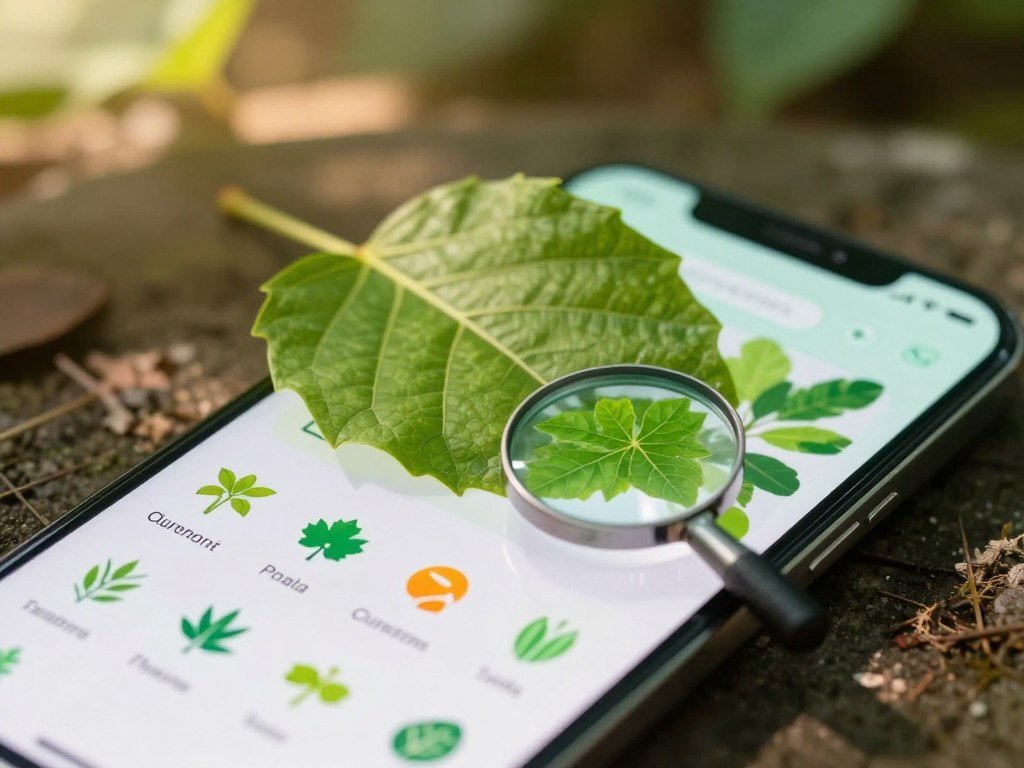
A free plant identifier is available, but free access can have limits. Plant.id’s web demo permits up to 10 identifications per month. Its listed paid plans cost €5 per month for up to 50 identifications or €35 per year for up to 600.
Use a built-in search or browser tool
Google Lens can identify a plant from a picture using a camera view, a saved image, or a screenshot. It is a quick way to start without installing another app. Apple Visual Look Up can name plants in iPhone photos and videos, though its availability depends on your region and language.
Pl@ntNet works as a web service and an Android or iOS app. It covers more than 70,000 identifiable plant species through 77 regional floras. Its citizen-science model uses community observations, which people review to help train the AI.
Pl@ntNet generally retrains its AI monthly. It filters out photos that are too blurry, too cluttered, or short on identifying information. That can help you spot when an image needs work before you trust a result.
Choose a dedicated plant-identification app
Pl@ntNet can identify plants offline if you download its embedded model first. The offline model is more limited than the connected version and had a slight quality loss of a few percent in evaluations. When you reconnect, you can use community sharing and re-identification with the full engine.
Seek recognizes plants, animals, and fungi without requiring registration. It does not collect user data by default. Seek obscures location to suggest species from a general area, and it does not store or send precise location unless you sign in to iNaturalist and submit observations.
Plant.id covers more than 35,000 plant, mushroom, and lichen taxa. It also lists 548 detectable plant-health conditions. Those features may help when you want a plant name or need to explore a possible disease, but the free-use cap still applies.
A 2022 comparison ranked PictureThis highest in accuracy, followed by iNaturalist, while PlantSnap did not identify consistently accurately. The study covered six apps and 55 New Jersey tree species, so it cannot promise the same results for every plant. The 2022 app accuracy study provides those test details.
Pick the option that fits your device and privacy needs, then compare its strongest match against the plant’s actual features.
Choose a browser tool when you do not want another app, or use an offline model when you expect to lose service. If you submit observations to a community service, check its location settings first.
Conclusion
A good plant identification begins with useful evidence, not a guess from one leaf. Clear photos and several matching features give you a stronger starting point, whether you are learning about a garden plant or a tree on a hike.
Some results may be clear enough for casual learning, while a confident species identification may need expert confirmation. Keep your observations with the suggested name so you can compare them with a trusted guide. Take a clear whole-plant photo and one close-up, then compare the suggested name with a trusted local plant guide.
FAQ
How do you take a picture of a plant to find out what it is?
Use a sharp, well-lit picture of the whole plant, then add close-ups of its leaves and flowers or fruit when present. Keep the plant in focus and avoid filters that change its colors. A full view shows its shape, while close details give an identifier more useful evidence. Add the date and location if you know them.
How can I identify a plant using my iPhone?
Try Apple Visual Look Up in an iPhone photo or video to get a plant suggestion. Its availability depends on your region and language. Google Lens is another option, and you can search from a camera view, saved image, or screenshot. Compare the result with the plant’s visible features before settling on a species name.
Can ChatGPT identify plants?
ChatGPT can suggest a possible plant name, but its answer needs expert checks. A 2026 study found that its botanical accuracy varied across regions and that it struggled with closely related plants, hybrids, and tiny images. It also gave incorrect species names. Treat its response as a clue, not an independent authority for botanical facts.
Is there a plant identifier 100% free?
Some plant identifiers offer free access with limits, rather than unlimited use. Plant.id’s free web demo allows up to 10 identifications per month. Other options include Google Lens and tools with free features, though access and features differ. Check what each free option includes before choosing it for regular plant searches.
How to identify a plant with Google for free?
Use Google Lens with a camera view, saved image, or screenshot to search for a plant. Lens can return similar images and possible names without a separate plant identifier app. A result is still only a suggestion, so compare it with the plant’s features and location before you accept the match.
How can I identify plants from a photo online for free?
Upload a clear plant picture to an online identifier, such as a browser-based service. A full view and one close-up can give the tool more useful detail than a single cropped image. Free use may have limits, such as Plant.id’s demo cap of 10 identifications per month. Check any suggested name against the plant itself.
How to identify plants without an app?
Use a browser-based service such as Pl@ntNet or Google Lens with a plant image. These options let you search without installing a dedicated plant app. Then compare the proposed name with visible features and the plant’s likely region. If the match matters for a decision, ask a local botanist or extension service.



