Learning how to reset your router is one of the most useful home networking skills you can pick up, because a reset can clear a stubborn fault, remove a forgotten admin password, and return a misconfigured device to a known good state. Most routers have a small recessed button, and pressing it for the right length of time restores the factory settings. The whole process usually takes less than fifteen minutes, including setup afterwards.
A reset is not the same as a restart. A restart simply switches the router off and on, keeping your Wi-Fi name, password, and settings intact, while a factory reset wipes them all and returns the router to the way it left the factory. Try a restart first for slow speeds, and keep a factory reset for a lost admin password or settings that no longer work.
This guide walks through both options in order, so you can try the gentle fix first and only wipe your settings when it is genuinely needed. It covers how to find the reset button, how long to hold it, and how to set your network up again. Follow the steps in order and keep your broadband login details nearby.
Key takeaways
- A restart keeps your settings; a factory reset wipes your Wi-Fi name, password, and custom settings completely.
- Try a restart first for slow speeds, and save a factory reset for a lost password.
- Hold the reset button for 10 to 30 seconds with a paperclip until the lights change.
- Write down your broadband username and password before you reset.
- After a reset, change the default admin and Wi-Fi passwords straight away.
Restart vs Factory Reset at a Glance
Before you touch the reset button, decide which fix your problem needs. A restart is quick, safe, and keeps everything as it is, making it the right first step for most everyday faults. A factory reset solves deeper problems but creates real work afterwards, because every device will need to reconnect to a fresh network.
| Detail | Restart (reboot) | Factory reset |
|---|---|---|
| What it does | Switches the router off and on | Restores original factory settings |
| Wi-Fi name and password | Kept unchanged | Wiped to the factory defaults |
| Admin password | Kept unchanged | Reset to the default on the label |
| Time needed | About 2 to 3 minutes | About 10 to 15 minutes plus setup |
| Best for | Slow speeds, dropped connections | Lost password, broken settings |
| Risk | Very low | You must set the router up again |
| How to do it | Unplug for 30 seconds, plug back in | Hold the reset button for 10 to 30 seconds |
If your internet is slow or a device keeps dropping off, a restart is almost always enough, and you can read our guide on how to speed up your Wi-Fi router for the other quick fixes worth trying first. If you have forgotten the admin password or bought a second-hand router with someone else’s settings on it, a factory reset is the right call.
Step 1: Save Your Settings and Passwords
Preparation takes five minutes and saves a lot of frustration later. First, find your broadband login details, which your internet provider gave you when the service started, because some connections need a username and password entered into the router before they will work.
Next, note down your current Wi-Fi name and password if you want to reuse them, and photograph the label on the router, which shows the default network name, password, and admin login. If you have port forwarding rules, custom DNS, or parental controls, screenshot those settings pages too, since a reset will erase them. Finally, tell everyone in the house the Wi-Fi will be down for about fifteen minutes.
Step 2: Find the Reset Button on Your Router
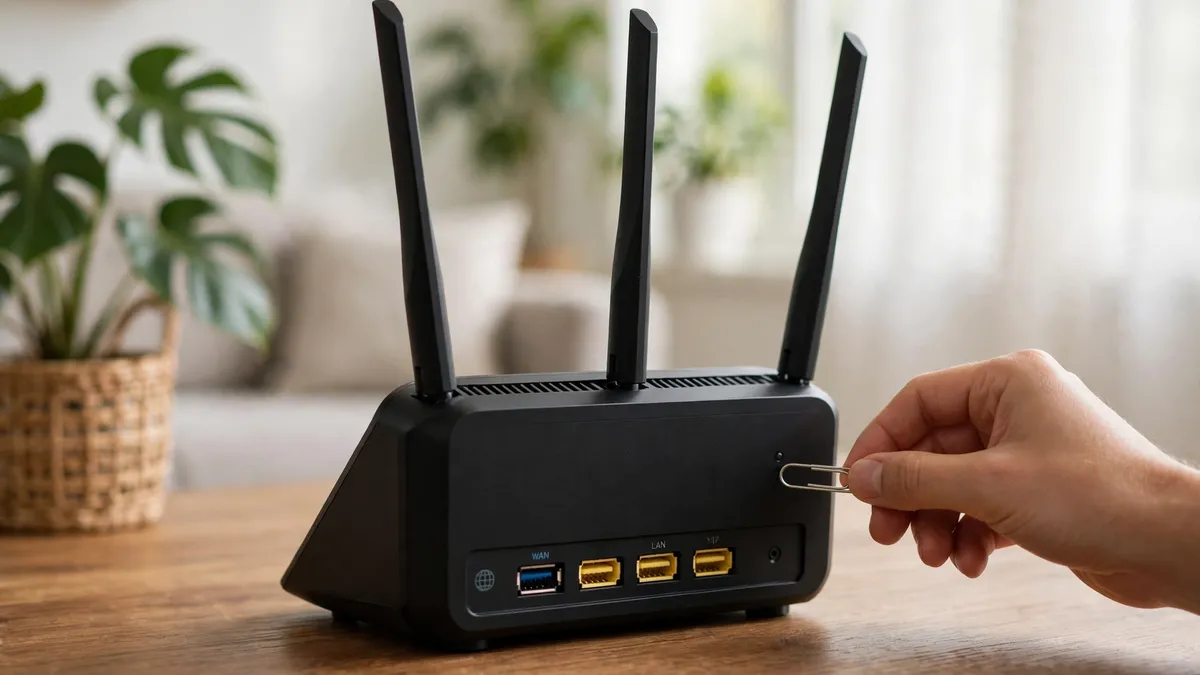
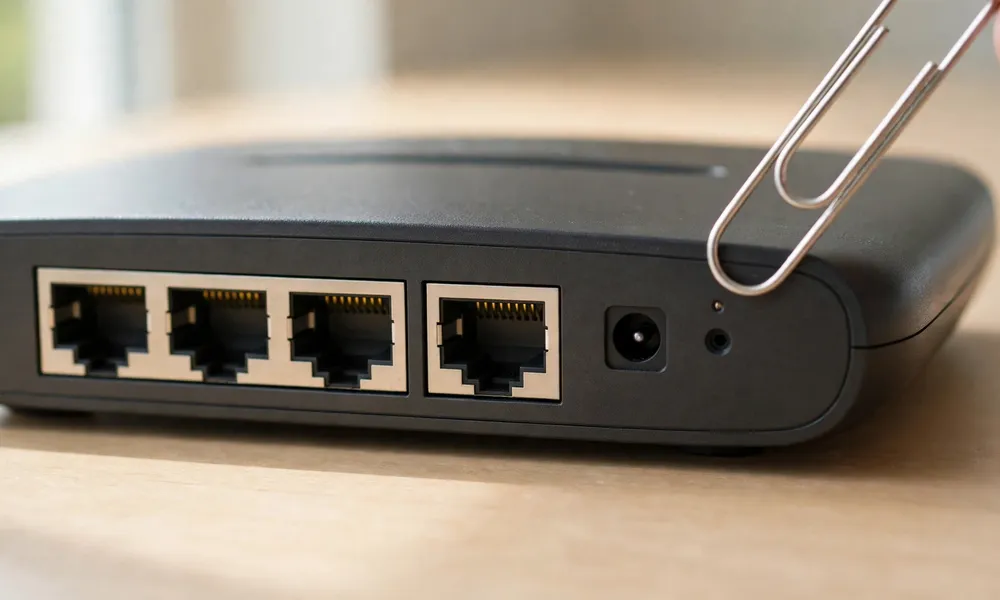
The reset button is deliberately hard to press by accident, so it is usually a tiny hole labelled Reset on the back or underside of the router, near the power socket and the Ethernet ports. Some routers use a small button you can press with a fingertip instead, but the physical button is the reliable method when you cannot log in.
You will need a straightened paperclip, a SIM ejector tool, or a thin pin to reach the button, and a torch helps if the router sits in a dark corner. Do not use a knife, which can damage the button, or a pencil, whose tip can snap off inside the hole. If you cannot find a button, check the manual for your exact model.
Step 3: Press and Hold the Reset Button
With the router powered on, push the paperclip gently into the reset hole until you feel a small click. Hold it down steadily for 10 to 30 seconds, and watch the lights on the front, because they will usually blink, change colour, or go out and come back on when the reset takes effect.
Do not release the button early, and do not unplug the router while it is resetting, because interrupting the process can leave it in a half-reset state. The lights are your best guide rather than counting alone. Once they change, release the button and leave the router alone while it restarts, which usually takes one to three minutes.
Step 4: Wait for the Router to Reboot
After the reset, the router will reboot with its factory settings. Wait until the power light is solid and the internet light is on or blinking steadily, which usually takes two to three minutes, and do not press the button again or unplug the router during this time.
Your old Wi-Fi network name will have disappeared, replaced by the default name on the router label, and every connected device will have dropped off. This is expected and confirms the reset worked. If the default network does not appear after five minutes, check the power cable, then try the reset once more with a full 30-second hold.
Step 5: Log In and Set Up Your Router Again
Connect to the router’s default Wi-Fi network using the password on the label, or plug a laptop into an Ethernet port with a cable. Then open a browser, go to the admin address, usually 192.168.1.1 or 192.168.0.1, and log in with the default admin details from the label.
Most modern routers show a setup wizard the first time you log in after a reset, so follow it step by step. Enter your broadband username and password if asked, choose a new Wi-Fi name and a strong password, and pick WPA2 or WPA3 security if offered. Reusing your old Wi-Fi name and password means your devices will reconnect automatically.
Step 6: Secure the Router and Reconnect Your Devices
Security comes first once the basic setup works, because a freshly reset router runs on default passwords anyone with the same model could guess. Change the admin and Wi-Fi passwords to strong, unique ones, and check for a firmware update.
Now reconnect your devices one by one, starting with your work laptop and phone. If you reused your old Wi-Fi name and password, most devices will reconnect on their own, but smart home gadgets, printers, and streaming sticks may need reconnecting by hand. Test the connection in a few rooms and reapply any custom settings you noted down. For a fuller security pass, follow our guide on how to secure your home Wi-Fi network once everything is back online.
Troubleshooting: When the Reset Does Not Work
If the reset button seems to do nothing, the most common cause is a hold that was too short or a paperclip that did not reach the button. Try again with a longer, firmer press for a full 30 seconds while watching the lights, and make sure the router is powered on first.
If the router reboots but your old settings are still there, you probably pressed the WPS button or the power button by mistake, since those sit close to the reset hole on some models. Double-check the label next to the hole you used. If it still will not reset, log into the admin page and use the factory reset option under Administration or System instead.
A router that will not power on at all may have a faulty power adapter, so test it in a different socket. If the lights come on but the internet light never turns solid, check the cable from the wall and re-enter your broadband username and password. If none of this helps, contact your internet provider. A router that keeps needing resets may be overheating or simply too old, and our roundup of the best VPNs for routers in 2027 is a useful read if you want your replacement to handle VPN protection for the whole household.
Checklist: Before and After You Reset Your Router
- Write down your broadband username and password, and photograph the router label with its default logins.
- Save screenshots of any custom settings, such as port forwarding, DNS, or parental controls.
- Warn everyone in the house that the Wi-Fi will be down for about fifteen minutes.
- Hold the reset button for 10 to 30 seconds until the router lights change, then wait for a full reboot.
- Change the default admin password and Wi-Fi password immediately after setup.
- Reconnect every device, test the connection in each room, and check for a firmware update.
Frequently Asked Questions
How long should I hold the reset button?
Hold it for 10 to 30 seconds and watch the lights rather than counting alone. They will usually blink, change colour, or go out and come back on when the reset takes effect, and that is the signal to release the button.
Will resetting my router delete my internet connection?
A factory reset deletes the settings your router uses to connect, including your broadband username and password, so your internet will be down until you enter those details again. Once you re-enter them in the setup wizard, the connection should come back within a few minutes.
What is the difference between resetting and restarting a router?
Restarting switches the router off and on while keeping all your settings, which fixes most temporary glitches. Resetting restores the factory settings and wipes your Wi-Fi name, passwords, and custom settings, so you have to set the router up from scratch. Use a restart for everyday problems, and a reset only when the settings themselves are the problem.
Do I need a paperclip to reset my router?
Most routers need a thin tool because the reset button sits inside a small pinhole, and a straightened paperclip or a SIM ejector tool works well. Avoid pencils, which can snap, and knives, which can damage the button.
Will my devices reconnect automatically after a reset?
They will only reconnect on their own if you set the Wi-Fi name and password back to exactly what they were before the reset. If you choose a new name or password, reconnect every phone, laptop, smart TV, and smart home device by hand.
How often should I reset my router?
You should not need to factory reset a healthy router at all, and a restart once a month is enough to keep most routers running well. If you find yourself resetting every few weeks, the router may be overheating, running old firmware, or reaching the end of its life, so update the firmware and move it to a cooler spot with better airflow.
The Bottom Line
Resetting your router is straightforward once you know the difference between a restart and a factory reset, and the preparation is what makes it painless. Try a restart first for slow speeds, keep a factory reset for lost passwords and broken settings, and always note down your broadband details before you wipe them.
If a reset fixes the problem, you have saved yourself a support call, and your network is back on a clean setup. If the same fault returns within days, look beyond the reset to the real cause, whether that is old firmware, overheating, or a router at the end of its useful life.