A Windows screenshot can be copied for pasting or saved as an image file, depending on the method you choose. When you need to show a computer screen, the right keyboard shortcut can make the task quick and simple. The clipboard is a temporary holding area where Windows keeps copied content until you paste it into an app.
This guide helps you choose a shortcut for the entire display, one window, or a selected area. You’ll also learn what to do when a capture needs editing, where saved images go, and how Windows 11 and Windows 10 handle them. First, decide whether you need a copy to paste or a file to keep. Then pick the capture method that fits.
Windows offers more than one way to capture still images, so you can match the method to your next step. Some shortcuts save a file right away. Others copy the image, leaving you free to paste it into a message, document, or image app. If you only need to share an image once, a clipboard capture may be enough.
Key Takeaways
- Choose a full-screen, active-window, or selected-area capture.
- Use the Snipping Tool when you want more control.
- Check whether the image was copied or saved as a file.
- Use Xbox Game Bar for supported game or app captures.
- Try a test capture to confirm where the image went.
Which Windows keyboard shortcut should you use?
For the fastest choice, first decide whether you need the whole display, just the window in front, or a smaller area. Each route captures a different scope, and some copy the result while others save it. For a quick choice, match the shortcut to the amount of screen you want.
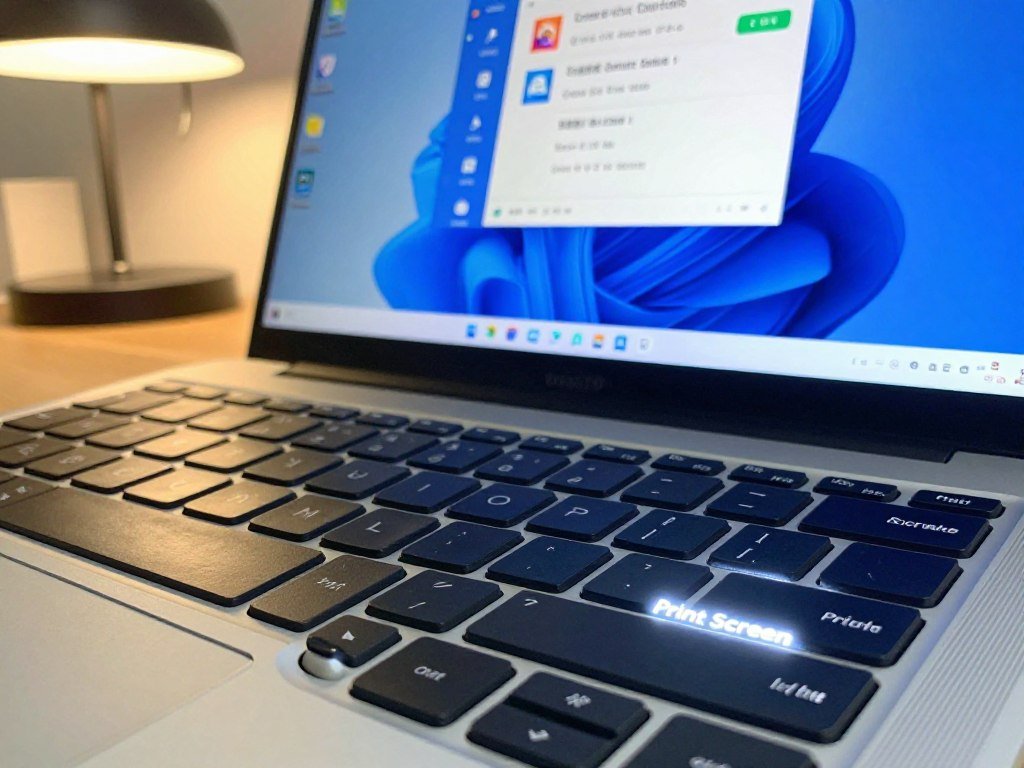
To take a screenshot on a PC with a keyboard, use the Print Screen key for a full-screen clipboard copy, or select an area with Windows logo key + Shift + S. The active-window route uses Alt + Print Screen. You can paste a copied image into an app, while a saved capture becomes a file.
| What you need | Shortcut | Result |
|---|---|---|
| Entire display | Print Screen | Copies image to clipboard |
| Window in front | Alt + Print Screen | Copies active window |
| Selected area | Windows logo key + Shift + S | Copies selected snip |
| Saved full-screen image | Windows logo key + Print Screen | Saves a PNG file |
The Print Screen key is often labeled PrtSc or PrtScn. Some keyboards place the key in a top row, while others combine it with another key. The label can help you spot the right button before trying a shortcut.
Choose the capture scope first: the entire display, one active window, or a smaller selection.
A selection shortcut is useful when you need a chart or a few lines, not the whole desktop. For a ready-to-find file, use a shortcut that saves the capture. Check the key label before trying a shortcut, since PrtSc and PrtScn can refer to the same key.
How to Take a Screenshot on Windows With the Snipping Tool
Snipping Tool is Windows 11’s built-in app for capturing and working with screen images and video snips. It gives you more control than a quick keyboard capture, since you can choose what to include. Start Snipping Tool from Start when you want to pick a capture mode.
Choose a Snipping Tool capture mode
Snipping Tool offers five image and video capture types. Choose the one that fits the content you want to show:
- Rectangular snip: drag a box around the screen area.
- Freeform snip: draw an uneven outline around an item.
- Window snip: capture one app window.
- Full-screen snip: capture everything on the display.
- Video snip: record a selected area as a clip.
For a Windows 11 screenshot made from a custom area, press Windows logo key + Shift + S. The image selection overlay appears over the screen. Choose a shape, then mark the part you want to capture. The selection opens in Snipping Tool, where you can edit, save, or share it.
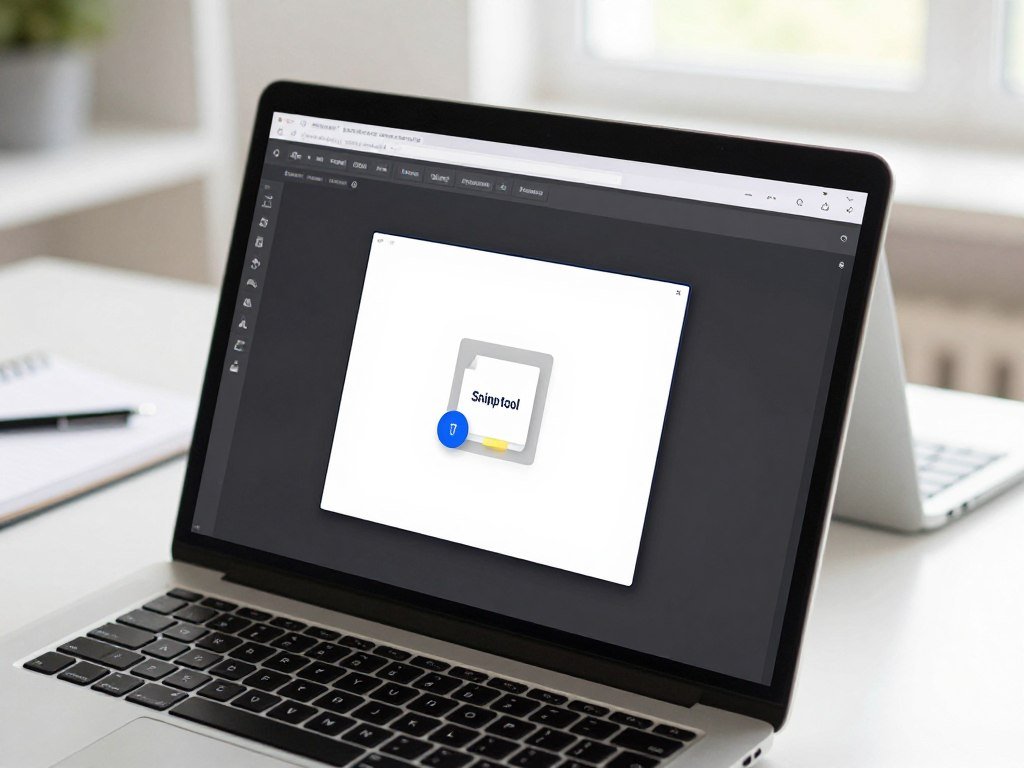
After a snip opens in the app, you can add notes with annotation tools or crop the edges. Text actions can help you work with text in an image. A delay option gives you time to open a menu before the capture starts.
Use the added features on a Copilot+ PC
On a Copilot+ PC, Perfect screenshot adjusts the capture area to frame on-screen content. It can help fit the selected area around the content you want. The Color picker copies a selected screen color value to the clipboard.
Perfect screenshot and Color picker require a Copilot+ PC. They are extra tools, not required for a standard snip. On other Windows 11 PCs, you can still use the regular capture modes and editing features.
The best mode depends on the content: a window snip keeps one app in view, while a freeform snip can follow an irregular shape. Use a delayed capture when a menu must be open at the moment you take the image.
How do you capture the entire screen?
Choose a clipboard copy when you plan to paste the whole display into another app, or a saved PNG when you want a file ready to find. Both options capture the whole display, but they leave the image in different places. Print Screen copies; Windows logo key + Print Screen saves a file.
In Windows 11, Print Screen copies a full-screen screenshot to the clipboard. The full-screen Print Screen capture can then be pasted into an app. Windows logo key + Print Screen saves a full-screen PNG in Pictures > Screenshots. Snipping Tool also includes a full-screen capture mode.
| Method | Key or control | Result | Where to find it |
|---|---|---|---|
| Print Screen | Print Screen key | Clipboard image | Paste into an app |
| Windows shortcut | Windows logo key + Print Screen | PNG file | Pictures > Screenshots |
| Snipping Tool | Full-screen mode | Capture opens in app | Snipping Tool |
The clipboard route suits a one-time share, such as adding the display to an email. The saved PNG works better when you expect to use the image again. A full-screen capture can include open apps, notifications, and other visible details.
Before taking a full-screen capture, close or move anything private that should not appear.
How do you capture only the active window?
To keep the image focused on one app, select its window first and use the active-window capture shortcut. Alt + Print Screen copies an image of the active window to the clipboard. The active window is the one currently selected or in front.
Click the app window you want before pressing the keys. Then press Alt + Print Screen. The capture includes that window, rather than the full desktop behind it.
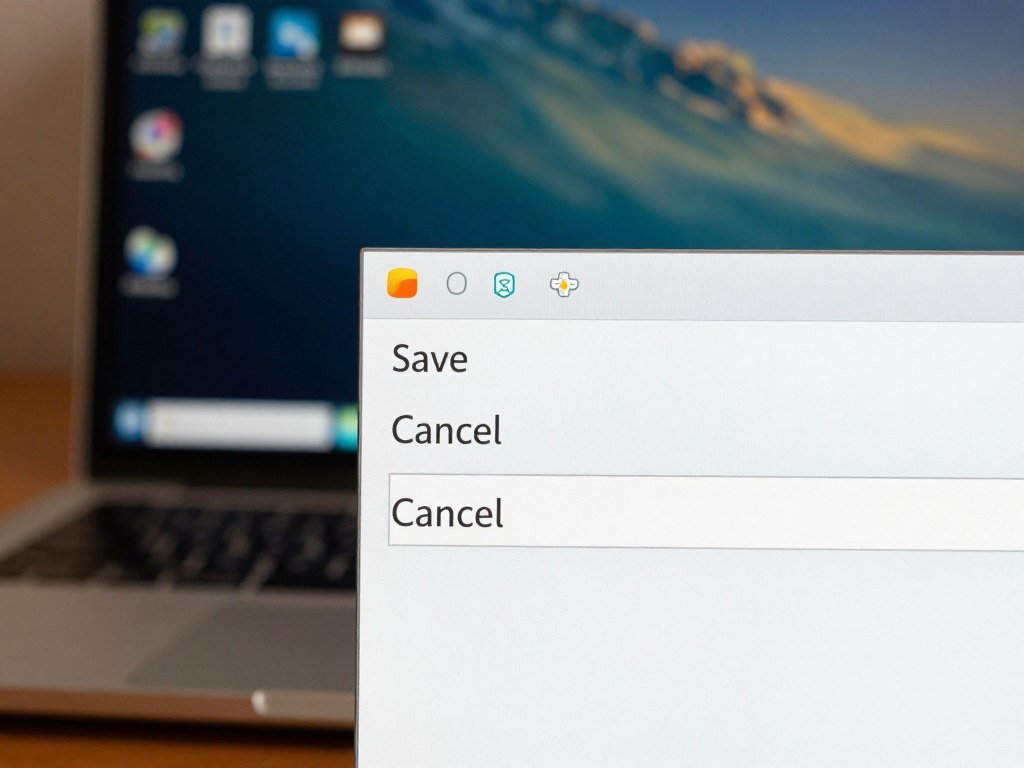
Paste the image with Ctrl + V into Paint, a document, or an email. For example, you can capture a settings dialog box without showing the open browser or other desktop content around it. That keeps the image easier to read and share.
Some dialog boxes sit over the app they belong to. Click the dialog itself before capturing, so Windows treats it as the selected window. If you want to show the app and dialog together, a full-screen capture may fit better.
Confirm that the intended window is active before capturing, especially when several windows overlap.
How do you capture just part of the screen?
A selected-area capture is the practical choice when you need one chart, paragraph, or detail without surrounding content. Windows logo key + Shift + S opens the selection overlay in Windows 10 and Windows 11. The selection is copied to the clipboard, not automatically saved as a named file.
Use these steps to capture and use a small screen area:
- Press Windows logo key + Shift + S to open the overlay.
- Choose a selection shape from the controls at the top.
- Drag around the part of the screen you want.
- Paste with Ctrl + V, or open the capture in Snipping Tool to save it.
For example, select one part of an email that contains a date or a short instruction. You can paste the snip into a message without including the rest of the inbox. If you need a file, open the capture in Snipping Tool and save it there.
The screenshot selection overlay is a quick screen capture route on both Windows 10 and Windows 11. The capture goes to the clipboard, so it may not appear in a folder until you save it from an app. Windows logo key + Shift + S opens the selection overlay on supported versions.
Include a little margin around the item so labels or borders are not cut off.
Where do Windows screenshots go, and how do you save them?
A screenshot’s destination depends on whether the capture was saved automatically or is still waiting on the clipboard. Check the capture route first, since a copied image is not yet a file. In Windows 11, Snipping Tool can automatically save captured snips to the Screenshots folder.
Find the automatic Screenshots folder
Snipping Tool’s automatic-save setting controls whether captured snips go to the Screenshots folder. Its settings can also change the default folder. If you cannot find a capture there, check the app’s settings and confirm its automatic-save behavior.
A clipboard capture needs another step before it becomes a file. Paste it into an app, or open it in Snipping Tool and save it. This difference matters when a capture seems to have vanished: the image may still be copied, not saved.
Save a copy or choose another folder
In Snipping Tool, press Ctrl + S to save an open snip. Choose a file name and location in the save dialog. Windows 10 users can open a captured snip and choose Save As.
| Capture route | How it is saved | Where to look |
|---|---|---|
| Windows 11 Snipping Tool auto-save | Saved by app setting | Screenshots folder or chosen default folder |
| Ctrl + S in Snipping Tool | Save open snip | Folder chosen in save dialog |
| Windows 10 selection overlay | Paste into app or open in Snipping Tool | Clipboard until saved |
For a Windows 10 selection-overlay capture, paste the clipboard image into an app and save it, or open the capture in Snipping Tool. The capture does not become a file just because the selection overlay closed. A clear name also helps separate a new image from older captures.
Give saved images a clear filename so they are easier to recognize later.
What if your keyboard has no Print Screen key?
If the expected key is missing, check whether the keyboard combines Print Screen with another function. Key labels and placement vary by keyboard, especially on compact laptops. A device without a PrtScn button can use Fn + Windows logo key + Space Bar.
Some HP laptop models need Fn + PrtSc to take a screenshot. If the key shares a button with another function, Fn may tell the keyboard to use its Print Screen action. Look closely at the key markings before trying the alternate combination.
| Keyboard situation | Keys to try | What to expect |
|---|---|---|
| No PrtScn button | Fn + Windows logo key + Space Bar | Screenshot shortcut |
| HP laptop needs Fn | Fn + PrtSc | Screenshot on some models |
| Windows key unavailable | Print Screen or Start, then Snipping Tool | Full-screen copy or app capture |
For an HP laptop, try Fn + PrtSc if its model uses that combination. When your PC has no Windows key, Print Screen may still copy the screen. You can also open Snipping Tool from Start and capture the area you need.
If a shortcut seems to do nothing, check whether the keyboard has a function-lock setting. Its behavior depends on the keyboard, so avoid assuming the same key pattern works on every laptop. A separate keyboard can also place Print Screen in a different row.
Try the alternate key combination once, then confirm that an image appeared before repeating the capture.
How do you take a screenshot on Windows 10?
On Windows 10, a selected-area capture is copied first, so save it from an app or Snipping Tool if you need a file. The overlay does not create a named file by itself. Windows logo key + Shift + S copies the selected snip to the clipboard.
To save that selection, paste it into an app such as Paint or a document, then save the image. You can also open the captured snip in Snipping Tool and choose Save As. Either route turns the clipboard image into a file you can find later.
Windows 10 also includes Snipping Tool for capturing and saving screen images. Open the app, make a snip, then use Save As to choose a file name and folder. This route works well when you want to name the file as soon as you capture it.
On supported Windows 10 and Windows 11 devices, Windows logo key + PrtScn saves screenshots to Pictures > Screenshots. That shortcut saves the full screen as a file, rather than leaving the only copy on the clipboard. The folder is a useful first place to check.
If no file appears, check whether the capture is still on the clipboard rather than assuming it failed.
How do you take a screenshot on Windows 7?
Windows 7 users can use the built-in Snipping Tool to select and save an area of the screen. It is a practical choice for a partial capture, such as one chart or a small section of a web page. Start Snipping Tool from the Start menu.
Open Start, type Snipping Tool in the search box, then select the app in the results. When it opens, choose New and drag around the area you want to capture. The selected image opens in Snipping Tool for review.
Use the app’s save control to keep the image as a file. Give it a name that describes what it shows, then choose a folder you can find again. The Save As dialog lets you check the destination before you finish.
The selection method is useful when the whole desktop contains extra details you do not want to share. Snipping Tool lets you frame just the needed portion before saving. Do not assume every Windows 11 shortcut or feature is available in Windows 7.
Check the saved file’s location in the Save As dialog before closing it.
Can you record video with a Windows screenshot shortcut?
For moving content, Windows offers a Snipping Tool video clip and an Xbox Game Bar app recording. Choose based on what you need to show: a selected screen area or activity inside one app. Windows logo key + Shift + R opens a Snipping Tool video capture on Windows 11.
Record a video snip with Snipping Tool
With the overlay open, select a rectangular screen area, start recording, then stop and save the clip. This route suits a short demonstration that needs only part of the display. Keep the selected frame tight so viewers can focus on the action.
Record an app with Xbox Game Bar
Xbox Game Bar records one application at a time on Windows 10 and Windows 11. Press Windows logo key + Alt + R to start or stop an app recording. Recordings usually appear in Videos/Captures.
Use these steps to make and check an app recording:
- Open the app you want to record.
- Start the recording with the Xbox Game Bar shortcut.
- Stop the recording when the activity is complete.
- Open Videos/Captures and review the saved clip.
Game Bar can help when you need to show an app task, such as changing a setting or walking through a form. If your goal is to make a new clip rather than record your screen, try this beginner guide to creating AI videos for ideas about text, image, and video prompts.
Record a short test first if the steps matter, then check that the clip plays as expected. A video may include more activity than a still image, so keep the app focused on the task. Check the recording before sharing it to make sure the intended app and audio were captured.
Can Xbox Game Bar take screenshots of games and apps?
Xbox Game Bar is a useful built-in route for capturing a game or app without switching to a separate image editor. Its Capture widget includes a camera control for still images. Game Bar is aimed at app and game capture, not recording the Windows desktop or File Explorer.
Use these steps to take and review a capture:
- Press Windows logo key + G to open Xbox Game Bar.
- Open the Capture widget.
- Select the camera control.
- Review the saved capture.
Game Bar can capture an app or game when you want to keep a still image from its screen. The desktop and File Explorer limit applies to recording. It does not mean a still screenshot can never be made with another Windows capture method.
Use another recording method when the Windows desktop or File Explorer must appear in a video.
For a game, open the game screen you want before bringing up the widget. For an app, keep the relevant content visible so the saved image shows the right moment. The camera control is the still-image option inside Game Bar.
If you need to capture the Windows desktop or File Explorer as video, choose a different recording method.
Conclusion
The easiest screenshot method is the one that matches the size of the content and how you plan to use the image. Choose the area first, then decide whether you need a clipboard copy or a saved file. That small choice makes it easier to find the result later.
Try one capture on your own screen, then check where it landed. If it was copied, paste it into an app; if it was saved, open its folder. Take a test capture now, then paste it or open its saved folder to confirm the workflow works on your PC.
FAQ
What is the Snipping Tool on Windows 11?
Snipping Tool is the built-in Windows 11 app for capturing and editing screen images. It offers rectangular, freeform, window, full-screen, and video snips. You can open it from Start, choose a capture type, then edit or save the result in the app. Its video option records a selected screen area rather than a still image.
What is the keyboard shortcut for screen recording in Windows 11?
Windows logo key + Shift + R opens a Snipping Tool video clip, while Windows logo key + Alt + R records an app with Xbox Game Bar. The first route lets you select a rectangular screen area. Game Bar records one application at a time. Use the shortcut that matches the content you want to show.
What is the Ctrl key for Screenshots?
Ctrl + V pastes a copied screenshot into an app, and Ctrl + S saves an open snip in Snipping Tool. The Ctrl key alone does not take a Windows screenshot. Pair it with the right letter after capturing, and check the app’s save dialog when you need to choose a folder or file name.
How do I take a screenshot on my PC?
Use Print Screen for a full-screen clipboard copy, Windows logo key + Print Screen for a saved full-screen PNG, or Windows logo key + Shift + S to select an area. A copied capture must be pasted or saved from an app. A saved image can be opened from its folder like any other file.
Why does the Ctrl+Alt+Print screen not work?
The standard active-window shortcut is Alt + Print Screen, without Ctrl. Press it after selecting the window you want to capture. Some laptop keyboards also require Fn to activate Print Screen. If the shortcut still seems inactive, try opening Snipping Tool from Start and making a small test capture.
How to enable screenshot key?
In Windows settings, turn on the option that lets the Print Screen key open screen capture. The menu wording and availability can vary by Windows version. After changing the setting, press Print Screen and check whether the capture overlay appears. You can still open Snipping Tool from Start if the option is unavailable.
Is the F12 key used for Screenshots?
F12 is not a general Windows screenshot shortcut. A game or app can assign its own capture action to F12, so its behavior depends on that program. Check the app’s keyboard settings if F12 seems to save an image. For standard Windows captures, use a Windows screenshot shortcut or Snipping Tool.
Why is my PC not letting me take screenshot?
Your keyboard may need Fn, the capture may still be on the clipboard, or the chosen tool may not support the target screen. Try a small selection with Snipping Tool, then paste the result into an app. If that works, save the image there and check that the intended window was active during capture.



