
You can use AI in Excel to ask questions about data, draft formulas, and speed up common spreadsheet tasks. That can help with business reports, personal budgets, and learning new Excel skills. A structured table is an Excel range organized with a header row so its columns can be sorted, filtered, and worked with as a unit.
You remain responsible for checking every result before you rely on it. AI can suggest an answer or make a workbook change, but those are different actions. You can review a suggestion before using it, or check an edit after it appears in the workbook.
You will get better results when your data has clear headings and each request has one goal. Start with a small task, then check the answer against the numbers you already know.
Key Takeaways
- Use plain-language requests for analysis, formulas, and repeated tasks.
- Choose a tool that fits your account and the changes you need.
- Prepare data with clear headers and consistent values.
- Review formulas, summaries, and charts before sharing them.
- Keep a copy of important source data while testing edits.
Start with one small, clearly defined task so you can judge whether the result is useful.
How to Use AI in Excel for Everyday Tasks
A sales table can be summarized by region, while a budget sheet can be checked for spending patterns. Excel AI can help with analysis, formulas, charts, and routine changes, depending on the tool and task.
Copilot can summarize data, spot trends and outliers, draft formulas, and apply formulas across sheets. It can also sort, filter, or format data, and create charts or PivotTables.

A sales manager might ask for total sales by region and a chart comparing monthly results. A household budget could reveal that dining costs rose across several months.
Those tasks need different tools. Sorting helps you arrange records, filtering narrows a view, and formatting makes key values easier to spot.
A chart can show a pattern faster than rows of figures. A PivotTable groups data by categories, such as month, product, or region.
AI can shorten routine work, but a complex result still needs a human check before it guides a decision.
Copilot can also create shapes and summaries linked to source data. You can edit these outputs, and it can help build dashboards, planning tools, and templates.
Some requests lead to an explanation or suggestion. Others change the workbook, so check whether the assistant has applied an edit before you continue.
A budget summary may miss a category if its label changes halfway through the year. Sales trends can also mislead when records are missing or repeated.
Treat AI as a way to shorten routine work, not as a substitute for understanding the numbers.
Which Copilot Modes Work on Your Device?
The available Copilot modes depend on whether you open Excel on a computer, tablet, or phone. Your device sets which actions appear, while your account and organization can affect access.
Edit mode changes the workbook, plan mode shows a plan to review first, and chat mode analyzes data without changing it. Windows, Mac, and web support all three modes.

| Device | Available modes | Edit behavior | Practical note |
|---|---|---|---|
| Windows, Mac, web | Edit, plan, chat | Edit changes workbook | Web workflow needs AutoSave and OneDrive or SharePoint |
| iPad | Chat, plan | Edit support rolling out | Current modes can analyze or plan |
| iPhone | Chat | Edit support rolling out | Chat analyzes workbook data |
| Android | Chat | Chat does not edit | Use chat for analysis |
Copilot modes by device
The desktop and web versions offer the broadest set of Copilot modes. Plan mode is useful when you want to inspect the proposed steps before anything changes.
Chat mode answers questions about workbook data without applying edits. Edit mode can make direct changes, so use it only when that behavior fits your task.
How to Use Copilot in Excel for Free
You may be able to use Copilot without buying a separate add-in, but free use is not guaranteed. Microsoft 365 subscription eligibility and organization settings affect whether Copilot appears.
Some Microsoft 365 plans include Copilot features, while other accounts may not. A workplace or school administrator can also restrict access, even when the app is installed.
The described Excel-for-the-web workflow requires AutoSave and a workbook saved to OneDrive or SharePoint. A file stored only on your device will not meet that condition.
Check the Copilot icon and your account’s included features before planning a workflow around direct edits.
Which AI Workflow Fits Your Spreadsheet?
A person who only needs a formula can use browser chat, while someone who wants edits applied in the workbook needs an integrated assistant. The right workflow depends on whether you need an answer or a direct change.
Browser chat does not edit the open workbook. You copy its formula or instructions into Excel yourself, while a file upload lets an assistant analyze a separate copy.

| Workflow | How it uses the workbook | Main constraint |
|---|---|---|
| Copilot in Excel | Works within Excel and can apply edits | Access depends on account and settings |
| Browser chat | Drafts formulas from details you provide | You copy and paste between apps |
| ChatGPT file upload | Analyzes an uploaded .xlsx or .csv copy | Upload limits apply; it does not edit the open file |
Use Copilot inside the workbook
Copilot in Excel is the direct option when you want an integrated assistant to work with workbook content. Its ability to make changes depends on the mode and access available to your account.
This setup can save copying between windows, but it does not remove the need to review edits. Keep the difference clear: a chat answer is an analysis, while an applied edit changes the workbook.
Use ChatGPT without an Excel add-in
ChatGPT browser chat can draft Excel formulas from a plain-language description. You then copy the formula and paste it into the spreadsheet, so the chat does not change the open file.
ChatGPT file uploads accept .xlsx and .csv files up to 50MB. The assistant analyzes uploaded data in an isolated Python environment, rather than editing your open workbook.
Free ChatGPT accounts have a limit of three file uploads per day. Plus allows roughly 80 uploads per three-hour window, subject to its plan and usage conditions.
You can use free browser chat or eligible free tools, but that does not guarantee direct Copilot editing. For a wider look at assistants and their workflows, see this comparison of AI chatbots.
A separate guide to matching AI tools to a task offers examples from legal work, not Excel. Pick the workflow based on whether you need an answer about the file or a change made to the file.
Step 1: Prepare Your Workbook
A clean, consistently structured workbook gives AI fewer opportunities to misread a column or combine unlike values. Good preparation makes later analysis easier to check.
Keep one record on each row and use a clear header for every column. Use the same type of value in each column, such as dates in a date column and prices in a price column.
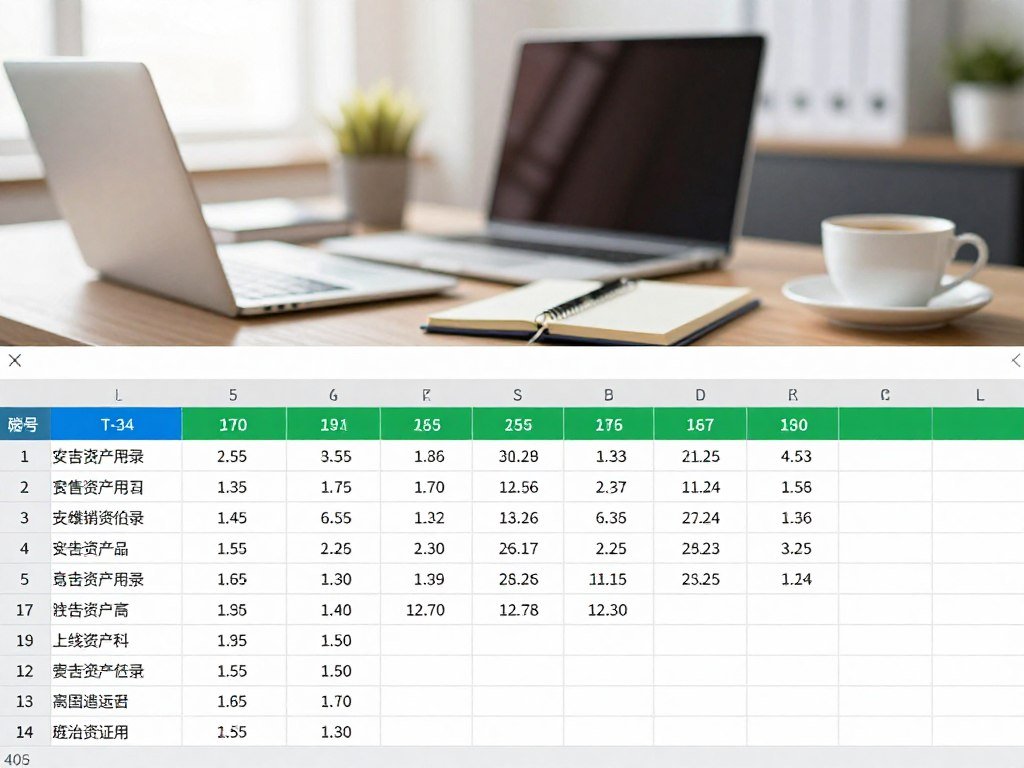
- Put one person, sale, or event on each row.
- Use a short, distinct name for each column.
- Keep dates, numbers, and text in consistent formats.
- Remove blank rows and merged cells where practical.
To make a structured table, select the data range and choose Format as Table. Confirm that the range includes the header row.
Table headers let you sort or filter records without selecting each column by hand. For example, filter a sales table to show one region, then sort its dates.
Tables make a range easier to work with, but they do not fix every data problem. A date stored as text can still cause confusing results.
The described Copilot workflow supports .xlsx, .xlsb, and .xlsm files. Older .xls files do not work with that workflow.
Save a working copy before asking an assistant to make changes to important source data.
Step 2: Ask AI to Clean or Analyze Data
A request such as “Compare sales by region and flag values that differ sharply from the monthly pattern” gives the assistant a concrete job. Focused requests are easier to check than broad instructions.
State the action, the data area, and the result you want. Copilot can summarize data, find trends and outliers, and edit cells or formatting.
Clean inconsistent entries
For cleanup, name the problem rather than asking AI to “fix” the whole workbook. Try one of these requests:
- “Find duplicate order IDs in the selected range and list their row numbers.”
- “Standardize capitalization in the customer names, but leave the original column unchanged.”
- “Find blank cells in the Product column and count them by worksheet.”
- “Check whether dates in this range use one consistent format.”
Some answers only describe a problem or suggest a change. Other requests can change cell values, ranges, conditional formatting, data validation, or workbook layout.
Review what the assistant intends to change before using an edit mode. Keep the source column when you need a record of the original entries.
Ask a focused question about the data
A business question should name the measure and comparison. For instance, ask which region had the largest change in sales between two named months.
You can also ask, “Identify unusual monthly values in the selected range,” or “Summarize total expenses by category.” These questions give the assistant a clear scope.
Copilot can import data from other Excel workbooks saved to OneDrive, SharePoint, or your computer. The imported workbook must be saved in one of those locations.
When a task needs web information, Copilot can search the web and provide citations for sources it used. That differs from analysis based only on workbook data.
Ask one question at a time when a broad request produces an answer that is hard to verify.
Step 3: Generate Formulas and Make Workbook Edits
“Calculate total cost from quantity multiplied by unit price” is clearer than asking AI to “fix the numbers.” A precise calculation gives the assistant useful details.
Name the output column and the columns the calculation should use. For example, request a new Total Cost column based on Quantity and Unit Price.
Describe the calculation you need
A prompt might say, “Add a Total Cost column by multiplying Quantity by Unit Price for each row.” This identifies the output and both inputs.
The assistant may draft a formula for you to paste, or an available edit mode may apply it directly. Those paths are different, so confirm whether the workbook changed.
A formula can depend on assumptions such as a tax rate or discount. Store changeable assumptions in cells, then refer to those cells instead of fixing the numbers inside formulas.
For example, keep the tax rate in a labeled cell. If that rate changes, you can update one value rather than search through many formulas.
Review proposed changes before applying them
Copilot can insert or modify cell values and ranges. It can also apply conditional formatting, set data validation, and manage workbook layout.
Use a direct edit only when its scope is clear. A request to change a single column is easier to review than an instruction to revise an entire workbook.
If the assistant gives you a formula, inspect its references before pasting it. A correct-looking result may still use the wrong rows or columns.
When you cannot tell what a formula includes, ask the assistant to explain its cell references.
Step 4: Check AI Results Before You Rely on Them
A total that looks plausible can still be wrong if the formula skips a row or includes a subtotal twice. Independent checks can catch mistakes before a report goes out.
Compare the result with the source data, not just with what you expected to see. Use this short checklist:
- Compare totals with the rows or values they summarize.
- Inspect formula references and ranges for missed or extra cells.
- Confirm chart labels, axes, and categories match the data.
- Look for omitted records, duplicate rows, or repeated subtotals.
- Test a change on a small sample before applying it widely.
When the numbers sit next to a blank cell, Excel AutoSum can provide a quick independent total. It adds numbers above or to the left of the selected cell.
AutoSum is useful for a quick comparison when the relevant values are adjacent. It will not tell you whether the selected range represents the right business question.
Formula errors such as #REF!, #VALUE!, and #NAME? are clues to investigate, not proof of one specific cause. Check the formula and its inputs before deciding what went wrong.
A chart can also look polished while leaving out a category. Compare its displayed labels and values with the source range.
Keep the original values available until the revised result passes a separate check.
Which Built-In Excel Tools Help With Analysis?
Excel has built-in tools for quick summaries, pattern completion, data enrichment, and repeatable cleanup. These tools can help when a chat assistant is not needed.
Use the feature that fits the task, then check what it produced. Analyze Data and Forecast Sheet support different kinds of analysis.
Analyze Data and Forecast Sheet
Analyze Data can surface suggested patterns, summaries, charts, and PivotTables from a selected range. It offers useful starting points when you want to inspect a set of numbers.
A suggested summary is not a decision by itself. Check which rows and fields it used before sharing the result with coworkers.
Forecast Sheet works with time-based observations, such as monthly sales or weekly demand. It uses past values to make a projection, not a guarantee about future results.
A projection can help you compare possible patterns, but changing conditions can make future values differ. Keep the time period and source data in view.
Flash Fill and Data Types
Flash Fill completes a pattern you demonstrate. If one column holds “Maya Chen” and you enter “Maya” beside it, Flash Fill can separate first names.
Press Ctrl+E to start Flash Fill after entering an example. Check the completed entries, especially when names have middle initials or different formats.
Data Types can add details to recognized entries, such as places or stocks. These features can connect a plain label with related information.
Power Query is a repeatable import and transformation tool, not generative AI. You define steps for tasks such as combining files or changing column types.
Choose a built-in feature for a narrow, repeatable operation and conversational AI when the task needs a plain-language request.
Build More Reliable Formulas With Excel Basics
A formula copied one column to the right can quietly change its calculation if the references are relative. Reference types control what moves when you copy a formula.
Formulas start with an equal sign, and functions can use a range of cells. For example, =SUM(B2:B8) adds the values in that range.
Relative, absolute, and mixed references
Excel’s default A1 style has 16,384 columns, from A through XFD, and 1,048,576 rows. You rarely need the whole grid, but these limits explain the reference format.
| Reference type | Example | What happens when copied |
|---|---|---|
| Relative | A1 | Row and column adjust |
| Absolute | $A$1 | Row and column stay fixed |
| Mixed | $A1 or A$1 | Column or row stays fixed |
A relative reference changes position when copied. An absolute reference marked with dollar signs stays fixed, while a mixed reference locks either its row or column.
The cell reference guide shows how these reference types behave when you copy formulas.
Lookups and calculations across worksheets
XLOOKUP can search in any direction and returns exact matches by default. It can look to the left or right of the search column.
For example, you can use XLOOKUP to find a product ID and return its price from another column. Check that the lookup values use a consistent format.
A 3-D reference adds the same cell across multiple worksheets. The formula =SUM(Sheet2:Sheet13!B5) totals cell B5 on every included sheet.
Test a copied formula in a nearby row or column before filling it across a large range.
What Happened to Excel’s COPILOT Function?
A workbook containing the COPILOT function may still display an old result, even though recalculation no longer works. The old display does not mean the function still runs.
Microsoft discontinued the Excel COPILOT function on September 14, 2026. When Excel recalculates a cell containing it, the cell returns #NAME?.
A previously calculated result may remain visible as a cached value. That is a stored result from an earlier calculation, not a fresh answer.
If a workbook recalculates the discontinued function, #NAME? is expected. The error does not mean the current Copilot pane has stopped working.
The cell function and the Copilot pane are separate features. Do not treat an old cached result as proof that the cell can still recalculate.
Microsoft recommends the Copilot pane for summarizing text, classifying data, generating content, and looking up web information.
For example, use the pane to classify notes or summarize text in a workbook. The pane is the supported route for those tasks, rather than the old cell formula.
Replace any workflow that depends on recalculating that cell with a supported pane-based task and verify the new result.
Create Charts, Dashboards, and Reusable Templates
A monthly sales workbook can present the same figures as a trend chart, a category summary, and a few key metrics. Visual views can make patterns easier to spot.
Copilot can create charts, PivotTables, and shapes with editable links to source data. It can also help build dashboards, planning tools, and templates.
Turn analysis into a visual
A chart can show changes over time or compare regions more clearly than a long list of raw rows. Pick a chart that fits the comparison.
A PivotTable can group sales by product, region, or month. That makes it easier to compare categories without rearranging the source records.
Copilot-created charts and PivotTables can stay linked to source data and remain editable. Check that each output points to the intended range.
Draft a dashboard or template
A sales dashboard might track progress against a monthly target. It can bring several views together without replacing the detailed source table.
- A key metric, such as sales compared with target.
- A trend chart showing results by month.
- A category breakdown by region or product.
- A source table with the underlying sales records.
Ask for a planning tool or template when you need a starting structure for repeated work. A template can organize fields, calculations, and views before you add live data.
Test a reusable template with real records before relying on it. A clean sample may not reveal missing fields or unusual entries found in daily work.
After a workbook update, check each visual’s source range before sharing the dashboard.
Confirm that every displayed visual still points to the intended source range after the workbook is updated.
What Excel Online Cannot Do
A workbook that opens in a browser may still depend on desktop features that do not run there. Opening a file does not mean every workbook feature works.
Excel for the web does not run VBA macros. A macro-enabled workbook can open in a browser, but its VBA-driven buttons, automation, and UserForms do not run.
Automation and add-ins in Excel Online
VBA is a programming language used to automate tasks in desktop Excel. A workbook can retain its macro code when opened online, while its macro features remain inactive.
Excel for the web does not support classic COM add-ins. It supports Office.js add-ins, which use a different platform.
That distinction matters if your team relies on an add-in for data entry or reports. A workbook may open, but the needed tool might not be available.
Data-model and query limits
Power Pivot data models cannot be created or edited in Excel for the web. You need desktop Excel for those tasks.
Power Query online is limited to viewing and refreshing queries, rather than authoring them. You can refresh existing work, but cannot build the query steps there.
Check the workbook’s macros, add-ins, and data-model needs before choosing the web version.
Which Excel Alternatives Are Worth Considering?
A spreadsheet alternative makes sense when its workflow solves a specific problem that Excel does not handle well for you. Start with the task, not a promise that one tool can replace every feature.
ChatGPT for Excel can use selected cells and apply changes directly, but it has feature limits. The add-in was released on March 5, 2026, and availability varies by plan and region.
What ChatGPT for Excel Can and Cannot Do
The add-in can work with selected cells and apply changes in the workbook. It cannot work with VBA, Office Scripts, or Power Query.
It also does not support dynamic PivotTables, slicers, timelines, or native data models. Those limits matter if your workbook depends on those features.
Availability can differ by plan and region, so the add-in may not be an option for every Excel user. A separate assistant may fit a narrower task.
Can a Free AI Spreadsheet Maker Replace Excel?
A free AI spreadsheet maker may help create or analyze a workbook, but it does not automatically replace Excel’s full feature set. Compare the actual tasks you need.
| Option | Access or format | Useful distinction | Relevant limitation |
|---|---|---|---|
| Zoho Sheet | Free spreadsheet option | Cloud spreadsheet workflow | Not a full Excel replacement |
| LibreOffice Calc | Free spreadsheet option | Desktop spreadsheet app | Different feature set from Excel |
| Proton Sheets | Free spreadsheet option | Zero-knowledge encryption focus | Check fit for your workbook |
| Grist | Free to use | Relational data and Python support | Different workflow from Excel |
Grist combines spreadsheet-style flexibility with relational database features and Python support. It also supports self-hosting and bringing your own model.
No alternative fits every workbook; compare the features your actual files use before changing tools.
Compare the features your actual workbook uses before moving it to another tool.
Conclusion
AI is most useful in Excel when it helps you move from a clear question to a result you can verify. Plain-language requests can make analysis and routine spreadsheet work easier to approach.
Checking the workbook remains essential, especially when a formula or summary may affect business decisions. Compare the output with source data before you share it or act on it.
Choose one small task in a copy of your workbook and check the output before using it in a decision.
FAQ
How to work with Excel using AI?
Use Copilot or another suitable assistant to analyze data, suggest formulas, or help edit a workbook. Check whether the tool works inside Excel or needs you to copy information into a chat. An upload workflow analyzes a copy of the file, so it does not make changes to the workbook you already have open.
Is Excel still relevant in 2026?
Yes, Excel remains useful for spreadsheet work in 2026. It supports tasks such as organizing records, calculating values, and building charts. ChatGPT for Excel was released on March 5, 2026, with availability varying by plan and region. That add-in adds another workflow, but it does not remove the need to choose tools based on your workbook.
What program is replacing Excel?
No single program replaces Excel for every task. Google Sheets, LibreOffice Calc, Zoho Sheet, Proton Sheets, and Grist offer different workflows and features. A simple shared sheet may work well in one product, while a workbook built around macros or data models may need Excel. Compare the features your work uses before moving files.
How can I use Microsoft Excel?
Enter data in rows and columns, then organize related records in a table. Use formulas to calculate values, sort and filter to find records, and charts to show comparisons or changes. You can begin with a small list, such as household costs, and add columns for dates, categories, and amounts as needed.
Can I teach myself Excel?
Yes, you can learn Excel through guided tutorials and hands-on practice. Start with entering data, making a table, writing basic formulas, and creating a chart. Practice on a copy of a real task, such as tracking monthly spending. Small exercises help you learn how cell references and table filters affect results.
What are the 5 basic Excel skills?
Five basic Excel skills are entering and formatting data, structuring a table, sorting and filtering, writing simple formulas, and creating a chart. These skills cover many everyday tasks. You can practice them with a short list of sales or expenses, then add more advanced features when your work calls for them.
Is Excel difficult to learn?
Basic spreadsheet tasks are approachable with practice, while advanced formulas, automation, and data models take more time to learn. You can build confidence by learning one feature at a time and checking its results. Start with a small workbook and use clear examples before applying a new skill to important business data.
What are 7 basic Excel formulas?
Seven useful Excel formulas are SUM, AVERAGE, COUNT, COUNTA, IF, XLOOKUP, and SUMIF. Formulas begin with an equal sign, such as =SUM(A1:A5). SUM adds values, AVERAGE finds a mean, and COUNT counts numeric cells. The others can count filled cells, test a condition, find a match, or sum values that meet a condition.