
Learning how to use ChatGPT takes about ten minutes, and most of what you need is one skill: asking a clear question. ChatGPT is OpenAI’s AI chatbot, and it answers questions, drafts text, explains ideas, writes code, and helps plan work through a simple chat window. You type a message, it replies in seconds, and you keep the conversation going until the answer is right.
The free plan covers the basics for most people. You can sign up with an email address, a Google account, or an Apple account, then start chatting right away in a browser or the mobile app. Paid plans add faster replies, newer models, and extra tools, but you do not need them to get useful results on your first day.
This guide walks through the whole process, from creating an account to writing prompts that get better answers. Follow the steps in order, and by the end you will know how to use ChatGPT for writing, learning, planning, and everyday problem solving.
Key takeaways
- ChatGPT is free to start, and a basic account handles writing, explaining, and planning tasks well.
- Clear, specific prompts with context get far better answers than short, vague questions.
- Follow-up messages refine an answer, so treat the first reply as a draft, not a final result.
- ChatGPT can check its own work when you ask it to, but always verify facts that matter.
- Do not paste passwords, private documents, or sensitive personal details into any chat.
ChatGPT at a glance
| Detail | What to know |
|---|---|
| What it is | An AI chatbot from OpenAI that answers questions and creates text |
| Cost to start | Free plan available; paid plans add newer models and higher limits |
| Where it runs | Web browser, iPhone and Android apps, and desktop apps |
| Main uses | Writing, explaining topics, planning, coding help, and brainstorming |
| File support | Upload documents, images, and spreadsheets for questions and summaries |
| Voice mode | Talk out loud and hear spoken replies on the mobile and desktop apps |
| Memory | Optional memory remembers your preferences across chats |
| Biggest limit | Answers can be wrong, so check facts before you act on them |
Step 1: Create your free account
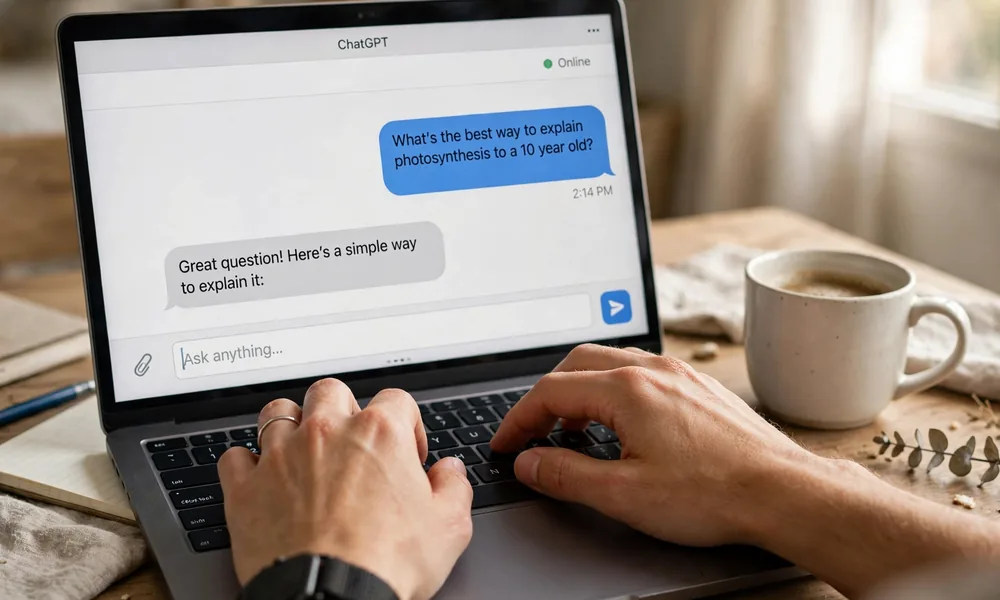
Open the ChatGPT website or download the app, then choose Sign up. You can register with an email address and a password, or sign in with a Google or Apple account, which is faster. OpenAI sends a confirmation message to new email accounts, so check your inbox and confirm the address to finish setup.
Once you are in, you will see a clean chat screen with a text box at the bottom. That box is the whole interface, and the sidebar keeps a list of your past chats so you can return to any of them later.
If you plan to use ChatGPT at work, take a minute to check the privacy settings first. Turn off training use of your chats if your employer prefers it, and review the memory setting so you know what the tool remembers about you. These two switches take less than a minute and save trouble later.
Step 2: Start your first chat
Click the text box, type a question in plain language, and press Enter. Try something with a clear goal, such as “Explain how interest rates work in three short paragraphs” or “Write a polite email asking a client to confirm a meeting on Friday.” A question with a topic, a format, and an audience gets a better answer than a single word or a vague phrase.
Read the reply before moving on. If it misses the point, do not start over. Reply in the same chat with what was wrong, for example “That was too formal, make it shorter and friendlier,” and ChatGPT will revise it.
Your first few chats are practice. Try a summary and an explanation of something you already understand, so you can judge the quality before moving on to real tasks.
Step 3: Write prompts that get better answers
A prompt is simply the message you send, and better prompts produce better replies. Give ChatGPT four things: the task, the context, the format, and the audience. “Write a product description for a waterproof hiking backpack, 80 words, friendly tone, aimed at weekend walkers” will beat “write about a backpack” every time.
Add detail when the first answer is too generic. Name the reader, the length, and the style you want. If you are drafting for work, paste in the key facts it should use, such as dates or prices, so the answer is built on your information rather than guesses.
Use roles when they help. Starting with “Act as a friendly tutor” or “Act as a hiring manager” changes the tone and the angle of the reply. Keep the role to one line, then state the task. For more on shaping AI output with clear instructions, read the guide on what context engineering is and how giving the model better background improves its answers.
Step 4: Use follow-ups to refine the answer
The real power of ChatGPT is the back-and-forth. After the first reply, ask for changes: shorter, simpler, more examples, a different tone, or a table instead of paragraphs. Each follow-up builds on the same conversation, so you never need to repeat the original question.
Ask it to check its own work when accuracy matters. “Check that summary against the text I pasted and flag anything you added” is a strong follow-up, and “List the three weakest points in this argument” works well for drafts you plan to present.
Keep one task per chat. When a conversation drifts across several topics, the answers get muddled. Start a fresh chat for a new task with a clear first message.
Step 5: Upload files and images
ChatGPT can read files you upload. Use the paperclip button to attach a document, a spreadsheet, or an image, then ask a question about it. “Summarise this report in five bullets” and “What are the three largest expenses in this spreadsheet?” are the two most useful starting points for most people.
Images work the same way. Upload a photo of a handwritten note or a chart, and ask ChatGPT to transcribe it or explain what it shows. Check numbers against the original, because a single misread digit can change a total.
Keep uploads small and relevant. A ten-page document gives better summaries than a hundred-page dump, and a cropped photo of one chart beats a wide shot of a whole wall. For spoken content, the best AI tools for transcription can turn audio into text first, which you can then paste into ChatGPT.
Step 6: Try voice mode and the mobile app
Voice mode turns ChatGPT into a spoken conversation. Tap the microphone icon in the app, talk naturally, and listen to the reply. It works well for brainstorming while walking, practising a presentation out loud, or working through an idea when typing feels slow.
The mobile app also lets you take a photo and ask about it on the spot. Point the camera at a menu in another language or a form you do not understand, and ask for a translation or an explanation.
Voice chats suit ideas and drafts, not final text. Spoken replies are harder to copy and check than written ones, so switch back to typing when you need a document you can use.
Step 7: Organise chats and use memory well
Rename important chats so you can find them again. Click the chat title in the sidebar and give it a short name, such as “Q1 budget draft” or “Spain trip plan.” Pin the chats you return to every week, and delete one-off chats you will never need again.
Memory is an optional feature that remembers facts you share, such as your job, your preferred writing style, or that you always want metric units. Turn it on only if you are comfortable with the tool storing those details, and review the saved memories in settings every month. Delete anything outdated, because old memories can quietly steer new answers.
For long projects, keep a single chat per project and paste your key decisions into it as you go. That running thread becomes a useful record. If you want to go further, how to use AI to write a business plan shows how a structured AI chat can turn rough notes into a full document.
Troubleshooting: common ChatGPT problems
If ChatGPT stops mid-reply, wait a few seconds, then click Regenerate or ask it to continue. If the page will not load at all, check your connection, try a different browser, or open the mobile app instead.
If the answer is wrong, the fix is usually a better prompt. Add the missing facts, correct the mistake in a follow-up, and ask for a revised version. When the model invents a fact or a quotation, verify the claim from a source you trust before using it.
If the reply is too long, ask for a shorter version with a word limit. If it is too short, ask for more detail or examples. And if ChatGPT refuses a request, reword it: refusals often come from a vague or risky phrasing, and a clearer, safer version of the same task usually gets an answer.
Checklist: before you rely on a ChatGPT answer
- Your prompt states the task, the format, and the audience.
- You read the full reply instead of copying the first paragraph.
- Facts, dates, and numbers are checked against a trusted source.
- No passwords, private data, or confidential work is in the chat.
- Important chats are renamed so you can find them later.
- You asked at least one follow-up to improve the first draft.
Frequently asked questions
Is ChatGPT free to use?
Yes. The free plan lets you chat, upload files, and use voice mode with limits on how many messages you can send per day. Paid plans raise those limits and add access to newer models and extra tools, but the free plan is enough for most everyday tasks.
How do I use ChatGPT for the first time?
Create a free account, open a new chat, and type a clear question in the message box. Start with something simple, read the reply, then use a follow-up message to adjust the length or tone until the answer fits what you need.
Can ChatGPT write essays and emails?
Yes, and this is one of its most common uses. Give it the topic, the length, the tone, and the audience, then edit the draft it produces. Always read the result and adjust it in your own voice before sending or submitting it.
Does ChatGPT remember my conversations?
It remembers the current chat, and an optional memory feature can store facts across chats. You can view and delete saved memories in settings, and you can turn memory off entirely if you prefer each chat to start fresh.
Can ChatGPT make mistakes?
Yes. It can invent facts, dates, and quotations, and it can be confidently wrong. Use it for drafts, ideas, and explanations, and verify anything important with a reliable source before you act on it.
Is it safe to paste work documents into ChatGPT?
Avoid pasting confidential, legal, medical, or financial documents, and never paste passwords or personal identity numbers. For everyday drafts and public material the risk is low, but check your employer’s policy before uploading work files.
The bottom line
How to use ChatGPT comes down to three habits: ask clearly, refine with follow-ups, and check anything that matters. The tool handles the typing and the first draft, while you stay in charge of the facts, the judgment, and the final wording.
Start with the free plan, practise on low-stakes tasks for a week, and build from there. Once clear prompts and follow-ups feel natural, ChatGPT becomes a fast second pair of hands for writing, learning, and planning.