Google Meet is Google’s video meeting tool, built into Gmail and Google Calendar, and it is one of the simplest ways to hold a video call without installing anything. If you have a free Google account, you can start a meeting in under a minute, invite people with a link, and talk face to face from a browser, a phone, or a tablet.
Meet is designed for people who want video calls to just work. There is nothing to install on a computer: you open Meet, check your camera and microphone, and join. The free plan covers one-to-one calls of up to 24 hours and group calls of up to 60 minutes with as many as 100 people, which suits most small meetings.
By the end of this guide you will know how to start and schedule meetings, join from any device, share your screen, turn on live captions, record a call when your plan allows it, and fix the five most common problems.
Key takeaways
- Google Meet runs in a browser with a free Google account, so there is nothing to install on a computer.
- One-to-one calls run for up to 24 hours free; group calls with three or more people run for up to 60 minutes free.
- Always test your microphone and camera on the green-room screen before you join a meeting.
- Share a single tab or window rather than your whole screen when you only need to show one document.
- Turn on live captions when audio is unclear, and use the in-meeting chat for links and notes.
Google Meet at a glance
| Task | Where to do it | Time needed |
|---|---|---|
| Start an instant meeting | meet.google.com, New meeting | Under 1 minute |
| Schedule a meeting | Google Calendar, Add Google Meet | 2 minutes |
| Join a meeting | Meeting link, or the Meet app | Under 1 minute |
| Share your screen | In-meeting toolbar, Present now | Seconds |
| Turn on captions | In-meeting toolbar, Captions | Seconds |
| Record a meeting | Activities, Recording (paid plans) | One click |
| Change background | Before joining, Apply visual effects | 1 minute |
Step 1: Set up your Google account and open Meet
Meet works with any free Google account, so start by signing in at accounts.google.com if you are not already signed in. If you do not have an account, choose Create account and follow the prompts; you only need a name, a username, and a password.
On a computer, go to meet.google.com in Chrome, Edge, Firefox, or Safari. Chrome gives the smoothest experience, but the other browsers work too. On a phone or tablet, install the free Google Meet app and sign in with the same account.
When Meet opens, it asks permission to use your microphone and camera. Click Allow. If you blocked access earlier, click the camera icon in the address bar and change the setting to Allow, then reload the page. Before your first real meeting, open a practice room with New meeting, then Start an instant meeting, to test your camera and microphone.
Step 2: Start or schedule a meeting
For a meeting right now, click New meeting on the Meet home page and choose Start an instant meeting. Meet creates a room and shows a link you can copy and send to anyone by email or chat. People who click the link arrive in a waiting area, and you admit them by clicking Admit. If you are comparing video tools for work, our Google Workspace vs Microsoft 365 comparison explains how Meet fits into Google’s wider office suite.
For a meeting later, scheduling through Google Calendar is better, because guests get an invitation with the link already attached. Open Google Calendar, click Create, and add a title, a date, and a time. Click Add Google Meet video conferencing, add your guests, and click Save. Guests receive an email with a Join button, and the meeting appears on their calendar.
Give every meeting a clear title, such as “Weekly project check-in”, and add the agenda to the description. Set regular meetings to repeat weekly, and double-check the time zone when guests are in other countries.
Step 3: Join a meeting and check your audio and video
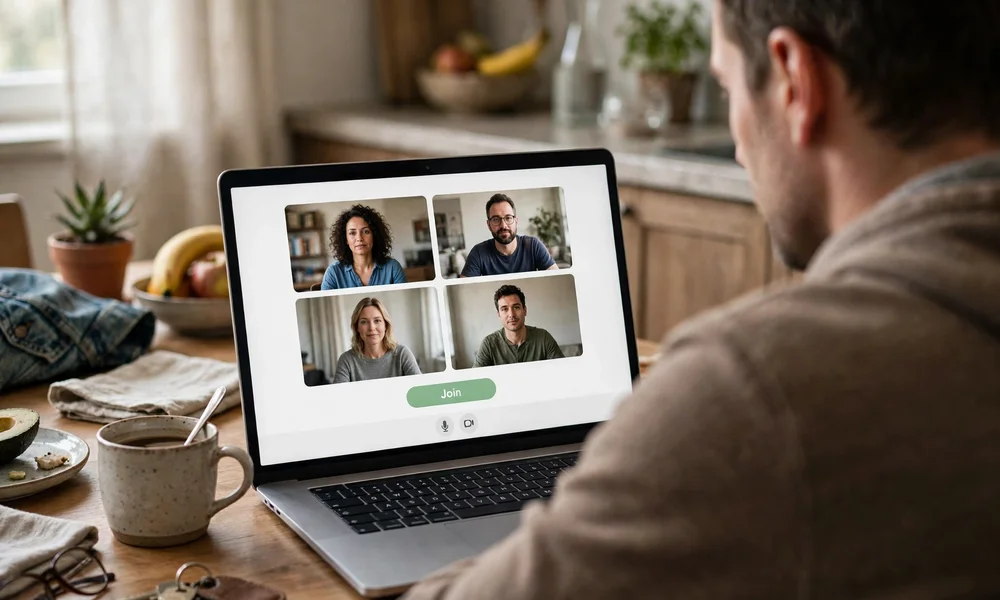
To join, click the meeting link or the Join button in Calendar, Gmail, or the Meet app. Meet opens a green-room screen that shows a preview of your camera, with buttons to mute your microphone, turn off your camera, and check your background. Speak a sentence and watch the microphone indicator move, and check your face is lit from the front, not from a window behind you.
If your camera shows a black screen, another app may be using it, so close other video apps and reload the page. If your microphone does not move when you speak, click the three dots in the green room, open Settings, then Audio, and pick the correct microphone from the list. Headphones stop echo and keep your voice clear.
Once you click Join now, you enter the meeting. Your name appears under your video tile, and the meeting controls sit at the bottom of the screen: microphone, camera, captions, raise hand, present, and leave. Keep your microphone muted when you are not speaking.
Step 4: Share your screen and present
Click Present now in the bottom toolbar and choose what to share: a Chrome tab, a window, or your entire screen. A Chrome tab is best for a web page or video, because Meet can share the tab’s audio too. A window is best for a document or a spreadsheet, and your entire screen is best when you need to switch between several apps.
Before you share, close or hide anything private, such as personal email or messages, because the audience sees everything in the shared area. Turn on Do Not Disturb so notifications do not pop up over your slides.
To stop sharing, click Stop presenting. Only one person can present at a time, so stop sharing before someone else takes over, and ask the room to mute themselves before you play a video.
Step 5: Use captions, chat, reactions, and recording
Live captions turn speech into text at the bottom of the screen, which helps when audio is quiet, when someone has an unfamiliar accent, or when you are in a noisy room. Click the Captions button in the toolbar to switch them on; they appear only on your screen, so other people are not affected.
The in-meeting chat is the best place for links, spellings of names, and short notes. Click the chat icon, type your message, and press Enter; everyone in the meeting sees it, and it disappears when the meeting ends, so copy anything important before you leave. Raise hand puts a small hand icon next to your name so the host knows you want to speak. If you are weighing Meet against other tools, our Zoom vs Microsoft Teams comparison shows how the main video apps differ on features and price.
Recording is available on paid Google Workspace plans, not on free accounts. If your plan supports it, click Activities in the bottom right, choose Recording, and click Start recording. Everyone in the meeting sees a notice that recording has started. The recording saves to the host’s Google Drive, in a folder called Meet Recordings.
Step 6: End the meeting and follow up
Click the red Leave button to exit. If you are the host, you can also choose End the meeting for all, which closes the room for everyone; use this at the end of a class or a team call so nobody is left talking to an empty room.
Follow up while the discussion is fresh. Send a short email with the decisions, the next steps, and who owns each one. If the meeting was recorded, share the Drive link with the people who missed it.
Troubleshooting: fixing the five most common Google Meet problems
If nobody can hear you, first check the mute button: a red microphone icon with a line through it means you are muted. Next, check that Meet is using the right microphone in Settings, Audio, and try unplugging and reconnecting your headset. Also check that the browser has microphone permission, in the padlock icon in the address bar.
If your camera shows a black screen, close other apps that use the camera, such as Zoom or the Camera app, and reload Meet. If the video is frozen or blurry, your connection is likely slow: turn off your camera for a while, close other tabs that stream video, and move closer to your Wi-Fi router.
If you hear an echo, put on headphones, or ask the other person to mute. If you cannot join a meeting at all, check the link: links from old calendar invites may have expired, so ask the host to send a fresh one. If Meet says you need permission, you may be signed in with the wrong Google account; switch accounts and try again.
Checklist: before your next Google Meet call
- Charge your laptop or plug it in, and connect to stable Wi-Fi before the start time.
- Join two minutes early and test your microphone and camera on the green-room screen.
- Close private tabs and turn on Do Not Disturb before you share your screen.
- Keep a glass of water and your notes within reach so you do not leave the frame.
- Mute yourself when you are not speaking, especially in meetings with more than five people.
- Copy any links or decisions from the chat before you click Leave.
Frequently asked questions
Is Google Meet free?
Yes. Anyone with a free Google account can start and join meetings at no cost. One-to-one calls run for up to 24 hours, and group calls with three or more people run for up to 60 minutes, with as many as 100 participants. Paid Google Workspace plans remove the 60-minute group limit and add recording, attendance reports, and larger meetings.
Do guests need a Google account to join a meeting?
No. Guests can join from a meeting link in a browser without signing in, although the host may need to admit them. On a phone, guests need the Meet app, and signing in with a Google account makes joining smoother.
How many people can join a Google Meet call?
Free accounts allow up to 100 participants. Paid Workspace plans raise the limit to 500 or 1,000 people depending on the plan, and add features such as breakout rooms, polls, and question-and-answer sessions.
Can I join Google Meet by phone?
Yes, on paid Workspace plans a meeting can include a dial-in number, so people can join by voice from any phone. Free accounts do not include dial-in numbers.
Does Google Meet have a time limit?
Group calls on free accounts end after 60 minutes, and Meet warns you ten minutes before the limit. One-to-one calls have a 24-hour limit.
Where do Google Meet recordings go?
Recordings save to the meeting host’s Google Drive, in a folder called Meet Recordings, and the host receives an email with a link when the recording is ready. Recordings are only available on paid Workspace plans.
The bottom line
Google Meet is the easiest video meeting tool to learn, because it lives in your browser and your Google account does most of the setup for you. Start a meeting, send the link, check your audio and camera, and you are talking. The rest, from screen sharing to captions, is one click away once you know where the buttons are.
For most beginners, the free plan is enough, and the best way to get comfortable is to run a short practice call with a friend before your first real meeting. If you run meetings every day, compare the wider toolset in our guide to the best collaboration tools for remote teams and pick the combination that fits how your team actually works.