A first image can be made by opening Grok Imagine, describing the result, and refining a generated variation. If you are working on visual design tasks, the hardest part can be turning a loose idea into a useful image. This guide gives you a practical creative workflow, from prompt planning to review, without asking you to perfect every detail at once.
You can start in a browser or the Grok mobile app. The steps focus on the consumer experience first, where you can learn the tools through direct use. A separate route covers the API for developers who want image creation or editing inside software.
A clear brief gives the model a better starting point, and small edits help you steer the result. That approach works for a poster, product image, social post, or other digital content creation task. You will see how to shape a prompt, choose an access route, and decide when an edit or reference image can help.
Key Takeaways
- Start in the browser or Grok app to learn the consumer workflow.
- Describe the subject, layout, style, and exact text in your prompt.
- Generate variations, select one, then refine it with a follow-up instruction.
- Use editing tools or reference images when a prompt alone is not enough.
- Choose the API when image work needs to run through software.
- Review text, edges, and subject placement before sharing a result.
Start with the browser or app if you want to learn the workflow before automating it.
What Is Grok Imagine Image 2.0?
Grok Imagine Image 2.0 is the image generation and editing model behind Quality Mode in Grok Imagine. It can create new visuals from text and help refine existing images. Quality Mode is the consumer setting that uses the model, not a second model with a separate identity.
The model is designed to follow prompts that describe a scene, layout, or style. It can also help with typography and preserving details while editing. Those aims guide the result, but they do not guarantee perfect text or unchanged details.
For example, you can ask for a new café poster or work from an image that already has the right subject. In either case, specific instructions give the model a clearer task. You can state what needs to change and what should remain in place.
Quality Mode supports careful image work, but you should still inspect the result before using it.
Image models can differ in how they handle small text, complex layouts, or fine details. A short prompt may suit a simple image, while a design with several required elements benefits from a fuller brief. Follow-up edits let you address one issue at a time instead of rebuilding the whole scene.
The name also helps distinguish the consumer setting from the model itself. You may see Image 2.0 described as the technology behind the setting, while Quality Mode is the control you select. Treat Quality Mode as the consumer-facing way to use Image 2.0, not as a separate model.
Where Can You Access Grok Imagine Image 2.0?
Start at Grok.com or in the Grok app for a no-code session, and choose the API when you need a software integration. The web and app routes share the Imagine workflow, while API use involves developer setup. Choose your route based on whether you want to create by hand or run image generation through software.
The API requires an API key and developer setup; the consumer routes do not require coding. Your starting point does not tell you whether a consumer account needs a paid plan, so do not assume the same pricing applies across routes.
The web or app is a useful place to learn how prompts, variations, and edits work. If you are comparing assistants before choosing a workflow, this 2026 chatbot comparison covers Grok and other options for different needs.
Use Grok Imagine on the web or in the apps
Grok Imagine Image 2.0 is available through Grok.com and the Grok apps for iOS and Android. The browser can suit a desk-based session, while the app puts the same Imagine workflow on a phone. Use the route that makes it easiest to review images and enter follow-up instructions.
Choose the API for programmatic work
The xAI developer API is for software workflows, such as generating images from an application or editing supplied images in a repeatable process. It needs an API key, a developer account setup, and code that sends requests and handles results. A tool comparison can help you decide whether you need that control or a direct consumer session.
| Route | Where to start | Best suited to |
|---|---|---|
| Web | Grok.com | No-code creation |
| iOS or Android app | Grok app | Mobile creation |
| API | xAI developer API | Programmatic generation or editing |
If you are learning the tools, begin in the consumer interface before adding code.
How to Use Grok Imagine Image 2 0 2026 in a First Session
A first consumer image takes five actions: open Imagine, write a prompt, generate, select, and refine. The sequence works in the browser or Grok app. Keep the first attempt simple so you can see what the model understands before adding more detail.
To create images, enter a text prompt in Imagine and generate variations, then select and refine a result. You can make a first result without opening an editing tool. Follow-up instructions come after you choose an image.
Open Imagine and select Quality Mode
Open Grok Imagine from the browser or app interface. Select Quality Mode when it is available as the image setting. The selected mode matters because it uses the Image 2.0 model for this consumer workflow.
Take a moment to identify where the prompt field and generated results appear. The layout can feel different on a phone and a larger screen, but the main actions are the same. You do not need to find an edit control before creating a first image.
Describe the image and generate variations
Write a prompt that says what you want to see. You might request a rainy street with a yellow taxi, viewed from a low angle at dusk. Add a style or mood only when it helps define the result.
Submit the prompt to generate variations. Compare the images for the main subject, composition, and details you asked for. The images may interpret the same words in different ways, giving you a choice rather than one fixed result.
If the first set misses the brief, you can make the prompt clearer and generate again. Change one unclear part at a time, such as the camera view or the background. That makes it easier to tell which instruction helped.
Choose a result and refine it
Select the variation that is closest to your goal. Then enter a follow-up instruction to change a visible detail, such as moving a cup farther from the edge or warming the light. Keep the instruction tied to the selected result.
The model can respond to natural-language edits, so you can describe the change rather than rebuild the full prompt. Check whether the update kept the elements you wanted. If it changed too much, try a narrower instruction.
Imagine image 2.0 is most useful when you treat each result as a draft. A few careful adjustments can be easier than cramming every preference into the first request. Select the variation closest to your brief so follow-up edits have a clear starting point.
How Do You Write a Better Image Prompt?
“Make a poster” leaves more open than a brief that names its headline, hierarchy, colors, and layout. A strong prompt tells Grok Imagine Image 2.0 what the image contains and how its parts should fit together. Specific details help turn a broad idea into a useful visual brief.
Include the subject, composition, style, lighting, exact text, and details that must stay fixed. This gives the model a clearer aim without requiring a long story. A short checklist can catch missing pieces before you generate.
Name the subject and composition
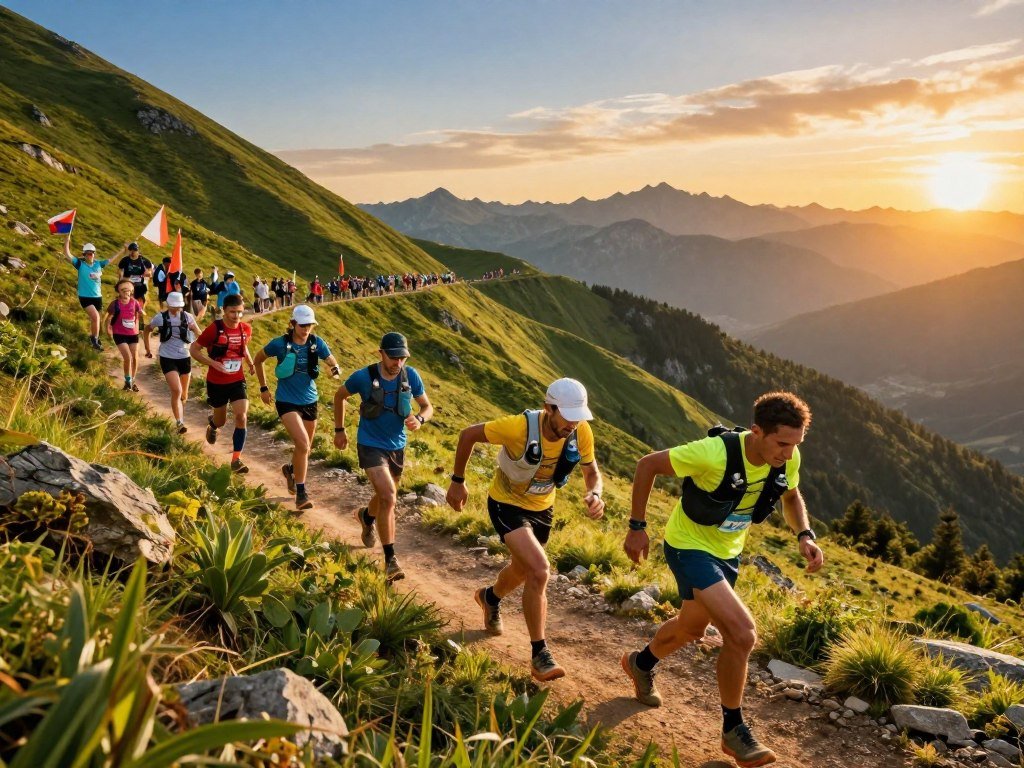
Start with the main subject and what it is doing. Then describe the scene and where the subject should sit in the frame. “A runner climbing a rocky trail, placed on the right, with open sky on the left” gives more direction than “a race poster.”
Add style, lighting, and text
Name a visual style, color range, and lighting that support the idea. If a design needs wording, quote the exact text so it stands apart from the rest of the prompt. A trail-race poster can specify the headline “RIDGELINE 50K,” with large type above a runner and a narrow strip for event details.
A different brief might ask for a coffee infographic with six labeled steps. State that it needs six steps and name each label in order. This keeps the structure clear even when the visual style changes.
State what must remain unchanged
If you are editing an existing image, say which details should stay fixed. For instance, ask to change the jacket color while keeping the runner’s pose, trail, and light unchanged. A prompt should name the part to change and the parts to preserve.
- Subject and action: who or what appears, and what is happening.
- Setting and composition: place, view, and position in the frame.
- Style and color: visual treatment and main color choices.
- Lighting or mood: time of day, shadows, and feeling.
- Exact text and preserved elements: wording and fixed scene details.
Use the same method for a product image, social graphic, or illustration. In a six-step coffee infographic, the labels matter as much as the cups or brewing tools. If the layout is important, describe its order and where each group belongs.
Do not rely on the model to guess which words are exact copy and which are visual direction. Put exact wording in quotation marks and check it carefully in the generated result.
Which Editing Tools Can You Use?
Use the Magic Wand for a change within one chosen part of an otherwise finished image. It edits the selected region, while segmentation helps you select a precise area first. Choose the tool by how narrowly you need to target the change.
Background removal separates the subject and exports it with a transparent background. That can help when you need to place a person or product over a new design. The right tool depends on whether you are changing an area, selecting an object, or isolating a subject.
Use Magic Wand for a targeted change
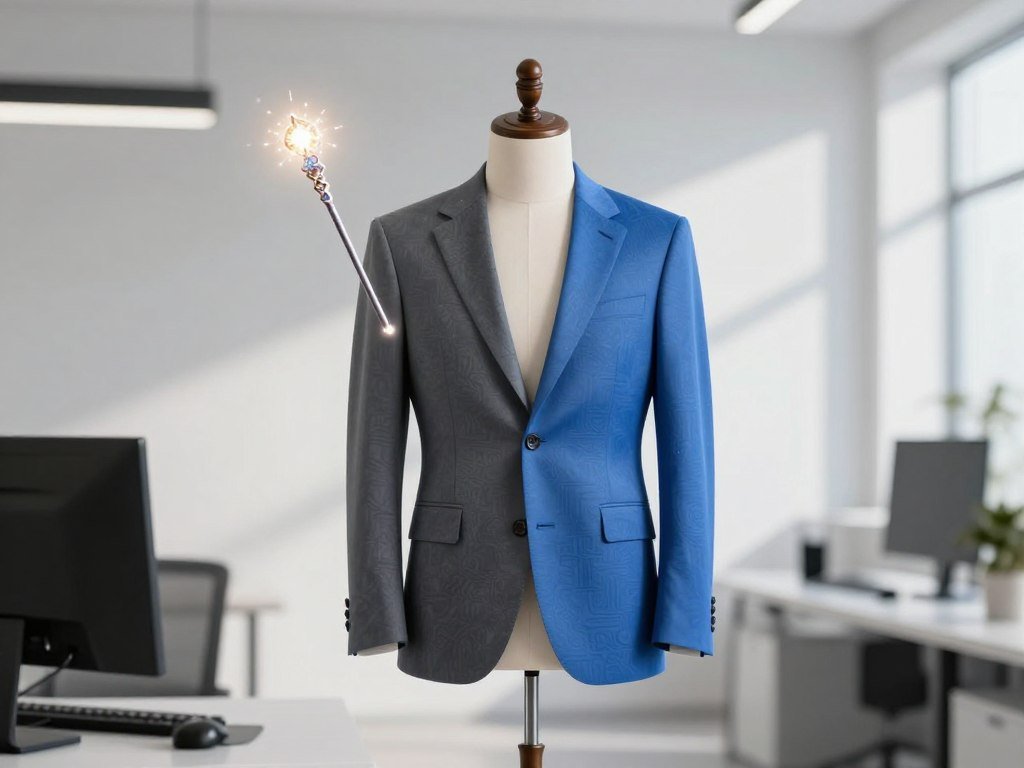
The Magic Wand works on a selected region in the image. For example, you can select a jacket and ask for a navy color without rebuilding the runner, trail, or sky. The instruction should name both the area and the intended change.
Keep the edit request focused. “Change the jacket to navy” gives a clear target, while a broad request such as “make the image better” leaves the model to decide what to alter. If the selected region includes nearby details, describe which part should change.
Select objects with segmentation
Segmentation selects precise image areas for a change. It can help when an object has a clear outline or when several items sit close together. Select the intended object, then give a short instruction for what should happen to it.
For example, select one mug in a kitchen scene rather than asking to change every cup. A clear selection can reduce confusion about which object the prompt means. Review the chosen area before applying the edit.
Remove a background
Background removal separates a subject from the scene and exports it with transparency. This is useful for a product cutout, a profile image, or a subject you plan to place in another layout. A transparent background lets the next design show through behind the subject.
Check the outline around hair, fabric, or other fine edges after removal. Those parts can be easy to miss when the subject blends into the original background. The isolated subject should still look natural at its intended size.
Preserve the rest of the image
The Magic Wand is intended to leave the rest of the image untouched, but that describes its scope, not a promise of pixel-identical results everywhere. Small changes can affect nearby edges or lighting. A targeted edit still needs a careful review.
If the result changes details outside the selected area, adjust the region or narrow the prompt. You can also return to the earlier result and try a smaller change. Keep the original image if you may need to compare versions.
For a jacket recolor, inspect the seams, hands, and nearby trail where the region meets other parts of the scene. That check can reveal color spill or an uneven edge. Inspect the edges around a changed region before using the edited image.
How Do Reference Images Guide a Result?
Reference images help when written words alone cannot set the exact subject, look, or composition. Consumer generation accepts up to five input images in one generation. Give each image a job so the model can tell what it should learn from each one.
The consumer limit is five reference images, and the current API edit limit is also five. The API limit rose from three to five source images on August 28, 2026. The two routes now support the same maximum count, though they use different workflows.
For example, supply one image for a product, another for its visual style, and a third for the layout. Then explain which reference controls each part. That is a practical form of multi-reference editing because the images each guide a separate choice.
Reference images can help with a product shape, a color mood, a pose, or the placement of design elements. They do not replace a prompt. A short label for each image gives context that the picture alone may not provide.
Avoid references that conflict on the same requirement. One image showing a front view and another demanding a side view can pull the result in opposite directions. Choose a clear main reference when two images cannot agree.
Label the role of each reference in the prompt so the model has a clear reason to use it.
How Do Smart Resize and Templates Work?
Use Smart Resize when an existing composition needs to fit a new frame without relying on a simple crop. An aspect ratio is the width-to-height shape of an image frame, which determines whether it appears square, portrait, or landscape. Smart Resize adapts the image to the chosen frame instead of simply cutting off its edges.
The tool supports nine aspect ratios, from 1:2 tall to 2:1 wide. A portrait frame, square post, and wide banner each give the subject a different amount of space. Choose the shape that matches where the image will appear.
Recompose an image with Smart Resize
A simple crop can remove a sign, person, or product near the edge. Smart Resize changes the composition to fill the new frame, which can help preserve the main idea. It is useful when the image needs a new shape for a different placement.
Check how the subject sits after the change. A wide composition may leave open space around a product, while a tall frame may need more room above or below it. The new frame should feel planned, not squeezed.
Start from a task-specific template
Templates provide ready-made workflows for common image tasks. Choose a fitting starting point when you want a guided setup rather than a blank prompt. Available task types include:
- Photo editing
- Product shots
- Headshots
- Icons
- Game assets
A product template can focus on the item and its presentation, while a headshot task has a different goal. Templates can save setup time, but you still need to supply details that matter to your image. Check the result against the intended use.
For example, a square product image may work in a shop grid, while a tall version may suit a phone screen. A banner needs room for a wide layout and any words placed beside the subject. Check that the resized frame still gives its main subject enough space.
How Can You Refine, Animate, and Manage Images?
A first result can be revised with a natural-language instruction instead of starting over. Grok Imagine supports edits to existing images and can animate still images into short videos. Build on the selected result when one focused change can improve it.
Before reuse, review text, subject placement, edges, and transparency. A still-image animation adds motion, but it does not replace a check of the original image. Treat the final result as a visual asset that needs review.
Make follow-up edits to a selected result
Use a follow-up instruction to adjust one part of a result, such as changing the sky, moving an object, or softening a shadow. Mention the part that should change and any detail that should stay. A narrow edit can make it easier to judge the new version.
If an edit misses the mark, try a clearer instruction or return to a prior version. Several small changes are often easier to manage than a single request with many unrelated demands. Keep track of which version best fits the original brief.
Animate a still image
Grok Imagine can animate a still image into a short video. This can add motion to an existing visual for a brief clip or a social post. Describe the motion you want, such as a slow camera move or leaves swaying in a scene.
Keep the motion tied to the image. A still portrait may need a small movement, while a landscape can support a gentle change across the frame. Check the video for distracting movement before sharing it.
Handle deletion and review the finished image
Can you delete Imagine images on Grok? You can remove a visible result through the current item and account controls, but that does not prove service-held data has been erased. Do not treat hiding or removing a result as a promise of permanent backend deletion.
Review the finished image before you reuse it. Small issues can be easy to miss in a thumbnail, especially in text or at the edge of a cutout. Use this checklist at the size and format you plan to share:
- Text: confirm spelling, labels, and readability.
- Subject placement: check balance and open space.
- Edges: look for rough outlines or color spill.
- Transparency: confirm that the background is truly clear.
Review the final frame at its intended size before sharing or reusing it.
How Do You Generate Images Through the API?
Use the API when image creation or editing needs to run from an application or repeatable workflow. The xAI API became available on August 11, 2026, after the consumer launch. For a first request, you need an xAI API key and the model identifier grok-imagine-image-2.0.
The API supports text-to-image generation and image editing. A generation request sends a prompt; an editing request can include input images. The public API documentation describes both tasks and the model name in its Image Generation API guide.
Authenticate and identify the model
Keep the API key on a server you control, then use it to authenticate requests. Set the model to grok-imagine-image-2.0 so the request targets the right image model. Do not place a private key in code that runs in a browser or mobile app.
Developer setup also means planning how your application will store credentials and handle errors. A failed request should not expose the key or show private details to a user. Build those protections into the workflow before connecting image creation to a public feature.
Send a generation or editing request
For text-to-image generation, send a prompt that describes the intended output. For editing, include supported input images along with instructions for the change. The API route can help when the same type of image task must run repeatedly.
You can start with one simple request and then add settings that your workflow needs. Keep the prompt and supplied images tied to one clear task. That makes it easier to check whether the output matches the request.
Retrieve and save the output
After the request completes, retrieve the result and process it in your application. Plan where files will go and how users will access them. Do not assume a returned image link will serve as permanent storage.
Use this integration checklist before sending a request:
- Authenticate securely on the server side.
- Use the model ID
grok-imagine-image-2.0. - Send a prompt and any supported input images.
- Retrieve and process the completed output.
Keep API credentials out of client-side code.
Which API Settings Affect Image Output?
If you omit aspect_ratio, the API selects one automatically; set it explicitly when the frame must match a delivery format. Set the frame first when the output has a fixed slot, such as a portrait placement or wide banner. Resolution, quality, and image count also shape the request and its output.
The API supports 1K and 2K resolutions, with 1K as the default. Quality accepts low, medium, or auto; omitted auto currently uses low for generation and medium for editing. The table shows the main settings and their effects.
Set the number and shape of outputs
The n setting accepts 1-10 generated images per request. REST and OpenAI-compatible SDKs default to one when you omit it. The supported aspect ratios are listed below, and an omitted ratio triggers automatic selection.
| Setting | Supported values or default | Practical effect |
|---|---|---|
| n | 1-10; default 1 | Sets the number of generated images |
| aspect_ratio | 1:1, 16:9, 9:16, 4:3, 3:4, 3:2, 2:3, 2:1, 1:2, 19.5:9, 9:19.5, 20:9, 9:20, 21:9, 5:2 | Sets the image frame shape |
| resolution | 1K or 2K; default 1K | Sets output resolution |
| quality | low, medium, or auto | Auto uses low for generation and medium for editing |
Choose resolution and quality
Choose 1K for a smaller output need and 2K when the task calls for the larger supported resolution. Quality can be low, medium, or auto. When auto is omitted, it currently maps to low for generation and medium for editing.
Think about the final use before setting the request. A fixed display shape calls for an explicit aspect ratio, while a quick draft may suit the defaults. More images in one request also means more output to review and manage.
Retrieve results reliably
Image URLs from the API are temporary, so download or process them promptly. Deferred requests return a request_id that you can poll for status. Results from deferred requests are retained for 24 hours.
You can also ask for base64 output by setting response_format to base64. Choose the format that fits your application and how it stores image data. Check that the result is complete before passing it to another step.
Use these practical checks when connecting requests to an application:
- Parameters: confirm count, aspect ratio, resolution, and quality.
- Request status: handle completion, delay, and errors.
- Response format: process the URL or base64 output correctly.
- Prompt results: compare the returned image with the brief.
Download or process a temporary image URL promptly rather than treating it as permanent storage.
How Much Does Grok Imagine Image 2.0 API Use Cost?
The API output price ranges from $0.04 for a 1K Low image to $0.08 for a 2K Medium image. Output tier matters because resolution and quality change the per-image charge. Editing input images cost $0.01 each.
The table lists the output prices and editing input charge. These figures apply to API use, not consumer access. Your total request cost depends on output resolution, quality, number of images, and input-image count.
Compare the API output tiers
A 1K Low image costs $0.04, while a 2K Low image costs $0.06. A 1K Medium image also costs $0.06, and a 2K Medium image costs $0.08. Compare both resolution and quality when choosing a setting.
| Request item and setting | Resolution or count | Price |
|---|---|---|
| Output, Low quality | 1K | $0.04 |
| Output, Low quality | 2K | $0.06 |
| Output, Medium quality | 1K | $0.06 |
| Output, Medium quality | 2K | $0.08 |
| Editing input image | Each image | $0.01 |
Estimate input and output charges
Count the generated images and match each one to its output tier. For editing, add the charge for each input image. A request with several outputs and several input images has both kinds of charges.
For example, the output portion changes when you choose 2K instead of 1K or Medium instead of Low. The input portion changes with the number of images supplied for editing. Estimate editing requests separately because each input image adds $0.01.
What Should You Know About NSFW Content and Safety?
Grok’s adult-content controls are not a universal permission to generate any requested image. Its Acceptable Use Policy prohibits sexual content involving minors, non-consensual intimate imagery, nudifying real people, and pornographic depictions of a person’s likeness. Safeguards still apply even when a control appears in your account.
The policy also prohibits attempts to circumvent safeguards. An 18+/NSFW control can vary by account, country, app version, and plan. Check the current account interface to see whether that control is available to you.
Is Grok AI no longer NSFW? Control availability varies, so there is no single answer for every account or region. A control does not override the Acceptable Use Policy or make every adult request allowed.
Do not treat an 18+/NSFW control as permission to create prohibited sexual content or evade safeguards.
The public API documentation does not promise an adult-content tier or a setting that disables safety controls. That means API use is not a path around the same limits. Keep your request within the rules that apply to the service.
Do not use prompts or workarounds to evade safeguards or create prohibited sexual content.
Conclusion
A useful first session is a simple prompt followed by one targeted improvement. You can learn more from a clear image brief and one careful edit than from a prompt packed with every possible detail. Keep the first goal small enough to judge.
If you need an automated workflow, move to the API after checking its settings and costs. That step makes sense when image work needs to run inside software, not just because the API exists. Open Grok Imagine, try one clearly specified idea, and review the result before building a larger workflow.
FAQ
How to use Grok Imagine feature?
Open Imagine on Grok.com or in the Grok app, enter a prompt, generate variations, select one, and refine it with a follow-up instruction. Start with a subject and a clear scene so the first set has a useful direction. You can adjust details after choosing a result, rather than opening an editing tool before your first generation.
Can you delete Imagine images on Grok?
You can remove a visible result through the current item and account controls, but removal does not prove that service-held data has been erased. The available controls can change, so use the ones shown in your current account. Do not assume that hiding an image or removing it from view guarantees permanent deletion from backend systems.
Can I generate NSFW images with Grok Imagine?
Some accounts may show an 18+/NSFW control, but its availability varies by account, country, app version, and plan. That control does not override Grok’s Acceptable Use Policy. The policy prohibits sexual content involving minors, non-consensual intimate imagery, nudifying real people, and pornographic depictions of a person’s likeness.
How do I enable NSFW content on Grok?
Check your current account interface for an 18+/NSFW control, since it may not appear for every user. Availability varies by account, country, app version, and plan. If the control is present, it still does not allow prohibited content or remove the service’s safety rules.
Is Grok AI uncensored?
No, Grok AI is not uncensored; safeguards and the Acceptable Use Policy still apply. The policy bars sexual content involving minors, non-consensual intimate imagery, nudifying real people, and pornographic depictions of a person’s likeness. Attempts to evade safeguards are also prohibited, whether you use a consumer setting or the API.
Does Grok still have 18+ mode?
An 18+ mode may be available to some accounts, but it does not appear universally. Its availability varies by account, country, app version, and plan, so check the current interface you use. Even when present, the control does not change the Acceptable Use Policy or permit prohibited sexual content.
How to use Grok spicy mode?
Use the current account interface to check whether a spicy or 18+/NSFW control appears for you. The control may be missing because access varies by account, country, app version, and plan. Its presence does not authorize prohibited sexual content or make attempts to bypass safeguards acceptable.