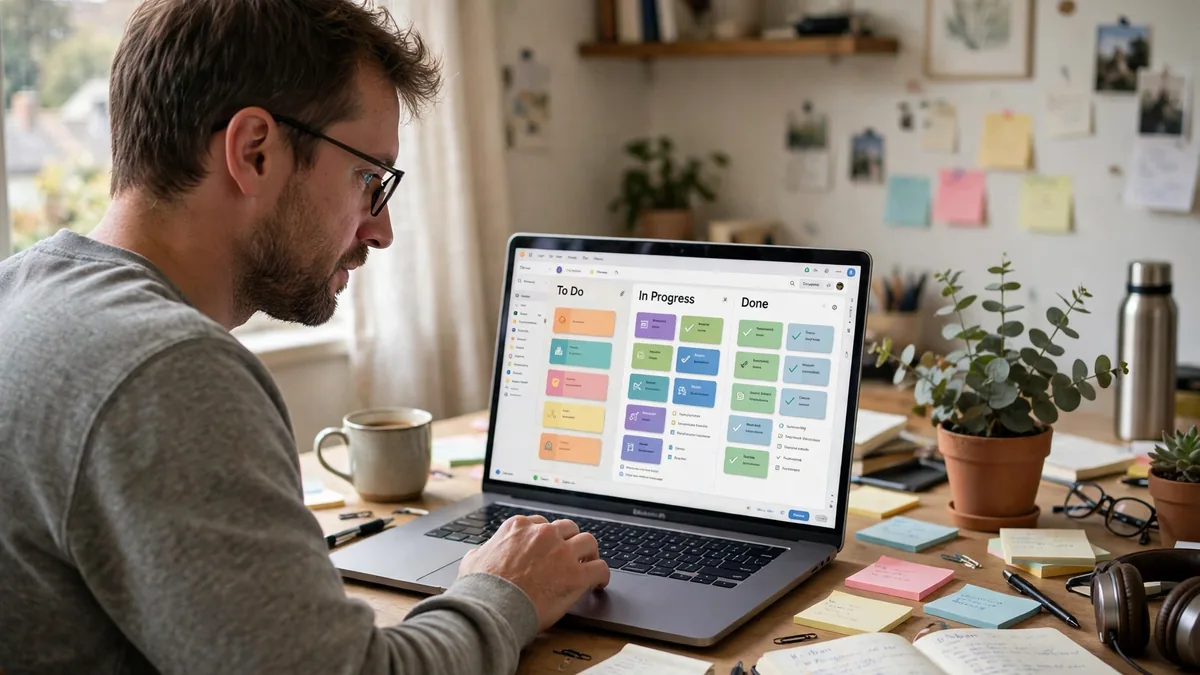
Getting started with Microsoft Teams is straightforward once you know where its three main parts live: chat, meetings, and teams. Microsoft Teams is the chat and video meeting app included with most Microsoft 365 business and school plans, and it combines one-to-one messaging, group channels, file sharing, and video calls in a single window. If your workplace or school uses Microsoft 365, you probably have Teams already.
This guide covers the setup in the order a new user needs it: signing in and installing the app, finding your way around, sending your first chat message, joining and starting a meeting, working in a team channel, and sharing files. It reflects the current Teams app for Windows, Mac, and mobile in 2026.
By the end you will be able to send a message, join a meeting without a scramble, post in the right channel instead of the wrong one, and find a file someone shared last week. Try each step as it comes up.
Key takeaways
- Sign in with your work or school Microsoft account, which is usually the account that already has Teams included.
- Chat is for direct messages, Teams is for group channels, and meetings can start from either place.
- Join a meeting from the link, the calendar, or the Meet button, and check your camera and microphone before you speak.
- Post in channels so the whole team can see the conversation, and use chat only for private or one-to-one messages.
- Files shared in Teams are stored in SharePoint or OneDrive, so they stay searchable long after the chat scrolls past.
Microsoft Teams at a glance
| Task | Where to do it | What you need |
|---|---|---|
| Sign in | Teams app or web version | Work, school, or Microsoft account |
| Send a message | Chat tab | The name of a colleague or group |
| Join a meeting | Calendar tab or meeting link | Meeting link, or an invite in your calendar |
| Start a meeting | Meet button, top right of the app | People to invite, or a channel to meet in |
| Work in a channel | Teams tab, then a channel name | Membership of that team |
| Share a file | Chat, channel, or Files tab | A file on your computer or in OneDrive |
| Free version limits | Teams free | Group meetings up to 60 minutes, 100 participants, 5 GB storage per user |
Step 1: Sign in and install the Microsoft Teams app
Open Teams on the web at the Microsoft Teams site, or download the desktop app for Windows or Mac from the Microsoft website or your app store. On a phone or tablet, install Microsoft Teams from the App Store or Google Play. The current app is a single unified Teams app for work, school, and personal use.
Sign in with the account your organisation gave you, usually your work or school email address and password. A personal Microsoft account also works, but it opens the free version with fewer features, so use the work or school account if you have one.
Once you are in, check your audio and video before your first meeting. Click the three dots beside your profile picture, open Settings, then Devices, and confirm the right speaker, microphone, and camera are selected. Click Make a test call to hear a playback of your voice. Set your status at the top of the window too, so colleagues know whether to message you.
Step 2: Find your way around Teams
The left-hand rail holds the whole app. Chat holds your direct messages, one-to-one and small group conversations that stay private to the people in them. Teams holds the group channels, and every channel message is visible to the whole team. Calendar shows your meetings and lets you join them with one click.

Activity, the bell icon, collects everything that mentions you. The search bar at the top searches across messages, files, and people, and is the fastest way to find a document someone shared weeks ago.
Start by setting up your profile. Click your picture at the top right, add a photo, and check that your name and job title are correct, since these are what colleagues see when you message them. Our comparison of Microsoft 365 vs Google Workspace for Small Business in 2027 explains how the two suites differ on price, storage, and the apps included.
Step 3: Send your first chat message
Click Chat, then New chat, and type the name of a colleague. Write your message in the box at the bottom and press Enter. You can attach a file, add an emoji, or format the text from the buttons under the message box. Press Shift plus Enter for a new line without sending it.
To message several people at once, add more names to the same chat, which creates a group chat. Give it a name by clicking the pencil icon at the top, so it is easy to find later, for example Project Apollo launch. Group chats are good for quick decisions, but past a dozen people a channel is the better home for the conversation.
The checkmark beside a message means it was sent, and a seen note shows who has read it. You can hover over your own message to edit or delete it after sending. Reply in a thread inside a channel by clicking Reply under the message, so the conversation stays attached to the original post.
Step 4: Join and start a Teams meeting
Joining a meeting is simple. Click the meeting link in an email or calendar invite, and Teams opens, or click Join on the meeting in the Calendar tab. The pre-join screen lets you turn your camera on or off, mute your microphone, and choose a background blur. Click Join now, and you will enter the meeting or a lobby until the organiser admits you.
To start a meeting yourself, click Meet at the top right and choose Meet now, or schedule one from the Calendar tab with New meeting. Add a title, the people to invite, and the date and time. For a regular team meeting, create it inside a channel instead, so everyone in the team can see and join it.
Inside a meeting, the toolbar at the top of the window holds the controls: camera, microphone, people, chat, and raise hand. Raise your hand instead of interrupting, and use the chat panel to share a link or a question. To share your screen, click Share, then pick a window, a PowerPoint file, or your whole screen. When you need to plan work that comes out of a meeting, a good project management tool for remote teams turns the decisions in the call into tasks with owners and deadlines.
Step 5: Work in teams, channels, and files
A team is a group of people working together, and a channel is a topic inside that team. To join a team, click Teams in the left rail, then Join or create a team, and ask your manager for the team code if you need one. Click a channel name to read its posts, and click New conversation at the bottom to post to everyone in it.
Start a new conversation for a new topic, and use @ to mention a person or the whole channel when you need their attention. The Files tab at the top of each channel holds every document shared there, and opening one lets you edit it together in real time.
Files shared in a chat are stored in the sender’s OneDrive and shared with the people in the chat. You can search for a file by name from the top search bar, and version history lets you restore an earlier version if someone overwrites a document. If your team spends a lot of time in video calls, the right VPN services for Microsoft Teams users can keep those calls private and stable when working from home, a hotel, or a public network.
Fixing common Microsoft Teams problems
If your microphone does not work, check Settings, then Devices, and confirm the right microphone is selected, then test it with Make a test call. Also check that Teams has microphone permission in your system settings, because a blocked permission looks exactly like a broken microphone.
If you cannot sign in, check that you are using the right account. Teams will quietly sign you into a personal Microsoft account if you use a personal email, and then your work teams will be missing. Sign out from your profile menu and sign back in with the work or school address. If your organisation recently changed your password, sign out of Teams completely and sign in again.
If messages or files do not appear, check your connection first, then click your profile picture and choose Check for updates, since Teams updates itself in the background and an old version can miss new messages. For echo in a meeting, mute yourself when you are not speaking, and never join the same meeting from two devices with both speakers on.
Checklist: your first week in Microsoft Teams
- Install the desktop and mobile apps, and sign in with your work or school account.
- Run Make a test call in Settings, then Devices, to check your microphone, speaker, and camera.
- Set your status and add a profile photo so colleagues can recognise you.
- Join the teams and channels for your projects, and mute channels you only need to check occasionally.
- Send a chat message, join a meeting from the calendar, and share your screen once in a practice call.
- Learn the search bar: it finds messages, people, and files faster than scrolling any channel.
Frequently asked questions
Is Microsoft Teams free?
Yes, there is a free version of Teams with unlimited chat and group meetings of up to 60 minutes for up to 100 participants, plus 5 GB of storage per user. Most businesses get the full version through a Microsoft 365 business plan.
Do I need a Microsoft 365 subscription to use Teams?
No. The free version of Teams works with a personal Microsoft account and covers chat, meetings, and file sharing. A Microsoft 365 subscription adds the full version with longer meetings and more storage.
What is the difference between chat and a channel in Teams?
Chat is private to the people in it. A channel is a topic inside a team, and every message posted there is visible to all team members. Use chat for private questions, and channels for work the whole team should see.
Can I join a Teams meeting without an account?
Yes. Click the meeting link and join as a guest from the web or the app, and the organiser admits you from the lobby. As a guest you can use your camera and microphone, but you cannot start meetings or access the team’s channels and files.
How do I share my screen in a Teams meeting?
Click Share in the meeting toolbar, then choose a window, a PowerPoint file, or your desktop. Sharing a single window keeps your other apps private. Remember to close any private tabs before you share your whole screen.
Where are Teams files stored?
Files shared in a channel are stored in that team’s SharePoint site, and files shared in a chat are stored in the sender’s OneDrive. Both stay searchable in Teams and let several people edit the same document at the same time.
The bottom line
Microsoft Teams is three tools in one window: private chat, channels for team work, and meetings. Learn those three, plus the search bar, and the rest of the app falls into place.
Give yourself a week of using Teams for real work before judging it. Once you mute the noisy channels and pin the ones that matter, it becomes the fastest way to reach a colleague, find a file, or start a call.