
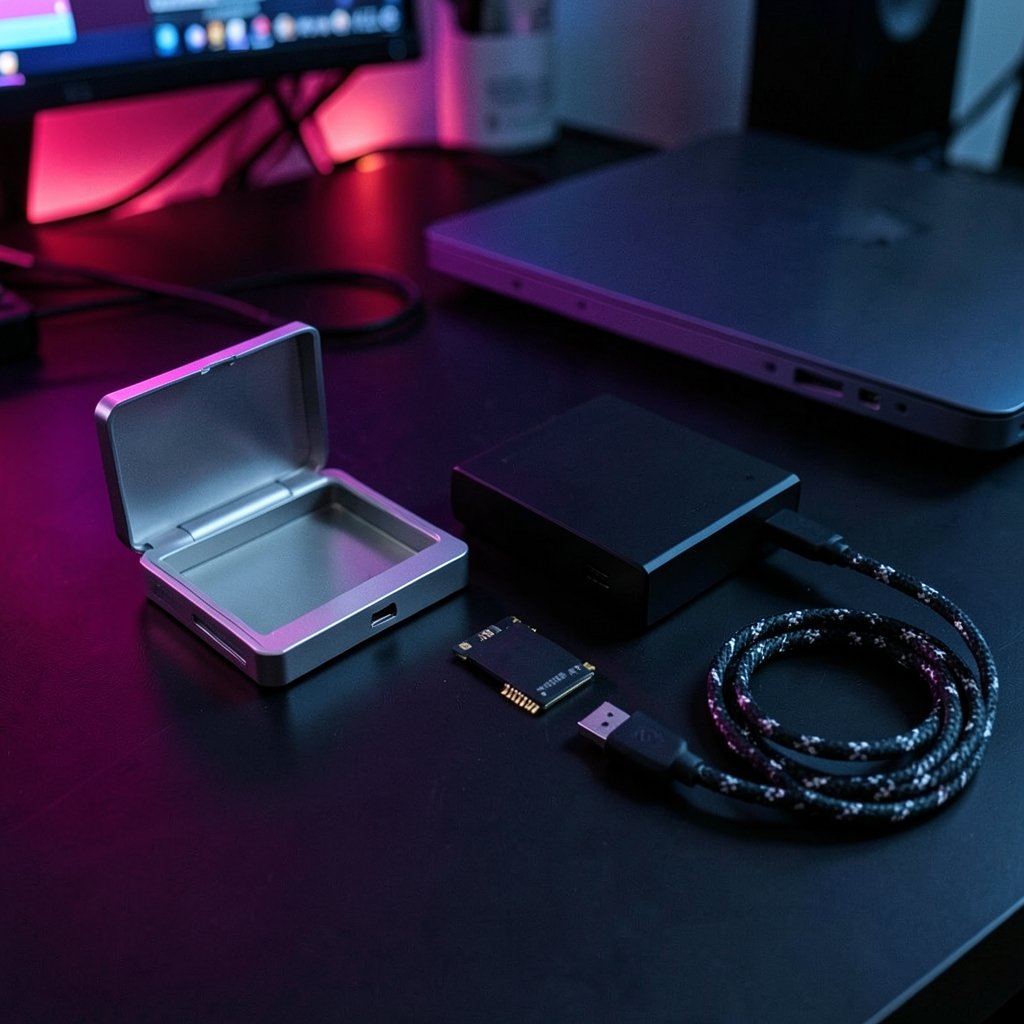
What good is a faster enclosure if your laptop’s USB-C port quietly caps it at a quarter of the speed? That is the trap waiting for anyone shopping for an M.2 NVMe enclosure right now. The box says 40 Gbps, or the newer one says 80 Gbps, and both numbers look enormous next to the 10 Gbps port on the side of your machine. The real answer depends on four separate links in a chain: the drive, the enclosure, the cable, and the host port. Get any one of them wrong and the whole setup drops to the slowest part.
This guide walks through what those speed ratings actually mean, why 80 Gbps is not automatically the better buy, and how to check every link before spending money on an upgrade meant to last into 2027.
What the 40 Gbps and 80 Gbps Numbers Actually Mean
The 40 Gbps figure comes from USB4 Version 1.0, which tunnels PCIe, DisplayPort, and USB 3.2 over a USB-C link. M.2 NVMe enclosures ride on that PCIe tunnel, which is why a USB4 enclosure behaves like a fast internal drive rather than a slow external one.
The 80 Gbps figure comes from USB4 Version 2.0, announced in September 2022, which doubles the maximum signaling rate and adds an optional 120 Gbps asymmetric mode aimed at display-heavy workloads. The USB4 Version 2.0 announcement from the USB Promoter Group lays out the specification details. (USB4 specification overview)
Here is the part people miss: those are signaling rates, not file-copy speeds. After encoding and protocol overhead, a 40 Gbps link delivers roughly 5 GB/s theoretical and about 3.5 to 3.8 GB/s in practice. An 80 Gbps link is roughly 10 GB/s theoretical. Nobody copying a folder of photos ever sees the headline number.
There is also a naming problem. “80 Gbps” can mean USB4 v2, Thunderbolt 5, or a vendor’s proprietary mode. These are related but not interchangeable, and a product claiming one may not carry certification for the other.
The Four-Link Chain That Sets Your Real Speed

Every portable SSD setup is only as fast as its weakest component. Before buying anything, map out all four.
| Link | What to check | Typical ceiling |
|---|---|---|
| NVMe drive | PCIe generation (3.0, 4.0, 5.0) and lane count | PCIe 4.0 x4 tops out near 7 to 8 GB/s |
| Enclosure | Rated link speed and bridge chip | 40 Gbps or 80 Gbps |
| Cable | Certified rating and length | 10, 20, 40, or 80 Gbps |
| Host port | The laptop or desktop port spec sheet | Often 10 Gbps or 40 Gbps |
A PCIe 4.0 drive in an 80 Gbps enclosure still cannot exceed what the drive itself can push. An 80 Gbps enclosure plugged into a 10 Gbps port runs at 10 Gbps. The chain does not care about your receipt.
Start With the Host Port, Not the Enclosure
This is the most common and most expensive mistake. People buy the fastest enclosure on the shelf and then discover their shiny new laptop’s USB-C port is USB 3.2 Gen 2 at 10 Gbps. Plenty of machines sold in 2024 and 2025 still ship that way, even premium models.
The port’s rated speed sets the ceiling for everything downstream. Not the cable. Not the enclosure. The port.
How to check your port without guessing
- Look up the exact model number on the manufacturer’s spec sheet, not the marketing page. Search for “USB-C” and read the fine print.
- On Windows, open Device Manager and check the USB host controller entries. On macOS, use System Information under the USB and Thunderbolt sections.
- Count the ports. Manufacturers often fit one fast port and two slow ones, and the fast one may be the charging port.
- If the spec sheet is vague, assume the slower rating. Vague specs are rarely hiding a pleasant surprise.
If you are also planning a laptop or desktop refresh, it is worth checking what your current machine can handle before you commit to new hardware at all. A quick pass through a guide on checking if your PC supports Windows 11 before you upgrade is a useful reminder that platform limits, not accessories, usually decide how far an upgrade can go.
M.2 Keying and Length: The Check Nobody Makes
External speed gets all the attention, but form factor compatibility kills more purchases. Most NVMe drives are M-key, 2280 length. Some enclosures accept only 2230 or 2242 drives, and some budget models take B+M key SATA drives rather than NVMe at all. The PCI-SIG specifications index documents the M.2 and PCIe standards that govern these physical and electrical details. (PCI Express)
Before ordering, confirm three things about the enclosure:
- Supported drive lengths, in millimeters
- Key type, M or B+M
- Protocol, NVMe or SATA
Then confirm the same three things about your drive. A 2230 drive will physically fit a 2280 slot only if the enclosure has a movable mounting point, and even then it may not be supported. This is a five-minute check that prevents a return.
Cable Ratings Are a Separate Compatibility Axis
A 40 Gbps or 80 Gbps link needs a certified USB4 or Thunderbolt cable of the right length. Passive cables have length limits that get tighter as speeds rise, and a cable rated only for 10 Gbps will drag the whole link down to 10 Gbps without any warning message.
The USB-IF compliance program explains how certified cables and devices are tested and what the logos mean. Look for the certification mark rather than trusting a spec printed on the packaging. The cable that came free with a phone charger is not going to carry 80 Gbps.
A practical tip from people who test these setups: label your fast cables. Once you own three or four USB-C cables that look identical, the 10 Gbps one ends up in the fast port and you spend an evening wondering why your new enclosure is slow.
Thunderbolt 5 and USB4 v2 Are Not the Same Badge
Thunderbolt 4 mandates 40 Gbps and requires PCIe tunneling of at least 32 Gbps. Thunderbolt 5, announced in September 2023, supports 80 Gbps symmetric and up to 120 Gbps asymmetric. Intel’s Thunderbolt 5 announcement covers the modes and requirements.
A USB4 v2 enclosure may or may not be Thunderbolt 5 certified. The speed claim and the certification mark are two different things, and only one of them tells you how the device will behave on a Thunderbolt host. Check the badge, not the box copy.
This matters for 2027 planning because certification ecosystems move slower than specification announcements. A device that supports the standard on paper may still have firmware quirks on specific hosts.
Thermal Throttling: The Real-World Limiter
Specifications describe peak bursts. Portable NVMe enclosures live in a small metal box with no active cooling, and sustained writes generate heat fast. Many enclosures throttle after short bursts, dropping from multi-gigabyte speeds to something far more modest.
At 80 Gbps this gets worse, not better, because the drive is working harder for longer. Vendor benchmarks rarely show sustained performance, so look for independent reviews that test large file copies over several minutes. A drive that holds 2 GB/s for ten minutes is more useful than one that hits 6 GB/s for fifteen seconds.
This is also where the drive choice matters. Some NVMe drives run hot and throttle early. Others are efficient enough to sustain near-peak speeds in a passive enclosure. Pairing a hot drive with a fast enclosure is a recipe for disappointment.
Should You Buy 40 Gbps or 80 Gbps for 2027?
The honest answer depends on what you will plug into. Here is a rough decision table.
| Your situation | Sensible choice |
|---|---|
| Host port is 10 Gbps | Neither; a good 10 Gbps enclosure saves money |
| Host is USB4 40 Gbps or Thunderbolt 4 | 40 Gbps enclosure, no question |
| Host is Thunderbolt 5 or USB4 v2 | 80 Gbps enclosure, if certified |
| Planning a laptop refresh in 2027 | 40 Gbps now, revisit later |
| Working with huge video files daily | 80 Gbps if the host supports it |
The key insight for 2027 planning: a 40 Gbps enclosure bought today will still be a 40 Gbps device in 2027. It will not become faster when you buy a new laptop. But it will keep working, and it will cost less. Meanwhile, 80 Gbps host support is still concentrated in a small number of platforms, and product roadmaps two years out are not something anyone should plan around.
Buy for the host you will actually use, not the standard’s headline number. If you are weighing storage options more broadly, a comparison of USB flash drive vs portable SSD longevity helps frame how long you can expect each format to stay useful. (Samsung portable ssd p9 vs p7 vs t9 buyers should know 2026)
Common Mistakes That Cost Money
- Buying the enclosure first and checking the port later
- Assuming every USB-C port on a laptop is equally fast
- Reusing a charging cable for data transfer
- Ignoring drive keying and length until the drive does not fit
- Trusting peak benchmark numbers over sustained tests
- Assuming an 80 Gbps label means Thunderbolt 5 certified
Each of these is avoidable with a spec sheet and ten minutes. The pattern is always the same: the weakest link wins.
Conclusion
The gap between 40 Gbps and 80 Gbps is real, but it only matters if every other link in the chain can keep up. Check the host port first, confirm the drive’s keying and length, buy a certified cable, and read independent reviews for sustained performance rather than peak bursts. For most people shopping today, a well-chosen 40 Gbps enclosure on a 40 Gbps host delivers nearly everything the faster standard promises, at a fraction of the cost and risk. Save the 80 Gbps purchase for the day your hardware actually needs it. By 2027, that day may arrive. It has not arrived yet for most buyers.
FAQ
Is 80 Gbps actually twice as fast as 40 Gbps in real use?
On paper, yes. In practice, the gain is smaller. A 40 Gbps link delivers roughly 3.5 to 3.8 GB/s after overhead, and 80 Gbps is roughly double that in theory. But your NVMe drive, thermal limits, and file sizes all eat into the difference. Most users copying photos or documents will not notice.
Can I use a 40 Gbps enclosure on an 80 Gbps port?
Yes. USB4 is backward compatible, and the link negotiates down to the highest rate both ends support. The enclosure becomes the bottleneck, which is fine. It just means you paid for speed the enclosure cannot use.
How do I know if my laptop’s USB-C port is 40 Gbps?
Check the manufacturer’s spec sheet for the exact model number. Look for terms like USB4, Thunderbolt 4, or Thunderbolt 5. If the sheet only says USB-C or USB 3.2, assume 10 Gbps or slower until you confirm otherwise.
Does an 80 Gbps enclosure make my old NVMe drive faster?
No. The drive’s PCIe generation sets its own ceiling. A PCIe 3.0 drive will not exceed its rated speed no matter how fast the enclosure is. The enclosure can only remove bottlenecks, not create speed the drive does not have.
Why does my new enclosure throttle after a few minutes?
Heat. Portable NVMe enclosures have no active cooling, and sustained writes generate significant heat. Most throttle to protect the drive. Look for independent reviews that test long file copies rather than short bursts.
Is Thunderbolt 5 the same as USB4 v2?
They overlap but are not identical. Thunderbolt 5 supports 80 Gbps symmetric and up to 120 Gbps asymmetric, and it requires certification. A USB4 v2 device may carry the same speeds without Thunderbolt certification. Check the badge on the product rather than relying on the speed claim alone.



