

Quick Answer: Why is my phone on sos?
Your phone shows SOS because it cannot connect to your own carrier’s network, but it can still try to reach emergency services through any other network that happens to be available. In plain terms, the phone is telling you it has lost its normal tower connection, so calls, texts and mobile data likely will not work while the indicator is there.
The exact wording depends on your device. iPhones display “SOS” or “SOS only,” while many Android phones show “Emergency calls only” or a similar message for the same condition. Newer handsets can also fall back to satellite messaging when there is no signal at all.
Before you panic or drive to a repair shop, check these in order: your location and coverage, airplane mode and network settings, your SIM or eSIM status, your carrier’s account standing, whether Wi-Fi Calling is on, and whether other people on the same carrier are also affected.
The Short Version: Your Phone Lost Its Home Network
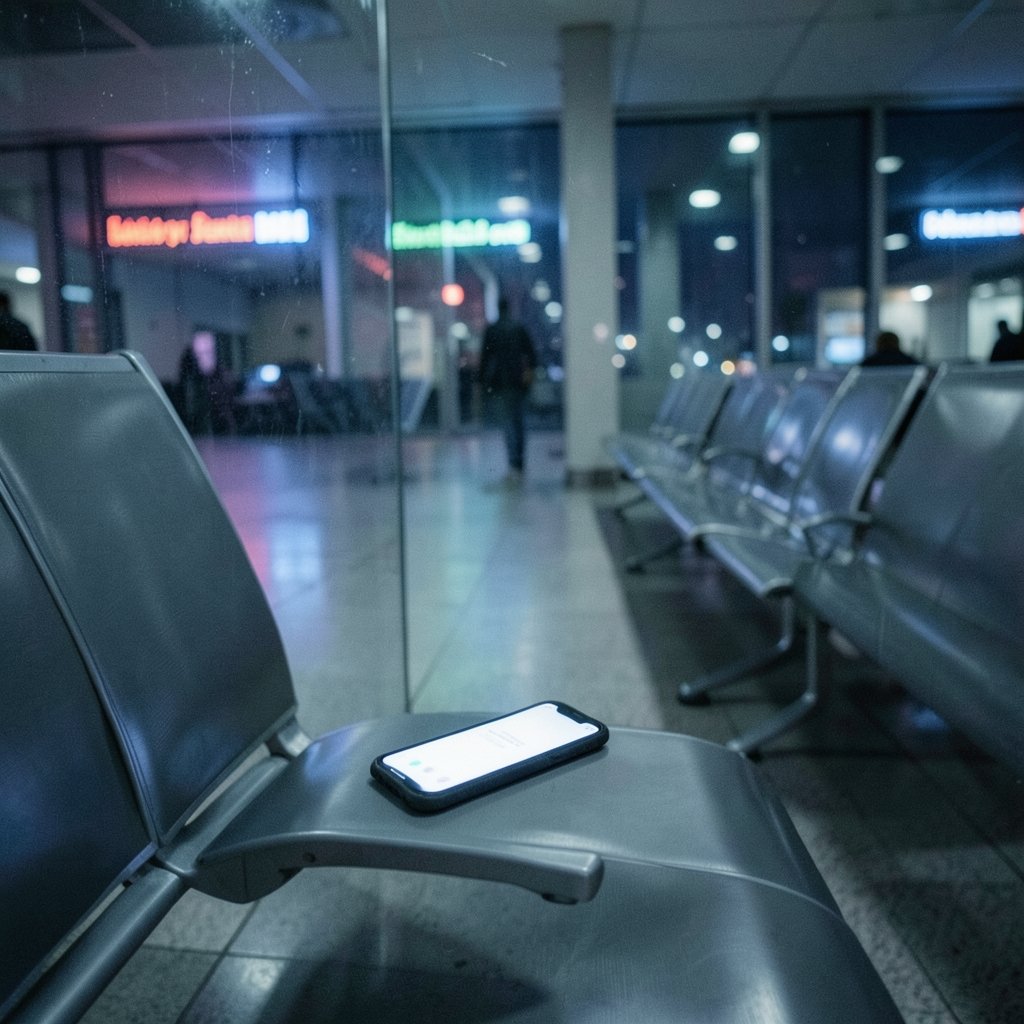
Picture this: you pull your phone out of your pocket, glance at the top corner, and instead of bars you see three little letters. SOS. Your stomach drops a bit. Did the phone break? Did you miss something important?
Almost certainly not. In the vast majority of cases, SOS is not a fault. It is a fallback mode. The phone is doing exactly what it was designed to do when its own carrier disappears from the airwaves: it keeps a lifeline open for emergency calls and tells you, honestly, that ordinary service is gone.
The confusion comes from the word itself. People read “SOS” and assume something dramatic is happening. In reality, it is closer to a “no signal” badge with a safety net attached. Understanding that distinction takes most of the worry out of the moment.
What SOS Actually Means on iPhone and Android
On an iPhone, SOS or SOS only in the status bar means the device cannot reach your carrier’s network but may still be able to place an emergency call through any available network. Apple’s support documentation explains that the indicator is about connectivity, not about the phone being damaged.
Android phones tend to use different language for the same situation. You will often see Emergency calls only, sometimes with a small icon of a signal with a slash through it. The meaning is nearly identical: your carrier is unreachable, emergency calling may still work.
There is one important nuance. On recent iPhones and some Android models, the phone can go further than a normal emergency call. Satellite features let you contact emergency services in places with no cellular or Wi-Fi coverage at all, which is why the indicator has become more common in remote areas rather than less.
Why Emergency Calls Still Work When Everything Else Doesn’t
This is the part that surprises people most. A phone with no service from its own carrier can often still complete an emergency call, because emergency calls are routed to emergency services regardless of which carrier’s network the call travels over.
In the United States, wireless 911 calls are handled this way by design. In Europe, the single emergency number 112 can typically be dialed from any phone, including one without a SIM card, which is why travelers sometimes find that a local phone works for emergencies before it works for anything else.
So when your phone says SOS, it is not saying “you are cut off from help.” It is saying “you are cut off from your carrier.” Those are very different statements, and the gap between them is exactly where emergency calling lives.
The Usual Suspects: Why Your Phone Dropped to SOS
Most SOS situations trace back to one of a handful of causes. Working through them in order saves time and usually finds the answer within a few minutes.
You are simply in a dead zone
Basements, parking garages, elevators, rural stretches, thick-walled buildings and aircraft cabins are classic dead zones. If SOS appeared the moment you walked into a space and vanishes when you leave, you have your answer. Nothing needs fixing.
Your carrier is having an outage
Major carrier outages have left huge numbers of phones showing SOS until service was restored. These events are not rare, and they are not your fault. The tell is that everyone around you on the same carrier is affected at the same time. A quick check of your carrier’s status page or a neighbor’s phone confirms it fast.
Something is wrong with the SIM or eSIM
A loose physical SIM, a damaged card, or a failed eSIM activation can all knock a phone off its network. This is especially common after switching phones, transferring an eSIM, or returning from a trip abroad. Re-seating a physical SIM or re-adding the eSIM usually resolves it.
Your account has an issue
A suspended line, an unpaid bill, a missing plan feature or a carrier-side provisioning error will drop you to emergency-only service. This one catches people off guard because the phone itself looks perfectly healthy.
A setting got flipped
Airplane mode left on, a network selection stuck on a carrier that isn’t yours, a VPN interfering with connectivity, or a botched software update can all produce SOS. These are the easiest fixes and the most commonly overlooked.
Hardware trouble
Less often, the antenna or modem inside the phone has failed. The pattern to watch for is SOS that persists across multiple locations, survives restarts and SIM swaps, and comes with other symptoms like Wi-Fi dropouts or a phone that runs unusually hot.
A Step-by-Step Fix That Actually Works
Rather than guessing, work through this sequence. It moves from the cheapest, fastest checks to the more involved ones.
- Toggle airplane mode on for 15 seconds, then off. This forces the phone to re-scan for towers and fixes a surprising number of stuck connections.
- Restart the phone. A full power cycle clears temporary network glitches that a screen lock does not.
- Check coverage around you. Step outside or near a window. Ask someone nearby whether their phone works.
- Confirm your carrier has no outage. Look at the carrier’s status page or social feed before touching any settings.
- Inspect the SIM or eSIM. Re-seat a physical SIM. In settings, confirm the eSIM is still listed and active.
- Reset network settings. This clears saved networks and APN data without erasing your photos or apps. You will need to re-enter Wi-Fi passwords afterward.
- Check your account status with the carrier, including billing and line provisioning.
- Test another SIM if you have one available. If a different SIM works, the problem is the account or the original SIM, not the phone.
- Contact the carrier, then a repair technician if SOS follows you everywhere with a known-good SIM.
One practical tip from experience: resist the urge to factory reset as a first move. It is the most disruptive step on the list and rarely the one that solves an SOS problem. If you do end up needing a reset for unrelated reasons, there are ways to factory reset an Android phone without losing your data that are worth reading first.
When Wi-Fi Calling Quietly Saves the Day
Here is a detail many people miss. If Wi-Fi Calling is enabled, calls and texts may keep working over Wi-Fi even while the status bar still reads SOS. The phone is connected to your carrier through the internet rather than a tower, so the cellular indicator stays honest about the tower while your messages still go through.
That means an SOS badge does not automatically mean you are unreachable. Try sending a text. Try a call. If both work, you are on Wi-Fi Calling and the only real problem is local coverage.
This is also why turning on Wi-Fi Calling before you need it matters. Enabling it during an outage, in a building with weak signal, is far more fiddly than enabling it on a normal day at home.
SOS vs. Emergency Calls Only vs. No Service
The wording varies by operating system, region and software version, but the underlying states are limited. This table maps them out.
| Status message | What it usually means | Can you call emergency services? |
|---|---|---|
| SOS / SOS only (iPhone) | No connection to your carrier; another network may be reachable | Usually yes |
| Emergency calls only (Android) | Same condition, different label | Usually yes |
| No service / No SIM | No network at all, or no SIM detected | Sometimes, depending on the phone and country |
| Satellite SOS active | No cellular or Wi-Fi coverage; satellite link in use | Yes, via satellite where supported |
| Full bars | Normal carrier connection | Yes |
The satellite row deserves a note. Satellite emergency messaging has expanded steadily since it first launched, but availability depends on the phone model, the country you are in, and your carrier. It is not universal, and it is not a substitute for ordinary coverage.
Common Mistakes People Make
A few habits make SOS situations worse than they need to be.
The biggest is assuming the phone is broken and paying for a repair before checking the carrier. Outages and account issues account for a large share of cases, and neither requires a screwdriver.
The second is resetting everything at once. Changing five settings in a panic makes it impossible to know which one fixed the problem, or which one caused a new one. Change one thing, test, then move on.
The third is ignoring the pattern. SOS that appears only in one building is a coverage story. SOS that follows you across town with a fresh SIM is a hardware story. The pattern is the diagnosis.
And the fourth is forgetting about Wi-Fi Calling entirely, then concluding the phone is useless when it would have worked fine over the home network.
Related Connectivity Problems Worth Knowing
SOS is one of several signal issues that look mysterious but have ordinary explanations. If your phone connects but behaves oddly, the problem may be elsewhere in the chain.
Phones that cling to a weak mesh node instead of switching to a stronger one produce the same kind of frustration, and the cause is well documented in this explanation of mesh Wi-Fi roaming and sticky clients. Similarly, a phone that refuses to charge on a wireless pad is usually a coil alignment issue rather than a dead battery, as covered in this guide to wireless charger alignment problems.
The common thread is that modern phones fail in specific, diagnosable ways. SOS is not a mystery. It is a status message with a short list of causes.
Conclusion
Seeing SOS on your phone is unsettling, but it is almost always a statement about coverage rather than a sign of damage. The phone has lost its carrier connection and is keeping an emergency lifeline open while it waits for a tower to come back.
Work through the causes in order: location, outage, SIM, account, settings, hardware. Most people find their answer in the first three. And if the badge lingers while your texts still send, check whether Wi-Fi Calling is quietly carrying you.
Frequently Asked Questions
Does SOS mean my phone is broken?
No. SOS is a connectivity status, not a damage report. The phone cannot reach your carrier’s network but may still place emergency calls. Hardware failure is possible but is one of the least common causes.
Can I still call 911 or 112 when my phone shows SOS?
Usually yes. Emergency calls are typically routed through any available compatible network, and in many countries they can be placed even without a SIM card. Try the call if you have a genuine emergency.
Why does SOS appear only at home or only at work?
That pattern points to local coverage. Thick walls, basements and certain building materials block cellular signals. Enabling Wi-Fi Calling is the most practical fix for a single problem location.
How long does SOS last during a carrier outage?
It lasts until the carrier restores service, which can range from minutes to several hours depending on the fault. There is nothing to fix on your phone during an outage, so waiting and using Wi-Fi Calling is the realistic option.
Will resetting network settings delete my photos or apps?
No. Resetting network settings clears saved Wi-Fi networks, Bluetooth pairings and cellular configuration, but it does not touch your photos, messages or apps. You will need to re-enter Wi-Fi passwords afterward.
Why does my phone show SOS after I switched phones or traveled abroad?
A newly transferred eSIM, a SIM that is not seated properly, or a line that has not been provisioned for the new device can all leave a phone on emergency-only service. Re-adding the eSIM or contacting the carrier usually resolves it.
