

What if the new drive you just bought arrives, fits perfectly into the slot, and the computer still refuses to boot? That scenario happens more often than people admit. The drive is fine. The slot is fine. The problem is that the buyer never checked whether the two actually speak the same language.
Storage upgrades look simple from the outside. You buy a faster drive, you plug it in, and everything gets quicker. In reality, three separate things have to line up: the physical slot, the protocol the slot supports, and the firmware that knows how to start from the drive. Miss any one of them and the upgrade turns into a troubleshooting project.
This guide walks through the whole compatibility picture for NVMe vs SATA, with a focus on what to verify before spending money in 2027.
What Actually Separates NVMe From SATA?
The two terms get used as if they describe the same kind of thing, but they don’t. SATA is a physical interface and command protocol that has been around since the early 2000s. Its third generation, SATA III, caps out at 6 Gb/s of raw link speed, which works out to roughly 600 MB/s before overhead and around 550 MB/s in real-world transfers. (Cursor alternatives have real limits check before switching)
NVMe (Non-Volatile Memory Express) is a logical device interface built specifically for flash memory. It runs over the PCI Express bus rather than a SATA cable, which is why it can reach several gigabytes per second instead of several hundred megabytes. NVMe is a standard, not a connector, and it is maintained as an open specification.
That distinction matters for upgrades because a drive can be NVMe and still not fit your machine, or fit your machine and still not work. The connector and the protocol are two different checkboxes.
| Feature | SATA III | NVMe (over PCIe) |
|---|---|---|
| Raw link speed | 6 Gb/s | Depends on PCIe generation and lanes |
| Practical ceiling | ~550 MB/s | ~3.5 GB/s (PCIe 3.0 x4) to ~14 GB/s (PCIe 5.0 x4) |
| Typical form factors | 2.5-inch, M.2 | M.2, add-in card, U.2 |
| Command protocol | AHCI | NVMe |
| Boot requirements | Broad legacy support | UEFI firmware plus a driver-capable OS |
The practical ceiling column is the one people misread. A PCIe 5.0 drive rated at 14 GB/s will not deliver 14 GB/s in a PCIe 3.0 slot. It will fall back to the slower link and behave like a PCIe 3.0 drive. The drive is not broken; the slot is simply the bottleneck.
Why “It Fits” Is Not the Same as “It Works”
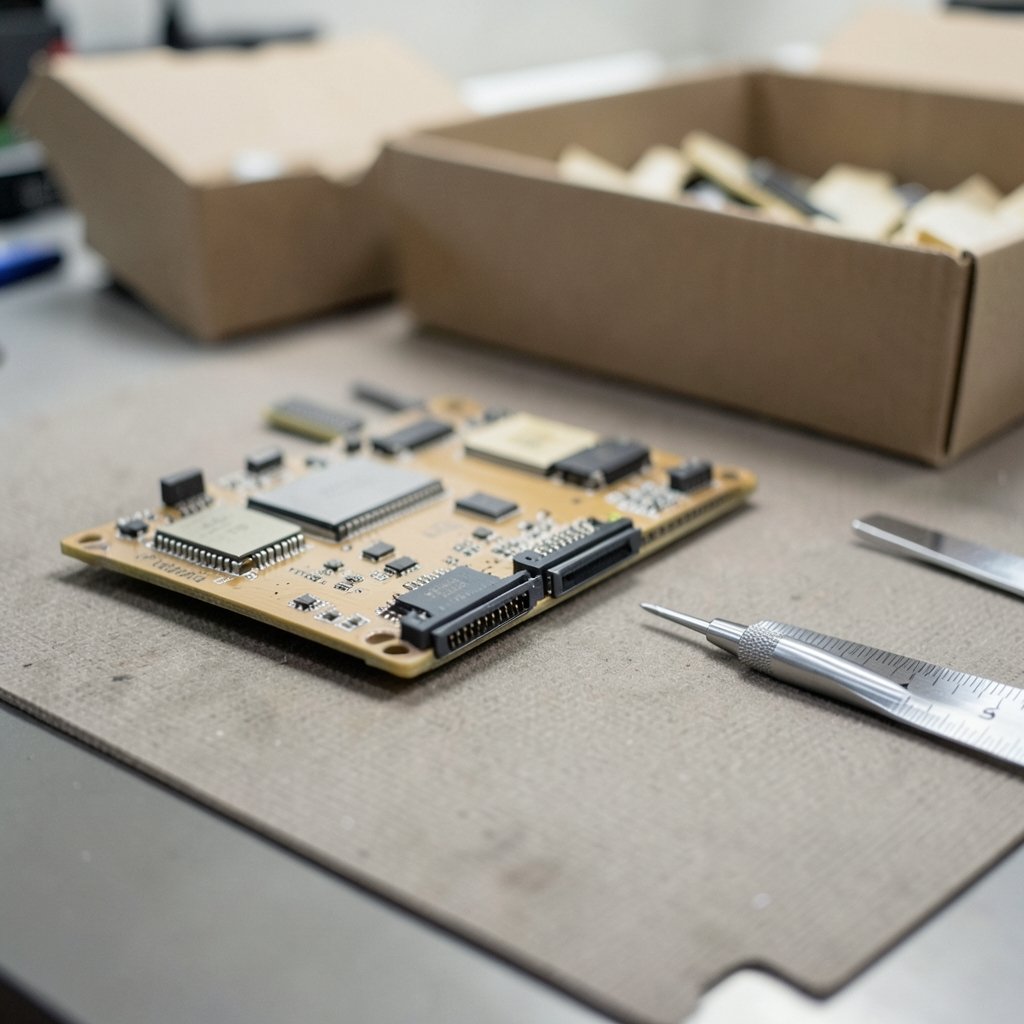
This is the single most common and most expensive mistake in storage upgrades. An M.2 slot and an M.2 drive can line up perfectly, slide in smoothly, and still be electrically incompatible.
M.2 is a form factor, and it uses keying to prevent some mismatches. The notch on the drive’s edge connector is positioned differently depending on what the slot is wired for. An M-key slot typically carries PCIe lanes and therefore NVMe. A B+M keyed slot often carries SATA. Some slots accept both, some accept only one.
The failure mode is subtle. A SATA M.2 drive in a PCIe-only slot may physically enter but simply won’t be detected. A PCIe NVMe drive in a SATA-only M.2 slot will usually not be recognized either. Neither case produces a helpful error message. The system just behaves as if no drive is present.
There is also a length dimension. M.2 drives come in sizes like 2230, 2242, 2260, and 2280, where the number refers to length in millimeters. A 2280 drive will not fit a laptop designed for a 2230 drive without the mounting screw landing in the wrong place. On desktops this is rarely an issue; on laptops it is routine.
Check One: The Slot, the Key, and the Length
Start with the manual. Not a forum post, not a retailer’s compatibility filter, and not a review from three years ago. The motherboard or laptop service manual is the only document that describes your specific board.
Look for a section usually titled something like storage, expansion, or internal connectors. You want three pieces of information:
- How many M.2 slots exist and what length each supports.
- What protocol each slot accepts (PCIe, SATA, or both).
- Which PCIe generation and lane count each slot is wired for.
If the manual is gone, the manufacturer’s support site almost always hosts a PDF. For laptops, the service manual is the right document rather than the user guide, because service manuals include the teardown diagrams and slot specifications.
One more thing to check on laptops: whether a 2.5-inch bay exists at all. Many modern thin laptops have dropped it entirely, leaving a single M.2 slot as the only option. If you are weighing storage types and wondering whether the speed difference even matters for your workload, a closer look at where NVMe versus SATA performance actually shows up in gaming and everyday use is worth the detour before you commit. (NVM Express (Wikipedia))
Check Two: PCIe Generation and Lane Sharing
A slot that accepts NVMe is not automatically a fast slot. PCIe generations matter, and so does how many lanes the slot gets.
PCIe 3.0 x4 provides roughly 3.9 GB/s of theoretical bandwidth. PCIe 4.0 x4 roughly doubles that to about 7.9 GB/s. PCIe 5.0 x4 pushes toward 15.8 GB/s. These are theoretical figures; real drives land somewhat below them. But the ratio holds, and it tells you whether a premium drive is worth paying for in your machine.
The lane-sharing issue is the one that catches careful buyers off guard. On many motherboards, populating an M.2 slot disables one or two SATA ports, or forces a graphics card slot to drop from x16 to x8. This is not a defect. It is a deliberate design tradeoff because the chipset has a fixed number of lanes to distribute. The manual will state it, usually in a footnote that is easy to skip.
If you are running several SATA drives for bulk storage, losing two ports to an M.2 upgrade might matter more than the speed gain. Check before you buy, not after.
Check Three: Boot Support and Firmware
A drive can be detected by the operating system and still fail to boot. This comes down to firmware and drivers.
NVMe booting generally requires UEFI firmware rather than the older legacy BIOS mode. Systems from the last decade almost always support it, but older machines may not, and some boards ship with UEFI present but NVMe boot support disabled or absent in that particular firmware revision.
The operating system side matters too. Windows 10 and Windows 11 include NVMe drivers natively. Windows 7 required a separate hotfix, which is one reason very old machines struggle with NVMe boot drives. Linux has had in-kernel NVMe support for many years. If you are repurposing an older desktop, this is the check that decides whether the drive becomes your boot device or just a secondary data drive. (NVM Express organization: NVMe specification overview)
Firmware updates are worth a look as well. Motherboard vendors occasionally add NVMe compatibility or fix detection bugs in later BIOS releases. Checking the support page for your exact model and current firmware version takes five minutes and occasionally saves an evening.
If the machine you are upgrading is also being evaluated for a newer operating system, it makes sense to check whether your PC supports Windows 11 before you upgrade, since the firmware and boot requirements overlap heavily with storage compatibility.
Check Four: Physical Space and Thermals
This one gets skipped constantly, and it causes real problems.
NVMe drives run hot. A PCIe 4.0 or 5.0 drive under sustained load can hit temperatures that trigger throttling, dropping performance back toward SATA levels. Many motherboards include M.2 heatsinks; some do not. If yours doesn’t, and the slot sits under a graphics card where airflow is poor, a heatsink is a sensible small purchase.
Laptops are tighter still. A double-sided M.2 drive, one with chips on both faces, may not fit under a laptop’s bottom panel or may press against it. Single-sided drives are the safer choice for thin machines. The service manual sometimes notes this; if it doesn’t, look for teardown photos of your exact model.
Also confirm the power and data cabling situation if you are adding a 2.5-inch SATA drive. Desktops need both a SATA data cable and a power connector from the PSU. It sounds obvious until you have the case open and realize every SATA power lead is already in use.
A Practical Pre-Purchase Checklist
Work through this in order before clicking buy:
- Open the motherboard or laptop service manual and identify every storage slot.
- Note the key type, supported protocol, and maximum length for each M.2 slot.
- Record the PCIe generation and lane count for each slot.
- Read the footnotes for lane sharing and disabled SATA ports.
- Confirm the firmware is UEFI and that NVMe boot is supported.
- Check the OS has native NVMe drivers.
- Measure clearance and decide whether a heatsink is needed.
- Only then compare drives, matching the drive’s rated interface to what the slot can actually deliver.
Step eight is where most people start, which is exactly backwards. Starting with the drive means you shop for specs you may not be able to use.
What About 2027 Specifically?
The honest answer is that the fundamentals are stable and the bleeding edge is not. SATA III has not changed in well over a decade and will not change. NVMe as a standard continues to receive revisions, and PCIe 6.0 hardware exists at the enterprise level, but consumer adoption timelines shift constantly.
The practical implication: buy for the machine you have, not for a standard that might arrive. A PCIe 4.0 drive in a PCIe 4.0 slot will feel fast for years. A PCIe 5.0 drive in a PCIe 3.0 laptop will feel exactly like a PCIe 3.0 drive, at a higher price. If you are also reconsidering your software stack alongside the hardware, the same logic applies to tools, and it is worth reviewing the real limits of Cursor alternatives before switching rather than chasing whatever is newest.
Common Mistakes Worth Avoiding
Buying on rated speed alone tops the list. A 14 GB/s drive in a 3.5 GB/s slot is a waste of money, and the marketing numbers never mention the caveat.
Assuming M.2 means NVMe is second. Plenty of M.2 SATA drives exist, and plenty of M.2 slots are SATA-only. The form factor tells you the shape, not the language.
Skipping the manual footnotes is third. Lane sharing, disabled ports, and slot-specific limitations live there, and nowhere else.
Forgetting the cooler is fourth. Thermal throttling turns a fast drive into an average one under sustained writes, which is precisely when you wanted the speed.
Finally, cloning an old SATA system drive to a new NVMe drive without checking boot mode. If the old install is legacy BIOS and the new drive needs UEFI, the clone will not boot. Converting the boot mode first, or doing a clean install, avoids the problem entirely.
Conclusion
The gap between NVMe and SATA is real, but it is not the whole story. What decides whether an upgrade succeeds is a short list of compatibility facts: the slot’s key and length, the protocol it accepts, the PCIe generation and lanes behind it, the firmware’s boot support, and the physical room to keep the drive cool.
None of those checks take long. All of them live in documents the manufacturer already publishes. The buyers who end up frustrated are almost never the ones who skipped research entirely; they are the ones who researched the drive thoroughly and the machine not at all. Flip that order, and the upgrade becomes boring in the best possible way.
Frequently Asked Questions
Can I put an NVMe drive in a SATA M.2 slot?
No. The slot lacks PCIe lanes, so the drive will not be detected. Check the manual for the slot’s supported protocol before buying. Some slots accept both SATA and PCIe; many accept only one.
Will a PCIe 5.0 NVMe drive work in a PCIe 3.0 slot?
It will usually work, but it will run at PCIe 3.0 speed, roughly 3.5 GB/s in practice rather than the drive’s rated figure. Compatibility is fine; the performance you paid for is not fully usable.
How do I know if my motherboard supports NVMe boot?
Check the manual for UEFI support and any mention of NVMe boot. Then confirm the firmware is set to UEFI mode rather than legacy. Windows 10 and 11 include native NVMe drivers, so the OS side is usually covered on modern systems.
Does adding an M.2 drive disable SATA ports?
Sometimes. Many motherboards share lanes between M.2 slots and SATA ports, disabling one or two ports when the M.2 slot is populated. The manual lists this in the storage or specifications section.
Is NVMe worth it over SATA for everyday use?
For large file transfers, video work, and heavy multitasking, yes, noticeably. For basic browsing and office work, the difference is smaller than the numbers suggest. Boot times improve, but not by the margin the specs imply.
What size M.2 drive do I need?
Match the length your slot supports, most commonly 2280 on desktops and a mix of 2230 and 2280 on laptops. For thin laptops, a single-sided drive is the safer choice for clearance and heat.



