
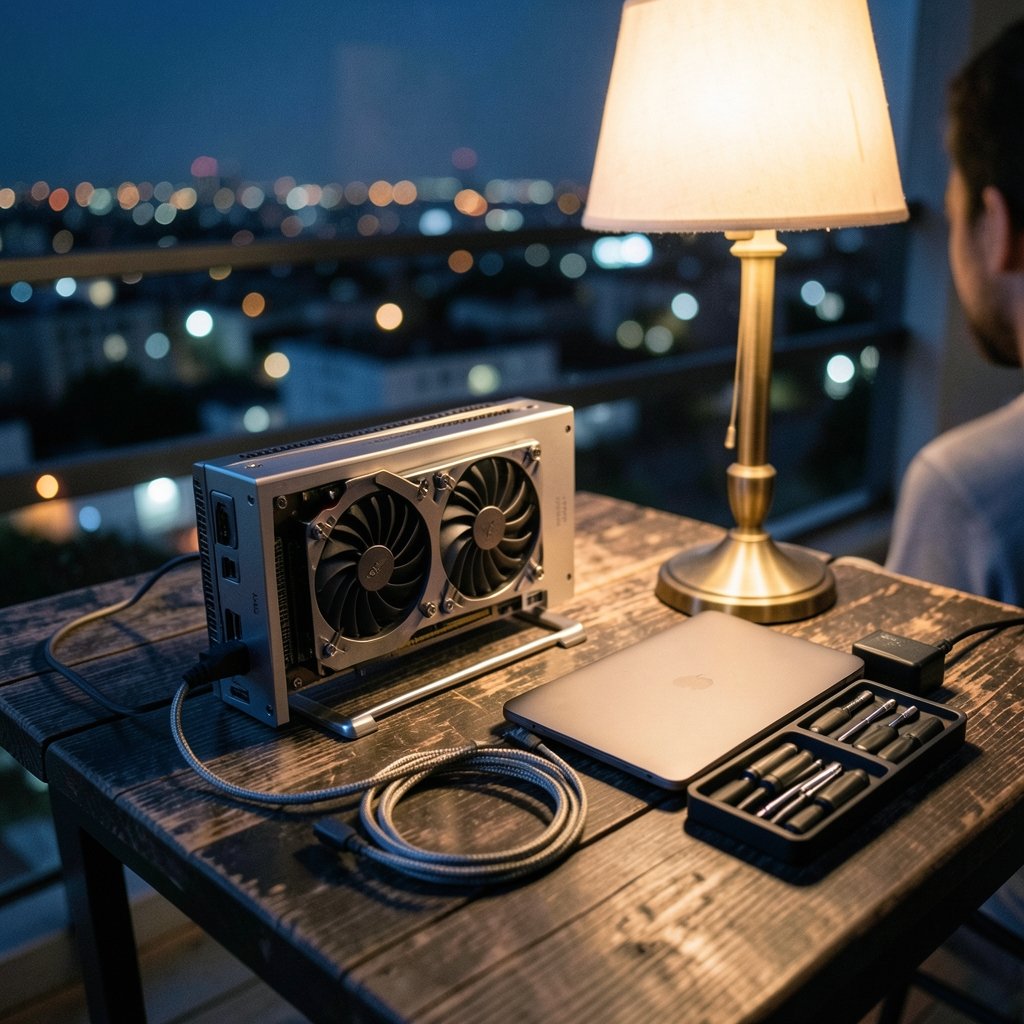
What if the biggest upgrade you could make to your laptop is not inside the laptop at all? An external GPU (eGPU) can turn a thin ultrabook into a gaming or rendering machine. But in 2026, two connection types dominate the conversation: OCuLink and USB4. They look similar on paper and behave very differently in practice. Choosing the wrong one before a 2027 upgrade can cost you hundreds of dollars and hours of troubleshooting.
This guide walks through what each standard actually does, where the real-world pitfalls hide, and how to check compatibility before you spend a cent.
What OCuLink and USB4 Actually Are
OCuLink is a connector standard that carries PCI Express (PCIe) lanes directly over a cable. It is not a general-purpose port in the way USB is. In consumer eGPU docks, it typically exposes a PCIe 3.0 x4 or 4.0 x4 link. Because it presents as a plain PCIe device, the operating system treats the GPU almost as if it were plugged into an internal slot.
USB4 is different in kind. It is built on the Thunderbolt 3 specification and supports PCIe tunneling, which is the mechanism that makes USB4 eGPUs possible at all. The USB4 specification arrived in 2019, and USB4 Version 2.0, announced in 2022, doubled signaling to 80 Gbps.
That difference in architecture explains almost every practical trade-off you will encounter.
| Feature | OCuLink | USB4 |
|---|---|---|
| Connection type | Direct PCIe lanes | Tunnels PCIe over USB4 |
| Typical consumer link | PCIe 3.0/4.0 x4 | Roughly PCIe 3.0 x4 equivalent |
| Hot-plug support | Generally no | Yes, with safe removal |
| Power delivery to laptop | None | Up to 100 W over USB PD |
| Cable length flexibility | Short, stiff cables | Longer, flexible cables |
| Port cost | Consumes an M.2 slot or needs a dedicated port | Uses an existing USB4/Thunderbolt port |
The Bandwidth Question Nobody Answers Simply
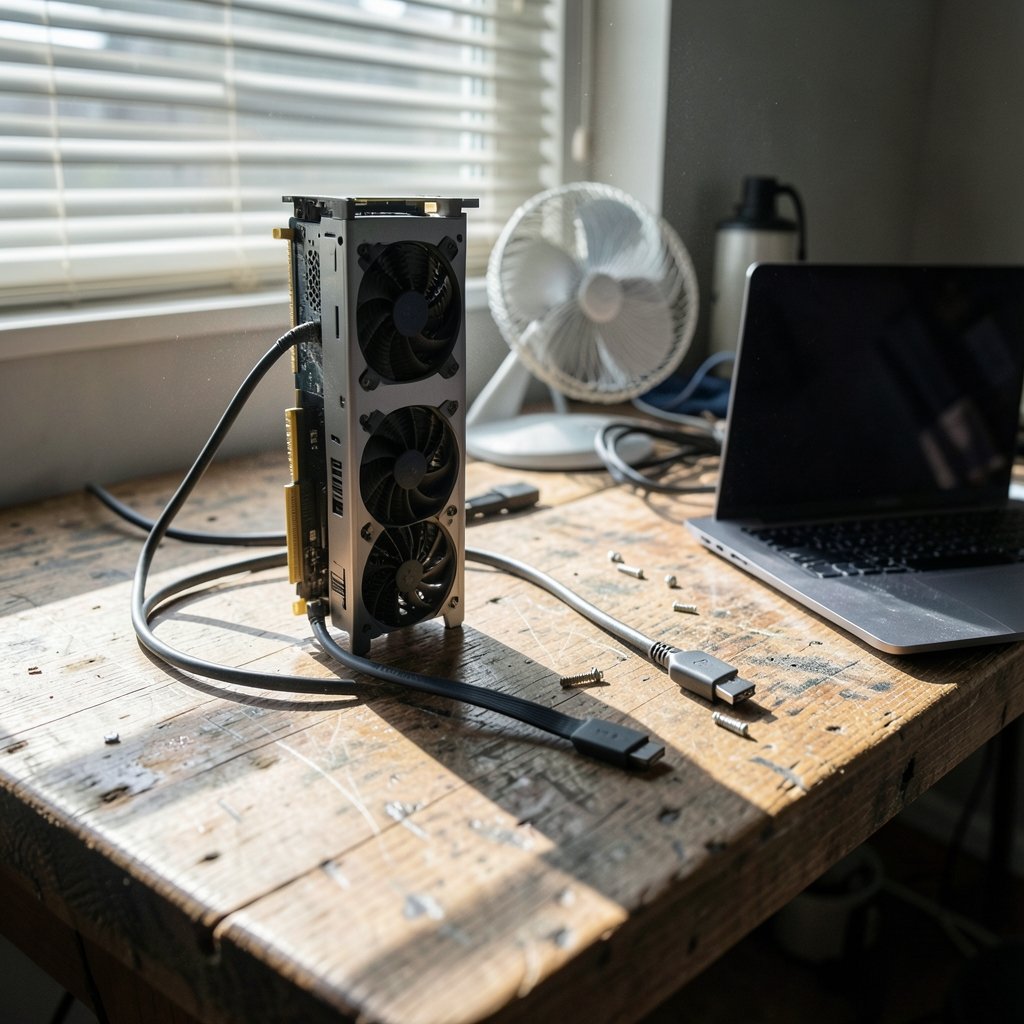
The core performance argument for OCuLink is lower protocol overhead. Thunderbolt 3 and 4 eGPUs deliver roughly PCIe 3.0 x4 equivalent bandwidth, around 32 Gbps usable, because the PCIe signal is wrapped inside the tunnel protocol. OCuLink exposes a native x4 link with less wrapping, so in theory more of the raw bandwidth reaches the GPU.
In practice, the gains vary enormously. For gaming at high resolutions, the difference is often modest, because the GPU is already the bottleneck. For some compute workloads, the gap can be larger. Anyone quoting a single percentage gain across all workloads is oversimplifying. Benchmark results shift with driver versions, game engines, and enclosure firmware.
The honest takeaway: OCuLink is usually faster, but rarely dramatically faster in the scenarios most people care about. If you want a deeper technical breakdown of how these links behave under real loads, the comparison of Oculink vs usb4 egpus 2026 performance cabling driver digs into cabling and driver behavior in more detail.
Compatibility Check 1: Does Your Machine Have the Right Port?
This is where most upgrade plans fall apart, and it is worth checking before anything else.
For OCuLink, you need either a dedicated OCuLink port (rare on laptops) or an M.2 NVMe slot that you are willing to give up. Most consumer OCuLink eGPU setups use an adapter that occupies the internal storage slot. That means:
- You lose an SSD slot, which may mean losing storage capacity.
- The laptop chassis must be opened, sometimes permanently modified.
- Some laptops route that M.2 slot in a way that limits PCIe lane count or speed.
For USB4, you need a USB4 or Thunderbolt 3/4 port with PCIe tunneling enabled in firmware. Not every port labeled USB-C supports this. A port can be USB-C shaped and still be plain USB 3.2 with no tunneling at all. Check the manufacturer’s spec sheet for the words “USB4” or “Thunderbolt,” rather than relying on “USB-C” alone.
Practical tip: before buying anything, look up your exact laptop model plus the word “eGPU” in owner forums. Someone has almost certainly tried it already, and their failure report is worth more than any marketing page.
Compatibility Check 2: Operating System and Driver Support
Windows has supported Thunderbolt and USB4 eGPUs since Windows 10, and the experience is generally plug-and-play with current drivers.
Linux is messier. eGPU hotplug support has historically been partial and kernel-version dependent. OCuLink is largely OS-agnostic because it presents as a plain PCIe device, but it often requires the GPU to be present at boot for proper enumeration. If you run Linux, test with your specific kernel before committing.
There is a related trap on the host side. Many people planning a 2027 upgrade assume their current laptop will carry forward. If you are also weighing a platform change, it is worth checking whether your pc supports windows 11 before you upgrade, since an unsupported host can force a hardware refresh that changes your port situation entirely.
Compatibility Check 3: Power Delivery and the Enclosure
USB4 can carry up to 100 W of power alongside data on a single cable, following the USB Power Delivery standard. That means a USB4 dock can charge your laptop while driving the GPU. (USB4 specification overview)
OCuLink carries no power at all. The dock needs its own power supply, and your laptop will not charge over the link. For a desk setup, that is fine. For anyone hoping for a one-cable solution, it is a dealbreaker. (PCI Express)
Also budget for the enclosure itself. A quality PSU and a well-cooled chassis matter more than most buyers expect. Cheap docks with weak power delivery cause instability that gets misdiagnosed as a driver problem.
Compatibility Check 4: Hot-Plug and Safe Removal
OCuLink is not designed for hot-plug. Disconnecting under load risks instability, and in some cases a full reboot is needed to reconnect cleanly. Some OCuLink docks claim hot-plug support, but you should verify that claim against the vendor’s own documentation rather than a retailer’s bullet list.
USB4 and Thunderbolt eGPUs support safe removal workflows, which matters if you move between desk and couch. If your workflow involves unplugging frequently, this alone may settle the decision.
Compatibility Check 5: Firmware and BIOS Restrictions
Some laptops disable PCIe tunneling in firmware. Others restrict which M.2 slot can be used for an OCuLink adapter, or throttle it to fewer lanes. Before buying, read the BIOS release notes and the vendor’s support pages for your exact model.
A common mistake: buyers check the port, buy the dock, and only then discover the BIOS blocks the feature. Check firmware first. It is free, and it takes ten minutes.
What About the 2027 Timeline?
Here is where honesty matters. As of current knowledge, no finalized successor standard to USB4 v2.0 or OCuLink has been confirmed. Any claim that a specific new standard arrives in 2027 should be treated as speculation unless a standards body has published a roadmap.
That does not mean waiting is pointless. It means the decision should be based on what exists now, not on rumors. If you need an eGPU in 2026, buy for 2026 compatibility and accept that a future standard may eventually supersede it. If you can wait, wait for published specifications, not forum chatter.
One more practical note: if part of your upgrade plan involves new software subscriptions to go with the hardware, it is worth checking the fine print first. Guides like this look at Notion alternatives and their limitations before switching and Cursor alternatives that have real limits before switching, because tool migrations have hidden costs just like hardware ones.
How to Run the Compatibility Check in Order
Follow this sequence and you will avoid the most expensive mistakes.
- Identify your exact ports. Check the manufacturer spec sheet for “USB4” or “Thunderbolt,” rather than relying on “USB-C” alone.
- Confirm PCIe tunneling is enabled. Look in BIOS settings and release notes for your model.
- Decide whether you can sacrifice an M.2 slot. If not, OCuLink is off the table.
- Check OS support for your specific kernel or Windows build.
- Confirm power needs. Does the dock have its own PSU? Do you need laptop charging over the cable?
- Read owner reports for your exact laptop model. Forums beat spec sheets for real-world behavior.
- Test return policies before committing. Buy from a seller with a clear return window.
Common Mistakes People Make
Mistaking USB-C for USB4. The connector shape tells you nothing about the protocol. This is the single most common error.
Assuming OCuLink is plug-and-play. It is closer to installing an internal component than plugging in a peripheral.
Buying the dock before checking the BIOS. Firmware restrictions are invisible until you hit them.
Ignoring cooling and power. A weak PSU causes crashes that look like driver bugs.
Trusting a single benchmark. Results vary by reviewer, driver version, and workload. Look for multiple independent tests.
If your broader upgrade plan also touches financial or security tools, apply the same skepticism. Reviews of Bmg money and what borrowers should check before signing and a Money pilot legit check before you risk your money follow the same principle: verify before you commit. The same goes for security software, where a best free vpn that is actually safe to install requires checking the provider, not the marketing. And any site asking for money, such as Titaniuminvest com, deserves a money check before you send a cent.
Which One Should You Choose?
Choose OCuLink if you have a spare M.2 slot, you work at a desk, you want maximum bandwidth, and you do not need laptop charging over the cable. It rewards tinkerers.
Choose USB4 if you want one cable, hot-plug convenience, and a setup that works across multiple machines. It rewards people who value simplicity over raw throughput.
For most laptop owners in 2026, USB4 is the safer default. OCuLink is the better tool for a specific job.
Conclusion
The OCuLink versus USB4 decision is not really about which standard is faster. It is about which one fits your hardware, your workflow, and your tolerance for tinkering. OCuLink offers a cleaner, lower-overhead PCIe link but demands an M.2 slot, a reboot-heavy workflow, and no power delivery. USB4 offers convenience, hot-plug support, and charging, at the cost of some protocol overhead.
Check your ports, your firmware, your OS support, and your power needs before you buy anything. And treat any 2027 roadmap claims with skepticism until a standards body publishes them. Do the ten minutes of homework now, and your upgrade will be a plug-in, not a project.
Frequently Asked Questions
Is OCuLink faster than USB4 for gaming?
Usually yes, but often by a modest margin. OCuLink exposes native PCIe lanes with less protocol overhead, while USB4 tunnels PCIe inside its own protocol. In gaming, the GPU is often the bottleneck anyway, so real-world gains vary widely by title and resolution.
Can I use an OCuLink eGPU without opening my laptop?
Rarely. Most consumer OCuLink setups require access to an internal M.2 NVMe slot, which means opening the chassis. A small number of laptops ship with a dedicated external OCuLink port, but they are uncommon.
Does USB4 always support an eGPU?
No. The port must support PCIe tunneling, and some firmware disables it. A USB-C port that is not labeled USB4 or Thunderbolt almost certainly will not work. Check the manufacturer’s specification sheet for the exact protocol, not the connector shape.
Is OCuLink hot-pluggable?
Generally no. OCuLink is not designed for hot-plug, and disconnecting under load risks instability or a required reboot. Some docks claim hot-plug support, but verify that against the vendor’s own documentation before relying on it.
Will a new eGPU standard arrive by 2027?
No finalized successor to USB4 v2.0 or OCuLink has been confirmed publicly. Treat specific 2027 launch claims as speculation unless a standards body has published a roadmap. Buy for what exists today, not for rumors.
Does an OCuLink dock charge my laptop?
No. OCuLink carries data only, with no power delivery. The dock needs its own power supply, and your laptop will not charge over the link. USB4, by contrast, can deliver up to 100 W over the same cable.



