
So you’re eyeing a new graphics card for 2027 and wondering whether the RTX 5070 Ti or the RTX 5080 will actually fit your build? You’re not alone. Both cards launched in early 2025 on NVIDIA’s Blackwell architecture, and by the time 2027 rolls around, plenty of people will be upgrading from older systems. The tricky part isn’t picking the faster card. It’s making sure your power supply, case, motherboard, and monitor can actually support it. This guide walks through the real compatibility checks, the mistakes people make, and what to verify before spending a single dollar.
The Short Version: How the Two Cards Differ
Before diving into compatibility, it helps to understand what separates these two cards. They’re closer than you might expect in some areas and further apart in others.
| Feature | RTX 5070 Ti | RTX 5080 |
|---|---|---|
| Launch window | February 2025 | January 2025 |
| Memory | 16 GB GDDR7 | 16 GB GDDR7 |
| Memory bus | 256-bit | 256-bit |
| CUDA cores | Fewer | More |
| Total graphics power | Lower | Higher |
| PCIe interface | PCIe 5.0 x16 | PCIe 5.0 x16 |
| Power connector | 12V-2×6 on most models | 12V-2×6 on most models |
The headline takeaway: both cards carry the same 16 GB of GDDR7 memory on the same 256-bit bus. That means memory capacity is not the reason to pick one over the other. The 5080 pulls ahead through raw compute and higher power headroom, while the 5070 Ti sits in a more forgiving power and cooling envelope. Exact core counts, clock speeds, and power figures vary by board partner, so always check the specific model’s spec sheet rather than relying on a general comparison.
That distinction matters enormously for compatibility. A card that draws more power demands a stronger PSU and better case airflow. A card that’s physically longer demands more clearance. Those are the checks that trip people up.
Why “2027 Compatibility” Is Really About Your Whole System
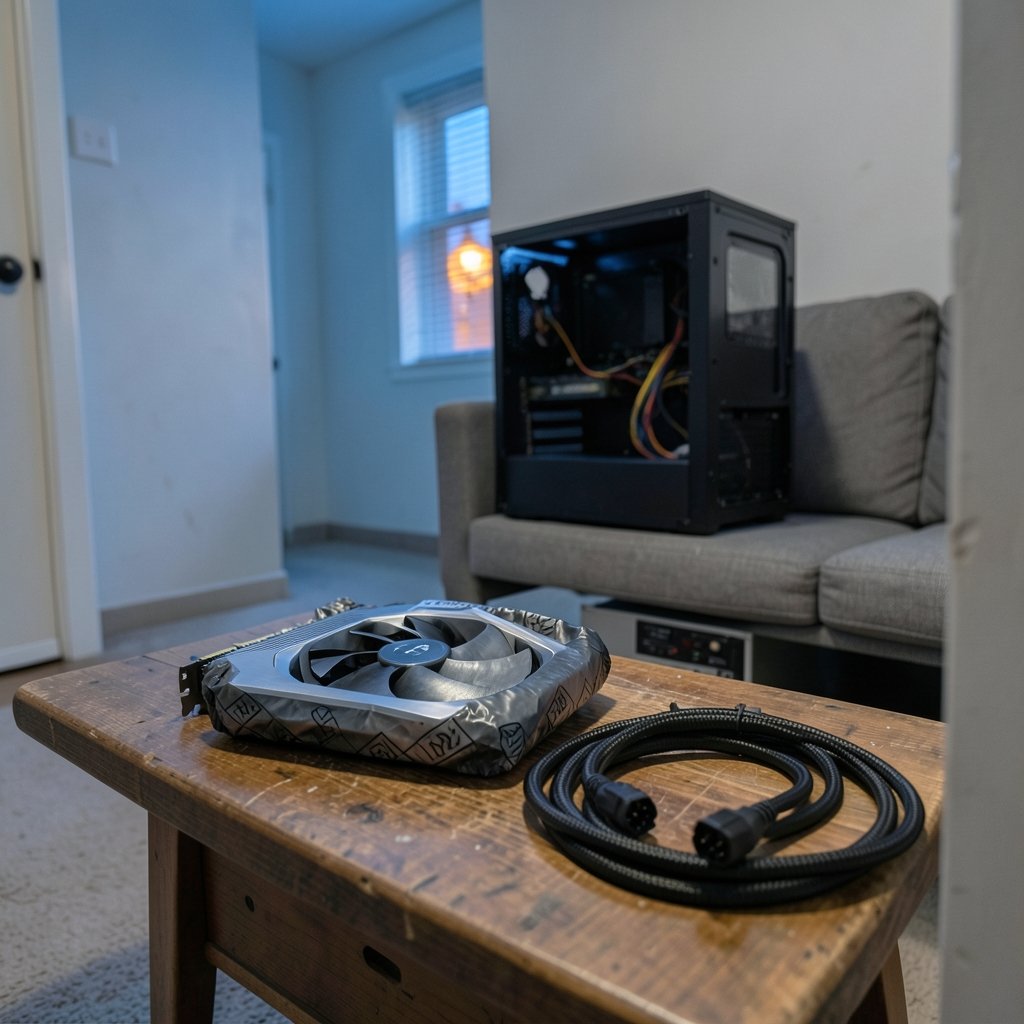
Here’s the honest framing: nobody can promise what drivers, software, or platform standards will look like in 2027. What you can do is build around standards that are already established and likely to remain relevant. PCIe 5.0 is backward compatible with PCIe 4.0 slots, so a 5070 Ti or 5080 will run in an older motherboard, just potentially with less bandwidth headroom. The 12V-2×6 connector is the current standard on most AIB models, replacing the older 12VHPWR design.
The practical approach is to verify five things: power supply capacity and connectors, physical clearance in your case, PCIe slot generation and lane allocation, motherboard BIOS support, and your operating system and driver situation. Get those right and the card will serve you well regardless of what 2027 brings.
If you’re also planning a broader platform refresh, it’s worth checking whether your PC supports Windows 11 before you upgrade, since OS support windows can affect driver updates down the line.
Check One: Power Supply Wattage and Connectors
This is the single most common failure point. People buy a card, get it home, and discover their PSU either lacks the right connector or can’t deliver enough sustained power.
Start with the connector. Most RTX 5070 Ti and 5080 cards use the 12V-2×6 connector, which is a revised version of the 12VHPWR standard. Many cards ship with an adapter that splits into two or three traditional 8-pin PCIe cables. Adapters work, but they add bulk and can strain cable management. A native 12V-2×6 cable from an ATX 3.x power supply is cleaner and safer.
Then look at wattage. NVIDIA’s own guidance for the 5080 points to a higher recommended PSU than the 5070 Ti, reflecting the 5080’s greater total graphics power. As a rule of thumb, budget headroom above the card’s rated draw for your CPU, drives, and fans. A PSU running at 90 percent load constantly will run hot and loud.
Practical tips that actually work:
- Check the PSU’s 12V rail rating, not just the total wattage printed on the box.
- Count your available PCIe cables before buying. If you need three 8-pin connections and only have two, you’ll need adapters or a new PSU.
- Avoid daisy-chaining a single cable into multiple connectors on high-power cards. Use separate cables where possible.
Common mistake: assuming a 750W PSU is automatically fine because the number sounds big. A low-quality 750W unit with weak 12V delivery can struggle where a good 650W unit succeeds. (PCI Express)
Check Two: Physical Clearance in Your Case
Card length and thickness are where surprises happen. High-end AIB models of both the 5070 Ti and 5080 can be substantially longer and thicker than the reference designs, sometimes occupying three slots.
Measure before you buy:
- Find your case’s maximum GPU length from its spec sheet.
- Find the specific card model’s length, height, and slot thickness from the manufacturer’s page.
- Measure the actual distance from the rear expansion slot bracket to the front of your case, accounting for any front-mounted radiators or drive cages.
- Check clearance below the card for airflow, especially if your PSU shroud sits close to the slot.
Also consider cable bend radius. The 12V-2×6 connector needs some room to bend without stress, and a card pressed against a side panel can put pressure on the connector. If your case is tight, a shorter two-fan model may be the smarter pick than a massive three-fan flagship.
Check Three: PCIe Slot and Lane Availability
Both cards use a PCIe 5.0 x16 interface. If your motherboard only has PCIe 4.0, the card still works, just at the older generation’s bandwidth. In practice, the performance difference for gaming is usually small, but it’s worth knowing.
More important is lane allocation. On some motherboards, installing a card in the primary slot or populating an M.2 drive can reduce the bandwidth available to other slots. Check your motherboard manual for a lane-sharing table. If you run multiple NVMe drives, you may find the GPU slot drops to x8. That’s rarely catastrophic, but it’s better to know in advance.
If you’re weighing a full platform upgrade alongside the GPU, the RTX 5070 vs RX 9070 XT 1440p comparison on VRAM, ray tracing, and upscaling is a useful read, since it covers the same compatibility questions from a different angle.
Check Four: Motherboard BIOS and Resizable BAR
Modern cards benefit from Resizable BAR, which lets the CPU access the full GPU memory buffer. It’s enabled through the motherboard BIOS and requires support from both the board and the card. On older boards, you may need a BIOS update to turn it on.
Before upgrading:
- Check your motherboard manufacturer’s support page for the latest BIOS version.
- Look for Resizable BAR or “Above 4G Decoding” settings in the BIOS.
- Confirm your CPU supports the feature, since very old platforms may not.
A BIOS update is low-risk if done carefully, but it’s not something to rush. Use the manufacturer’s official update tool and don’t power off mid-flash.
Check Five: Operating System and Drivers
Both cards need a modern driver package. If you’re running an older version of Windows, check that current drivers still support it. Driver support windows shift over time, so a system that works fine today may fall out of support before 2027. (Intel Support: PCI Express compatibility overview)
This is also a good moment to think about your monitor. A card this capable deserves a display that can use it. If you’re still on a 1080p 60Hz panel, the upgrade will feel underwhelming. A 1440p high-refresh or 4K display unlocks what the card can do. And if you’re considering a laptop or compact build instead, the RTX 5060 Ti 16GB vs RTX 5070 comparison is worth a look, since it covers which card still makes sense at different resolutions.
Common Mistakes People Make Before Upgrading
A few patterns show up again and again:
- Buying on benchmark numbers alone. A card that scores well in a review may not fit your case or PSU.
- Ignoring the PSU’s age. A five-year-old PSU may not deliver its rated wattage reliably anymore.
- Forgetting the CPU. A very old CPU can bottleneck a fast GPU, wasting money.
- Skipping the BIOS update. Then wondering why Resizable BAR won’t enable.
- Not checking the return policy. If clearance turns out to be wrong, you want options.
If you’re also refreshing your software stack around the same time, it’s worth reviewing Cursor alternatives and their real limits before switching, since tool changes often coincide with hardware upgrades.
Which Card Should You Actually Pick?
If your PSU is modest, your case is compact, and you game at 1440p, the RTX 5070 Ti is the more forgiving choice. It delivers strong performance without demanding the same power and space.
If you have a robust PSU, a roomy case, and you want maximum headroom for 4K or heavy ray tracing, the RTX 5080 justifies its higher requirements. Just verify every spec against the exact model you’re buying, because board partners vary widely.
For a longer view on what’s coming next, the question of whether the Nvidia RTX 60 series skips a 2027 launch in favor of 2026 is worth following, since timing affects whether buying now or waiting makes more sense.
Conclusion
The RTX 5070 Ti versus RTX 5080 decision isn’t really about which card is faster. It’s about which card your system can support without compromises. Check your PSU wattage and connectors, measure your case clearance, confirm your PCIe lane allocation, update your BIOS for Resizable BAR, and make sure your OS and drivers are current. Do those five things and either card will slot in cleanly and serve you well into 2027 and beyond. Skip them, and you’ll be the person making a second trip to the store.
FAQ
Does the RTX 5080 fit in a PCIe 4.0 motherboard?
Yes. PCIe is backward compatible, so a PCIe 5.0 card runs in a PCIe 4.0 slot. You’ll lose some bandwidth headroom, but gaming performance impact is usually small. Check your motherboard manual for lane-sharing rules if you use multiple M.2 drives.
How many watts do I need for an RTX 5080?
It depends on the specific model and the rest of your system. The 5080 draws more power than the 5070 Ti, so it needs a higher-rated PSU. Check the manufacturer’s recommended PSU for your exact card, and leave headroom above the rated draw for your CPU and drives.
Can I use an older 8-pin PSU cable with these cards?
Many cards include an adapter that converts two or three 8-pin PCIe cables into the 12V-2×6 connector. It works, but a native 12V-2×6 cable from an ATX 3.x PSU is cleaner and safer. Avoid daisy-chaining a single cable into multiple connectors on high-power cards.
Do I need a BIOS update before installing the card?
Not always, but it’s worth checking. A BIOS update may be needed to enable Resizable BAR, which improves performance. Visit your motherboard manufacturer’s support page, confirm the latest version, and update carefully using the official tool.
Is 16 GB of VRAM enough for 2027?
Both cards have 16 GB of GDDR7, which is a solid amount for 1440p and most 4K gaming today. Future titles with heavy textures may push it, but 16 GB remains a reasonable buffer. Memory capacity is identical between the two cards, so it’s not a deciding factor.
What should I check first before buying either card?
Start with your power supply. Confirm the connector type and wattage headroom, then measure case clearance for the specific card model. After that, verify PCIe lane allocation and BIOS support. Those four checks catch most compatibility problems before you spend any money.



