

What actually happens when you plug a phone into a laptop and expect the screen to appear? For some people it just works. For others, twenty minutes vanish into driver prompts, account logins, and a laggy window that refuses to accept keyboard input. The tool you pick decides which of those afternoons you get.
Scrcpy, Vysor, and Apowermirror all put an Android screen on a desktop, but they were built for different people. One is a command-line utility maintained by an open-source project. One is a commercial app with a polished interface. One is a full mirroring suite aimed at people who want buttons instead of flags. This comparison looks at the workflow differences that actually shape daily use: setup path, connection method, input handling, audio, automation, and licensing. (Android Developers: ADB command-line documentation)
The Short Version: Three Tools, Three Audiences
Before the details, here is the shape of each option.
| Tool | Model | Setup path | Best for |
|---|---|---|---|
| Scrcpy | Free, open source, command line | Install ADB, enable USB debugging, run a command | Developers, testers, anyone comfortable with a terminal |
| Vysor | Commercial app with a free tier and paid plans | Install desktop app, connect, optionally sign in | People who want a GUI and a quick first connection |
| Apowermirror | Commercial suite with a free tier | Install desktop and phone apps, pair over Wi-Fi or USB | Casual users who want wireless mirroring and extra features |
That table hides the interesting parts. The real differences show up once you start using each tool every day.
Setup: One Command Versus a Guided Install
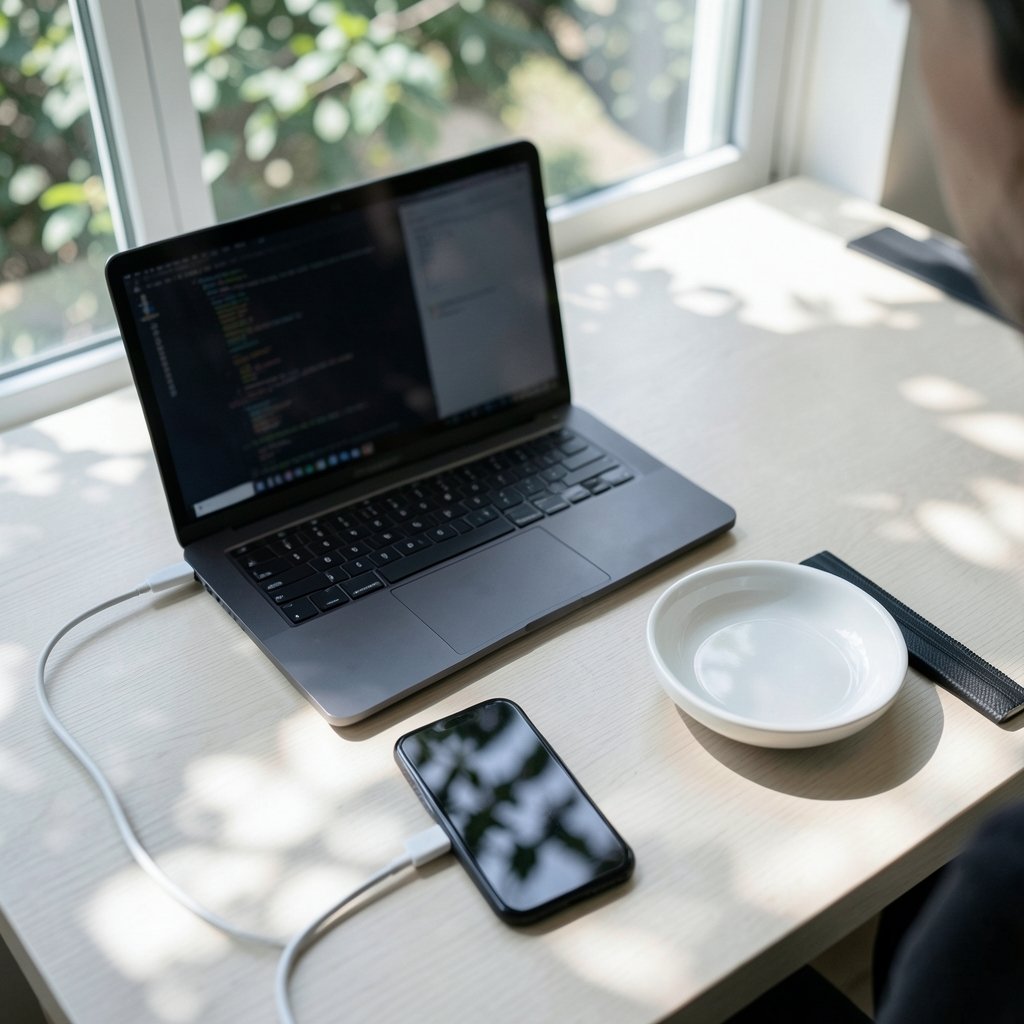
Scrcpy’s setup is the most demanding and the most predictable. It depends on ADB, the Android Debug Bridge, which is the official command-line tool for talking to Android devices from a computer. You enable USB debugging on the phone, authorize the computer, and run Scrcpy from a terminal. There is no account, no phone-side app, and no installer wizard. The official Android Debug Bridge documentation explains what that connection actually does, which helps when a device refuses to appear.
The trade-off is real. First-time users hit the same walls: debugging mode buried in developer options, a phone that shows an authorization prompt only once, or a Windows machine missing the right USB driver. Once those are solved, though, setup never has to be repeated. Plug in, run the command, done.
Vysor and Apowermirror both take the guided route. You install a desktop application, connect the phone, and follow prompts. Vysor has historically offered a browser-based option alongside its desktop app, which lowers the barrier further. Apowermirror asks for a companion app on the phone for its wireless modes, which adds a step but provides features Scrcpy does not offer out of the box.
A practical tip: whatever tool you choose, install the platform tools package once and keep it updated. Most “it won’t connect” problems trace back to an outdated ADB binary or a stale USB driver, not the mirroring tool itself.
Connection Methods and What They Cost You
Scrcpy runs over USB or over TCP/IP. The wireless path works, but it needs an initial USB or network handshake to pair, and latency depends heavily on your Wi-Fi. There is no cloud relay, no account server, and no subscription gate. Everything stays on your local network.
Vysor and Apowermirror both lean into convenience. Vysor’s commercial tiers have included remote and sharing features that route through vendor infrastructure. Apowermirror markets wireless mirroring as a headline feature, with both phone-to-PC and PC-to-phone directions.
That difference matters more than it sounds. A local-only tool means your screen data never leaves your network, which is the right default for anyone mirroring work devices or anything sensitive. A cloud-assisted tool means convenience in exchange for trusting a third party with a video stream of your phone.
Input, Keyboard, and the Small Annoyances
This is where daily users separate the tools fastest. Scrcpy forwards keyboard and mouse input by default, so typing in a messaging app on your phone from a physical keyboard works immediately. It also supports clipboard sync, file drag-and-drop, and a long list of command-line flags for resolution, bitrate, and frame rate.
Vysor handles input well in its paid tiers but has historically limited some capabilities behind the paywall. Free-tier users often notice resolution caps or feature restrictions first. Apowermirror’s input handling is aimed at general use rather than power use; it works, but it is not built around scripting or flag-level control.
Common mistake: people judge a mirroring tool by how the video looks in the first thirty seconds. The better test is typing a paragraph, copying text between devices, and dragging a file across. Those three tasks reveal more about a tool than any resolution setting.
If your work already involves tuning tools to fit a routine, the same logic applies here as it does when you compare Obsidian vs Logseq by local-first workflow or decide how to disable Copilot in Windows 11 without breaking your workflow. The tool should bend to the job, not the other way around.
Audio Forwarding: Still the Awkward Corner
Audio is the feature people assume works and then discover does not. Scrcpy added audio forwarding in recent versions, but it depends on the Android version and sometimes needs extra configuration. Older devices simply cannot send audio over the connection.
Vysor and Apowermirror approach audio differently, and support varies by platform and plan. The honest advice for 2027: test audio on your specific phone before committing to any tool. Do not assume a feature list translates into a working setup on your hardware.
Automation and Scripting: Where Scrcpy Pulls Ahead
Because Scrcpy is a command-line program, it slots into scripts. You can launch it with fixed parameters, chain it into a test harness, or run it on a machine that boots headless. For QA teams and developers, that is the whole point.
Vysor and Apowermirror are GUI-first. They are pleasant to click through and frustrating to automate. If your workflow involves running the same mirroring task fifty times a week, the difference in effort is enormous.
A practical pattern that works well: keep Scrcpy for repeatable tasks and a GUI tool for one-off sessions when someone less technical needs to mirror a phone. Mixing tools is not a failure of loyalty; it is just sensible.
Multi-Device and Window Management
Scrcpy can run multiple instances, one per device, which suits people testing across several phones. Each window is independent, and you can label them with a title flag so you know which is which.
Vysor’s paid tiers have supported multiple devices, and Apowermirror offers device management inside its app. The GUI tools make switching devices easier for casual use; Scrcpy makes parallel work easier for technical use.
Licensing, Cost, and Telemetry
Scrcpy is free and open source under a permissive license, maintained publicly. There is no paid tier, no upsell, and no telemetry to speak of. You can read the source, build it yourself, and check exactly what it does.
Vysor and Apowermirror are commercial products with free tiers that exist to lead into paid plans. That is a legitimate model, but it shapes the experience: feature limits, occasional prompts, and terms that can change between releases.
For anyone who mirrors a work phone, the licensing question is really a data question. A local, open-source tool gives you a clear answer about where the video stream goes. A commercial tool requires reading the privacy policy carefully.
Performance: Latency, Resolution, and Frame Rate
Scrcpy is known for low latency because it encodes video on the device and streams it directly. You can tune bitrate and resolution to trade quality for speed. On a decent USB connection, it feels close to native.
Vysor’s performance depends on the tier and connection type; free users often see reduced quality. Apowermirror performs well over USB and acceptably over Wi-Fi, with the usual wireless caveats.
The practical rule: USB beats Wi-Fi for anything interactive, every time. If you are typing or clicking, use a cable. Save wireless for viewing.
A Workflow Checklist Before You Commit
Rather than picking by brand, score each tool against your actual routine.
- Write down the three tasks you mirror a phone for most often.
- Test each tool on those tasks for ten minutes, not thirty seconds.
- Check whether keyboard input and clipboard sync work without extra steps.
- Confirm audio works on your specific phone model and Android version.
- Decide whether you need scripting; if yes, only a command-line tool qualifies.
- Read the privacy terms if the device handles work data.
If you also manage files across devices, the same use-case-first thinking applies when you pick Dropbox alternatives by use case or weigh Google Drive alternatives that fit your workflow. Tools are only as good as the routine they support.
Common Mistakes People Make
Three mistakes show up again and again. The first is choosing a tool by screenshot. A clean interface says nothing about input latency or clipboard behavior. The second is ignoring the Android version. Audio forwarding, wireless debugging, and permission prompts all vary by release, so a tutorial from two years ago may not match your phone. The third is paying for a tier before testing the free one on real tasks. Most people discover within a week whether a tool fits.
Conclusion
Scrcpy, Vysor, and Apowermirror are not really competitors in the same race. Scrcpy is a precision instrument for people who want control, scripting, and a local-only connection. Vysor is a friendly commercial bridge for people who want a GUI and are willing to pay for convenience. Apowermirror is a broader suite for casual users who value wireless mirroring and a guided experience.
The right choice in 2027 comes down to one question: do you want to configure your tool, or do you want it to configure itself around you? Answer that honestly, test on your own phone, and the decision becomes obvious within an afternoon.
Frequently Asked Questions
Is Scrcpy free to use?
Yes. Scrcpy is free and open source, maintained publicly. There is no paid tier, no account requirement, and no upsell. You install it, enable USB debugging on the phone, and run it from a terminal.
Do I need to install an app on my phone for Scrcpy?
No. Scrcpy does not require a companion app on the phone. It works through the Android Debug Bridge, which is built into Android once developer options and USB debugging are enabled.
Can Vysor and Apowermirror work without a cable?
Both support wireless connections, though the exact steps vary by version and platform. Apowermirror in particular markets wireless mirroring as a core feature. Expect higher latency than a USB connection, especially for typing and clicking.
Which tool is best for developers and testers?
Scrcpy is usually the better fit for technical work. Because it runs from the command line, it can be scripted, launched with fixed parameters, and run on headless machines. GUI-first tools are harder to automate.
Does screen mirroring work with audio?
Sometimes. Audio forwarding depends on the tool, the Android version, and the phone model. Scrcpy supports audio forwarding in recent versions but not on every device. Always test audio on your own hardware before relying on it.
Is mirroring a work phone safe?
It depends on where the video stream goes. Scrcpy keeps everything on your local network with no cloud relay. Commercial tools may route data through vendor infrastructure depending on the feature. Read the privacy terms before mirroring anything sensitive.



